

n8n
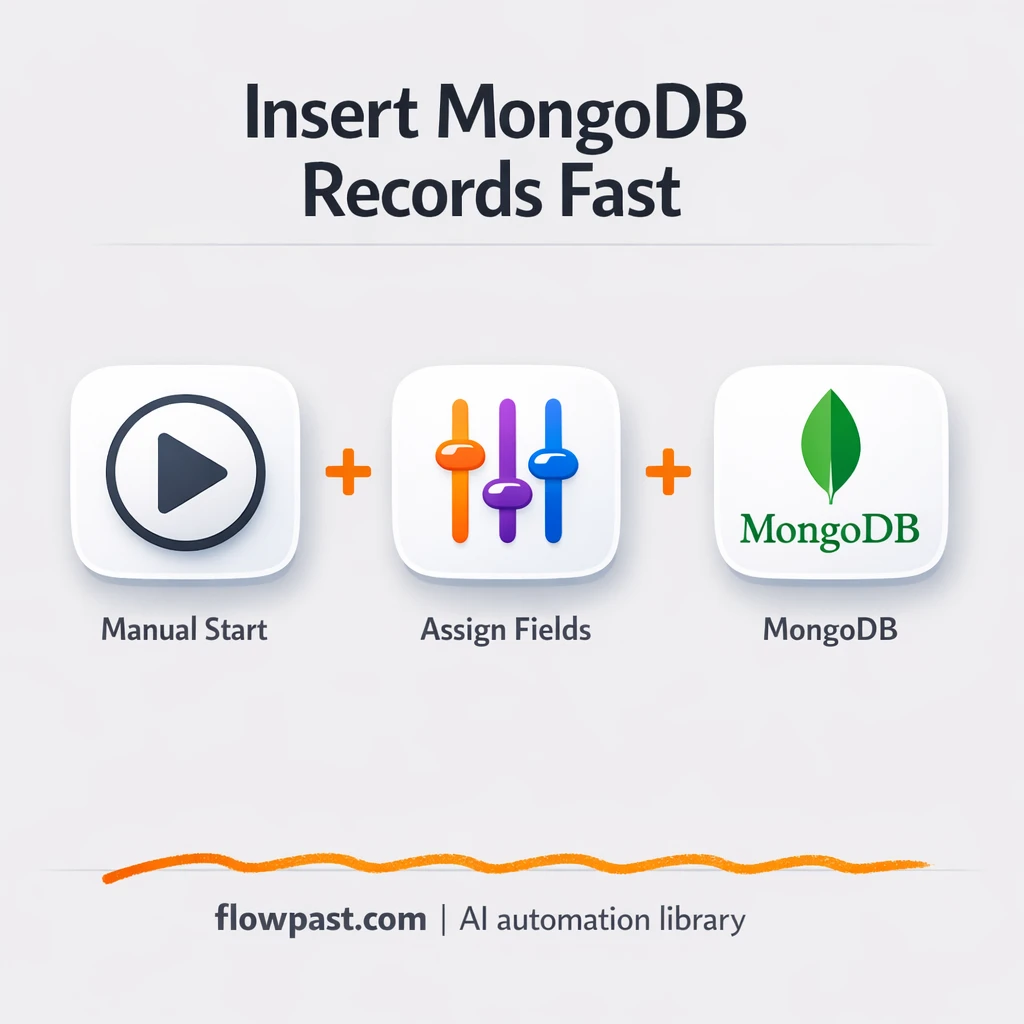
Google Sheets to MongoDB, clean records every time
Send rows from Google Sheets into MongoDB as clean, consistent records. Reduce typos and missing…
Stop chasing missing files and failed exports. Use ready-to-run backup automation workflows to save critical data, verify backups, and alert your team fast—without manual steps.
A workflow runs on a schedule or when something changes, like a new file in Google Drive. It exports or copies data, stores it in a safe location (often Amazon S3), then confirms the backup completed. Many teams also log results to a sheet or database for proof. If a step fails, you get an alert in Slack or Gmail with the context you need to act. You can also add retention rules to keep 30-day copies and delete older ones automatically.
Not usually. Most Flowpast workflows are plug-and-play: connect your accounts, pick folders or files, and set a schedule.
If you currently do weekly backups by hand, automation typically saves about 2 hours a week between exporting, uploading, double-checking, and sending updates. The bigger win is avoiding rework when someone forgets a step. Agencies also save time by standardizing the same backup routine across every client. And when a restore is needed, you’ll spend minutes finding the right version instead of digging through old folders.
You’ll need accounts for the tools you want to back up and a place to store copies, like Google Drive or Amazon S3. In n8n, you connect those accounts with credentials, then choose a trigger (daily schedule is common) and your backup path. Make sure you have enough storage and decide how long to keep backups, like 30 days. For peace of mind, add alerts to Slack or Gmail and run a test restore once, frankly, before you rely on it.
Join 15,000+ automation enthusiasts. Get expert tutorials, workflow templates, and pro tips delivered to your inbox every Tuesday.
No spam. Unsubscribe anytime.