


Defapi + Google Sheets for consistent product creatives

You finally get a good product creative… and then you can’t find it. Or you can find it, but you don’t remember which prompt created it, which image URL you used, or why version B looked better than version A.
Performance marketers feel this when they’re testing new angles every week. E-commerce owners run into it when they’re juggling SKUs and seasonal campaigns. And honestly, designers get dragged into the cleanup when “just one more variation” turns into a messy thread of links. This Defapi Sheets automation fixes the chaos by making every output trackable.
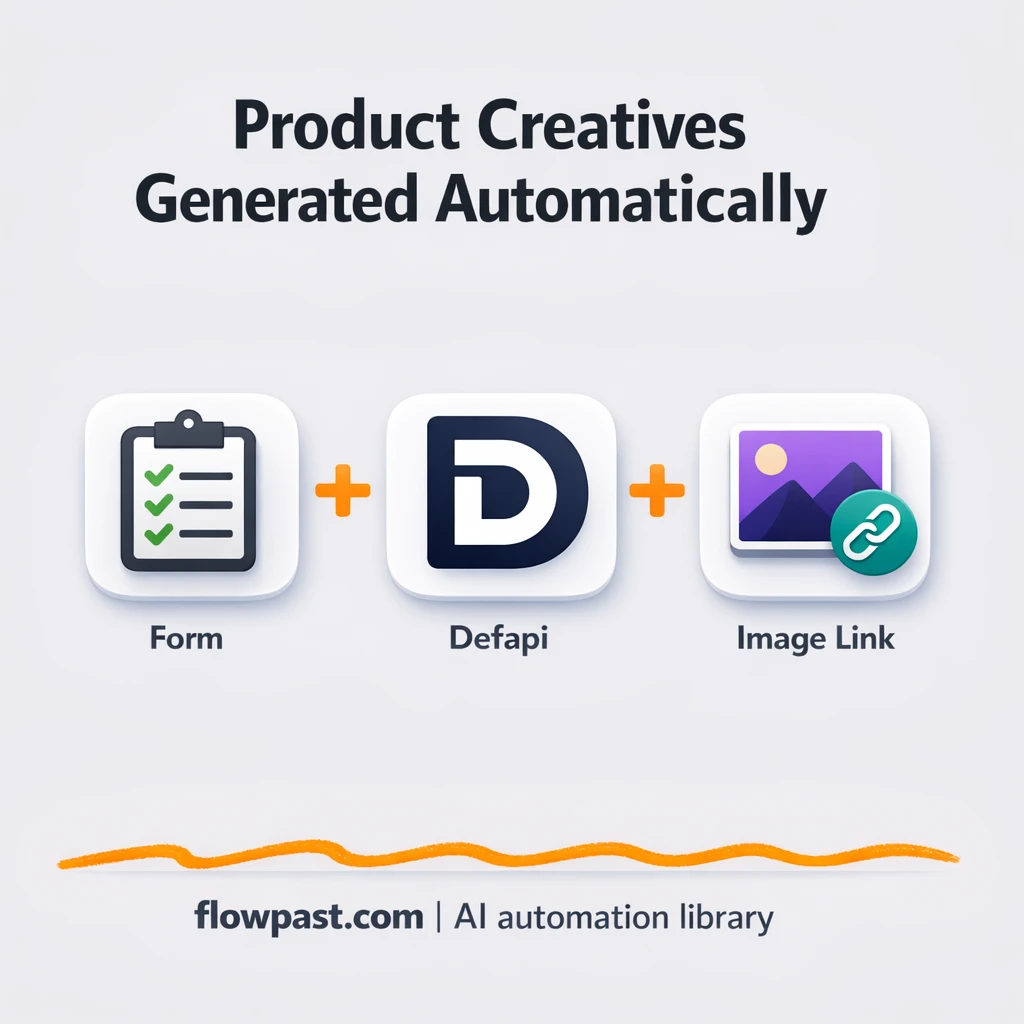
You’ll see how the workflow takes a prompt + product image URL, generates a finished creative link through Defapi, and keeps results organized in Google Sheets so you can iterate without losing anything.
How This Automation Works
The full n8n workflow, from trigger to final output:
n8n Workflow Template: Defapi + Google Sheets for consistent product creatives
flowchart LR

    subgraph sg0["Product Creative Form Flow"]
        direction LR
        n0["<div style='background:#f5f5f5;padding:10px;border-radius:8px;display:inline-block;border:1px solid #e0e0e0'><img src='https://flowpast.com/wp-content/uploads/n8n-workflow-icons/httprequest.dark.svg' width='40' height='40' /></div><br/>Fetch Task Status"]
        n1["<div style='background:#f5f5f5;padding:10px;border-radius:8px;display:inline-block;border:1px solid #e0e0e0'><img src='https://flowpast.com/wp-content/uploads/n8n-workflow-icons/form.svg' width='40' height='40' /></div><br/>Product Creative Form"]
        n2["<div style='background:#f5f5f5;padding:10px;border-radius:8px;display:inline-block;border:1px solid #e0e0e0'><img src='https://flowpast.com/wp-content/uploads/n8n-workflow-icons/httprequest.dark.svg' width='40' height='40' /></div><br/>Submit Creative Request"]
        n3@{ icon: "mdi:cog", form: "rounded", label: "Delay for Processing", pos: "b", h: 48 }
        n4@{ icon: "mdi:swap-horizontal", form: "rounded", label: "Verify Generation Result", pos: "b", h: 48 }
        n5@{ icon: "mdi:swap-vertical", form: "rounded", label: "Prepare Image Output", pos: "b", h: 48 }
        n6["<div style='background:#f5f5f5;padding:10px;border-radius:8px;display:inline-block;border:1px solid #e0e0e0'><img src='https://flowpast.com/wp-content/uploads/n8n-workflow-icons/httprequest.dark.svg' width='40' height='40' /></div><br/>Retrieve Account Credit"]
        n7@{ icon: "mdi:swap-vertical", form: "rounded", label: "Display Credit Info", pos: "b", h: 48 }
        n6 --> n7
        n0 --> n4
        n5 --> n6
        n1 --> n2
        n3 --> n0
        n4 --> n5
        n4 --> n3
        n2 --> n3
    end

    %% Styling
    classDef trigger fill:#e8f5e9,stroke:#388e3c,stroke-width:2px
    classDef ai fill:#e3f2fd,stroke:#1976d2,stroke-width:2px
    classDef aiModel fill:#e8eaf6,stroke:#3f51b5,stroke-width:2px
    classDef decision fill:#fff8e1,stroke:#f9a825,stroke-width:2px
    classDef database fill:#fce4ec,stroke:#c2185b,stroke-width:2px
    classDef api fill:#fff3e0,stroke:#e65100,stroke-width:2px
    classDef code fill:#f3e5f5,stroke:#7b1fa2,stroke-width:2px
    classDef disabled stroke-dasharray: 5 5,opacity: 0.5
    class n1 trigger
    class n4 decision
    class n0,n2,n6 api
    classDef customIcon fill:none,stroke:none
    class n0,n1,n2,n6 customIcon
The Problem: Product creative testing gets messy fast
Generating product creatives with AI is the easy part. The hard part is staying consistent while you test. You submit a prompt, grab a link, paste it in Slack, download an image, rename it “final_v7_REALfinal.png,” and then do it again tomorrow. After a week, you have outputs scattered across chats, bookmarks, and someone’s desktop. When you try to compare what worked, you’re guessing because the prompt, source image URL, and output link aren’t stored together in one place.
It adds up fast. Not because one step is terrible, but because you repeat it over and over.
- People end up re-running the same prompt because the original output link is lost or buried.
- There’s no clean record of which product image URL was used, so comparisons become unreliable.
- Manual status-checking turns into tab hoarding and interruptions throughout the day.
- When creatives are “somewhere,” reporting and handoffs turn into a slow back-and-forth.
The Solution: Generate Defapi creatives and log everything in Sheets
This workflow gives you a simple intake form where you submit three things: a prompt (the scene you want), a product image URL, and your Defapi API key. n8n sends the request to Defapi, then waits briefly so the generation can start. After that, it automatically polls Defapi for the task status until the output is ready. Once the generation completes, the workflow formats the final creative image URL into a clean result you can copy, download, or embed. It also retrieves account credit information so you know you’re not about to hit a wall mid-testing.
The workflow starts at the form submission. It moves through request submission, a short delay, and status checks that loop until a finished creative is available. Finally, it prepares a usable output and pairs it with credit info so you can keep production predictable.
What You Get: Automation vs. Results
| What This Workflow Automates | Results You’ll Get |
|---|---|
|
|
Example: What This Looks Like
Say you test 10 new product creatives each week for one hero SKU. Manually, you’ll usually spend about 10 minutes per creative submitting requests, checking status, copying links, and noting what you did, which is roughly 100 minutes weekly. With this workflow, you spend about 2 minutes submitting each request via the form, then you wait for generation without babysitting it. You still review the final images, but you’re not doing the busywork, so you get back about an hour most weeks.
What You’ll Need
- n8n instance (try n8n Cloud free)
- Self-hosting option if you prefer (Hostinger works well)
- Defapi for generating product creative outputs
- Google Sheets to log prompts and final links
- Defapi API key (get it from your Defapi account dashboard)
Skill level: Beginner. You will paste an API key, connect Google Sheets, and tweak a couple of form fields.
Don’t want to set this up yourself? Talk to an automation expert (free 15-minute consultation).
How It Works
Form submission triggers the run. You enter a prompt describing the scene, paste the product image URL, and provide your Defapi API key in the “Product Creative Form.”
The workflow submits a generation request. n8n sends the details to Defapi using an HTTP request so you’re not copying payloads, headers, or endpoints by hand.
Status checks happen automatically. A short wait gives the job time to start, then the workflow fetches the task status and uses a simple yes/no check to decide if it’s finished. If it’s not done yet, it waits and checks again.
You get a finished creative link plus credit info. When the task completes, n8n prepares the final image output and retrieves your Defapi account credit so you can keep testing without surprises.
You can easily modify the prompt fields to enforce brand rules or add product metadata based on your needs. See the full implementation guide below for customization options.
Step-by-Step Implementation Guide
Step 1: Configure the Form Trigger
This workflow starts when a user submits the product creative request form.
- Add a Product Creative Form node as the trigger.
- Set Form Title to
AI Product Creative Generator. - Set Form Description to
Please fill in the following information to generate your creative.. - Configure the form fields with labels and placeholders:
- prompt →
Generate a gorgeous scene for this product for advertising creative - img_url →
https://cdn.openai.com/API/docs/images/body-lotion.png - api_key →
[CONFIGURE_YOUR_API_KEY]
- prompt →
Step 2: Connect the Image Generation Request
Submit the prompt and image URL to the API to start image generation.
- Add Submit Creative Request and connect it after Product Creative Form.
- Set URL to
https://api.defapi.org/api/image/gen. - Set Method to POST and Specify Body to JSON.
- Set JSON Body to:
={ "prompt": "{{$json.prompt}}", "model": "google/nano-banana", "images": ["{{ $json.img_url }}"] } - Set headers:
- Content-Type →
application/json - Authorization →
=Bearer {{ $json.api_key }}
- Content-Type →
Step 3: Set Up Processing Delay and Status Checks
Wait for the task to process, then query the task status until success.
- Add Delay for Processing and connect it after Submit Creative Request.
- Set Amount to
10seconds. - Add Fetch Task Status after Delay for Processing.
- Set URL to
https://api.defapi.org/api/task/query. - Enable Send Query and set Query Parameters:
- task_id →
={{$json.data.task_id}}
- task_id →
- Set headers:
- Content-Type →
application/json - Authorization →
=Bearer {{ $('Product Creative Form').item.json.api_key }}
- Content-Type →
- Add Verify Generation Result after Fetch Task Status and set the condition to:
={{ $json.data.status == 'success' }}. - Connect the false output of Verify Generation Result back to Delay for Processing to retry until success.
Step 4: Configure Output and Credit Retrieval
When generation succeeds, capture the image URL and retrieve account credit.
- Connect the true output of Verify Generation Result to Prepare Image Output.
- In Prepare Image Output, add an assignment:
- image_url →
={{$json.data.result[0].image}}
- image_url →
- Add Retrieve Account Credit after Prepare Image Output.
- Set URL to
https://api.defapi.org/api/userand set the header:- Authorization →
=Bearer {{ $('Product Creative Form').item.json.api_key }}
- Authorization →
- Add Display Credit Info after Retrieve Account Credit and set:
- data.credit →
={{ $json.data.credit }}
- data.credit →
Step 5: Test and Activate Your Workflow
Run a full test to confirm image generation, looping status checks, and credit output.
- Click Execute Workflow and submit the Product Creative Form with a real prompt, image URL, and API key.
- Verify that Submit Creative Request returns a task ID and that Delay for Processing waits before Fetch Task Status runs.
- Confirm Verify Generation Result loops back to Delay for Processing until the status is successful.
- Check that Prepare Image Output outputs an image_url and Display Credit Info returns data.credit.
- When the test succeeds, toggle the workflow to Active for production use.
Common Gotchas
- Defapi credentials can expire or need specific permissions. If things break, check your Defapi dashboard API key and regenerate it first.
- If you’re using Wait nodes or external rendering, processing times vary. Bump up the wait duration if downstream nodes fail on empty responses.
- Google Sheets access can fail if the connected Google account loses permission to the sheet. Open the sheet and confirm the same account still has edit access.
Frequently Asked Questions
About 30 minutes if your Defapi key and Google account are ready.
No. You’ll connect accounts in n8n and paste your API key into the form fields.
Yes. n8n has a free self-hosted option and a free trial on n8n Cloud. Cloud plans start at $20/month for higher volume. You’ll also need to factor in Defapi API usage costs, which depend on how many images you generate.
Two options: n8n Cloud (managed, easiest setup) or self-hosting on a VPS. For self-hosting, Hostinger VPS is affordable and handles n8n well. Self-hosting gives you unlimited executions but requires basic server management.
Yes, but plan your inputs. You can extend the “Product Creative Form” to include SKU, campaign name, and creative angle, then pass those fields through “Prepare Image Output” so they’re saved alongside the final link. Many teams also adjust “Delay for Processing” so it matches their typical generation time. If you want to swap the model later, you usually only touch the HTTP request nodes that submit the job and fetch status.
Most of the time it’s a bad or expired API key. Generate a fresh key in your Defapi account, then update the value you submit in the form. If it still fails, check the HTTP Request nodes for missing headers or an incorrect task ID coming back from the submit call. Rate limits can also show up when you fire a lot of requests quickly, so slowing the loop (or adding a longer wait) often stabilizes it.
A lot, and the real limit is your n8n plan and Defapi credits. On n8n Cloud Starter, you’re working within a monthly execution allowance, so high-volume teams usually move to a higher tier. If you self-host, there’s no execution cap, but your server still needs enough CPU and memory to run comfortably. The workflow itself processes requests one run at a time, so throughput mostly comes down to how long Defapi takes to generate each image and how aggressive you set the wait-and-poll loop.
Often, yes. This workflow relies on polling and branching logic (check status, wait, check again), and n8n handles that without turning every tiny step into a separate paid task. You also get the option to self-host, which is a big deal once you’re running lots of creative tests. Zapier or Make can still be fine for very simple “send data from form to sheet” setups, but they’re not as comfortable for looping until an AI job completes. If you’re unsure, Talk to an automation expert and you’ll get a straight recommendation.
Once you stop losing outputs, you start improving them. Set this up, run your tests, and keep the creative momentum without the mess.
Need Help Setting This Up?
Our automation experts can build and customize this workflow for your specific needs. Free 15-minute consultation—no commitment required.
