


Gmail + Google Sheets: clean label tracking

Your Gmail labels start out tidy. Then reality hits. A few exceptions, a few “I’ll fix it later” moments, and suddenly you have messages sitting in the wrong label and nobody trusts what they’re looking at.
Marketing ops teams feel it when campaign replies land in the wrong bucket. Founders feel it when important threads get buried. And if you run a small support queue, you already know how fast this turns into a daily cleanup job. This Gmail label tracking automation moves emails between labels in bulk and leaves a clear trail in Google Sheets.
Below, you’ll see how the workflow runs in n8n, what it fixes, and what you need to adapt it to your own label system.
How This Automation Works
The full n8n workflow, from trigger to final output:
n8n Workflow Template: Gmail + Google Sheets: clean label tracking
flowchart LR

    subgraph sg0["Manual Launch Flow"]
        direction LR
        n0@{ icon: "mdi:play-circle", form: "rounded", label: "Manual Launch Trigger", pos: "b", h: 48 }
        n1@{ icon: "mdi:message-outline", form: "rounded", label: "Retrieve Gmail Messages", pos: "b", h: 48 }
        n2@{ icon: "mdi:message-outline", form: "rounded", label: "Remove Gmail Label", pos: "b", h: 48 }
        n3@{ icon: "mdi:message-outline", form: "rounded", label: "Append New Gmail Label", pos: "b", h: 48 }
        n1 --> n2
        n2 --> n3
        n0 --> n1
    end

    %% Styling
    classDef trigger fill:#e8f5e9,stroke:#388e3c,stroke-width:2px
    classDef ai fill:#e3f2fd,stroke:#1976d2,stroke-width:2px
    classDef aiModel fill:#e8eaf6,stroke:#3f51b5,stroke-width:2px
    classDef decision fill:#fff8e1,stroke:#f9a825,stroke-width:2px
    classDef database fill:#fce4ec,stroke:#c2185b,stroke-width:2px
    classDef api fill:#fff3e0,stroke:#e65100,stroke-width:2px
    classDef code fill:#f3e5f5,stroke:#7b1fa2,stroke-width:2px
    classDef disabled stroke-dasharray: 5 5,opacity: 0.5
    class n0 trigger
The Problem: Gmail Labels Drift (and Trust Disappears)
Label systems break quietly. Someone applies the “Prospects” label but forgets to remove “Newsletter.” A teammate moves a thread to “In Progress” but it still shows up in “New.” Then you build habits around a view that’s no longer accurate, which is honestly worse than having no labels at all. The result is constant second-guessing: searching twice, checking “All Mail,” and asking in chat if anyone “owns” a thread. Over a week, that turns into hours of context switching and a handful of missed follow-ups.
It adds up fast. Here’s where it usually breaks down.
- Manual relabeling is slow, especially when you’re cleaning up dozens of threads at once.
- People make “quick fixes” that don’t follow the same rules, so labels stop meaning the same thing across the team.
- Without a change log, you can’t audit what moved, when it moved, or why it moved.
- Filters help, but they don’t handle one-off cleanups or bulk corrections after a process change.
The Solution: Bulk Move Emails Between Labels (and Track It)
This n8n workflow gives you a repeatable “label cleanup” button. You manually trigger it when you’re ready, it retrieves a set of Gmail messages that match your criteria, then it removes a label you no longer want on those messages and applies the new label you do want. That’s the core. The practical win is consistency: the same action, applied the same way, every time. When you pair it with a simple logging step (Google Sheets), you also get shared visibility so you can answer, “What changed?” without digging through Gmail history.
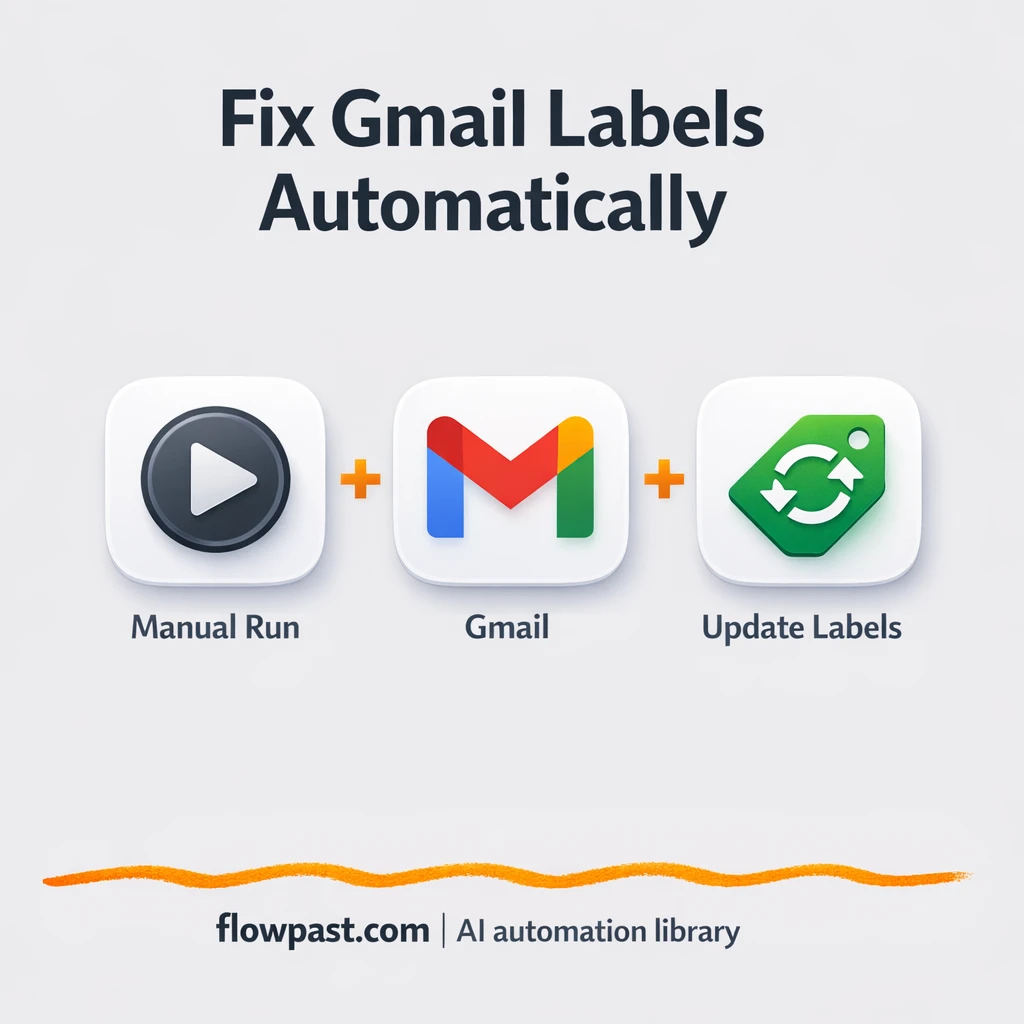
The workflow starts with a manual launch in n8n. Next, Gmail pulls the messages you intend to clean up (for example, everything in a label you’re deprecating). Then Gmail removes the old label and appends the new one, so each email ends up in exactly one place.
What You Get: Automation vs. Results
| What This Workflow Automates | Results You’ll Get |
|---|---|
|
|
Example: What This Looks Like
Say you’re cleaning up 80 emails that were tagged “Leads” but should now be “Leads/Qualified.” Manually, even at about 20 seconds per thread to open, relabel, and move on, you’re looking at roughly 25 minutes, and that’s if you don’t get interrupted. With this workflow, you trigger the run (about a minute), let n8n retrieve the matching messages, and it updates labels automatically while you keep working. You get the time back and the cleanup happens the same way every run.
What You’ll Need
- n8n instance (try n8n Cloud free)
- Self-hosting option if you prefer (Hostinger works well)
- Gmail for reading messages and changing labels
- Google Sheets to log what changed for the team
- Google OAuth credentials (create in Google Cloud Console)
Skill level: Beginner. You’ll connect Gmail, choose the label names, and confirm the message search you want to act on.
Don’t want to set this up yourself? Talk to an automation expert (free 15-minute consultation).
How It Works
You trigger a cleanup run. The workflow uses a manual launch, so you decide when it’s safe to relabel in bulk (for example, after a campaign ends or after you rename a label).
Gmail pulls the messages you’re targeting. n8n retrieves Gmail messages based on your chosen search or label condition, so you’re not guessing which threads will be touched.
Labels get corrected in the right order. First the workflow removes the old label, then it appends the new one. That sequence prevents emails from temporarily living in two places and confusing anyone watching the label view.
Results go to your tracking sheet. Add a Google Sheets append step so every run logs what moved, when it ran, and which labels were involved, which keeps your process transparent.
You can easily modify the Gmail search and the “old label/new label” pair to match how your team works. See the full implementation guide below for customization options.
Step-by-Step Implementation Guide
Step 1: Configure the Manual Trigger
This workflow starts with a manual trigger so you can test label routing on demand.
- Add the Manual Launch Trigger node to your workflow (or keep it if already present).
- Connect Manual Launch Trigger to Retrieve Gmail Messages.
Step 2: Connect Gmail
These nodes read messages and manipulate labels in Gmail.
- Open Retrieve Gmail Messages and set Resource to
messageand Operation togetAll. - In Retrieve Gmail Messages > Additional Fields, set Format to
fulland Label IDs to[YOUR_ID]. - Credential Required: Connect your gmailOAuth2 credentials in Retrieve Gmail Messages.
- Credential Required: Connect your gmailOAuth2 credentials in Remove Gmail Label.
- Credential Required: Connect your gmailOAuth2 credentials in Append New Gmail Label.
[YOUR_ID] with a real Gmail label ID; using a placeholder will return no messages or fail label updates.Step 3: Configure the Label Routing Actions
This sequence removes an existing label and then adds a new one to the same message.
- Open Remove Gmail Label and set Resource to
messageLabeland Operation toremove. - Set Message ID to
={{$node["Retrieve Gmail Messages"].json["id"]}}. - Set Label IDs to
[YOUR_ID]for the label you want to remove. - Open Append New Gmail Label and set Resource to
messageLabel. - Set Message ID to
={{$node["Retrieve Gmail Messages"].json["id"]}}. - Set Label IDs to
[YOUR_ID]for the label you want to add. - Ensure the execution flow is Retrieve Gmail Messages → Remove Gmail Label → Append New Gmail Label.
Step 4: Test and Activate Your Workflow
Validate the label routing, then enable the workflow for ongoing use.
- Click Execute Workflow to run Manual Launch Trigger and process a batch of messages.
- Confirm that messages with the source label lose it in Remove Gmail Label and gain the new label in Append New Gmail Label.
- Review the output of each node to confirm
idvalues are flowing correctly. - When satisfied, toggle the workflow to Active to use it in production.
Common Gotchas
- Gmail credentials can expire or lose access after a password change. If things break, check the Gmail connection status in n8n’s Credentials first.
- If you’re using Wait nodes or external rendering, processing times vary. Bump up the wait duration if downstream nodes fail on empty responses.
- Label names must match exactly, including capitalization. If “Append New Gmail Label” silently does nothing, confirm the label exists in Gmail and the workflow is using the same name.
Frequently Asked Questions
About 20 minutes once your Gmail connection is ready.
No. You’ll connect Gmail in n8n and enter the label names you want to remove and apply.
Yes. n8n has a free self-hosted option and a free trial on n8n Cloud. Cloud plans start at $20/month for higher volume. You may also have Google Workspace costs if you’re using a paid Gmail account for teams.
Two options: n8n Cloud (managed, easiest setup) or self-hosting on a VPS. For self-hosting, Hostinger VPS is affordable and handles n8n well. Self-hosting gives you unlimited executions but requires basic server management.
Yes, but you’ll want to duplicate the “Remove Gmail Label” and “Append New Gmail Label” actions for each pair, or drive the label names from a Google Sheet. Common customizations include mapping “Old label → New label” from a table, running separate cleanups for different teams, and adding a notification to Mattermost or Telegram after each run.
Usually it’s expired OAuth access or the wrong Google account connected. Reconnect Gmail in n8n, then re-run a small test batch to confirm messages can be retrieved and labels can be modified. If it fails only on larger runs, you may be hitting Gmail API limits, so reduce the batch size or space out executions.
Practically, hundreds per run is fine for most mailboxes, but very large cleanups are better split into smaller batches to avoid Gmail rate limits.
It depends on what you’re doing. For bulk label corrections, n8n is often easier to control because you can pull a set of messages, apply conditional logic, then perform multiple Gmail actions in sequence without turning it into a fragile chain of separate zaps or scenarios. You also have the option to self-host, which matters if you run cleanups frequently. Zapier and Make are great for quick, simple triggers, but bulk operations can get expensive and harder to audit. If you’re torn, Talk to an automation expert and we’ll map the cheapest, least-annoying route.
Once your labels are clean, the whole inbox feels lighter. Set this up once, run it when things drift, and stop treating “label maintenance” like a weekly chore.
Need Help Setting This Up?
Our automation experts can build and customize this workflow for your specific needs. Free 15-minute consultation—no commitment required.
