


Google Drive to Google Sheets, batch uploads ready
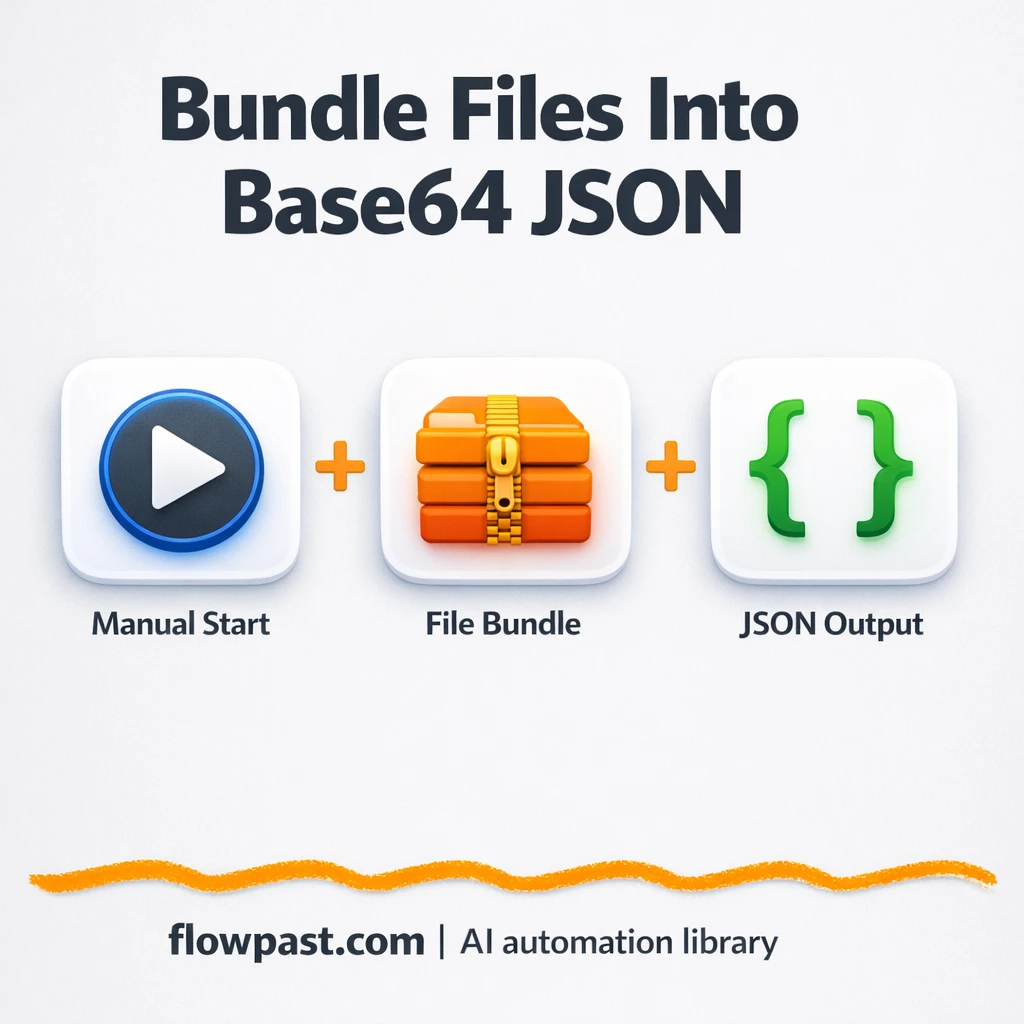

Batch uploads fall apart in the most annoying way: the API wants “a JSON array of files,” but you have a ZIP full of binaries sitting in Google Drive. So you end up unzipping, renaming, re-uploading, and trying to keep file paths intact by hand.
This Drive Sheets automation hits marketing ops teams when they’re shipping creative bundles, and it’s just as painful for agency owners delivering client assets. Even ecommerce teams doing product image packs feel it. The outcome is simple: you turn a Drive ZIP into a clean Base64 “files” array and log the result in Google Sheets so you can actually trust your uploads.
Below you’ll see exactly what the workflow does, what it saves you in real time, and how to adapt it for your own batch upload endpoint.
How This Automation Works
The full n8n workflow, from trigger to final output:
n8n Workflow Template: Google Drive to Google Sheets, batch uploads ready
flowchart LR

    subgraph sg0["Start Flow"]
        direction LR
        n0@{ icon: "mdi:play-circle", form: "rounded", label: "Start", pos: "b", h: 48 }
        n1@{ icon: "mdi:cog", form: "rounded", label: "Unzip Demo Website", pos: "b", h: 48 }
        n2["<div style='background:#f5f5f5;padding:10px;border-radius:8px;display:inline-block;border:1px solid #e0e0e0'><img src='https://flowpast.com/wp-content/uploads/n8n-workflow-icons/httprequest.dark.svg' width='40' height='40' /></div><br/>Download Demo Website"]
        n3@{ icon: "mdi:swap-vertical", form: "rounded", label: "Split Out Files", pos: "b", h: 48 }
        n4@{ icon: "mdi:cog", form: "rounded", label: "Encode Files to Base64", pos: "b", h: 48 }
        n5@{ icon: "mdi:swap-vertical", form: "rounded", label: "Add Path to Files", pos: "b", h: 48 }
        n6@{ icon: "mdi:cog", form: "rounded", label: "Aggregate Output", pos: "b", h: 48 }
        n0 --> n2
        n3 --> n4
        n5 --> n6
        n1 --> n3
        n2 --> n1
        n4 --> n5
    end

    %% Styling
    classDef trigger fill:#e8f5e9,stroke:#388e3c,stroke-width:2px
    classDef ai fill:#e3f2fd,stroke:#1976d2,stroke-width:2px
    classDef aiModel fill:#e8eaf6,stroke:#3f51b5,stroke-width:2px
    classDef decision fill:#fff8e1,stroke:#f9a825,stroke-width:2px
    classDef database fill:#fce4ec,stroke:#c2185b,stroke-width:2px
    classDef api fill:#fff3e0,stroke:#e65100,stroke-width:2px
    classDef code fill:#f3e5f5,stroke:#7b1fa2,stroke-width:2px
    classDef disabled stroke-dasharray: 5 5,opacity: 0.5
    class n0 trigger
    class n2 api
    classDef customIcon fill:none,stroke:none
    class n2 customIcon
The Problem: Batch uploads hate ZIPs (and humans)
A lot of tools say they support “bulk upload,” but what they really mean is “send us a very specific JSON payload.” If you’re starting from a ZIP bundle in Google Drive, you’re dealing with multiple files inside one item, inconsistent folder paths, and binary data that an external API won’t accept as-is. The usual workaround is messy: unzip locally, repackage files one-by-one, Base64 encode them with a script, then try again after the first failure. Meanwhile your spreadsheet tracker is out of date, and nobody knows which bundle actually made it through.
The friction compounds fast. Here’s where it breaks down.
- You waste about 30–60 minutes per bundle just converting files into the format the API expects.
- Folder paths get lost during manual unzipping, which leads to “file not found” errors on the other side.
- One missed filename or wrong encoding means the whole payload fails, so you restart from scratch.
- You can’t reliably report status back to a team because nothing is logged in one place.
The Solution: Convert Drive ZIP bundles into an upload-ready Base64 array
This n8n workflow takes a zipped asset bundle, unpacks it, converts every binary file into Base64, reconstructs each file’s full path/name, and then merges everything into a single JSON item with a top-level files array. That array is the exact shape many batch upload APIs want: each entry has the filename (or path) plus the Base64 content. No custom JavaScript needed, which is honestly the best part for non-technical teams because it stays editable and transparent. Once the final JSON is built, you can send it to your API and log what happened in Google Sheets for visibility and follow-up.
The workflow starts when you trigger it (manually in the template, or via webhook in production). It pulls the archive via HTTP Request, extracts it using a Compression node, then splits the extracted binaries into individual items. From there, each file is Base64-encoded and tagged with its correct path before everything is combined into one clean payload.
What You Get: Automation vs. Results
| What This Workflow Automates | Results You’ll Get |
|---|---|
|
|
Example: What This Looks Like
Say you ship one creative bundle a week with 40 files inside (images, videos, a CSV, a few JSON configs). Manually, you might spend about 2 minutes per file to extract, rename, encode, and place it into the right payload shape, plus another 20 minutes fixing the inevitable mistakes. That’s roughly 1.5–2 hours weekly. With this workflow, you trigger it once, wait a few minutes for extraction and encoding, and you get a single upload-ready files array plus a record you can log to Google Sheets.
What You’ll Need
- n8n instance (try n8n Cloud free)
- Self-hosting option if you prefer (Hostinger works well)
- Google Drive to store and retrieve ZIP bundles.
- Google Sheets to log bundle status and outputs.
- API access to your target system (grab the API key from that tool’s developer settings).
Skill level: Beginner. You’ll connect accounts, then adjust a couple of fields (like filenames and where results get logged).
Don’t want to set this up yourself? Talk to an automation expert (free 15-minute consultation).
How It Works
A bundle arrives. In the template, you start the run manually. In a real setup, you typically swap the trigger to a Webhook so your team can drop in a Drive file link (or a bundle ID) and let n8n take it from there.
The ZIP gets retrieved and unpacked. An HTTP Request node downloads the archive, then the Compression node extracts everything inside. This is the moment that usually forces people into custom code, because the output includes multiple binary files under one item.
Each file is isolated and encoded. “Separate File Items” splits the extracted bundle so each file becomes its own item. “Convert Files to Base64” targets the correct binary key (using a dynamic expression) and produces Base64 content that can live safely inside JSON.
Paths are rebuilt, then everything is merged. The “Append File Paths” step reconstructs a reliable path/filename so downstream APIs know what each file is. Finally, the workflow aggregates every file into one top-level files array that’s ready for an upload request and easy to log into Google Sheets.
You can easily modify the input source (Drive, HTTP, form upload) to match how your team works. See the full implementation guide below for customization options.
Step-by-Step Implementation Guide
Step 1: Configure the Manual Trigger
This workflow begins with a manual trigger so you can run the binary-to-Base64 conversion on demand.
- Add the Manual Execution Start node as the trigger.
- Leave all fields at their defaults since it has no configuration requirements.
- Connect Manual Execution Start to Retrieve Demo Archive.
Step 2: Connect the Archive Source
Download a ZIP archive from GitHub to serve as the binary input for extraction.
- Add the Retrieve Demo Archive node.
- Set URL to
https://github.com/n8n-io/n8n-demo-website/archive/refs/heads/main.zip. - In Options → Response, ensure the response format is set to a file (binary).
- Connect Retrieve Demo Archive to Extract Demo Bundle.
Step 3: Set Up Extraction and File Splitting
Unzip the archive and split the binary bundle into individual file items.
- Add Extract Demo Bundle to unpack the ZIP file.
- Connect Extract Demo Bundle to Separate File Items.
- In Separate File Items, set Field to Split Out to
$binary. - Connect Separate File Items to Convert Files to Base64.
Step 4: Convert Binary Files and Build Output Records
Convert each binary file to Base64 and append a readable file path before aggregation.
- In Convert Files to Base64, set Operation to
binaryToPropery. - Set Binary Property Name to
={{ $binary.keys()[0] }}. - In Append File Paths, add a string field named path with value
={{ $binary[$binary.keys()[0]].directory ? $binary[$binary.keys()[0]].directory + '/' : ''}}{{ $binary[$binary.keys()[0]].fileName }}. - Add a string field named data with value
={{ $json.data }}. - Connect Convert Files to Base64 to Append File Paths.
- Connect Append File Paths to Combine Results.
path field combines directory and filename so you can identify each Base64 payload later.Step 5: Configure the Aggregated Output
Aggregate all file entries into a single array for downstream consumption.
- Open Combine Results and set Aggregate to
aggregateAllItemData. - Set Destination Field Name to
files. - Confirm the final output is a single item containing a
filesarray with eachpathanddatapair.
Step 6: Test and Activate Your Workflow
Run the workflow manually to validate file retrieval, extraction, and Base64 conversion, then activate it when ready.
- Click Execute Workflow in n8n to trigger Manual Execution Start.
- Verify that Combine Results outputs a single item with a
filesarray containing Base64 data and file paths. - If the output is correct, toggle the workflow to Active for production use.
Common Gotchas
- Google Drive credentials can expire or need specific permissions. If things break, check the Google connection status in n8n credentials first.
- If you’re using Wait nodes or external rendering, processing times vary. Bump up the wait duration if downstream nodes fail on empty responses.
- Default prompts in AI nodes are generic. Add your brand voice early or you’ll be editing outputs forever.
Frequently Asked Questions
About 30 minutes if your Google accounts are already connected.
No. You will mostly map fields and connect credentials. The Base64 conversion is handled with no-code nodes in the workflow.
Yes. n8n has a free self-hosted option and a free trial on n8n Cloud. Cloud plans start at $20/month for higher volume. You’ll also need to factor in any external API costs for the system you upload to.
Two options: n8n Cloud (managed, easiest setup) or self-hosting on a VPS. For self-hosting, Hostinger VPS is affordable and handles n8n well. Self-hosting gives you unlimited executions but requires basic server management.
Yes, but you’ll want to be intentional about it. Add an HTTP Request node after “Combine Results” and map the final files array into the JSON body your API expects. Common customizations include adding metadata (project ID, user ID), filtering out hidden files, and enforcing a filename convention before the aggregate step.
Usually it’s an expired OAuth session or the Drive account doesn’t have access to the folder where the ZIP lives. Reconnect the Google Drive credential in n8n and retry. If you’re pulling the ZIP via a shared link, make sure it isn’t restricted to specific users.
In practice, dozens to a few hundred files per bundle is fine, and the real limit is your n8n plan and server memory.
For multi-file ZIP extraction and Base64 packaging, n8n is usually the cleaner fit because you can split, transform, and aggregate without fighting platform limits. Zapier and Make can work, but you often hit awkward constraints around binary handling and branching once the bundle gets large. Another big difference is control: self-hosting n8n lets you run higher volume without per-task pricing stress. If you only need a simple “file added to Drive → row in Sheets,” those tools may be faster. Talk to an automation expert if you want a recommendation based on your exact upload API.
Once this is running, “ZIP bundle to upload payload” stops being a recurring fire drill. You get cleaner uploads, a paper trail in Sheets, and time back for work that actually moves the needle.
Need Help Setting This Up?
Our automation experts can build and customize this workflow for your specific needs. Free 15-minute consultation—no commitment required.
