


Google Sheets and Excel dates, formatted the same

Your spreadsheet says “Feb 3” in one row, “03/02/2026” in the next, and “2026-02-03T09:14:22Z” in another. Sorting breaks. Filters lie. And suddenly you’re double-checking every report because you can’t trust the dates.
This is the kind of mess that drags down marketing ops first, but agency owners building client dashboards and analysts living in Google Sheets feel it too. With date formatting automation, you get one consistent date format before anything touches a sheet, which means cleaner reporting and fewer “why is this out of order?” conversations.
This n8n workflow is small on purpose. You’ll see exactly how it standardizes timestamps, what you can swap in, and how to use it as the “cleanup layer” in bigger automations.
How This Automation Works
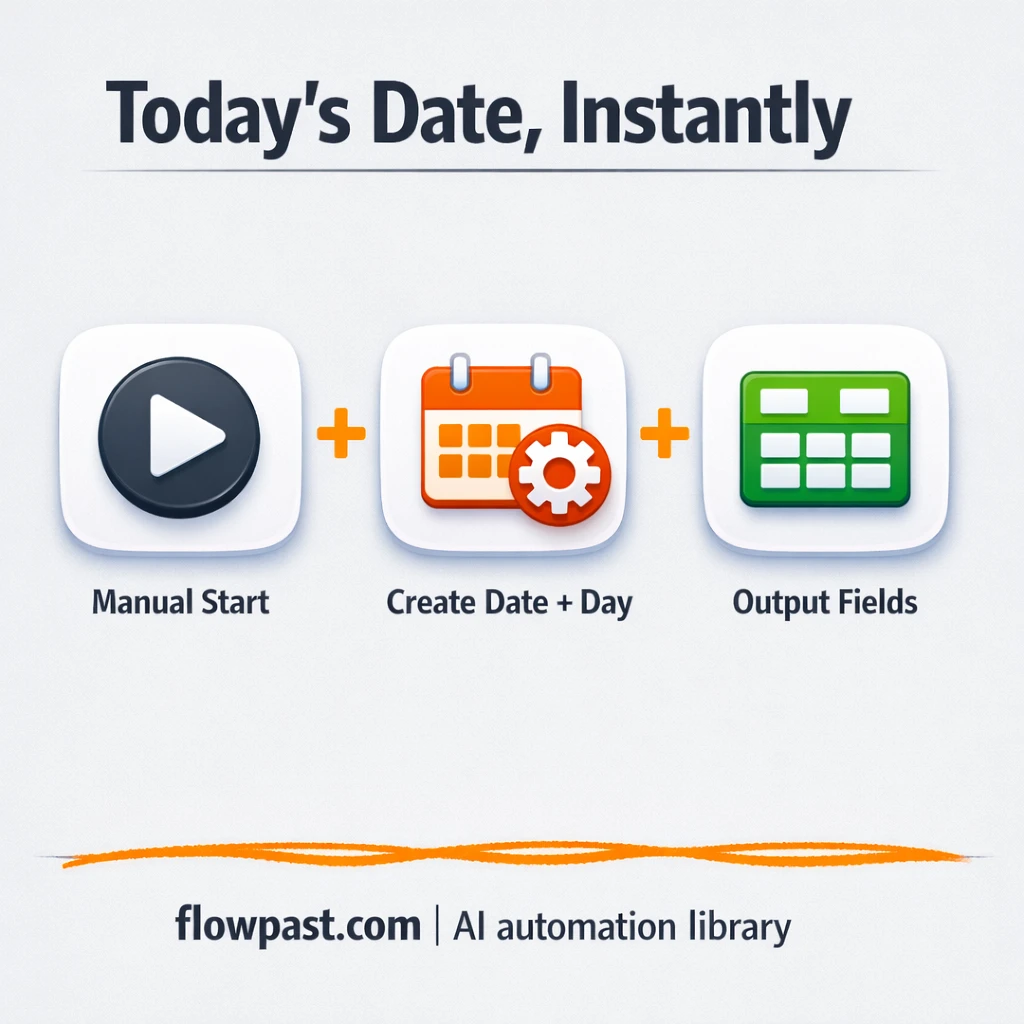
The full n8n workflow, from trigger to final output:
n8n Workflow Template: Google Sheets and Excel dates, formatted the same
flowchart LR

    subgraph sg0["Manual Execution Start Flow"]
        direction LR
        n0@{ icon: "mdi:play-circle", form: "rounded", label: "Manual Execution Start", pos: "b", h: 48 }
        n1@{ icon: "mdi:code-braces", form: "rounded", label: "Transform Date Script", pos: "b", h: 48 }
        n0 --> n1
    end

    %% Styling
    classDef trigger fill:#e8f5e9,stroke:#388e3c,stroke-width:2px
    classDef ai fill:#e3f2fd,stroke:#1976d2,stroke-width:2px
    classDef aiModel fill:#e8eaf6,stroke:#3f51b5,stroke-width:2px
    classDef decision fill:#fff8e1,stroke:#f9a825,stroke-width:2px
    classDef database fill:#fce4ec,stroke:#c2185b,stroke-width:2px
    classDef api fill:#fff3e0,stroke:#e65100,stroke-width:2px
    classDef code fill:#f3e5f5,stroke:#7b1fa2,stroke-width:2px
    classDef disabled stroke-dasharray: 5 5,opacity: 0.5
    class n0 trigger
    class n1 code
The Problem: Dates That Don’t Sort (And Quietly Break Reporting)
Date chaos usually sneaks in through “helpful” tools. A form submits a timestamp in ISO format, a CRM exports in US month/day order, a teammate pastes values from Excel, and an API returns UTC time. Google Sheets and Excel try to guess what you meant, but they guess differently. So a date becomes text, or the day and month flip, or two time zones collide. The worst part is you don’t notice until a chart looks off or a deadline reminder fires on the wrong day.
The friction compounds. Here’s where it breaks down.
- You end up “fixing” dates by hand every week, and it’s never the same fix twice.
- Sorting by “date” can push brand-new rows into the middle because some values are stored as text.
- Two people can open the same file and see different results if locale settings don’t match.
- Downstream automations (alerts, SLAs, lead routing) start triggering at the wrong time.
The Solution: A Simple Date Normalizer in n8n
This workflow uses n8n as a “date formatting checkpoint.” You start it manually while you’re testing, feed it a messy timestamp (whatever format you’re currently dealing with), and the workflow runs a small transform script that outputs one standardized date string. From there, you can copy the script into any other workflow that pushes rows into Google Sheets or exports data for Excel. It’s not flashy, honestly, but it removes the root cause: inconsistent date parsing before your spreadsheet ever tries to interpret it.
The workflow starts with a manual trigger. The function script then converts the incoming value into a consistent format you choose (for example, ISO date, local date, or date-time). Once you like the output, you reuse the same “Transform Date” step anywhere you import, sync, or report data.
What You Get: Automation vs. Results
| What This Workflow Automates | Results You’ll Get |
|---|---|
|
|
Example: What This Looks Like
Say you import 200 rows weekly from three places: a CRM export, a form tool, and an ad report. It’s common to spend maybe 20 minutes per source fixing date columns, plus another 20 minutes when something still sorts wrong in the dashboard. That’s about 1–2 hours each week, gone. With this workflow in the middle, you trigger the transform once during setup, then reuse it in your imports so the “fix the dates” step disappears.
What You’ll Need
- n8n instance (try n8n Cloud free)
- Self-hosting option if you prefer (Hostinger works well)
- Google Sheets for storing clean, sortable date values
- Microsoft Excel to keep exports consistent for clients
- A sample “messy” timestamp (grab one from your CSV/API export)
Skill level: Beginner. You’ll paste a small script and test outputs with real examples.
Don’t want to set this up yourself? Talk to an automation expert (free 15-minute consultation).
How It Works
Manual run to test your inputs. You start the workflow in n8n and pass in a sample date value that’s currently causing problems, like an ISO timestamp or a locale-specific date string.
Date parsing and cleanup. The function script interprets the incoming timestamp, then converts it into the one format you want to enforce. This is where you decide things like “date only” vs “date and time,” plus how you want to handle time zones.
Standardized output you can reuse. The workflow outputs the normalized date value so you can plug it into whatever comes next, usually “create a row in Google Sheets” or “generate an Excel-ready export.”
Drop-in checkpoint for bigger automations. Once you trust the result, you insert the same transform step into other workflows so every integration uses the same rulebook.
You can easily modify the output format to match your reporting needs (ISO, US, EU, date-time). See the full implementation guide below for customization options.
Step-by-Step Implementation Guide
Step 1: Configure the Manual Trigger
Set up the manual trigger so you can run the workflow on demand while testing and validating the date output.
- Add the Manual Execution Start node as your trigger.
- Leave all parameters at their defaults (no configuration is required).
- Connect Manual Execution Start to Transform Date Script.
Step 2: Set Up Date and Weekday Transformation
Use a function node to generate today’s ISO date string and weekday name.
- Add the Transform Date Script node (Function).
- Set the Function Code to
var date = new Date().toISOString(); var day = new Date().getDay(); const weekday = ["Sunday", "Monday", "Tuesday", "Wednesday", "Thursday", "Friday", "Saturday"]; items[0].json.date_today = date; items[0].json.day_today = weekday[day]; return items; - Confirm the output fields are
date_todayandday_todayin the node’s output.
Step 3: Review the Visual Note (Optional)
The workflow includes a visual note for branding and documentation purposes. It does not affect execution.
- Locate the Flowpast Branding sticky note on the canvas.
- Optionally edit the note content for your own documentation or remove it if not needed.
Step 4: Test and Activate Your Workflow
Run a manual test to verify the date and weekday values, then activate the workflow if you intend to reuse it.
- Click Execute Workflow to run the trigger.
- Open the Transform Date Script output and verify
date_todaycontains an ISO timestamp andday_todaycontains the correct weekday name. - Toggle the workflow to Active if you plan to trigger it from other workflows or reuse the logic.
Common Gotchas
- Google Sheets imports can still “helpfully” auto-format values. If a clean date shows up as text, check the destination column format in Sheets first.
- If you’re using Wait nodes or external rendering, processing times vary. Bump up the wait duration if downstream nodes fail on empty responses.
- Excel locale settings can flip day and month silently. If a UK client opens a US-formatted export (or the other way around), standardize on ISO (YYYY-MM-DD) so Excel has less room to guess.
Frequently Asked Questions
About 20 minutes if you already have a sample timestamp to test.
No. You’ll copy a small function step and adjust the output format. Testing with a few real examples is the main “work.”
Yes. n8n has a free self-hosted option and a free trial on n8n Cloud. Cloud plans start at $20/month for higher volume. You’ll also need to factor in any spreadsheet or API tools you connect later, but this workflow itself has no paid API dependency.
Two options: n8n Cloud (managed, easiest setup) or self-hosting on a VPS. For self-hosting, Hostinger VPS is affordable and handles n8n well. Self-hosting gives you unlimited executions but requires basic server management.
Yes, but be deliberate. Update the Transform Date script to explicitly convert to your preferred time zone before formatting the final string. Common customizations include forcing UTC for global reporting, converting to a single office time zone for ops dashboards, and outputting “date only” so time doesn’t affect sorting.
This specific workflow doesn’t require Google Sheets at all, so a failure usually comes from a later workflow where you added a Sheets step. Most of the time it’s expired OAuth access, a Google account switch, or missing permission to the target spreadsheet. Reconnect the Google Sheets credential in n8n, then confirm the file is shared with the same account. If it still fails, check the execution log for “insufficient permissions” or “file not found,” because those two messages point to different fixes.
A lot. The transform itself is lightweight, so limits are usually about your n8n plan and what you connect it to. On n8n Cloud Starter, you’re capped by monthly executions; if you self-host, you’re mostly constrained by your server size and any API rate limits in the rest of your workflow.
Often, yes. Zapier and Make can reformat dates, but you’ll hit edge cases fast when inputs vary (ISO strings, locale dates, missing time zones), and debugging can feel opaque. In n8n you can keep the logic in one transform step, test it with real samples, and reuse it across workflows without paying more for branching. If you only need a simple two-field reformat one time, Zapier might be quicker. Talk to an automation expert if you want help choosing.
Clean dates aren’t exciting, but they make everything else work. Set this up once, reuse it everywhere, and your sheets will finally sort like they’re supposed to.
Need Help Setting This Up?
Our automation experts can build and customize this workflow for your specific needs. Free 15-minute consultation—no commitment required.
