


Google Sheets to Zapier, bulk updates without errors
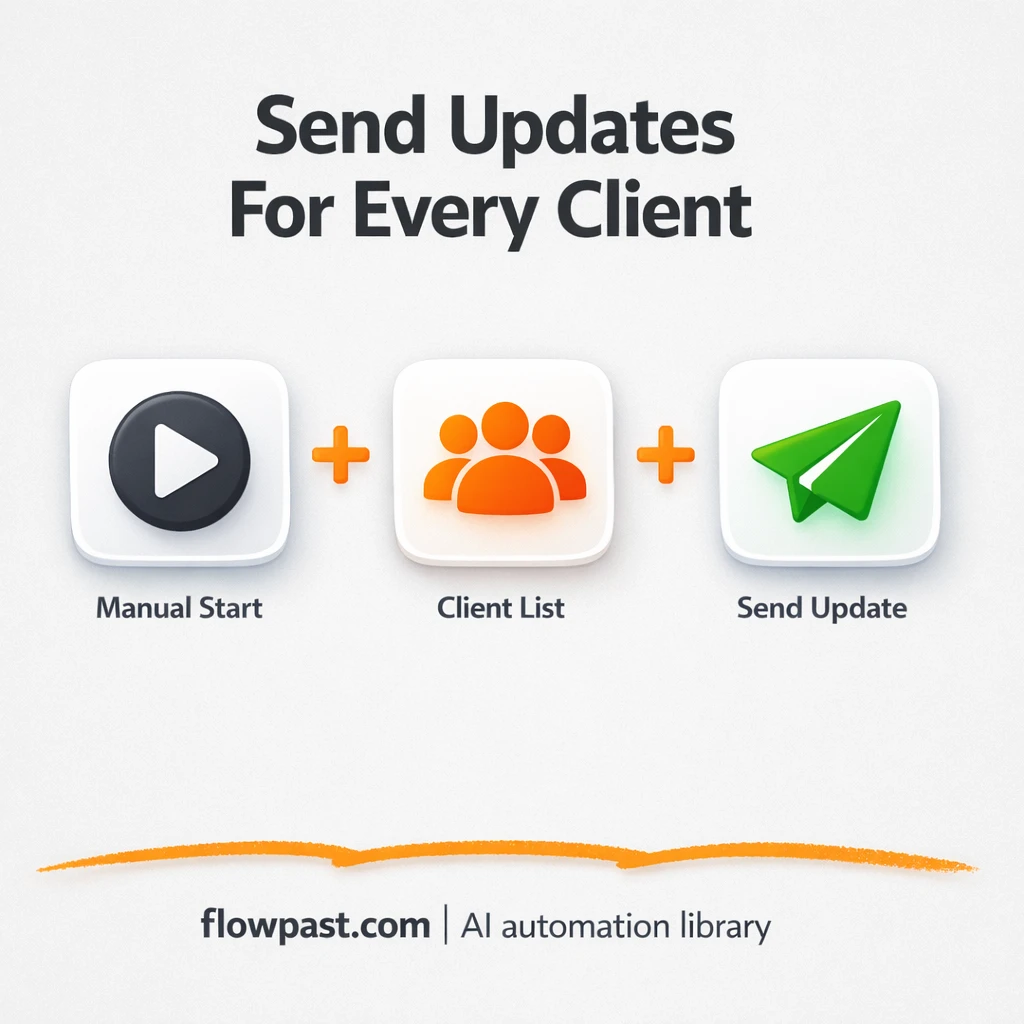

Bulk updates sound simple until you’re the one babysitting them. One wrong API key, one missed row, one “why did this run twice?” moment, and you’re stuck cleaning up a mess that should’ve been a 10-minute task. This is exactly where Sheets Zapier updates fall apart.
Marketing ops teams feel it during campaign launches. A small business owner feels it when customer records drift out of sync. And an agency account manager? They feel it when a client asks why 5 contacts got updated and 50 didn’t.
This workflow fixes the fragile part: reusing one API key reliably across a batch, so every request is consistent. You’ll see how it works, what you need, and where people usually trip up.
How This Automation Works
The full n8n workflow, from trigger to final output:
n8n Workflow Template: Google Sheets to Zapier, bulk updates without errors
flowchart LR

    subgraph sg0["Manual Execution Start Flow"]
        direction LR
        n0@{ icon: "mdi:play-circle", form: "rounded", label: "Manual Execution Start", pos: "b", h: 48 }
        n1@{ icon: "mdi:swap-vertical", form: "rounded", label: "Assign API Key", pos: "b", h: 48 }
        n2@{ icon: "mdi:cog", form: "rounded", label: "Retrieve Client Records", pos: "b", h: 48 }
        n3["<div style='background:#f5f5f5;padding:10px;border-radius:8px;display:inline-block;border:1px solid #e0e0e0'><img src='https://flowpast.com/wp-content/uploads/n8n-workflow-icons/httprequest.dark.svg' width='40' height='40' /></div><br/>External API Request"]
        n1 --> n2
        n2 --> n3
        n0 --> n1
    end

    %% Styling
    classDef trigger fill:#e8f5e9,stroke:#388e3c,stroke-width:2px
    classDef ai fill:#e3f2fd,stroke:#1976d2,stroke-width:2px
    classDef aiModel fill:#e8eaf6,stroke:#3f51b5,stroke-width:2px
    classDef decision fill:#fff8e1,stroke:#f9a825,stroke-width:2px
    classDef database fill:#fce4ec,stroke:#c2185b,stroke-width:2px
    classDef api fill:#fff3e0,stroke:#e65100,stroke-width:2px
    classDef code fill:#f3e5f5,stroke:#7b1fa2,stroke-width:2px
    classDef disabled stroke-dasharray: 5 5,opacity: 0.5
    class n0 trigger
    class n3 api
    classDef customIcon fill:none,stroke:none
    class n3 customIcon
The Problem: Bulk Updates Break in Quiet, Expensive Ways
Bulk updates usually fail for boring reasons. Someone copies an API key into the wrong place. A workflow grabs credentials once, then “forgets” them when processing the rest of the batch. Or you end up retrying runs because half the items succeeded and half didn’t, which is honestly worse than a full failure. The real cost isn’t just time. It’s the mental load of not trusting your own process, plus the customer-facing fallout when records end up inconsistent across tools.
It adds up fast. Here’s where it breaks down in real life.
- You end up re-entering the same API key in multiple places, which invites typos and “why is this 401” debugging sessions.
- Batches can partially succeed, so you waste time figuring out which rows actually updated.
- Manual “copy-paste into Zapier” work makes it easy to skip a row or paste the wrong payload.
- Retries create duplicates when there’s no clear confirmation step for what already ran.
The Solution: Reuse One API Key Across Every Request
This n8n workflow is built around one simple idea: set your API key once, then reuse it for every item in a batch. The workflow starts with a manual trigger (so you run it when you’re ready), assigns the API key in a single “Set” step, then pulls a small batch of customer records from a datastore. From there, it sends an HTTP POST request once per record, but always references the same API key item, even though the batch contains multiple items. The result is predictable bulk execution: consistent authentication, fewer re-runs, and a clean “run a batch, confirm results, move on” rhythm.
The workflow kicks off when you start it manually. It sets the API key once, retrieves multiple records, then posts each record to an external endpoint (this could represent Zapier’s webhook, an internal API, or any service that accepts HTTP). The key detail is using n8n’s ability to reference a specific item index so the same credential value is reused throughout the batch.
What You Get: Automation vs. Results
| What This Workflow Automates | Results You’ll Get |
|---|---|
|
|
Example: What This Looks Like
Say you need to update 50 customer records from Google Sheets into a Zapier-driven process. Manually, if it takes maybe 2 minutes per record to copy fields, paste into a webhook tester or Zapier form, and double-check, that’s about 2 hours. With this workflow, you trigger one run, let it process the batch via HTTP requests, then review the results in one place; that’s often closer to 10 minutes of “hands-on” time plus some wait time. Even with a couple retries, you’re not doing the same copy-paste 50 times.
What You’ll Need
- n8n instance (try n8n Cloud free)
- Self-hosting option if you prefer (Hostinger works well)
- Google Sheets to store and manage the rows.
- Zapier to receive updates via webhook or API.
- API key (get it from your target app’s developer settings)
Skill level: Beginner. You’ll connect accounts, paste a key once, and map a few fields.
Don’t want to set this up yourself? Talk to an automation expert (free 15-minute consultation).
How It Works
Manual run when you’re ready. You start the workflow on demand, which is ideal for bulk updates where you want a clear “before” and “after” moment.
One place to set the credential. The workflow assigns the API key in a single node that returns just one item. That’s deliberate, because you want one source of truth for authentication.
Records are loaded as a batch. In the demo, a customer datastore returns five items. In a real setup, this could be rows from Google Sheets, records from Airtable, contacts from HubSpot, or anything else you can pull into n8n.
Each record is posted out, consistently. The HTTP request runs once per item, and it pulls the API key from the first item every time (so it never “loses” the key mid-batch). Your destination could be a Zapier webhook, a custom API endpoint, or a middleware service that validates the payload.
You can easily modify the record source from a datastore to Google Sheets based on your needs. See the full implementation guide below for customization options.
Step-by-Step Implementation Guide
Step 1: Configure the Manual Trigger
Set up the manual trigger so you can run the workflow on demand during testing and development.
- Add the Manual Execution Start node to the canvas.
- Keep default settings (no parameters required) and connect Manual Execution Start to Assign API Key.
Step 2: Connect API Key Configuration
Store the API key as a reusable field for downstream requests.
- Open Assign API Key and set Keep Only Set to
true. - Under Values → String, add a field named apiKey with value
[CONFIGURE_YOUR_API_KEY]. - Connect Assign API Key to Retrieve Client Records.
[CONFIGURE_YOUR_API_KEY] with your real API key or the request will fail.Step 3: Set Up Data Retrieval
Pull all client records from the training datastore to populate the outgoing API request.
- Open Retrieve Client Records and set Operation to
getAllPeople. - Set Return All to
trueto fetch every record. - Ensure the node is connected to External API Request.
Step 4: Configure External API Request
Send each client record to the external endpoint with the API key in headers and the client name in the body.
- Open External API Request and set Request Method to
POST. - Set URL to
https://webhook.site/f99d65ab-8959-4466-a427-cdd0ad482220. - Under Body Parameters, add name with value
={{$json["name"]}}. - Under Header Parameters, add api-key with value
={{ $item(0).$node["Assign API Key"].json["apiKey"] }}.
Step 5: Test and Activate Your Workflow
Validate the workflow end-to-end and then activate it for production use.
- Click Execute Workflow to run the flow starting from Manual Execution Start.
- Confirm that Retrieve Client Records outputs client data and External API Request returns successful responses.
- When results look correct, toggle Active to enable the workflow for ongoing use.
Common Gotchas
- Zapier credentials can expire or need specific permissions. If things break, check your Zapier webhook URL and connected app permissions first.
- If you’re using Wait nodes or external processing, processing times vary. Bump up the wait duration if downstream nodes fail on empty responses.
- Default payload mapping is usually too generic. Add your required fields (and validation rules) early or you’ll be chasing weird downstream errors later.
Frequently Asked Questions
About 30 minutes if your API key and destination webhook are ready.
No. You’ll mostly paste credentials and map fields. The only “technical” part is testing one sample item before you run the full batch.
Yes. n8n has a free self-hosted option and a free trial on n8n Cloud. Cloud plans start at $20/month for higher volume. You’ll also need to factor in any API costs from the app you’re updating (many are free at low volume, but rate limits still apply).
Two options: n8n Cloud (managed, easiest setup) or self-hosting on a VPS. For self-hosting, Hostinger VPS is affordable and handles n8n well. Self-hosting gives you unlimited executions but requires basic server management.
Yes, and it’s a common swap. Replace the “Retrieve Client Records” node with a Google Sheets node that reads rows, then keep the “Assign API Key” step as-is. Most people also customize the HTTP request body mapping, add a simple “only update rows where Status = Ready” filter, and write the response back to the sheet for confirmation.
Usually it’s an expired or incorrect webhook URL, or the destination step in Zapier is rejecting your payload. Re-copy the Zapier hook, confirm the request method (POST), and check the last Zap run history to see the exact error message. If it works for one item but fails mid-batch, rate limiting can also be the culprit, so slow the workflow slightly or process smaller batches.
It can handle thousands, but the practical limit depends on your n8n plan and the API limits of the tool you’re sending to.
Often, yes, because n8n is easier to control when you’re doing batch-style work and want consistent credential reuse across many items. You also get more flexibility in how you transform data before sending it, plus the option to self-host if you run big volumes. Zapier can still be perfect when you want a simple trigger and a simple action with minimal setup. Make is great for visual scenarios, but some teams find debugging batches harder there. If you’re unsure, Talk to an automation expert and explain what you’re updating and how often.
Once you trust your bulk updates, everything else gets easier. Run a batch, confirm it, and get back to work that actually moves the needle.
Need Help Setting This Up?
Our automation experts can build and customize this workflow for your specific needs. Free 15-minute consultation—no commitment required.
