


LinkedIn + Google Sheets: posts published for you
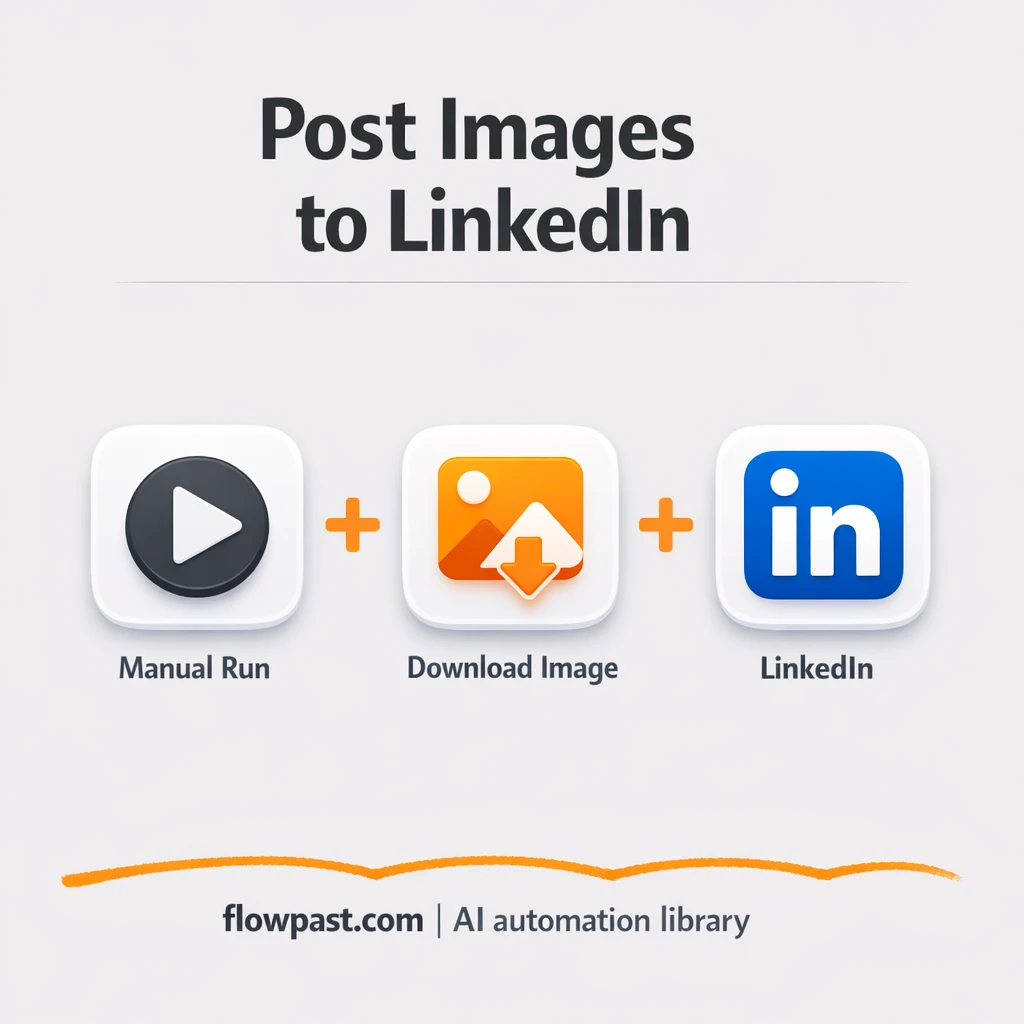

Posting on LinkedIn sounds simple until you’re doing it every week. Copy, paste, reformat, fix line breaks, double-check links, then realize you posted the wrong version anyway.
Marketing managers feel it first, because consistency is part of the job. But founders and agency owners get pulled into the same mess when the content calendar starts slipping. This LinkedIn post automation turns a Google Sheet into your publishing queue, so posts go out cleanly and on time.
Below you’ll see exactly what the workflow does, what it replaces, and how to adapt it to your posting routine without turning it into a “big software project”.
How This Automation Works
See how this solves the problem:
n8n Workflow Template: LinkedIn + Google Sheets: posts published for you
flowchart LR

    subgraph sg0["Manual Run Flow"]
        direction LR
        n0@{ icon: "mdi:play-circle", form: "rounded", label: "Manual Run Trigger", pos: "b", h: 48 }
        n1["<div style='background:#f5f5f5;padding:10px;border-radius:8px;display:inline-block;border:1px solid #e0e0e0'><img src='https://flowpast.com/wp-content/uploads/n8n-workflow-icons/httprequest.dark.svg' width='40' height='40' /></div><br/>External API Call"]
        n2["<div style='background:#f5f5f5;padding:10px;border-radius:8px;display:inline-block;border:1px solid #e0e0e0'><img src='https://flowpast.com/wp-content/uploads/n8n-workflow-icons/linkedin.svg' width='40' height='40' /></div><br/>LinkedIn Post Publisher"]
        n1 --> n2
        n0 --> n1
    end

    %% Styling
    classDef trigger fill:#e8f5e9,stroke:#388e3c,stroke-width:2px
    classDef ai fill:#e3f2fd,stroke:#1976d2,stroke-width:2px
    classDef aiModel fill:#e8eaf6,stroke:#3f51b5,stroke-width:2px
    classDef decision fill:#fff8e1,stroke:#f9a825,stroke-width:2px
    classDef database fill:#fce4ec,stroke:#c2185b,stroke-width:2px
    classDef api fill:#fff3e0,stroke:#e65100,stroke-width:2px
    classDef code fill:#f3e5f5,stroke:#7b1fa2,stroke-width:2px
    classDef disabled stroke-dasharray: 5 5,opacity: 0.5
    class n0 trigger
    class n1 api
    classDef customIcon fill:none,stroke:none
    class n1,n2 customIcon
The Challenge: Posting Consistently Without Copy-Paste Chaos
Most LinkedIn workflows break in the boring parts. You write drafts in one place, approvals happen somewhere else, and the final post gets published from whoever has two minutes free. That’s how you end up with missed days, duplicate posts, and “why does this paragraph look weird on mobile?” formatting problems. The real cost isn’t just the few minutes of posting. It’s the constant context switching, the last-second scramble, and the quiet anxiety of not having a reliable system.
It adds up fast. Here’s where it usually breaks down.
- Copying text from a doc into LinkedIn invites formatting issues, especially around line breaks and emojis.
- Teams lose track of what’s scheduled, what’s posted, and what’s still a draft because the “source of truth” keeps moving.
- Manual posting steals focus right when you should be engaging with comments and DMs.
- One wrong paste (or the wrong link) can sit live for hours, and honestly that’s a painful way to learn process discipline.
The Fix: Publish LinkedIn Posts from a Google Sheets Queue
This n8n workflow acts like a simple publishing bridge: something triggers it, it pulls the post content from an external system, and then it publishes directly to LinkedIn. In practice, that “external system” is your Google Sheets queue (or a tool that represents it), where each row is a post with the final copy you want to ship. When you run the workflow, n8n makes an HTTP request to fetch the next post payload, cleans up the fields into the structure LinkedIn expects, then sends it to the LinkedIn node to publish. You stop bouncing between tabs and you stop relying on memory. The system publishes what you queued.
The workflow starts with a manual trigger (great for testing and controlled publishing). From there, the HTTP Request node pulls the post data from an external API endpoint (often used to read a sheet row or a “next post” service). Finally, the LinkedIn node publishes the content to your LinkedIn profile or page.
What Changes: Before vs. After
| What This Eliminates | Impact You’ll See |
|---|---|
|
|
Real-World Impact
Say you publish 5 posts per week. Manually, it’s usually 10 minutes per post once you include finding the final draft, formatting, adding links, and that last review pass, so you’re spending about 50 minutes weekly just “getting it out the door”. With this workflow, you queue everything in Google Sheets once, then publishing is basically a trigger plus a quick glance, maybe 2 minutes per post. That’s roughly 40 minutes back each week, and it’s calmer work.
Requirements
- n8n instance (try n8n Cloud free)
- Self-hosting option if you prefer (Hostinger works well)
- Google Sheets for storing your post queue.
- LinkedIn to publish posts to your profile or page.
- LinkedIn access token (get it from your LinkedIn developer/app setup).
Skill level: Intermediate. You’ll connect accounts and confirm the HTTP request returns the fields LinkedIn expects.
Need help implementing this? Talk to an automation expert (free 15-minute consultation).
The Workflow Flow
A manual publish trigger fires. You run the workflow when you’re ready to post (useful while you’re validating formatting, tone, and approvals).
Post content is fetched from your queue. n8n uses an HTTP Request to call an external endpoint that returns the next post payload, which is commonly a wrapper around Google Sheets data.
The workflow shapes the data for LinkedIn. This is where you map “post copy” and any metadata into the exact fields the LinkedIn node will publish. Small detail, big deal.
The post is published in LinkedIn. The LinkedIn node sends the final payload, and you get a clean, consistent publish without touching the LinkedIn composer.
You can easily modify the external API call to pull from a different sheet, a different “next post” rule, or a separate queue per client based on your needs. See the full implementation guide below for customization options.
Step-by-Step Implementation Guide
Step 1: Configure the Manual Trigger
Set up the manual trigger so you can run the workflow on demand during testing and setup.
- Add the Manual Run Trigger node as the workflow trigger.
- Leave all fields at their defaults since this trigger requires no configuration.
Step 2: Connect the External API Call
Configure the HTTP request that fetches the image file used in the LinkedIn post.
- Add the External API Call node after Manual Run Trigger.
- Set URL to
https://n8n.io/n8n-logo.png. - Set Response Format to
file.
Step 3: Configure LinkedIn Post Publisher
Set up the LinkedIn node to publish an image post using the downloaded file.
- Add the LinkedIn Post Publisher node after External API Call.
- Credential Required: Connect your linkedInOAuth2Api credentials.
- Set Text to
this is a test image post. - Set Person to
[YOUR_ID]. - Set Post As to
person. - Set Share Media Category to
IMAGE.
[YOUR_ID] must be a valid LinkedIn person ID, or the post will fail.Step 4: Test and Activate Your Workflow
Run a manual test to confirm the image is fetched and posted to LinkedIn.
- Click Execute Workflow to run the workflow manually.
- Confirm External API Call returns a binary file in the output.
- Verify a new image post appears on the LinkedIn profile associated with LinkedIn Post Publisher.
- When satisfied, toggle the workflow to Active for production use.
Watch Out For
- LinkedIn credentials can expire or require specific permissions. If things break, check your LinkedIn app/token status in n8n credentials first.
- If you’re using Wait nodes or external rendering, processing times vary. Bump up the wait duration if downstream nodes fail on empty responses.
- HTTP Request payloads drift over time when someone “just adds a column” in Google Sheets. Keep a stable schema, or your field mapping will quietly publish blanks.
Common Questions
About 30 minutes if your LinkedIn access is ready.
Yes, but someone needs to be comfortable testing the HTTP Request output once. After that, it’s mostly “fill the sheet, run the publish”.
Yes. n8n has a free self-hosted option and a free trial on n8n Cloud. Cloud plans start at $20/month for higher volume. You’ll also need to factor in any API costs tied to your HTTP endpoint (often $0 if it’s just Sheets).
Two options: n8n Cloud (managed, easiest setup) or self-hosting on a VPS. For self-hosting, Hostinger VPS is affordable and handles n8n well. Self-hosting gives you unlimited executions but requires basic server management.
You can swap the HTTP Request source so it pulls from your exact Google Sheets setup (or an internal tool) without changing the LinkedIn publishing step. Common tweaks include posting from different queues (one per brand), adding a “posted URL” field back into Sheets, and inserting an approval check before the LinkedIn node runs.
Usually it’s an expired token or missing permissions on the LinkedIn app. Regenerate your access token, update the n8n credential, and confirm the account you’re posting to is actually allowed to publish via the API. If it fails only sometimes, you might also be hitting rate limits when you test repeatedly in a short window.
For most small teams, it’s effectively “as many posts as you want”. n8n Cloud limits executions by plan, and self-hosting has no execution cap (it depends on your server). This workflow is light because it’s only an HTTP fetch and a publish action, so it will comfortably handle dozens of posts in a day if needed.
Often, yes. n8n is better when you want control over the payload you send to LinkedIn, and you don’t want to pay extra for branching logic, retries, or “one more step” every time you improve the workflow. Zapier and Make are fine for quick two-step automations, but LinkedIn posting tends to get picky about formatting and fields, which is where n8n’s flexibility pays off. Also, self-hosting is a real option if you publish a lot. If you’re unsure, Talk to an automation expert and we’ll map the simplest setup for your team.
Once your Google Sheet is the queue, publishing stops being a daily chore. The workflow handles the repetitive part, so you can spend your attention where LinkedIn actually rewards it: conversations.
Need Help Setting This Up?
Our automation experts can build and customize this workflow for your specific needs. Free 15-minute consultation—no commitment required.
