


MongoDB to Google Sheets, reliable data pulls
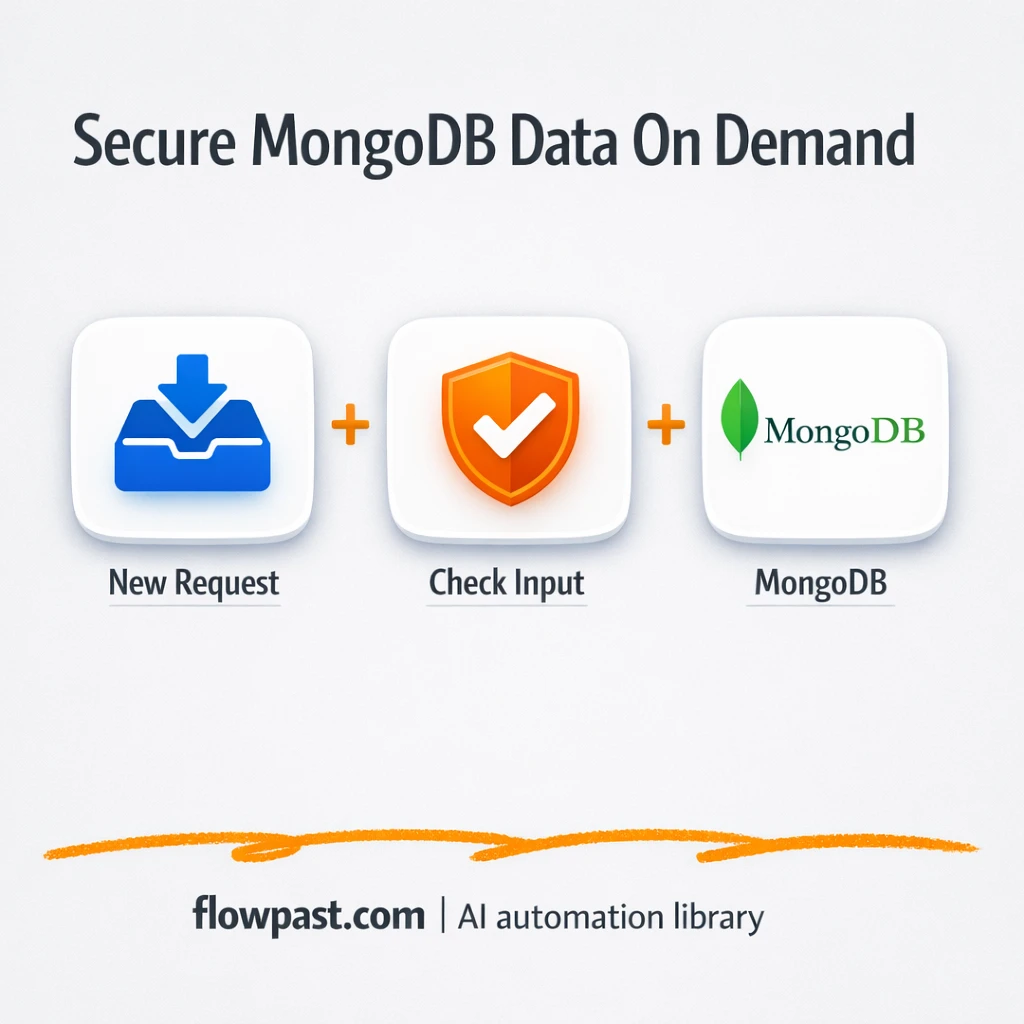

Your team needs “just one quick export” from MongoDB, and suddenly you’re chasing CSVs, fixing broken headers, and wondering if the data is even current.
Marketing ops gets stuck building weekly dashboards. A business owner wants a simple sheet for sales and refunds. And a data-minded freelancer ends up babysitting manual pulls. This MongoDB Sheets sync automation replaces that messy routine with a repeatable, safe endpoint that always returns clean data.
Below, you’ll see how the workflow validates requests, pulls the right collection, normalizes IDs, and makes the output easy to use in Google Sheets without duct-tape exports.
How This Automation Works
The full n8n workflow, from trigger to final output:
n8n Workflow Template: MongoDB to Google Sheets, reliable data pulls
flowchart LR

    subgraph sg0["Flow 1"]
        direction LR
        n0["<div style='background:#f5f5f5;padding:10px;border-radius:8px;display:inline-block;border:1px solid #e0e0e0'><img src='https://flowpast.com/wp-content/uploads/n8n-workflow-icons/webhook.dark.svg' width='40' height='40' /></div><br/>Webhook"]
        n1["<div style='background:#f5f5f5;padding:10px;border-radius:8px;display:inline-block;border:1px solid #e0e0e0'><img src='https://flowpast.com/wp-content/uploads/n8n-workflow-icons/mongodb.svg' width='40' height='40' /></div><br/>MongoDB"]
        n2["<div style='background:#f5f5f5;padding:10px;border-radius:8px;display:inline-block;border:1px solid #e0e0e0'><img src='https://flowpast.com/wp-content/uploads/n8n-workflow-icons/webhook.dark.svg' width='40' height='40' /></div><br/>Respond to Webhook"]
        n3@{ icon: "mdi:swap-horizontal", form: "rounded", label: "If", pos: "b", h: 48 }
        n4["<div style='background:#f5f5f5;padding:10px;border-radius:8px;display:inline-block;border:1px solid #e0e0e0'><img src='https://flowpast.com/wp-content/uploads/n8n-workflow-icons/webhook.dark.svg' width='40' height='40' /></div><br/>Respond code 400"]
        n5["<div style='background:#f5f5f5;padding:10px;border-radius:8px;display:inline-block;border:1px solid #e0e0e0'><img src='https://flowpast.com/wp-content/uploads/n8n-workflow-icons/code.svg' width='40' height='40' /></div><br/>IDS format"]
        n6["<div style='background:#f5f5f5;padding:10px;border-radius:8px;display:inline-block;border:1px solid #e0e0e0'><img src='https://flowpast.com/wp-content/uploads/n8n-workflow-icons/code.svg' width='40' height='40' /></div><br/>Validate Pattern"]
        n3 --> n1
        n3 --> n4
        n1 --> n5
        n0 --> n6
        n5 --> n2
        n6 --> n3
    end

    %% Styling
    classDef trigger fill:#e8f5e9,stroke:#388e3c,stroke-width:2px
    classDef ai fill:#e3f2fd,stroke:#1976d2,stroke-width:2px
    classDef aiModel fill:#e8eaf6,stroke:#3f51b5,stroke-width:2px
    classDef decision fill:#fff8e1,stroke:#f9a825,stroke-width:2px
    classDef database fill:#fce4ec,stroke:#c2185b,stroke-width:2px
    classDef api fill:#fff3e0,stroke:#e65100,stroke-width:2px
    classDef code fill:#f3e5f5,stroke:#7b1fa2,stroke-width:2px
    classDef disabled stroke-dasharray: 5 5,opacity: 0.5
    class n3 decision
    class n1 database
    class n0,n2,n4 api
    class n5,n6 code
    classDef customIcon fill:none,stroke:none
    class n0,n1,n2,n4,n5,n6 customIcon
The Problem: MongoDB data is hard to “pull clean” on demand
MongoDB is great for running your product. Google Sheets is where people actually work. The pain starts when you try to bridge the two. Exports become a weekly ritual, and every ritual grows extra steps: “Which collection was it?”, “Did the filter change?”, “Why is the ID column weird?”, “Is this from today or last Tuesday?” The real cost isn’t just time. It’s the constant doubt that makes teams hesitate to act on the numbers in front of them.
It adds up fast. Here’s where it breaks down in real life:
- Someone has to remember the exact collection name, and one typo means wasted back-and-forth.
- CSV exports look “fine” until you discover missing fields, inconsistent column order, or nested objects that Sheets can’t handle cleanly.
- Manual pulls encourage risky shortcuts, like giving broad database access just so a teammate can grab data quickly.
- When IDs show up as _id blobs, downstream lookups and joins become annoying, which means your sheet never becomes a reliable source.
The Solution: A validated endpoint that reliably returns clean MongoDB data
This workflow gives you a public HTTP GET endpoint in n8n that reads documents from a MongoDB collection, but only after it validates the collection name. That validation is strict on purpose: it blocks unsafe collection names and prevents access to MongoDB’s reserved system.* collections. If the request is invalid, the workflow returns a structured 400 response (with a clear message) instead of failing silently. If it is valid, n8n queries MongoDB, then cleans the output by normalizing MongoDB’s _id field into a friendlier id. Finally, it returns a consistent JSON payload that you can feed straight into a Google Sheets import step or a follow-on workflow that writes rows.
The workflow starts when your app (or you) hits the webhook URL with a collection name in the path. Next, n8n validates that collection name and either returns a proper error or pulls the documents from MongoDB. Last, it transforms IDs and responds with clean JSON that Google Sheets automations can consume without guesswork.
What You Get: Automation vs. Results
| What This Workflow Automates | Results You’ll Get |
|---|---|
|
|
Example: What This Looks Like
Say you refresh a “Orders + Refunds” sheet twice a week, pulling two collections and then cleaning them up for teammates. Manually, it’s often about 20 minutes per pull (export, download, open, reformat, fix IDs), so roughly 80 minutes a week. With this workflow, you hit one endpoint per collection and get a clean JSON payload back in seconds, then your Sheets import or “write rows” automation runs. Realistically, it becomes a 5-minute check instead of a recurring chore.
What You’ll Need
- n8n instance (try n8n Cloud free)
- Self-hosting option if you prefer (Hostinger works well)
- MongoDB for the source collections you want to read
- Google Sheets to receive data for reports and ops work
- MongoDB credentials (get them from your MongoDB user/connection string)
Skill level: Intermediate. You’ll paste credentials, confirm permissions, and be comfortable testing a webhook URL.
Don’t want to set this up yourself? Talk to an automation expert (free 15-minute consultation).
How It Works
A webhook request kicks things off. You call a public GET URL and include the collection name in the path (for example, /orders). That single value becomes the “what data do you want?” selector.
The workflow validates the collection name. n8n checks it against strict rules so only safe, expected names pass. If it fails, the workflow returns an HTTP 400 response with a structured message, which keeps your integration predictable.
MongoDB is queried only after validation. When the name is valid, the MongoDB node runs a “find” and retrieves documents from that collection. In the default version, it pulls all documents (you can add filters later if you want).
The response is cleaned and returned. A small transform converts _id into id, then n8n responds to the original request with a consistent JSON payload that’s easier to map into Google Sheets.
You can easily modify the MongoDB query to add filters or pagination based on your needs. See the full implementation guide below for customization options.
Step-by-Step Implementation Guide
Step 1: Configure the Webhook Trigger
Set up the inbound endpoint that receives the collection name and starts the workflow.
- Add the Inbound Webhook Start node and set Path to
:nameCollection. - Set Response Mode to
responseNodeso the workflow can return data via response nodes. - Ensure the webhook URL is copied after saving so you can call it with a valid collection name in the path.
/your-webhook-url/yourCollectionName to populate params.nameCollection.Step 2: Validate the Collection Name
Validate the path parameter and branch the flow based on whether the name is valid.
- Add the Validate Collection Name code node and keep the provided JavaScript to validate
params.nameCollection. - Connect Inbound Webhook Start to Validate Collection Name.
- Add the Validation Branch IF node and set the condition to check
={{ $json.valid }}with the Boolean operator Is True. - Connect Validate Collection Name to Validation Branch.
system., the workflow will return an error response instead of querying MongoDB.Step 3: Connect MongoDB and Query the Collection
Use the validated collection name to pull documents from MongoDB.
- Add the Query MongoDB Collection node.
- Set Collection to
={{ $json.collection }}so the query uses the validated name. - Credential Required: Connect your mongoDb credentials in Query MongoDB Collection.
- Connect the true output of Validation Branch to Query MongoDB Collection.
Step 4: Normalize Document IDs and Return Data
Transform MongoDB document IDs and return the payload to the caller.
- Add the Normalize Document IDs code node and keep the JavaScript that replaces
_idwithid. - Connect Query MongoDB Collection to Normalize Document IDs.
- Add the Return Webhook Payload node with Respond With set to
allIncomingItems. - Connect Normalize Document IDs to Return Webhook Payload.
Step 5: Add Error Handling Response
Return a structured 400 response when validation fails.
- Add the Send 400 Response node and set Respond With to
json. - Set Response Body to
={
"code": 400,
"message": "{{ $json.message }}"
}
. - Connect the false output of Validation Branch to Send 400 Response.
Step 6: Test and Activate Your Workflow
Verify the webhook responses for both valid and invalid collection names, then enable the workflow.
- Click Execute Workflow and call the webhook URL with a valid collection name to confirm documents are returned by Return Webhook Payload.
- Test an invalid collection name and confirm Send 400 Response returns a 400 JSON response with the error message.
- Once successful, toggle the workflow to Active to start serving live requests.
Common Gotchas
- MongoDB credentials can expire or need specific permissions. If things break, check the MongoDB user’s role (read access to the target database) and the connection string you saved in n8n credentials first.
- If you’re using Wait nodes or external rendering, processing times vary. Bump up the wait duration if downstream nodes fail on empty responses.
- Default prompts in AI nodes are generic. Add your brand voice early or you’ll be editing outputs forever.
Frequently Asked Questions
About 30 minutes if your MongoDB credentials are ready.
No. You’ll mostly connect credentials and test the webhook URL.
Yes. n8n has a free self-hosted option and a free trial on n8n Cloud. Cloud plans start at $20/month for higher volume. You’ll also need to factor in MongoDB hosting costs (Atlas varies by cluster size).
Two options: n8n Cloud (managed, easiest setup) or self-hosting on a VPS. For self-hosting, Hostinger VPS is affordable and handles n8n well. Self-hosting gives you unlimited executions but requires basic server management.
Yes, but be deliberate. You can keep the webhook trigger and validation, then adjust the MongoDB “Find” node to use a query filter (for example by date or status). Common customizations include adding pagination (so you don’t return huge responses), restricting to an allowlist of collections, and mapping nested fields into a flatter structure before pushing into Google Sheets.
Usually it’s credentials or network access. Confirm the MongoDB user has read permission on the target database, then verify your IP allowlist in MongoDB Atlas (if you use Atlas) includes your n8n host. Also check that you picked the right credential type in n8n (standard vs. connection string) and that the database name matches what’s in your URI.
It depends on your plan and how big your collections are. On n8n Cloud, the Starter plan supports a monthly execution cap, and higher tiers handle more volume. If you self-host, there’s no execution limit, but the server (and MongoDB) still has to process the workload. Practically, very large collections should be paginated or filtered so you don’t hit webhook response size limits or timeouts.
Often, yes. This workflow is doing a couple of things that matter in production: input validation, proper 4xx error responses, and a predictable JSON envelope so downstream steps don’t break randomly. n8n is also easier to extend when you want branching logic (like “send an alert if the collection is invalid” or “split into batches and write to Sheets”) without paying extra per path. Zapier or Make can still be fine for simple two-step pulls, but public endpoints plus database access is where you want more control, frankly. Talk to an automation expert if you want help choosing.
Once this is in place, “can you pull the latest data?” stops being a request that steals your afternoon. It becomes a link you can trust.
Need Help Setting This Up?
Our automation experts can build and customize this workflow for your specific needs. Free 15-minute consultation—no commitment required.
