


News API to WordPress, tech posts published for you

Your WordPress blog goes quiet for a week, then two. Not because you don’t have ideas, but because “finding sources, drafting, formatting, publishing” turns into a small project every time.
This News API WordPress automation hits content managers first. But solo founders and busy agency teams feel it too, especially when the site needs fresh tech posts to look alive (and rank).
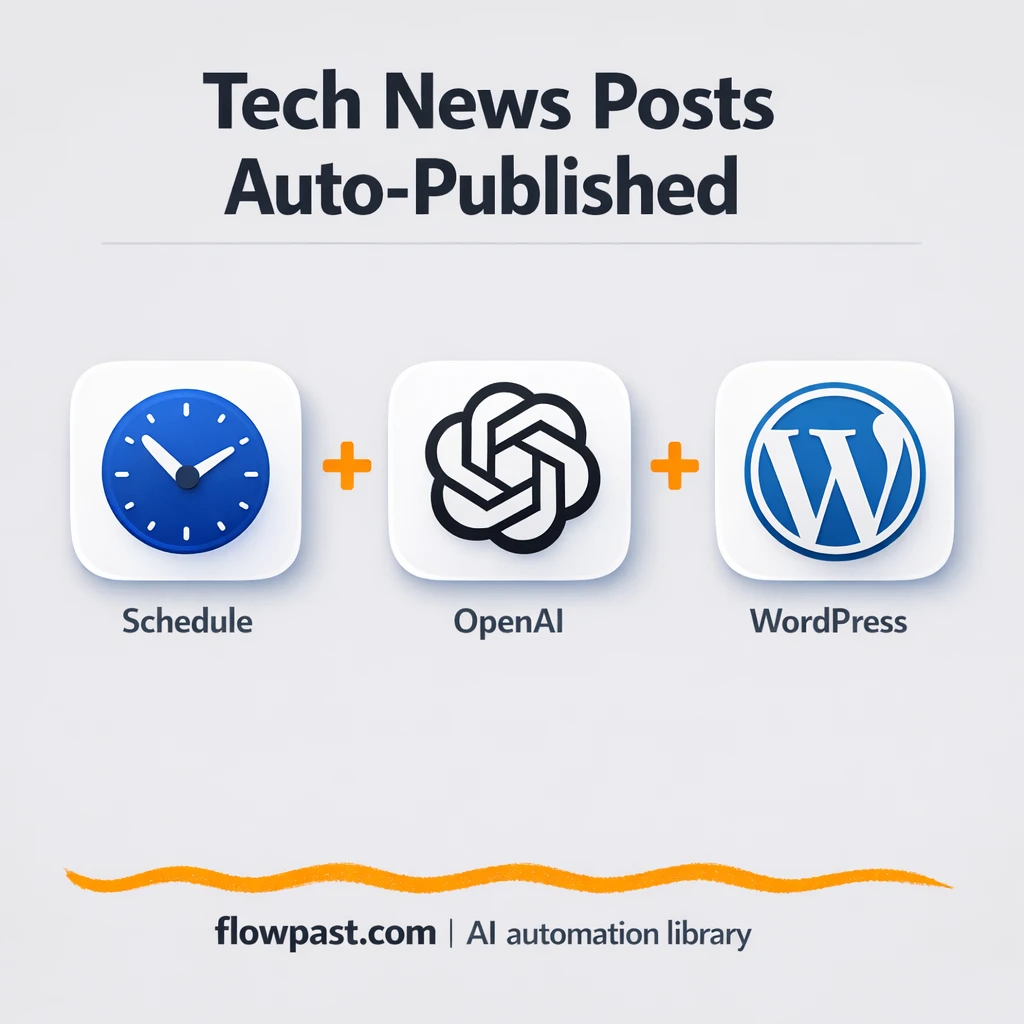
This workflow pulls technology headlines every few hours, has GPT-4o turn them into real posts, then publishes to WordPress. You’ll see what it does, what you need, and where teams usually trip up.
How This Automation Works
The full n8n workflow, from trigger to final output:
n8n Workflow Template: News API to WordPress, tech posts published for you
flowchart LR

    subgraph sg0["Scheduled Automation Start Flow"]
        direction LR
        n0@{ icon: "mdi:play-circle", form: "rounded", label: "Scheduled Automation Start", pos: "b", h: 48 }
        n1["<div style='background:#f5f5f5;padding:10px;border-radius:8px;display:inline-block;border:1px solid #e0e0e0'><img src='https://flowpast.com/wp-content/uploads/n8n-workflow-icons/httprequest.dark.svg' width='40' height='40' /></div><br/>News API Request"]
        n2["<div style='background:#f5f5f5;padding:10px;border-radius:8px;display:inline-block;border:1px solid #e0e0e0'><img src='https://flowpast.com/wp-content/uploads/n8n-workflow-icons/itemLists.svg' width='40' height='40' /></div><br/>Split Article Batches"]
        n3["<div style='background:#f5f5f5;padding:10px;border-radius:8px;display:inline-block;border:1px solid #e0e0e0'><img src='https://flowpast.com/wp-content/uploads/n8n-workflow-icons/openAi.dark.svg' width='40' height='40' /></div><br/>AI Article Analyzer"]
        n4@{ icon: "mdi:swap-vertical", form: "rounded", label: "Assemble Blog Fields", pos: "b", h: 48 }
        n5["<div style='background:#f5f5f5;padding:10px;border-radius:8px;display:inline-block;border:1px solid #e0e0e0'><img src='https://flowpast.com/wp-content/uploads/n8n-workflow-icons/wordpress.svg' width='40' height='40' /></div><br/>Publish WordPress Post"]
        n2 --> n3
        n4 --> n5
        n0 --> n1
        n3 --> n4
        n1 --> n2
    end

    subgraph sg1["Error Capture Flow"]
        direction LR
        n6@{ icon: "mdi:play-circle", form: "rounded", label: "Error Capture Trigger", pos: "b", h: 48 }
        n7@{ icon: "mdi:message-outline", form: "rounded", label: "Dispatch Error Email", pos: "b", h: 48 }
        n6 --> n7
    end

    %% Styling
    classDef trigger fill:#e8f5e9,stroke:#388e3c,stroke-width:2px
    classDef ai fill:#e3f2fd,stroke:#1976d2,stroke-width:2px
    classDef aiModel fill:#e8eaf6,stroke:#3f51b5,stroke-width:2px
    classDef decision fill:#fff8e1,stroke:#f9a825,stroke-width:2px
    classDef database fill:#fce4ec,stroke:#c2185b,stroke-width:2px
    classDef api fill:#fff3e0,stroke:#e65100,stroke-width:2px
    classDef code fill:#f3e5f5,stroke:#7b1fa2,stroke-width:2px
    classDef disabled stroke-dasharray: 5 5,opacity: 0.5
    class n0,n6 trigger
    class n1 api
    classDef customIcon fill:none,stroke:none
    class n1,n2,n3,n5 customIcon
The Problem: Keeping a Tech Blog Updated Is a Grind
Publishing “just a few posts per week” sounds easy until you do the math. Someone has to scan the news, pick what’s worth writing about, open a doc, draft something coherent, add headings, drop in the source link, then copy everything into WordPress without breaking formatting. And that’s on a good day. On a bad day, you forget to schedule, miss a source URL, or publish a half-finished draft because you were interrupted. The time cost is real, but the bigger issue is consistency. Your audience notices when the blog stalls.
The friction compounds. Here’s where it breaks down in real life.
- Collecting headlines and opening articles one-by-one can eat an hour before writing even starts.
- Formatting in WordPress becomes a second pass, which means posts get stuck in “almost done.”
- Manual copy-paste invites small mistakes like missing attribution or broken links.
- If an API key expires or WordPress auth changes, the whole process silently fails until you notice.
The Solution: Auto-Publish Tech News to WordPress With GPT-4o
This workflow runs on a schedule (every 3 hours by default) and fetches the latest technology headlines from News API. It then processes the articles in batches so each one gets handled cleanly instead of jamming everything into one giant request. Next, OpenAI’s GPT-4o takes the raw article content and turns it into a blog-ready post, including a stronger title and structured HTML that actually reads like a WordPress article (not a messy wall of text). After that, the workflow assembles the exact fields WordPress expects and publishes the post through the REST API. If anything fails along the way, an error trigger catches it and sends you an email so you’re not guessing what went wrong.
The workflow starts with a scheduled trigger, then pulls headlines from News API. GPT-4o rewrites and formats each item into a publishable post. Finally, WordPress receives a ready-to-post payload, and you get notified by email if the run hits an error.
What You Get: Automation vs. Results
| What This Workflow Automates | Results You’ll Get |
|---|---|
|
|
Example: What This Looks Like
Say you want 2 tech posts per day to keep your site from going stale. Manually, a quick “headline to published post” cycle is often about 45 minutes per article, so that’s around 1.5 hours daily when you include formatting and attribution. With this workflow, you set it once, then the schedule runs every 3 hours and can generate up to 10 posts per batch (you can lower that). Your “time” becomes a 10-minute review pass, plus fixing the occasional edge case when an article is thin.
What You’ll Need
- n8n instance (try n8n Cloud free)
- Self-hosting option if you prefer (Hostinger works well)
- News API to fetch technology headlines
- OpenAI (GPT-4o) to rewrite and structure posts
- WordPress REST API access (application password or JWT)
- SMTP email account for error notifications
- News API key (get it from newsapi.org)
- OpenAI API key (get it from platform.openai.com)
Skill level: Intermediate. You’ll be pasting API keys, connecting WordPress auth, and tweaking a prompt, but you won’t be writing code.
Don’t want to set this up yourself? Talk to an automation expert (free 15-minute consultation).
How It Works
A schedule kicks everything off. Every 3 hours, n8n starts a new run automatically, so content doesn’t depend on someone’s calendar discipline.
News API gets queried for tech headlines. The workflow uses an HTTP request with your News API key, then collects the latest articles into a workable list.
Articles get processed in batches, then rewritten by GPT-4o. Each item is sent through an OpenAI prompt that analyzes the story and produces a more readable, blog-style version with headings and a clear structure.
WordPress receives a ready-to-publish post. The workflow sets the right fields (title, HTML content, source URL attribution, publish date), then creates the post via the WordPress node.
You can easily modify the schedule frequency to match your editorial pace based on your needs. See the full implementation guide below for customization options.
Step-by-Step Implementation Guide
Step 1: Configure the Scheduled Trigger
Set up the recurring schedule that kicks off the workflow and controls how often articles are fetched.
- Add or open Scheduled Automation Start.
- Set Mode to
everyX, Unit tohours, and Value to3. - Confirm the workflow timezone is
UTCunder workflow Settings.
Step 2: Connect News API Data Source
Fetch the latest technology headlines from NewsAPI so they can be processed into blog posts.
- Add or open News API Request and set URL to
https://newsapi.org/v2/top-headlines. - Set Method to
GETand enable redirects (follow redirects). - In Query Parameters, set country to
us, pageSize to10, and category totechnology. - Set Authentication to
predefinedCredentialTypeand Credential Type tonewsApiApi.
Credential Required: Connect your newsApiApi credentials in News API Request (this node needs credentials but none are configured yet).
Step 3: Set Up Article Batching and AI Processing
Split the API results into single-article batches and generate full blog content using AI.
- Open Split Article Batches and set Operation to
splitInBatcheswith Batch Size set to1. - Confirm Split Article Batches uses Input Data Property Name set to
articlesto split the NewsAPI response. - Open AI Article Analyzer and set Resource to
chat. - Set the user message content to the expression
=Here is the news article to analyze and convert into a blog post:
Title: {{$json["title"]}}
Author: {{$json["author"]}}
Content: {{$json["content"]}}
Description: {{$json["description"]}}
URL: {{$json["url"]}}
Published: {{$json["publishedAt"]}}
. - In Options, set Model to
gpt-4o, Max Tokens to2000, and Temperature to0.7. - Credential Required: Connect your openAiApi credentials in AI Article Analyzer.
⚠️ Common Pitfall: If the NewsAPI response schema changes, ensure the input property articles still exists, otherwise Split Article Batches will not output items.
Step 4: Configure Output to WordPress
Map AI output into post fields and publish directly to your WordPress site.
- Open Assemble Blog Fields and set Keep Only Set to
true. - Create fields with these values: title =
={{$json["title"]}}, slug =={{$json["title"].toLowerCase().replace(/ /g, '-').replace(/[^\w-]+/g, '')}}, content =={{$json["choices"][0]["message"]["content"]}}, publishDate =={{$now}}, sourceUrl =={{$node["Split Article Batches"].json["url"]}}. - Open Publish WordPress Post and set Resource to
postand Operation tocreate. - Set Title to
={{$json["title"]}}, Content to={{$json["content"]}}, and Status topublish. - Add metadata: name =
source_url, value =={{$json["sourceUrl"]}}. - Credential Required: Connect your wordpressApi credentials in Publish WordPress Post.
Step 5: Add Error Handling
Send an email if the workflow fails so issues are caught quickly.
- Open Error Capture Trigger and ensure it is selected in workflow Settings as the Error Workflow.
- Open Dispatch Error Email and set Subject to
Error in News Blog Workflow. - Set Text to
={{"An error occurred in the News Blog Workflow:\n\n" + $json["error"]["message"] + "\n\nTimestamp: " + $now}}. - Set To Email and From Email to your email address (replace
[YOUR_EMAIL]). - Credential Required: Connect your smtp credentials in Dispatch Error Email.
Step 6: Test and Activate Your Workflow
Validate the end-to-end flow, then enable it for continuous publishing.
- Click Execute Workflow to run a manual test.
- Confirm that News API Request returns articles and Split Article Batches iterates items.
- Verify that AI Article Analyzer outputs HTML content and Publish WordPress Post creates a published post.
- If errors occur, check Dispatch Error Email for the error message and timestamp.
- Once successful, toggle the workflow Active to enable scheduled runs.
Common Gotchas
- WordPress credentials can expire or need specific permissions. If things break, check your WordPress application password (or JWT plugin settings) and the user role permissions first.
- If you’re using Wait nodes or external rendering, processing times vary. Bump up the wait duration if downstream nodes fail on empty responses.
- Default prompts in AI nodes are generic. Add your brand voice early or you’ll be editing outputs forever.
Frequently Asked Questions
About an hour if you already have your API keys and WordPress access ready.
No. You’ll mainly connect credentials and adjust a few fields like categories, status, and the AI prompt.
Yes. n8n has a free self-hosted option and a free trial on n8n Cloud. Cloud plans start at $20/month for higher volume. You’ll also need to factor in OpenAI API costs (often a few cents per post) and any email/hosting costs you already pay.
Two options: n8n Cloud (managed, easiest setup) or self-hosting on a VPS. For self-hosting, Hostinger VPS is affordable and handles n8n well. Self-hosting gives you unlimited executions but requires basic server management.
Yes, and it’s a smart tweak. In the “Assemble Blog Fields” node you can set the post status to draft, then keep the “Publish WordPress Post” node exactly the same. Common customizations include changing the category/tags, adding a “source” custom field, and tightening the GPT-4o prompt to match your house style.
Usually it’s authentication. WordPress application passwords get regenerated, the username changes, or the account you’re using can’t create posts. It can also be REST API blocks from security plugins, which is honestly more common than people expect. Check the WordPress node credentials in n8n, then confirm your site’s REST API is reachable and not requiring extra headers.
A lot, but your limits come from plans and APIs. On n8n Cloud, your monthly execution cap depends on the plan you choose, and each batch item can count as more than one execution depending on your setup. News API also has rate limits, and OpenAI usage scales with how many articles you rewrite. If you self-host, n8n itself won’t limit executions, so it mostly comes down to server size and the external API limits.
Often, yes, because this workflow has batching, error handling, and a multi-step “fetch → transform → format → publish” chain that gets expensive or awkward in simpler tools. n8n also gives you a self-hosted option, which matters when you want lots of runs without watching every task meter. That said, if you only want “headline arrives → create a draft,” Zapier or Make can feel faster to set up. The deciding factor is usually volume and how picky you are about formatting. Talk to an automation expert if you want a quick recommendation based on your posting goals.
Once this is running, your site stays active without constant nudges. The workflow handles the repetitive publishing work so you can focus on the posts that actually deserve a human touch.
Need Help Setting This Up?
Our automation experts can build and customize this workflow for your specific needs. Free 15-minute consultation—no commitment required.
