


Stackby + Google Sheets: clean tables without typos
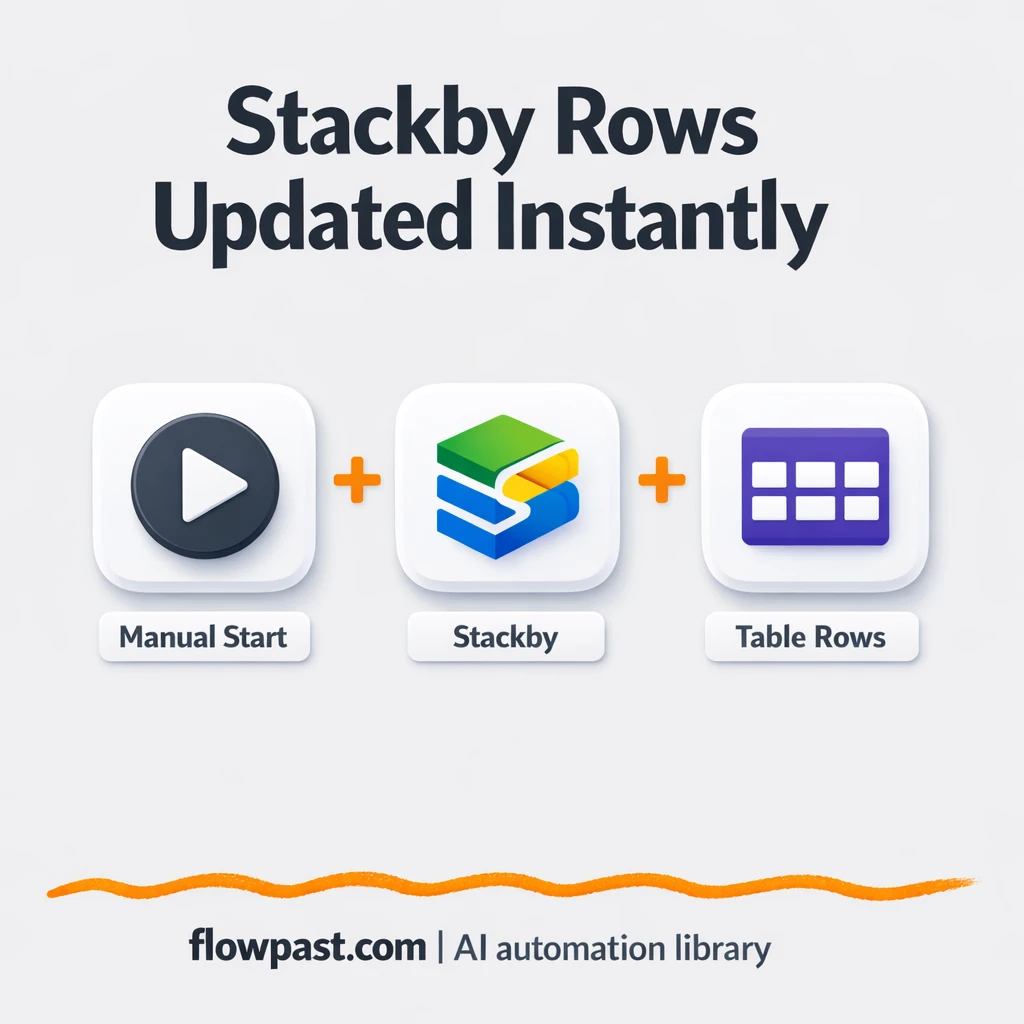

Your data table starts out clean. Then a few people “just add a quick row,” somebody misspells a column value, and suddenly you’re fixing reports instead of using them.
This is the kind of mess marketing ops notices first. A small business owner feels it when billing or fulfillment slips. And if you run an agency, you’ve seen it too. A simple Stackby Sheets sync can keep your source table consistent while still giving your team the Google Sheets view they live in.
This workflow inserts new records into Stackby, then pulls the updated rows back so you can mirror or audit them in Sheets. You’ll see what breaks, what gets fixed, and how to set it up without turning into the “spreadsheet police.”
How This Automation Works
The full n8n workflow, from trigger to final output:
n8n Workflow Template: Stackby + Google Sheets: clean tables without typos
flowchart LR

    subgraph sg0["On clicking 'execute' Flow"]
        direction LR
        n0@{ icon: "mdi:play-circle", form: "rounded", label: "On clicking 'execute'", pos: "b", h: 48 }
        n1@{ icon: "mdi:swap-vertical", form: "rounded", label: "Set", pos: "b", h: 48 }
        n2["<div style='background:#f5f5f5;padding:10px;border-radius:8px;display:inline-block;border:1px solid #e0e0e0'><img src='https://flowpast.com/wp-content/uploads/n8n-workflow-icons/stackby.png' width='40' height='40' /></div><br/>Stackby"]
        n3["<div style='background:#f5f5f5;padding:10px;border-radius:8px;display:inline-block;border:1px solid #e0e0e0'><img src='https://flowpast.com/wp-content/uploads/n8n-workflow-icons/stackby.png' width='40' height='40' /></div><br/>Stackby1"]
        n1 --> n2
        n2 --> n3
        n0 --> n1
    end

    %% Styling
    classDef trigger fill:#e8f5e9,stroke:#388e3c,stroke-width:2px
    classDef ai fill:#e3f2fd,stroke:#1976d2,stroke-width:2px
    classDef aiModel fill:#e8eaf6,stroke:#3f51b5,stroke-width:2px
    classDef decision fill:#fff8e1,stroke:#f9a825,stroke-width:2px
    classDef database fill:#fce4ec,stroke:#c2185b,stroke-width:2px
    classDef api fill:#fff3e0,stroke:#e65100,stroke-width:2px
    classDef code fill:#f3e5f5,stroke:#7b1fa2,stroke-width:2px
    classDef disabled stroke-dasharray: 5 5,opacity: 0.5
    class n0 trigger
    classDef customIcon fill:none,stroke:none
    class n2,n3 customIcon
The Problem: “Quick edits” turn into messy tables
If your team tracks leads, projects, inventory, or content plans in a table, you already know how it goes. One person adds “Acme Co,” another adds “ACME,” and a third pastes in a value with an extra space. It looks minor, but those tiny variations snowball into duplicates, broken filters, and reports that don’t reconcile. Then someone exports to Google Sheets to “clean it up,” which creates a second version of the truth that drifts from the original within days.
It adds up fast. Here’s where it usually breaks down:
- People enter the same record twice because there’s no consistent insert process.
- Columns get filled inconsistently, so you end up hand-fixing values before you can even trust a pivot table.
- Exporting from one tool and importing into another becomes a weekly ritual that quietly eats a couple hours.
- When a number looks “off,” nobody knows which table is the real one anymore.
The Solution: Add to Stackby once, then mirror cleanly
This n8n workflow gives you a repeatable way to create records in Stackby and immediately retrieve the updated table, so your downstream tools (including Google Sheets) stay aligned. It starts with a trigger (in the template it’s a manual run, but it’s designed to be swapped for a real source like a form, CRM, or API). Next, the workflow assigns clean, predictable values to key fields like name and id. Then it appends the record to your Stackby table using the exact column names you specify. Finally, it fetches all rows from Stackby, which gives you a fresh, consistent dataset to mirror into Sheets or to use for checks and reporting.
The workflow begins when a new record is ready to be added. n8n standardizes the fields before insertion, then Stackby becomes the system of record. After that, the workflow pulls the table so Google Sheets can reflect what’s actually in Stackby, not what someone “thought” they added.
What You Get: Automation vs. Results
| What This Workflow Automates | Results You’ll Get |
|---|---|
|
|
Example: What This Looks Like
Say you add 30 new records a week (leads, tasks, product SKUs, whatever). Manually, a typical flow looks like: type the row into Stackby (maybe 3 minutes), then copy it into Google Sheets for reporting (another 3 minutes), then fix one typo or mismatch later (call it 4 minutes). That’s roughly 10 minutes per record, or about 5 hours a week. With this workflow, creating the record becomes a single trigger, and the Stackby pull happens automatically. Your “work” is basically the submission time plus a quick spot-check, so it’s closer to 1 hour total.
What You’ll Need
- n8n instance (try n8n Cloud free)
- Self-hosting option if you prefer (Hostinger works well)
- Stackby for storing the master table.
- Google Sheets to mirror data for reporting.
- Stackby API key (get it from your Stackby account settings).
Skill level: Beginner. You’ll connect Stackby, confirm column names, and test a few sample records.
Don’t want to set this up yourself? Talk to an automation expert (free 15-minute consultation).
How It Works
A record is ready to be created. In the base workflow it starts with a manual run, which is perfect for testing. In real use, you swap the trigger for where your records actually come from (a form, a CRM, an HTTP request, even an email tool).
Fields get standardized before insertion. The workflow assigns values for fields like name and id using the Set step, so you’re not relying on humans to remember formatting rules. This is where you prevent “Acme,” “ACME,” and “Acme ” from becoming three separate entities.
Stackby receives the new row. n8n appends the cleaned data to the exact Stackby table you choose. You map values to column names once, and then the workflow keeps doing it the same way every time.
The table is fetched for mirroring and checks. Right after insertion, the workflow retrieves the rows from Stackby. That output is what you mirror into Google Sheets (or compare against what you expected), which means Sheets becomes a view you can trust, not a second database.
You can easily modify the fields you standardize to match your naming rules based on your needs. See the full implementation guide below for customization options.
Step-by-Step Implementation Guide
Step 1: Configure the Manual Trigger
This workflow starts manually so you can test the Stackby sync flow on demand.
- Add and open Manual Execution Start.
- Keep the default settings—no parameters are required for manual execution.
- Connect Manual Execution Start to Assign Variables to start the flow.
Step 2: Connect Stackby
Both Stackby nodes need API access to create and list rows.
- Open Create Stackby Entry and connect credentials.
- Credential Required: Connect your stackbyApi credentials.
- Open Retrieve Stackby Rows and connect credentials.
- Credential Required: Connect your stackbyApi credentials.
Step 3: Set Up Assign Variables
This node defines the data you’ll send into Stackby.
- Open Assign Variables and set Number field ID to
1. - Set the String field Name to
n8n. - Confirm the output from Assign Variables connects to Create Stackby Entry.
Step 4: Configure Stackby Actions
These nodes create a row in Stackby and then retrieve rows from the same table.
- Open Create Stackby Entry and set Table to
Table 1. - Set Columns to
ID, Name. - Set Stack ID to
[YOUR_ID]. - Open Retrieve Stackby Rows and set Operation to
list. - Set Table to
={{$node["Create Stackby Entry"].parameter["table"]}}. - Set Stack ID to
={{$node["Create Stackby Entry"].parameter["stackId"]}}. - Confirm the flow runs Assign Variables → Create Stackby Entry → Retrieve Stackby Rows.
[YOUR_ID] with your actual Stackby stack ID before testing to avoid API errors.Step 5: Test and Activate Your Workflow
Verify the Stackby sync works end-to-end and then enable it for ongoing use.
- Click Execute Workflow to run Manual Execution Start.
- Check Create Stackby Entry for a successful API response indicating a row was created.
- Inspect Retrieve Stackby Rows output to confirm the new row appears in the list.
- Once confirmed, toggle the workflow Active to use it in production.
Common Gotchas
- Stackby credentials can expire or need specific permissions. If things break, check your Stackby API key status in account settings first.
- If you’re using Wait nodes or external rendering, processing times vary. Bump up the wait duration if downstream nodes fail on empty responses.
- Default prompts in AI nodes are generic. Add your brand voice early or you’ll be editing outputs forever.
Frequently Asked Questions
About 30 minutes if your Stackby table is already created.
No. You’ll mainly connect Stackby and map your columns. If you want fancy ID rules, you can add them later with a small Code step, but it’s optional.
Yes. n8n has a free self-hosted option and a free trial on n8n Cloud. Cloud plans start at $20/month for higher volume. You’ll also need to factor in Stackby’s plan/API limits if your workspace is on a restricted tier.
Two options: n8n Cloud (managed, easiest setup) or self-hosting on a VPS. For self-hosting, Hostinger VPS is affordable and handles n8n well. Self-hosting gives you unlimited executions but requires basic server management.
Yes, and honestly that’s where it shines. Replace the Manual Execution trigger with the trigger you already use (for example, a form webhook or a CRM trigger), then keep the “Assign Variables” step as your cleanup layer. Common customizations include generating a stronger unique id, normalizing company names, and adding a quick “If” check before insertion to prevent duplicates. The Stackby “Create Entry” and “Retrieve Rows” steps stay the same.
Usually it’s an expired or rotated API key. Regenerate your Stackby API key and update the credential in n8n, then run the workflow again. If it still fails, check that the table/base you selected matches the workspace tied to that key, because it’s easy to point at the wrong one. Rate limits can also show up if you’re retrieving a very large table frequently.
Plenty for typical small-team tables; the real limit is your n8n plan and how big your Stackby table is.
Often, yes, because you get more control over data cleanup and you’re not forced into linear “do this then that” logic. n8n also gives you the option to self-host, which matters once you’re syncing a lot of records and don’t want every run counted as a premium task. Another practical difference is debugging: you can see the data at each step, which makes it easier to spot a bad column mapping or a weird id. Zapier or Make can still be fine for very simple two-step mirroring, especially if you never need conditional logic. If you’re torn, Talk to an automation expert and we’ll pressure-test the simplest option.
Clean inserts and a reliable mirror sounds boring until you’ve lived through the alternative. Set it up once, and your tables stay usable without constant babysitting.
Need Help Setting This Up?
Our automation experts can build and customize this workflow for your specific needs. Free 15-minute consultation—no commitment required.
