


Slack to Zendesk, tickets created with consistent fields
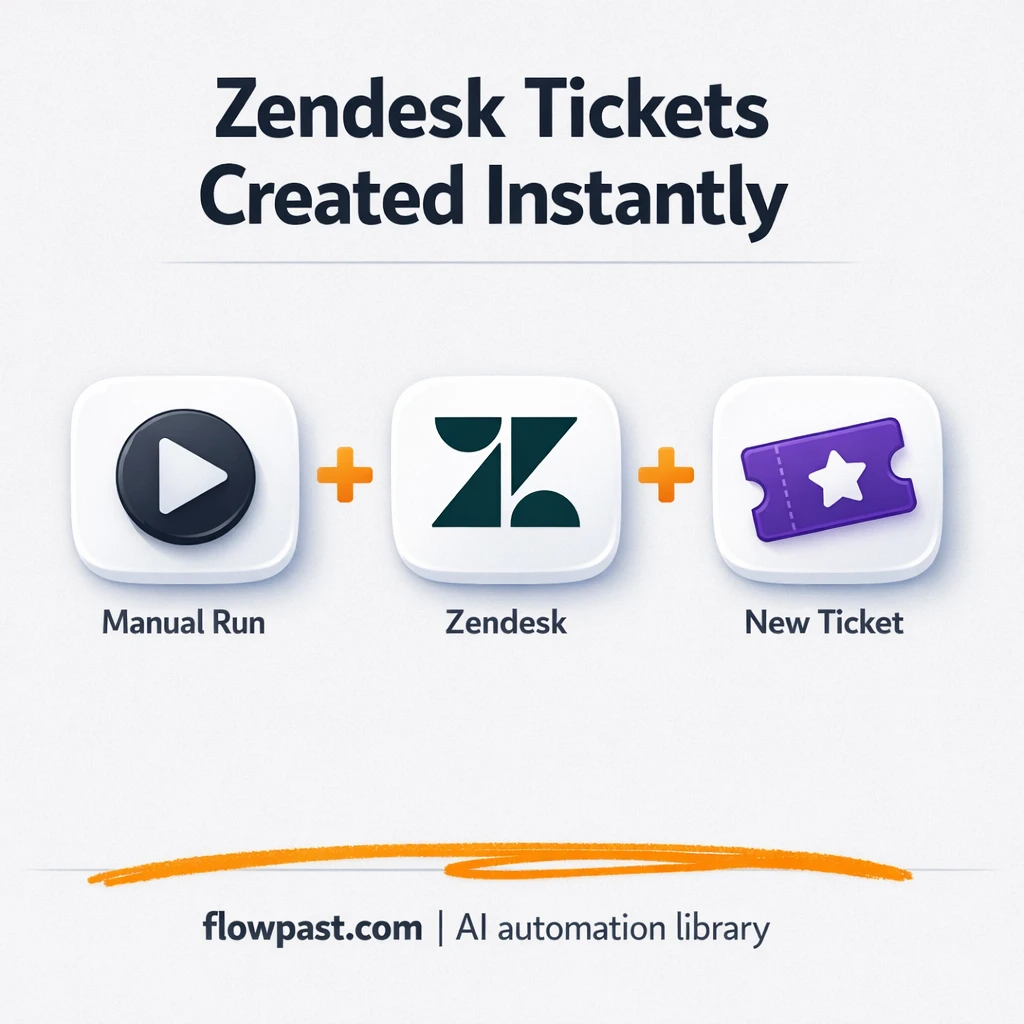

Support requests show up in Slack like popcorn. A quick “can you help?” turns into a thread, then disappears under a dozen pings, and suddenly nobody knows if it became a real ticket.
This is the kind of mess support leads feel daily. ops managers see it when internal requests never get tracked, and agency owners see it when client asks get lost in channels. Slack Zendesk tickets should not depend on someone remembering to copy and paste at the right moment.
This workflow creates a Zendesk ticket from a Slack message with consistent fields, so you get cleaner intake, faster routing, and fewer “wait, did anyone file that?” moments. You’ll see how it works, what you need, and where people usually trip up.
How This Automation Works
The full n8n workflow, from trigger to final output:
n8n Workflow Template: Slack to Zendesk, tickets created with consistent fields
flowchart LR

    subgraph sg0["Manual Execution Start Flow"]
        direction LR
        n0@{ icon: "mdi:play-circle", form: "rounded", label: "Manual Execution Start", pos: "b", h: 48 }
        n1["<div style='background:#f5f5f5;padding:10px;border-radius:8px;display:inline-block;border:1px solid #e0e0e0'><img src='https://flowpast.com/wp-content/uploads/n8n-workflow-icons/zendesk.svg' width='40' height='40' /></div><br/>Zendesk Ticket Creator"]
        n0 --> n1
    end

    %% Styling
    classDef trigger fill:#e8f5e9,stroke:#388e3c,stroke-width:2px
    classDef ai fill:#e3f2fd,stroke:#1976d2,stroke-width:2px
    classDef aiModel fill:#e8eaf6,stroke:#3f51b5,stroke-width:2px
    classDef decision fill:#fff8e1,stroke:#f9a825,stroke-width:2px
    classDef database fill:#fce4ec,stroke:#c2185b,stroke-width:2px
    classDef api fill:#fff3e0,stroke:#e65100,stroke-width:2px
    classDef code fill:#f3e5f5,stroke:#7b1fa2,stroke-width:2px
    classDef disabled stroke-dasharray: 5 5,opacity: 0.5
    class n0 trigger
    classDef customIcon fill:none,stroke:none
    class n1 customIcon
The Problem: Slack Requests Don’t Become Trackable Tickets
Slack is perfect for quick conversations. It’s honestly terrible as a system of record. A customer issue gets dropped into a channel, someone reacts with an emoji, and the “handoff” is basically vibes. Then triage happens late (or not at all), details are missing, and the person who should own the request never even sees it. The worst part is the mental load: somebody has to remember to turn chat into a ticket, fill in the same fields, and make it consistent enough for reporting later.
It adds up fast. Here’s where it breaks down in real teams.
- Important requests get buried, especially when a channel is busy or global teams are offline.
- Tickets that do get created come in with random titles, missing context, and inconsistent priority.
- Someone ends up retyping the same details into Zendesk, which is slow and oddly error-prone.
- Reporting becomes unreliable because fields like requester, category, or urgency aren’t filled the same way.
The Solution: Create Zendesk Tickets with Consistent Fields
This n8n workflow is built to do one job well: create a Zendesk ticket in a repeatable format every time you decide a Slack message should become work. Instead of copying a message, opening Zendesk, picking the right form, and guessing the right fields, you trigger the automation and let it create the ticket for you. The resulting ticket can include a clean subject line, the message content as the description, and the key fields you care about (like requester email, tags, priority, or a default group) filled in the same way each time. That consistency is what makes triage faster and reporting trustworthy. It also reduces the “back and forth” because the ticket starts with more context.
The workflow starts manually in n8n (useful for testing, and a safe first step for teams). From there it sends the mapped data into Zendesk and creates the ticket in your chosen setup. Once that’s working, you can extend it to listen to Slack events or a dedicated “create-ticket” message format.
What You Get: Automation vs. Results
| What This Workflow Automates | Results You’ll Get |
|---|---|
|
|
Example: What This Looks Like
Say your team turns roughly 15 Slack requests into tickets each week. Manually, it’s easy to spend about 10 minutes per request jumping between Slack and Zendesk, retyping context, and picking fields, which is roughly 2 to 3 hours weekly. With this workflow, creating the ticket is closer to 1 minute of “submit and confirm,” then Zendesk has the ticket immediately. You get back about 2 hours a week, and the tickets stop coming in as random one-offs.
What You’ll Need
- n8n instance (try n8n Cloud free)
- Self-hosting option if you prefer (Hostinger works well)
- Slack as the source of requests (where messages start).
- Zendesk to create and route tickets.
- Zendesk API token (get it from Zendesk Admin Center → Apps and integrations → APIs).
Skill level: Beginner. You’ll connect Zendesk, then choose which fields should be filled by default.
Don’t want to set this up yourself? Talk to an automation expert (free 15-minute consultation).
How It Works
You kick it off manually. The workflow starts with a manual trigger, which is perfect for testing your Zendesk ticket format before you wire it to Slack.
Ticket details are prepared. In practice, this is where you decide what “consistent fields” means for your team: a predictable subject format, default priority, tags like slack-intake, and a group or assignee rule you trust.
A Zendesk ticket is created. n8n sends the final payload into Zendesk using your credentials, then Zendesk generates the ticket exactly once, in the structure you defined.
The output is a trackable request. From there, Zendesk handles the normal lifecycle: assignments, internal notes, SLA timers, and reporting.
You can easily modify which fields are set by default to match your forms and routing rules. See the full implementation guide below for customization options.
Step-by-Step Implementation Guide
Step 1: Configure the Manual Trigger
This workflow starts manually so you can test ticket creation on demand.
- Add the Manual Execution Start node as the trigger (this node runs the workflow when you click Execute Workflow).
- Keep default settings since Manual Execution Start has no required parameters.
⚠️ Common Pitfall: The Flowpast Branding sticky note is informational only and does not affect execution—do not connect it to the flow.
Step 2: Connect Zendesk
Set up the Zendesk connection so the workflow can create tickets.
- Select the Zendesk Ticket Creator node.
- Credential Required: Connect your zendeskApi credentials.
Step 3: Configure Zendesk Ticket Creation
Define the ticket details that will be created in Zendesk.
- In Zendesk Ticket Creator, set the Description field (currently empty) to the ticket body you want created.
- Optionally expand Additional Fields to configure priority, requester, or other ticket properties as needed.
Step 4: Test and Activate Your Workflow
Run a manual test to verify Zendesk ticket creation, then activate the workflow for use.
- Click Execute Workflow in n8n to trigger Manual Execution Start.
- Confirm a new ticket appears in Zendesk with the expected Description and any configured fields.
- When successful, toggle the workflow to Active to keep it ready for future runs.
Common Gotchas
- Zendesk credentials can expire or need specific permissions. If things break, check Zendesk Admin Center → Apps and integrations → APIs first.
- If you’re using Wait nodes or external rendering, processing times vary. Bump up the wait duration if downstream nodes fail on empty responses.
- Default prompts in AI nodes are generic. Add your brand voice early or you’ll be editing outputs forever.
Frequently Asked Questions
About 20 minutes if your Zendesk access is ready.
No. You connect Zendesk and map a few ticket fields in n8n.
Yes. n8n has a free self-hosted option and a free trial on n8n Cloud. Cloud plans start at $20/month for higher volume. You’ll also need to factor in Zendesk costs (your plan) and any optional AI usage if you add it later.
Two options: n8n Cloud (managed, easiest setup) or self-hosting on a VPS. For self-hosting, Hostinger VPS is affordable and handles n8n well. Self-hosting gives you unlimited executions but requires basic server management.
Yes, and you should. You can change the Zendesk Ticket Creator node to set your form ID, tags, priority, group, and any custom field IDs you use for routing. Common customizations include forcing a default priority for Slack-origin tickets, adding a “slack” tag for reporting, and mapping the Slack channel name into a custom field so triage knows where it came from. If you later add a Slack trigger, you can also standardize the subject line based on channel or a keyword pattern.
Usually it’s an expired or incorrect API token, or the agent account doesn’t have API access enabled. Regenerate the token in Zendesk Admin Center, then update the credential in n8n and run a quick test ticket. If the request is hitting the wrong subdomain, you’ll see confusing “not found” errors even though your token is fine. Rate limits can also show up if you fire a lot of tickets at once, so slow down or batch if you’re backfilling.
On n8n Cloud Starter, you can handle a healthy small-business volume, and higher plans support more executions. If you self-host, there’s no execution cap, but your server and Zendesk API rate limits become the real constraints. Practically, teams run this for dozens or hundreds of tickets a day without drama once credentials and field mapping are correct.
Often, yes, if you care about consistent field mapping and plan to expand the workflow later. n8n is flexible with branching and data shaping, and self-hosting can keep costs predictable when volume rises. Zapier or Make can be quicker for a simple “send message to create ticket” setup, though. The deciding factor is usually governance: if you need the ticket format locked down and auditable, n8n is a strong fit. Talk to an automation expert if you’re not sure which fits.
Once ticket creation is consistent, everything downstream gets easier: routing, SLAs, reporting, and handoffs. Set this up once, then let Slack stay what it should be: conversation, not your backlog.
Need Help Setting This Up?
Our automation experts can build and customize this workflow for your specific needs. Free 15-minute consultation—no commitment required.
