


Google Sheets to Google Contacts, clean leads fast
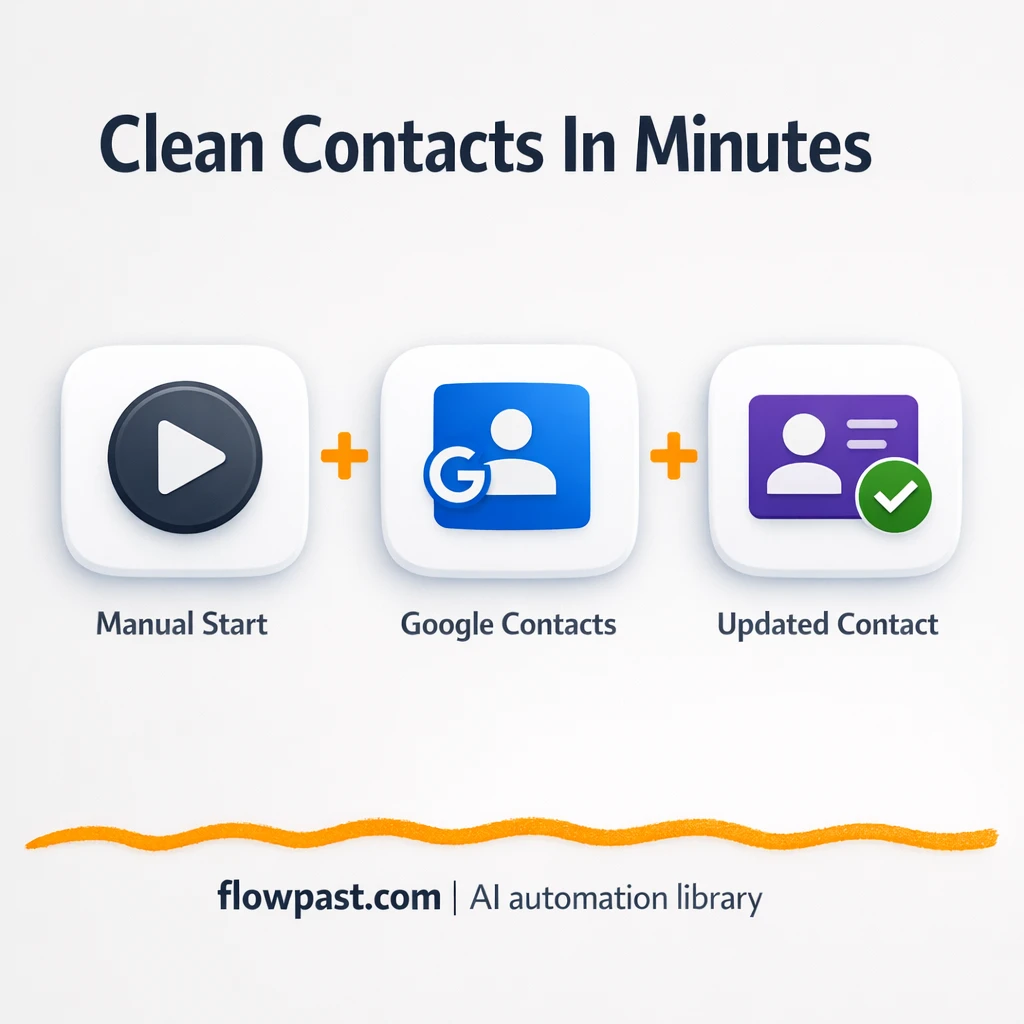

Your leads are coming in, but your contact database still feels unreliable. Names land in the wrong fields, phone numbers show up as “(555)5555555”, and someone on the team inevitably creates the same contact twice. It’s not just messy. It makes follow-up harder than it should be.
Marketing managers feel it when campaigns spike and lists get exported fast. A sales ops person sees it when reps complain that “the CRM is wrong.” And a small business owner just wants their Sheets Contacts automation to stop breaking. This workflow gets new leads into Google Contacts with consistent fields, so your saved records are actually usable.
Below, you’ll see how the automation runs, what it fixes, and how to set it up without turning this into a technical project.
How This Automation Works
See how this solves the problem:
n8n Workflow Template: Google Sheets to Google Contacts, clean leads fast
flowchart LR

    subgraph sg0["Manual Execution Start Flow"]
        direction LR
        n0@{ icon: "mdi:play-circle", form: "rounded", label: "Manual Execution Start", pos: "b", h: 48 }
        n1@{ icon: "mdi:cog", form: "rounded", label: "Create Contact Record", pos: "b", h: 48 }
        n2@{ icon: "mdi:cog", form: "rounded", label: "Modify Contact Details", pos: "b", h: 48 }
        n3@{ icon: "mdi:cog", form: "rounded", label: "Retrieve Contact Info", pos: "b", h: 48 }
        n1 --> n2
        n2 --> n3
        n0 --> n1
    end

    %% Styling
    classDef trigger fill:#e8f5e9,stroke:#388e3c,stroke-width:2px
    classDef ai fill:#e3f2fd,stroke:#1976d2,stroke-width:2px
    classDef aiModel fill:#e8eaf6,stroke:#3f51b5,stroke-width:2px
    classDef decision fill:#fff8e1,stroke:#f9a825,stroke-width:2px
    classDef database fill:#fce4ec,stroke:#c2185b,stroke-width:2px
    classDef api fill:#fff3e0,stroke:#e65100,stroke-width:2px
    classDef code fill:#f3e5f5,stroke:#7b1fa2,stroke-width:2px
    classDef disabled stroke-dasharray: 5 5,opacity: 0.5
    class n0 trigger
The Challenge: Clean contact data that stays clean
If you’ve ever copied a row from Google Sheets into a contact record, you already know how this goes. First you paste the name, then you guess where “Company” should go, then you try to fix the phone format so it doesn’t look weird on mobile. Later, someone else imports the same sheet again and now you have two “John Smith” entries, one with an email and one with a phone. The worst part is the doubt. You stop trusting your address book, and every send, call, or sync becomes a mini audit.
It adds up fast. Here’s where it breaks down in real life.
- Manual contact entry steals focus, especially when you’re trying to follow up quickly while the lead is still warm.
- Inconsistent fields create downstream chaos, because “First Name + Last Name” gets treated differently across tools.
- Duplicates slip in quietly, and you only notice when people get emailed twice or assigned twice.
- A tiny typo in an email address means missed replies and awkward “did you get my message?” chases.
The Fix: Create, standardize, and confirm Google Contacts records
This n8n workflow takes a new lead and turns it into a clean Google Contacts record you can rely on. You start the run, the workflow creates the contact in Google Contacts, then immediately updates the record to enforce your “house rules” for formatting (consistent name structure, phone field placement, and other details you want to keep tidy). Finally, it retrieves the saved contact from Google Contacts so you can confirm what actually got stored. That last step matters more than people think, because it catches mismatched fields early and gives you a dependable output you can pass to other automations.
The flow is simple on purpose. It starts with a trigger, pushes the lead into Google Contacts, applies the cleanup pass, then reads the finished record back from Google Contacts so you know it’s correct and complete.
What Changes: Before vs. After
| What This Eliminates | Impact You’ll See |
|---|---|
|
|
Real-World Impact
Say you add 20 leads a week to a Google Sheet from forms, events, or list building. Manually saving each one to Google Contacts takes maybe 5 minutes when you include formatting and double-checking, so you’re spending about 2 hours a week on admin. With this workflow, you trigger the run and let Google Contacts handle create + update automatically, then you get the finalized record back to confirm it saved correctly. In practice, it becomes a “few minutes to review” instead of an ongoing chore.
Requirements
- n8n instance (try n8n Cloud free)
- Self-hosting option if you prefer (Hostinger works well)
- Google Contacts to create and update contact records.
- Google account access to authorize Contacts permissions.
- Lead source in Google Sheets so your fields are consistent.
Skill level: Beginner. You’ll connect Google, map a few fields, and run a test contact end-to-end.
Need help implementing this? Talk to an automation expert (free 15-minute consultation).
The Workflow Flow
Manual trigger to run a clean import. You start the workflow when you’re ready, which is handy for initial cleanup or testing before you automate it on every new row.
Create the contact in Google Contacts. n8n sends the lead details into Google Contacts to create a fresh record, using your chosen fields for name, email, phone, and any extras you want to store.
Modify the contact details immediately after creation. The workflow updates the same contact to standardize formatting and fill missing pieces, so the final record matches how you want your contacts stored.
Retrieve the finished contact record. It fetches the saved contact from Google Contacts, which gives you a “source of truth” output you can log, review, or pass into other systems.
You can easily modify the field mapping to match your spreadsheet columns, or extend the workflow so it runs automatically whenever a new row is added. See the full implementation guide below for customization options.
Step-by-Step Implementation Guide
Step 1: Configure the Manual Trigger
Start the workflow manually so you can test contact creation and updates in Google Contacts end-to-end.
- Add or confirm the Manual Execution Start node as the trigger for the workflow.
- Connect Manual Execution Start to Create Contact Record to establish the execution flow.
- Keep the Flowpast Branding sticky note for documentation; it does not affect execution.
Step 2: Connect Google Contacts
Set up Google Contacts access so all contact actions can authenticate correctly.
- Open Create Contact Record and select Credential Required: Connect your googleContactsOAuth2Api credentials.
- Open Modify Contact Details and select Credential Required: Connect your googleContactsOAuth2Api credentials.
- Open Retrieve Contact Info and select Credential Required: Connect your googleContactsOAuth2Api credentials.
Step 3: Set Up Contact Creation
Create a new contact record that can be updated and retrieved later in the workflow.
- Open Create Contact Record and set Given Name to
n8n. - Set Family Name to
n8n. - Ensure Create Contact Record connects to Modify Contact Details.
Step 4: Configure Contact Updates and Retrieval
Update the contact with organization details and then retrieve the updated record.
- In Modify Contact Details, set Operation to
update. - Set Contact ID to
={{$node["Create Contact Record"].json["contactId"]}}. - In Modify Contact Details → Update Fields → Company Values, set Name to
n8n, Title ton8n, Domain ton8n.io, and Current totrue. - In Retrieve Contact Info, set Operation to
getand Contact ID to={{$node["Create Contact Record"].json["contactId"]}}. - Set Fields to include
organizationsto return the updated company data.
Step 5: Test and Activate Your Workflow
Run a manual test to confirm a contact is created, updated, and retrieved correctly.
- Click Execute Workflow to trigger Manual Execution Start.
- Verify Create Contact Record returns a
contactId, and that Modify Contact Details completes successfully. - Check Retrieve Contact Info output for
organizationsdata reflecting the update. - When the test succeeds, toggle the workflow to Active for production use.
Watch Out For
- Google Contacts credentials can expire or need specific permissions. If things break, check the n8n credential connection status and your Google account security alerts first.
- If you later add Google Sheets as a trigger, be careful with retries. A re-run can create a second contact unless you add a lookup step before “Create Contact Record.”
- Field formatting rules are easy to overlook. If your Sheet has “Full Name” but Google Contacts needs separated fields, decide your standard early or you’ll be fixing records forever.
Common Questions
About 30 minutes if your Google account is ready to connect.
Yes. You’ll mostly map fields and connect Google permissions, then run a test contact to confirm the output.
Yes. n8n has a free self-hosted option and a free trial on n8n Cloud. Cloud plans start at $20/month for higher volume. You’ll also need to factor in any Google Workspace policies your org uses (most teams pay nothing extra for Contacts API access).
Two options: n8n Cloud (managed, easiest setup) or self-hosting on a VPS. For self-hosting, Hostinger VPS is affordable and handles n8n well. Self-hosting gives you unlimited executions but requires basic server management.
You can adjust what “clean” means by changing the field mapping in the Google Contacts create/update steps. Common customizations include splitting a “Full Name” column into first/last name, normalizing phone numbers into one format, and adding a consistent note like “Lead source: Webinar” so you can filter later. If your duplicates are the bigger issue, add a lookup before “Create Contact Record” and route matches to “Modify Contact Details” instead.
Usually it’s expired Google authorization or the wrong Google account connected. Reconnect the Google Contacts credential in n8n, then confirm the account has permission to create and edit contacts. If you’re on a managed Workspace, an admin policy can block access, so check that next.
On self-hosted n8n there’s no execution cap, and the practical limit is your server and Google rate limits. On n8n Cloud, capacity depends on your plan’s monthly executions, but this workflow is lightweight since it’s a short chain of Google Contacts actions. If you’re processing big batches, run it in smaller chunks and add basic duplicate checks so retries don’t create extra records.
Often, yes, if you care about control and repeatability. n8n makes it easier to add logic like “check if contact exists, else create,” and you can self-host for unlimited runs. Zapier or Make can be faster for a simple two-step sync, but they get awkward once you need a reliable cleanup pass and a confirmation read-back. If you want, you can also extend this into a full lead pipeline later (Sheets → Contacts → email tool → Slack alert). Talk to an automation expert if you’re deciding between them.
Clean contacts sound boring until you realize how much revenue and reputation sit on top of them. Set this up once, and your Google Contacts stops being a junk drawer.
Need Help Setting This Up?
Our automation experts can build and customize this workflow for your specific needs. Free 15-minute consultation—no commitment required.
