


Discourse + Slack: always share the final post link
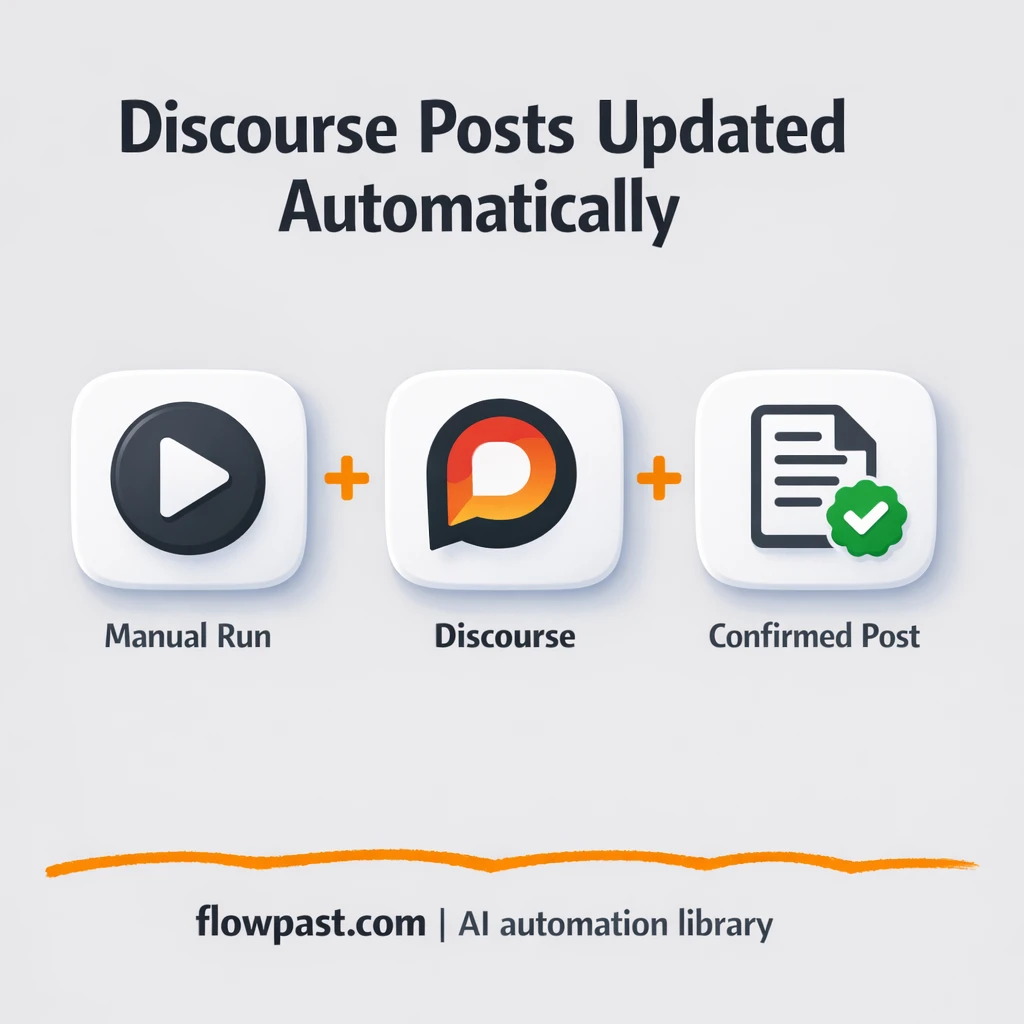

You publish a Discourse post, share the link in Slack, and then realize the URL you posted isn’t the one you actually want people to click. Maybe you edited the title, changed the first post, or grabbed the wrong tab. Now you’re cleaning up threads and re-posting.
This Discourse Slack link automation hits community managers first, because they’re the ones dropping announcements all day. But marketing leads and agency folks shipping client updates feel it too. One small mistake turns into a very public “oops.”
You’ll set up an n8n workflow that publishes a Discourse topic, applies the final revision, then retrieves the confirmed post details so the URL you share to Slack is the right one. Every time.
How This Automation Works
Here’s the complete workflow you’ll be setting up:
n8n Workflow Template: Discourse + Slack: always share the final post link
flowchart LR

    subgraph sg0["On clicking 'execute' Flow"]
        direction LR
        n0@{ icon: "mdi:play-circle", form: "rounded", label: "On clicking 'execute'", pos: "b", h: 48 }
        n1["<div style='background:#f5f5f5;padding:10px;border-radius:8px;display:inline-block;border:1px solid #e0e0e0'><img src='https://flowpast.com/wp-content/uploads/n8n-workflow-icons/discourse.svg' width='40' height='40' /></div><br/>Discourse"]
        n2["<div style='background:#f5f5f5;padding:10px;border-radius:8px;display:inline-block;border:1px solid #e0e0e0'><img src='https://flowpast.com/wp-content/uploads/n8n-workflow-icons/discourse.svg' width='40' height='40' /></div><br/>Discourse1"]
        n3["<div style='background:#f5f5f5;padding:10px;border-radius:8px;display:inline-block;border:1px solid #e0e0e0'><img src='https://flowpast.com/wp-content/uploads/n8n-workflow-icons/discourse.svg' width='40' height='40' /></div><br/>Discourse2"]
        n1 --> n2
        n2 --> n3
        n0 --> n1
    end

    %% Styling
    classDef trigger fill:#e8f5e9,stroke:#388e3c,stroke-width:2px
    classDef ai fill:#e3f2fd,stroke:#1976d2,stroke-width:2px
    classDef aiModel fill:#e8eaf6,stroke:#3f51b5,stroke-width:2px
    classDef decision fill:#fff8e1,stroke:#f9a825,stroke-width:2px
    classDef database fill:#fce4ec,stroke:#c2185b,stroke-width:2px
    classDef api fill:#fff3e0,stroke:#e65100,stroke-width:2px
    classDef code fill:#f3e5f5,stroke:#7b1fa2,stroke-width:2px
    classDef disabled stroke-dasharray: 5 5,opacity: 0.5
    class n0 trigger
    classDef customIcon fill:none,stroke:none
    class n1,n2,n3 customIcon
Why This Matters: Sharing the Wrong “Final” Link
Discourse posts are living documents. You publish, then you tweak formatting, fix a heading, add a missing resource, or adjust the title so it looks right in the forum feed. The problem is Slack is not forgiving. Once the link is in a channel, people click it, copy it, forward it, and the “wrong” version spreads fast. It’s not just annoying. It makes your team look sloppy, and it creates extra work you never planned for: follow-up messages, clarifications, and someone inevitably asking which link is correct.
It adds up fast. Here’s where it breaks down.
- You end up posting two or three links in Slack because the first one wasn’t the finalized post.
- Small edits turn into a coordination problem when multiple people share announcements from different browser tabs.
- Manual copy-paste invites mistakes, especially when you’re publishing several topics in a row.
- Team trust drops a notch when stakeholders can’t tell which URL is the “source of truth.”
What You’ll Build: Publish, Revise, Then Share the Confirmed Discourse URL
This workflow is built around a simple idea: don’t share anything until Discourse confirms what actually exists. In n8n, the automation starts by creating a new Discourse topic in the category you choose. Then it immediately updates that same post with your revised “final” content (the version you really want readers to see). After the update, it retrieves the post details from Discourse again, pulling back the canonical URL and key metadata. That retrieved data is the piece you can safely send to Slack, because it’s coming from Discourse itself, not from a human guessing which link is right.
The flow is publish first, revise second, confirm last. Once you have that confirmed link, you can pass it to Slack (or any other tool) knowing you’re not going to backtrack later. Frankly, this is one of those “tiny automations” that makes a team feel more professional overnight.
What You’re Building
| What Gets Automated | What You’ll Achieve |
|---|---|
|
|
Expected Results
Say you publish 5 Discourse topics a week and share each one in Slack. Manually, you might spend about 10 minutes per topic between publishing, revising, reloading, copying the right URL, and sanity-checking the link preview, so around 50 minutes weekly. With this workflow, you trigger the run, make your revision in the same automation, then the workflow retrieves the confirmed URL for sharing. You’ll usually spend a minute or two initiating the run, and the rest is just processing time.
Before You Start
- n8n instance (try n8n Cloud free)
- Self-hosting option if you prefer (Hostinger works well)
- Discourse for publishing, editing, and retrieving topics
- Slack to share the confirmed post URL
- Discourse API key (generate it in your Discourse admin/user API settings)
Skill level: Beginner. You’ll connect credentials and map a few fields, but you do not need to write code.
Want someone to build this for you? Talk to an automation expert (free 15-minute consultation).
Step by Step
A manual run kicks things off. In the provided workflow, you start it with a manual trigger, which is perfect for testing and for teams that want a deliberate “publish now” button.
Discourse publishes the topic. The workflow creates a new post under the category you choose, using the content you pass into the Discourse “create” action.
The post gets revised immediately. Next, it updates that same topic with the final content, so your formatting, links, and wording are the version that sticks.
Discourse is queried for the confirmed details. The workflow retrieves the post it just created, pulling back the canonical URL and other fields you can reliably share downstream (like title or topic id).
You can easily modify the final “share” destination to send the URL to Slack, Twake, Mattermost, or even a Google Sheet log. See the full implementation guide below for customization options.
Step-by-Step Implementation Guide
Step 1: Configure the Manual Trigger
This workflow starts with a manual trigger so you can run it on demand while testing.
- Add the Manual Execution Start node to your canvas.
- Keep the default settings since this node has no parameters.
- Connect Manual Execution Start to Publish Forum Topic to start the execution flow.
Step 2: Connect Discourse
All Discourse actions in this workflow use the same API connection. Configure credentials once and apply them to each Discourse node.
- Open Publish Forum Topic and select your Discourse API connection.
- Credential Required: Connect your discourseApi credentials.
- Repeat the same credential selection for Revise Forum Post and Retrieve Forum Post.
Step 3: Set Up the Initial Post
Create the initial topic in Discourse before updating and retrieving it.
- In Publish Forum Topic, set Title to
[Created] Discourse node. - Set Content to
Thank you for creating the Discourse node.. - Under Additional Fields, set Category to
4. - Verify the connection flows from Publish Forum Topic to Revise Forum Post.
Step 4: Update and Retrieve the Post
Use the created post ID to update the post and then retrieve it for confirmation.
- In Revise Forum Post, set Operation to
update. - Set Post ID to
={{$json["id"]}}to use the ID from Publish Forum Topic. - Set Content to
Thank you for creating the Discourse node. We can now create, update and retrieve posts using n8n.. - In Retrieve Forum Post, set Operation to
getand Post ID to={{$json["id"]}}. - Ensure the flow is Revise Forum Post → Retrieve Forum Post as shown in the execution order.
={{$json["id"]}} is coming from the output of Publish Forum Topic and that the node connections are intact.Step 5: Test and Activate Your Workflow
Run the workflow manually to confirm the topic is created, updated, and retrieved successfully.
- Click Execute Workflow to trigger Manual Execution Start.
- Confirm Publish Forum Topic creates a new post and returns an
idin the output. - Verify Revise Forum Post updates the post content using the same
id. - Check Retrieve Forum Post output to ensure the updated content is returned.
- When everything looks correct, switch the workflow to Active for production use.
Troubleshooting Tips
- Discourse credentials can expire or need specific permissions. If things break, check your Discourse API key and username settings in n8n credentials first.
- If you add Wait nodes (or you’re posting to a busy Discourse instance), processing times vary. Bump up the wait duration if your “retrieve post” step sometimes runs before the update is finished.
- Default post templates are usually bland. Bake your announcement format into the “revise post” content early, or you will be polishing every post by hand.
Quick Answers
About 30 minutes if your Discourse API access is ready.
No. You’ll mainly connect Discourse and map the fields you want to publish and retrieve.
Yes. n8n has a free self-hosted option and a free trial on n8n Cloud. Cloud plans start at $20/month for higher volume. You’ll also need to factor in Discourse hosting costs if you’re running your own forum.
Two options: n8n Cloud (managed, easiest setup) or self-hosting on a VPS. For self-hosting, Hostinger VPS is affordable and handles n8n well. Self-hosting gives you unlimited executions but requires basic server management.
Yes, and it’s the main reason this workflow is useful. You can keep the same “publish → revise → retrieve” pattern but swap the destination: post to Slack, send to Twake, notify Mattermost, or log the confirmed URL somewhere like Google Sheets. Common tweaks include changing the Discourse category, adjusting the revision template, and adding a second message that includes the title plus the final URL.
Usually it’s expired or incorrect API credentials, so regenerate your Discourse API key and update the n8n credential. Also confirm the Discourse base URL is correct (including https) and that the user tied to the key can create and edit posts in the target category. If it fails only sometimes, you may be hitting rate limits or trying to retrieve the post before the update is fully saved.
A lot for typical teams: dozens of topics a day is usually fine, as long as your Discourse instance is healthy.
Often, yes, because this pattern benefits from chaining actions (create, then update, then retrieve) and passing the retrieved data forward cleanly. n8n also gives you more control over branching and data mapping when your post template evolves over time. If you self-host, you’re not paying per task, which matters once publishing becomes routine. Zapier or Make can still be fine if you’re doing a simple “send a message when something happens” flow, and you don’t care about the final URL confirmation step. Talk to an automation expert if you want help choosing.
Once this is running, the link you share is the link you meant to share. The workflow handles the repetitive checking so you can move on to the work that actually needs your attention.
Need Help Setting This Up?
Our automation experts can build and customize this workflow for your specific needs. Free 15-minute consultation—no commitment required.
