


OpenAI + Airtable: tweet drafts ready to review
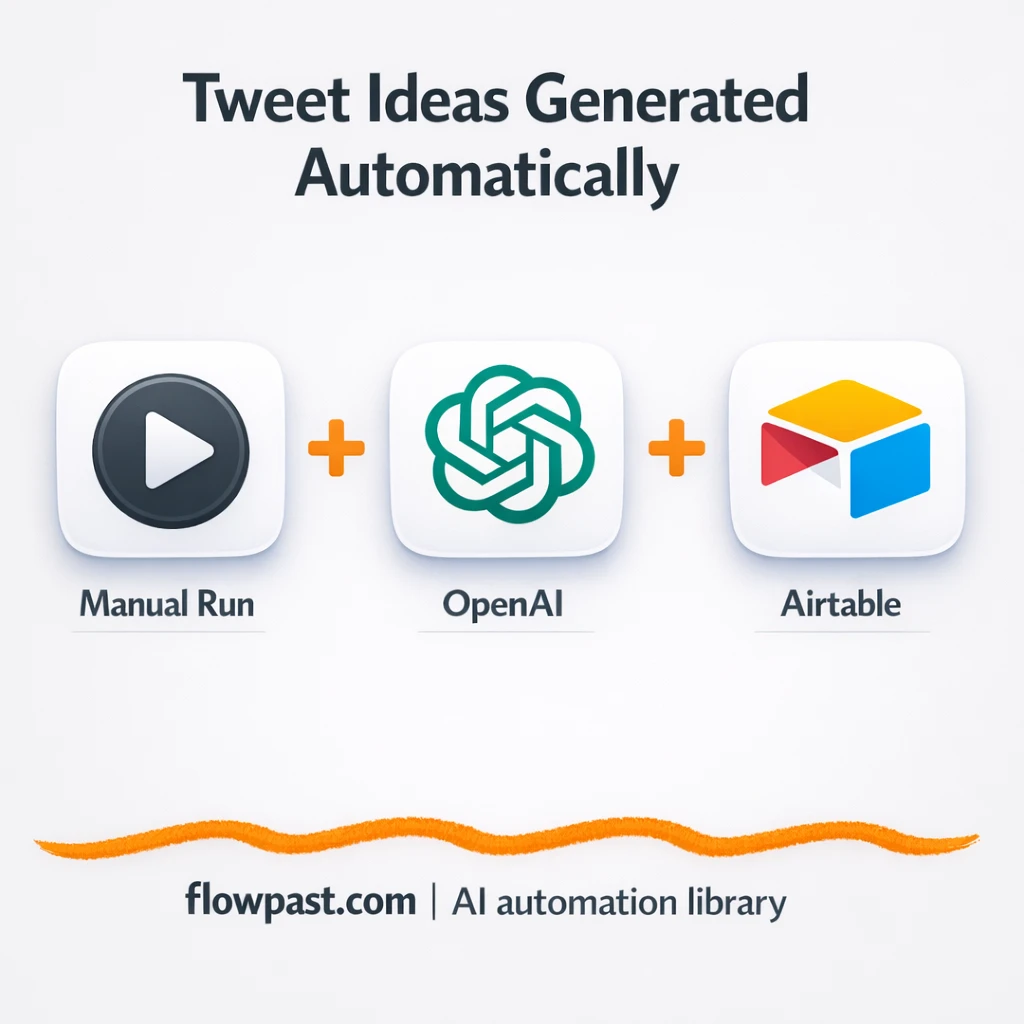

Tweeting consistently sounds simple until you’re staring at a blank cursor, reusing the same hooks, and losing good ideas in random notes. Then the “quick post” turns into a daily scramble.
Marketing managers feel it when content calendars slip. A solo founder feels it when product work eats the day. And a consultant trying to stay visible feels it too. This OpenAI Airtable tweets automation gives you a clean queue of drafts you can review, tweak, and publish without starting from scratch.
You’ll set up a workflow that takes a hashtag topic, asks OpenAI for a draft, and drops the result into Airtable in a format that’s actually usable.
How This Automation Works
Here’s the complete workflow you’ll be setting up:
n8n Workflow Template: OpenAI + Airtable: tweet drafts ready to review
flowchart LR

    subgraph sg0["Manual Execution Start Flow"]
        direction LR
        n0@{ icon: "mdi:play-circle", form: "rounded", label: "Manual Execution Start", pos: "b", h: 48 }
        n1@{ icon: "mdi:code-braces", form: "rounded", label: "Transform Hashtag Pick", pos: "b", h: 48 }
        n2["<div style='background:#f5f5f5;padding:10px;border-radius:8px;display:inline-block;border:1px solid #e0e0e0'><img src='https://flowpast.com/wp-content/uploads/n8n-workflow-icons/httprequest.dark.svg' width='40' height='40' /></div><br/>External Text Generation"]
        n3@{ icon: "mdi:swap-vertical", form: "rounded", label: "Map Output Fields", pos: "b", h: 48 }
        n4["<div style='background:#f5f5f5;padding:10px;border-radius:8px;display:inline-block;border:1px solid #e0e0e0'><img src='https://flowpast.com/wp-content/uploads/n8n-workflow-icons/airtable.svg' width='40' height='40' /></div><br/>Append Airtable Record"]
        n3 --> n4
        n1 --> n2
        n2 --> n3
        n0 --> n1
    end

    %% Styling
    classDef trigger fill:#e8f5e9,stroke:#388e3c,stroke-width:2px
    classDef ai fill:#e3f2fd,stroke:#1976d2,stroke-width:2px
    classDef aiModel fill:#e8eaf6,stroke:#3f51b5,stroke-width:2px
    classDef decision fill:#fff8e1,stroke:#f9a825,stroke-width:2px
    classDef database fill:#fce4ec,stroke:#c2185b,stroke-width:2px
    classDef api fill:#fff3e0,stroke:#e65100,stroke-width:2px
    classDef code fill:#f3e5f5,stroke:#7b1fa2,stroke-width:2px
    classDef disabled stroke-dasharray: 5 5,opacity: 0.5
    class n0 trigger
    class n4 database
    class n2 api
    class n1 code
    classDef customIcon fill:none,stroke:none
    class n2,n4 customIcon
Why This Matters: Consistent Tweets Without Daily Brain Drain
Most teams don’t fail at X (Twitter) because they “don’t know how to write.” They fail because the process is annoying. Ideas get captured in five places, drafts live in DMs or Notion, and when it’s time to post you’re rebuilding context from scratch. On busy weeks, you skip posting. On slow weeks, you post whatever comes to mind, which is how your account ends up sounding inconsistent. And honestly, nothing kills momentum faster than opening X and thinking, “What do I even say today?”
The friction compounds. Here’s where it usually breaks down.
- You waste about 20 minutes just picking a topic and finding a decent angle.
- Drafts vanish into notes apps, so you rewrite the same tweet again next week.
- Hashtags and themes drift over time, which makes your content feel random.
- When someone finally asks “what are we posting this week?”, there’s nothing centralized to review.
What You’ll Build: Hashtag-Driven Tweet Drafts Logged in Airtable
This workflow gives you a simple, repeatable path from “topic idea” to “draft ready for review.” You start the automation manually when you want a batch of fresh tweets (handy for weekly planning). A short JavaScript step picks or transforms hashtag topics, so you’re not guessing what to write about. Then an HTTP Request node calls OpenAI to generate the tweet text based on that hashtag prompt. Finally, the workflow maps the response into clean fields and appends a new record in Airtable, creating a tidy review queue you can edit, approve, and schedule from.
The workflow starts with a manual trigger inside n8n, which means you’re in control. From there, hashtags are prepared in a predictable format, OpenAI generates the draft, and Airtable becomes your single source of truth for what’s ready to post.
What You’re Building
| What Gets Automated | What You’ll Achieve |
|---|---|
|
|
Expected Results
Say you want 20 tweet drafts ready for next week. Manually, you might spend about 10 minutes per tweet between picking a topic, drafting, adding hashtags, and cleaning it up, so that’s around 3 hours total. With this workflow, you spend maybe 5 minutes kicking it off and skimming the hashtags, then wait while OpenAI generates. Airtable fills up with drafts automatically, and your review pass is the only real work left.
Before You Start
- n8n instance (try n8n Cloud free)
- Self-hosting option if you prefer (Hostinger works well)
- Airtable for storing drafts in a review queue
- OpenAI to generate tweet draft text
- OpenAI API key (get it from the OpenAI API dashboard)
Skill level: Beginner. You will connect credentials and edit a small list of hashtags.
Want someone to build this for you? Talk to an automation expert (free 15-minute consultation).
Step by Step
Manual run from n8n. You trigger the workflow when you want new drafts, like every Monday morning or right before a campaign.
Hashtag topics are prepared. A Function Item node (JavaScript) selects and formats the hashtag topic so the prompt stays consistent. This is where you decide what your account talks about.
OpenAI generates the tweet draft. An HTTP Request node sends the prompt out to OpenAI and receives a draft back. If you want your output to sound more “you,” the prompt is the lever you pull.
Drafts are cleaned up and logged. A Set node maps the output into specific fields, then Airtable appends a new record. Now you have a reviewable list instead of loose text blobs.
You can easily modify the hashtag list to focus on a product launch, a weekly theme, or a client niche. See the full implementation guide below for customization options.
Step-by-Step Implementation Guide
Step 1: Configure the Manual Trigger
Start the workflow manually and ensure the initial node is in place.
- Add Manual Execution Start as the trigger node.
- Connect Manual Execution Start to Transform Hashtag Pick to follow the execution flow.
- (Optional) Keep Flowpast Branding as a reference sticky note for documentation purposes.
Step 2: Set Up the Hashtag Processing
Generate a random hashtag for each run using the function node.
- Open Transform Hashtag Pick and set Function Code to the provided snippet that selects a random hashtag from
#techtwitterand#n8n. - Verify the code assigns the output to
item.hashtagand returns the item. - Connect Transform Hashtag Pick to External Text Generation.
Step 3: Set Up External Text Generation
Call the external AI API to generate the social post draft text.
- Open External Text Generation and set URL to
https://api.openai.com/v1/engines/text-davinci-001/completions. - Set Request Method to
POST, Authentication toheaderAuth, and enable JSON Parameters. - Set Body Parameters JSON to
={ "prompt": "Generate a tweet, with under 100 characters, about and including the hashtag {{$node[\"Transform Hashtag Pick\"].json[\"hashtag\"]}}:", "temperature": 0.7, "max_tokens": 64, "top_p": 1, "frequency_penalty": 0, "presence_penalty": 0 }. - Credential Required: Connect your httpHeaderAuth credentials.
Step 4: Configure Output Mapping and Airtable Append
Map the hashtag and generated text into structured fields, then append to Airtable.
- Open Map Output Fields and set Keep Only Set to
true. - Add a field named Hashtag with value
={{$node["Transform Hashtag Pick"].json["hashtag"]}}. - Add a field named Content with value
={{$node["External Text Generation"].json["choices"][0]["text"]}}. - Connect Map Output Fields to Append Airtable Record.
- In Append Airtable Record, set Operation to
append, Application toappOaG8kEA8FAABOr, and Table tomain. - Credential Required: Connect your airtableApi credentials.
Step 5: Test and Activate Your Workflow
Run a full test to verify that a draft is generated and stored correctly.
- Click Execute Workflow on Manual Execution Start to run the workflow manually.
- Confirm that External Text Generation returns a completion and that Map Output Fields shows Hashtag and Content values.
- Check Airtable to ensure a new record is appended to the
maintable with the mapped fields. - Activate the workflow when you are ready for production use.
Troubleshooting Tips
- OpenAI credentials can expire or get blocked by billing status. If things break, check your OpenAI API key and billing settings in the OpenAI dashboard first.
- If you’re using Wait nodes or external rendering, processing times vary. Bump up the wait duration if downstream nodes fail on empty responses.
- Default prompts in AI nodes are generic. Add your brand voice early or you’ll be editing outputs forever.
Quick Answers
About 30 minutes if your Airtable base and OpenAI key are ready.
No. You will edit a small JavaScript snippet, but it’s mostly swapping hashtags and text.
Yes. n8n has a free self-hosted option and a free trial on n8n Cloud. Cloud plans start at $20/month for higher volume. You’ll also need to factor in OpenAI API costs, which are usually a few cents for a batch of drafts.
Two options: n8n Cloud (managed, easiest setup) or self-hosting on a VPS. For self-hosting, Hostinger VPS is affordable and handles n8n well. Self-hosting gives you unlimited executions but requires basic server management.
Yes, and you should. Most people customize the Function Item step that selects hashtags, then adjust the prompt used in the HTTP Request to OpenAI so drafts match the exact format they want. You can also change the Set step to add fields like “Audience,” “CTA,” or “Campaign,” and map those into Airtable. If your review process lives somewhere else, you can swap the Airtable node for Google Sheets or a Slack message.
Usually it’s permissions or the base/table being renamed. Reconnect Airtable in n8n credentials, confirm the correct base and table still exist, and make sure the API token has access to that workspace. If you recently changed fields, the “Append record” mapping can also break because Airtable expects the new field names.
A lot. Practically, you’re limited by your n8n plan and OpenAI rate limits, but most small teams can generate a week of drafts in one run without issues.
Often, yes. This workflow benefits from a little logic in the hashtag-picking step, and n8n handles that kind of “tiny code + branching later” work without turning it into an expensive multi-step Zap. You also get a self-hosting option, which matters once you start generating drafts in batches. Zapier and Make can still be fine if you only want a simple two-step flow and you never plan to customize prompts or output fields. If you’re unsure, Talk to an automation expert and get a quick recommendation based on your volume and review process.
This is how you stop “thinking about tweeting” and start reviewing drafts like it’s a normal part of your workflow. Set it up once, then let Airtable hold the backlog while OpenAI does the first pass.
Need Help Setting This Up?
Our automation experts can build and customize this workflow for your specific needs. Free 15-minute consultation—no commitment required.
