


Icypeas + Google Sheets: cleaner leads, fewer bounces
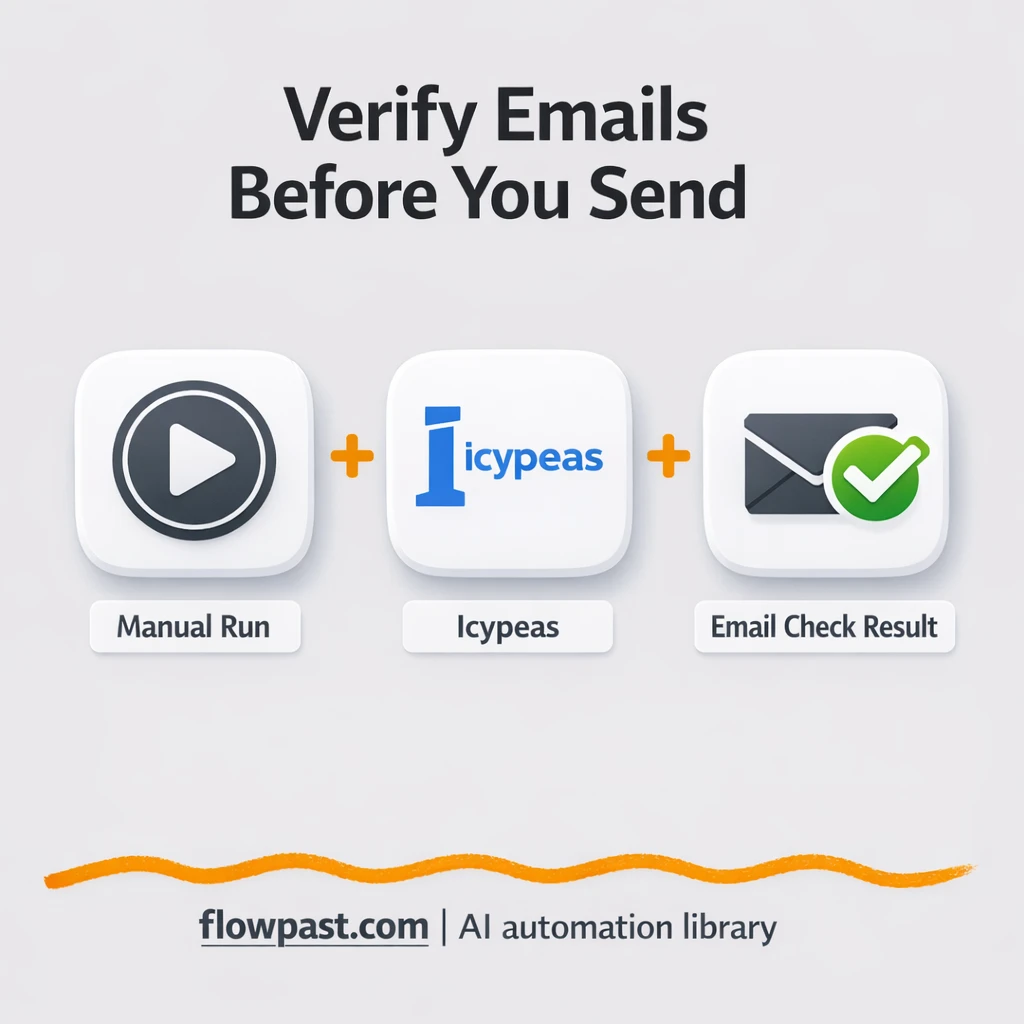

You finally get a batch of “new leads,” hit send… and your bounce rate jumps. Now you’re cleaning lists, arguing with deliverability, and wondering which emails were dead on arrival.
Email verification hits marketing ops first, but SDRs and small business owners feel the pain too. The goal is simple: validate addresses before they touch your campaigns, and keep a clean log you can trust.
This workflow verifies an email via Icypeas, then makes it easy to store the result in Google Sheets. You’ll see what it automates, what you get back, and where teams usually trip up.
How This Automation Works
The full n8n workflow, from trigger to final output:
n8n Workflow Template: Icypeas + Google Sheets: cleaner leads, fewer bounces
flowchart LR

    subgraph sg0["When clicking "Execute Workflow" Flow"]
        direction LR
        n0@{ icon: "mdi:play-circle", form: "rounded", label: "When clicking 'Execute Workf..", pos: "b", h: 48 }
        n1["<div style='background:#f5f5f5;padding:10px;border-radius:8px;display:inline-block;border:1px solid #e0e0e0'><img src='https://flowpast.com/wp-content/uploads/n8n-workflow-icons/httprequest.dark.svg' width='40' height='40' /></div><br/>Run email verification (sing.."]
        n2["<div style='background:#f5f5f5;padding:10px;border-radius:8px;display:inline-block;border:1px solid #e0e0e0'><img src='https://flowpast.com/wp-content/uploads/n8n-workflow-icons/code.svg' width='40' height='40' /></div><br/>Authenticates to your Icypea.."]
        n0 --> n2
        n2 --> n1
    end

    %% Styling
    classDef trigger fill:#e8f5e9,stroke:#388e3c,stroke-width:2px
    classDef ai fill:#e3f2fd,stroke:#1976d2,stroke-width:2px
    classDef aiModel fill:#e8eaf6,stroke:#3f51b5,stroke-width:2px
    classDef decision fill:#fff8e1,stroke:#f9a825,stroke-width:2px
    classDef database fill:#fce4ec,stroke:#c2185b,stroke-width:2px
    classDef api fill:#fff3e0,stroke:#e65100,stroke-width:2px
    classDef code fill:#f3e5f5,stroke:#7b1fa2,stroke-width:2px
    classDef disabled stroke-dasharray: 5 5,opacity: 0.5
    class n0 trigger
    class n1 api
    class n2 code
    classDef customIcon fill:none,stroke:none
    class n1,n2 customIcon
The Problem: Bad Emails Quietly Wreck Your Campaigns
Most email lists look “fine” until you actually use them. A single typo, an old role inbox, or a catch-all domain can slip into your CRM and sit there for months. Then a campaign goes out and you’re stuck dealing with bounces, spam flags, and the awkward question: “Where did these leads come from?” The worst part is the mental tax. You start second-guessing every import, every form, every list you buy or scrape. And that hesitation slows everything down.
It adds up fast. Here’s where it breaks down in real life.
- You waste about an hour per list export cleaning obvious mistakes by hand.
- Bounces and “user unknown” errors pile up, which can drag down deliverability for everyone else on the list.
- Teams end up verifying “some” leads sometimes, so nobody knows which rows are safe to mail.
- Results live in random places (an inbox screenshot, a Slack message, a note), so you can’t audit or improve lead sources.
The Solution: Verify with Icypeas, Track in Sheets
This n8n workflow runs an email address through Icypeas validation using a simple HTTP request. You start it manually when you’re ready (useful for spot-checking a list before a send). Behind the scenes, n8n prepares your Icypeas authentication details, calls the verification endpoint, and returns a clear result you can use in your process. Once you have that output, it’s easy to log it to Google Sheets so the whole team has one place to check status before importing into a CRM or launching outreach. Less guessing. Fewer bad sends. Cleaner operations.
The workflow starts when you click execute in n8n. Then it generates the Icypeas auth payload and submits the email to Icypeas for validation. Finally, you use the returned status to record what happened (and make decisions like “send,” “hold,” or “remove”).
What You Get: Automation vs. Results
| What This Workflow Automates | Results You’ll Get |
|---|---|
|
|
Example: What This Looks Like
Say you’re prepping a list of 300 new leads for a newsletter send. Manually spot-checking and cleaning usually takes about 30–60 minutes, then you still discover bounces after the send. With this workflow, you can run the list through Icypeas in one pass and log each result into Google Sheets: a few minutes to start the run, then processing time while n8n does the requests. Instead of guessing, you filter the sheet to “valid” and mail those first.
What You’ll Need
- n8n instance (try n8n Cloud free)
- Self-hosting option if you prefer (Hostinger works well)
- Icypeas for email address verification results
- Google Sheets to store a shared verification log
- Icypeas API key, API secret, and User ID (get them from your Icypeas account dashboard)
Skill level: Beginner. You’ll paste credentials, set one email input, and map a few fields to a sheet.
Don’t want to set this up yourself? Talk to an automation expert (free 15-minute consultation).
How It Works
You trigger a run when you’re ready. In this template it’s a manual execute, which is perfect for validating a batch right before outreach or a campaign.
n8n prepares your Icypeas authentication. The Code node assembles the API key, secret, and user identifier in the format the Icypeas endpoint expects, so the request stays consistent.
Icypeas validates the email address. The workflow submits an HTTP request and receives a response that indicates whether the inbox looks deliverable, risky, or invalid (depending on what Icypeas returns for that address).
You record the outcome for later. Many teams append the status and timestamp to Google Sheets so nobody has to re-check the same lead twice.
You can easily modify the single-email input to handle a whole list from Google Sheets based on your needs. See the full implementation guide below for customization options.
Step-by-Step Implementation Guide
Step 1: Configure the Manual Trigger
Set up the manual start point so you can run the workflow on demand while configuring the Icypeas request.
- Add the Manual Launch Trigger node to the canvas.
- Leave all fields in Manual Launch Trigger at their default values.
- Connect Manual Launch Trigger to Icypeas Auth Setup.
Step 2: Connect Icypeas Auth Setup
Generate the Icypeas signature and API metadata needed for the validation request.
- Open Icypeas Auth Setup and keep the JavaScript Code as provided.
- Replace the placeholders in the script: set API_KEY to
[CONFIGURE_YOUR_API_KEY], API_SECRET to[CONFIGURE_YOUR_API_KEY], and USER_ID to[YOUR_ID]. - Confirm the constants match your target endpoint: BASE_URL is
https://app.icypeas.com, PATH is/api/email-verification, and METHOD isPOST.
⚠️ Common Pitfall: The code writes the auth object to $input.first().json.api. If you pass in empty input items, make sure the workflow has at least one item (the manual trigger provides it) to avoid missing data.
Step 3: Configure Execute Email Validation
Send the signed request to Icypeas for email verification using the generated auth fields.
- Add the Execute Email Validation node and connect it after Icypeas Auth Setup.
- Credential Required: Connect your httpHeaderAuth credentials to Execute Email Validation.
- Set URL to
={{ $json.api.url }}. - Set Method to
POST. - Enable Send Body and Send Headers.
- In Body Parameters, set email to
=[YOUR_EMAIL]. - In Header Parameters, set X-ROCK-TIMESTAMP to
={{ $json.api.timestamp }}.
⚠️ Common Pitfall: Ensure the httpHeaderAuth credential includes the expected Icypeas headers (API key/secret format) or the endpoint will reject the request.
Step 4: Test and Activate Your Workflow
Validate the request and confirm the email verification response before enabling the workflow.
- Click Execute Workflow to run Manual Launch Trigger and send a request through Execute Email Validation.
- Verify the response in Execute Email Validation contains a successful verification payload from Icypeas.
- If the response fails, recheck the placeholder values in Icypeas Auth Setup and the httpHeaderAuth credential.
- When everything works, toggle the workflow to Active for production use.
Common Gotchas
- Icypeas credentials can expire or need specific permissions. If things break, check your Icypeas dashboard credentials and account status first.
- If you’re using Wait nodes or external rendering, processing times vary. Bump up the wait duration if downstream nodes fail on empty responses.
- Default prompts in AI nodes are generic. Add your brand voice early or you’ll be editing outputs forever.
Frequently Asked Questions
About 20 minutes once you have your Icypeas credentials.
No. You’ll mostly paste keys and map fields to where you want the result stored.
Yes. n8n has a free self-hosted option and a free trial on n8n Cloud. Cloud plans start at $20/month for higher volume. You’ll also need to factor in Icypeas API usage costs based on how many emails you validate.
Two options: n8n Cloud (managed, easiest setup) or self-hosting on a VPS. For self-hosting, Hostinger VPS is affordable and handles n8n well. Self-hosting gives you unlimited executions but requires basic server management.
Yes, but you’ll add a Google Sheets “read rows” step and loop through each email using Split in Batches. Many teams also add an If node to separate “valid” from “risky/invalid,” then write the status back into the same sheet. If you want to keep the original template intact, duplicate it first and experiment on a copy. The key swap is replacing the single email input with a list source (usually a sheet or webhook payload).
Usually it’s a wrong API key/secret/User ID combination or an expired credential. Regenerate the credentials in Icypeas and update them in the Code node, then re-run the workflow. If it still fails, check the HTTP response body in n8n because Icypeas often returns a clear error message (like missing permissions or invalid signature). Rate limits can also show up when you verify big batches back-to-back.
If you self-host n8n, there’s no fixed execution limit (it mostly depends on your server and Icypeas limits). On n8n Cloud, capacity depends on your plan’s monthly executions, and bulk jobs consume them quickly.
Often, yes. n8n is usually easier to extend when you want branching logic (valid vs risky vs invalid), batching, or a stricter audit trail in Google Sheets without paying extra per “path.” It’s also flexible about how you authenticate HTTP requests, which matters with tools like Icypeas. Zapier or Make can still be fine for a tiny workflow, especially if you want a polished UI and never plan to scale it. If you’re unsure, Talk to an automation expert and you’ll get a straight recommendation.
Cleaner leads change everything downstream. Set this up once, keep the Sheet updated, and stop finding out your list is broken after you hit send.
Need Help Setting This Up?
Our automation experts can build and customize this workflow for your specific needs. Free 15-minute consultation—no commitment required.
