


Google Keyword Planner to Google Sheets, planned fast
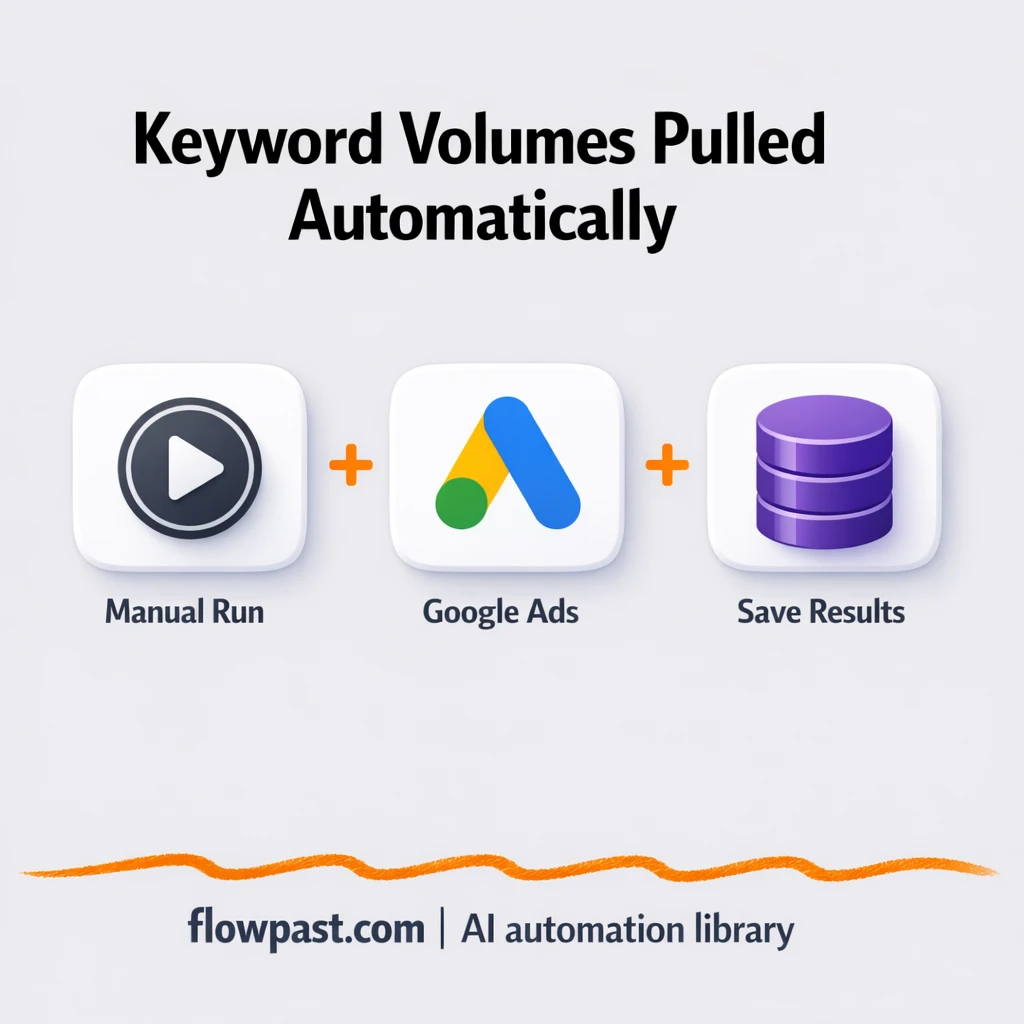

You finally have a keyword list… and then you hit the wall. Search volume is scattered, trends are hard to compare, and you end up copying numbers into a spreadsheet until your eyes blur.
SEO managers feel this when planning the next quarter. Content strategists feel it when stakeholders ask, “Why this topic?” Agencies do too, because keyword research has to be repeatable. This keyword planner sheets automation takes a batch of keywords and turns it into clean, consistent rows you can actually plan from.
Below you’ll see how the workflow runs, what it eliminates, and what you’ll need to push Keyword Planner metrics straight into Google Sheets (or Excel) without the usual mess.
How This Automation Works
See how this solves the problem:
n8n Workflow Template: Google Keyword Planner to Google Sheets, planned fast
flowchart LR

    subgraph sg0["When clicking ‘Test workflow’ Flow"]
        direction LR
        n0@{ icon: "mdi:play-circle", form: "rounded", label: "When clicking ‘Test workflow’", pos: "b", h: 48 }
        n1@{ icon: "mdi:swap-vertical", form: "rounded", label: "Split Out by KW", pos: "b", h: 48 }
        n2@{ icon: "mdi:swap-vertical", form: "rounded", label: "Set =20 Keywords", pos: "b", h: 48 }
        n3@{ icon: "mdi:cog", form: "rounded", label: "Connect to your own database.", pos: "b", h: 48 }
        n4["<div style='background:#f5f5f5;padding:10px;border-radius:8px;display:inline-block;border:1px solid #e0e0e0'><img src='https://flowpast.com/wp-content/uploads/n8n-workflow-icons/httprequest.dark.svg' width='40' height='40' /></div><br/>Get Search Data"]
        n4 --> n1
        n1 --> n3
        n2 --> n4
        n0 --> n2
    end

    %% Styling
    classDef trigger fill:#e8f5e9,stroke:#388e3c,stroke-width:2px
    classDef ai fill:#e3f2fd,stroke:#1976d2,stroke-width:2px
    classDef aiModel fill:#e8eaf6,stroke:#3f51b5,stroke-width:2px
    classDef decision fill:#fff8e1,stroke:#f9a825,stroke-width:2px
    classDef database fill:#fce4ec,stroke:#c2185b,stroke-width:2px
    classDef api fill:#fff3e0,stroke:#e65100,stroke-width:2px
    classDef code fill:#f3e5f5,stroke:#7b1fa2,stroke-width:2px
    classDef disabled stroke-dasharray: 5 5,opacity: 0.5
    class n0 trigger
    class n4 api
    classDef customIcon fill:none,stroke:none
    class n4 customIcon
The Challenge: Keyword metrics that don’t stay consistent
Keyword research sounds simple until you try to do it at scale. You collect ideas from customers, sales calls, Search Console, competitors, and internal brainstorming. Then comes the slow part: getting reliable search volume, competition, and trend data into one place so you can compare like-for-like. One export is missing a column. Another has different naming. Someone pastes over last month’s sheet. The result is a “plan” that feels shaky, because the underlying numbers aren’t stable.
It adds up fast. Here’s where it usually breaks down.
- You end up re-checking the same keywords every time a new content sprint starts.
- Trend context gets lost, so seasonal keywords look “dead” when they’re just off-cycle.
- Manual copy-paste creates quiet errors, and you only notice after a page underperforms.
- Stakeholders ask for proof, and you waste an hour rebuilding the data trail.
The Fix: Keyword Planner metrics routed into Sheets automatically
This n8n workflow pulls keyword metrics directly from the Google Keyword Planner (via the Google Ads API) and formats them into clean, repeatable rows for storage. You start with a defined list of up to 20 keywords, then the workflow sends that list to the Keyword Planner endpoint to retrieve monthly search volume, competition signals, and trend history for the past year. Next, it separates the combined response into one result per keyword so nothing gets tangled together. Finally, it hands the structured output to your storage step, which you can point at Google Sheets, Microsoft Excel 365, or a database you already use.
The workflow starts when you run it manually (perfect for weekly or sprint planning). From there, n8n packages your keyword list, requests the metrics, and splits the response into tidy per-keyword rows. Once the output is consistent, you can log it to Google Sheets and use the same format every time.
What Changes: Before vs. After
| What This Eliminates | Impact You’ll See |
|---|---|
|
|
Real-World Impact
Say you review 20 candidate keywords every Monday. Manually, you might spend about 3 minutes per keyword pulling volume, competition, and a quick trend check, then another 20 minutes cleaning the sheet. That’s roughly 80 minutes a week. With this workflow, you paste the 20 keywords once, run it, and write clean rows to Google Sheets. The “hands-on” part becomes closer to 10 minutes, plus a little waiting while the API responds.
Requirements
- n8n instance (try n8n Cloud free)
- Self-hosting option if you prefer (Hostinger works well)
- Google Ads API for Keyword Planner metrics access.
- Google Sheets to store results as clean rows.
- Google Ads API credentials (create in Google Ads / Google Cloud console).
Skill level: Intermediate. You won’t code, but you will set up Google Ads API access and paste credentials into n8n.
Need help implementing this? Talk to an automation expert (free 15-minute consultation).
The Workflow Flow
You run it on demand. The workflow uses a manual start, so you can trigger it during planning, before a client call, or whenever your keyword list changes.
Your keyword list is defined. In the “Define Keyword List” step, you provide up to 20 keywords in an array. If you prefer, you can swap this later for a source like Airtable or a database table so you never paste keywords again.
Google Keyword Planner metrics are retrieved. n8n sends an HTTP request to the Google Ads API (the Keyword Planner endpoint) and pulls back monthly search volume, competition metrics, and a 12‑month trend history. This is where the workflow gets its “single source of truth.”
Results are split and prepared for storage. The response is separated into individual keyword results so each row stays clean. From there you can update a Google Sheet, write to Microsoft Excel 365, or hand it to your database layer.
You can easily modify the keyword source to pull from a sheet or database instead of a manual list. See the full implementation guide below for customization options.
Step-by-Step Implementation Guide
Step 1: Configure the Manual Trigger
This workflow starts manually and then passes keywords into the Google Ads API request chain.
- Add the Manual Execution Start node as your trigger.
- Connect Manual Execution Start to Define Keyword List to match the execution flow.
Step 2: Connect Google Ads
The workflow calls the Google Ads Keyword Plan API to retrieve historical metrics.
- Open Retrieve Keyword Metrics and set URL to
https://googleads.googleapis.com/v16/customers/[YOUR_ID]:generateKeywordHistoricalMetrics. - Set Method to
POST, enable Send Body and Send Headers. - Under Authentication, choose
predefinedCredentialType. - Credential Required: Connect your
googleAdsOAuth2Apicredentials. - Configure Header Parameters: set content-type to
application/json, developer-token to[CONFIGURE_YOUR_TOKEN], and login-customer-id to[CONFIGURE_YOUR_TOKEN].
⚠️ Common Pitfall: The Google Ads API requires a valid developer token and login customer ID. Placeholder values will return authentication errors.
Step 3: Set Up Define Keyword List
This node creates the keyword array that is sent to the Google Ads API.
- Open Define Keyword List and add an assignment named Keyword with type array.
- Set the value to the provided expression:
["workflow automation software", "enterprise workflow automation", "finance automation software", "saas automation platform", "automation roi calculator", "hr process automation", "data synchronization software", "n8n workflow automation", "scalable business operations", "n8n vs zapier", "lead generation automation", "automation consulting services", "n8n automation", "marketing automation tools", "custom automation solutions", "ecommerce automation solutions", "business process automation", "small business automation", "no code automation", "crm automation integration"]. - Ensure Define Keyword List connects to Retrieve Keyword Metrics.
Step 4: Configure Processing and Output Nodes
The API response is split into individual result items and prepared for a storage destination.
- Open Retrieve Keyword Metrics and set Body Parameters to send keywords as
{{ $json.Keyword }}and keywordPlanNetwork asGOOGLE_SEARCH. - In Separate Keyword Results, set Field to Split Out to
results. - Confirm the execution chain: Retrieve Keyword Metrics → Separate Keyword Results → Update Storage Destination.
- Use Update Storage Destination as a placeholder to add your database, Google Sheets, or data warehouse node later.
Step 5: Test and Activate Your Workflow
Run a manual test to verify that the keyword list returns metrics and that the data splits correctly.
- Click Execute Workflow to run Manual Execution Start.
- Check Retrieve Keyword Metrics for a successful HTTP response and returned metrics.
- Verify Separate Keyword Results outputs one item per result in
results. - If the data looks correct, replace Update Storage Destination with your target node and retest.
- Activate the workflow to move from manual testing to production use.
Watch Out For
- Google Ads API credentials can expire or lack access to Keyword Planner. If things break, check your Google Ads API access level and the credentials configured inside the “Retrieve Keyword Metrics” HTTP Request node first.
- If you’re using Wait nodes or external rendering, processing times vary. Bump up the wait duration if downstream nodes fail on empty responses.
- Default prompts in AI nodes are generic. Add your brand voice early or you’ll be editing outputs forever.
Common Questions
About 30 minutes if your Google Ads API access is already approved.
Yes, but you will need someone comfortable setting up Google Ads API credentials. After that, running it is just updating the keyword list and clicking execute.
Yes. n8n has a free self-hosted option and a free trial on n8n Cloud. Cloud plans start at $20/month for higher volume. You’ll also need to factor in Google Ads API access (usually free, but subject to quotas) and any OpenAI usage if you extend the workflow with AI summaries.
Two options: n8n Cloud (managed, easiest setup) or self-hosting on a VPS. For self-hosting, Hostinger VPS is affordable and handles n8n well. Self-hosting gives you unlimited executions but requires basic server management.
You can replace the “Define Keyword List” set step with a Google Sheets or Airtable lookup so the workflow always reads the next batch automatically. If you want different columns, adjust the fields you map after “Separate Keyword Results” so your sheet matches your reporting template. Many teams also add a second write step to Microsoft Excel 365 for client deliverables while keeping an internal Google Sheet as the master.
Most of the time it’s missing permissions or an API credential that’s no longer valid. Recheck that the account you’re using has Keyword Planner access, then verify the token/client details inside the “Retrieve Keyword Metrics” HTTP Request node. Quotas can also bite if you run big batches repeatedly, so spacing runs out can help.
Practically, it’s sized for batches like the included “up to 20 keywords” setup, and you can run it as often as you want within your API quotas. On n8n Cloud, your monthly executions depend on plan; if you self-host there’s no execution cap, just your server resources. If you want to process hundreds of keywords, you typically switch the keyword source to a database and run in chunks so the Google Ads API stays happy. Honestly, the API limits matter more than n8n here.
For this workflow, n8n has a few advantages: more complex logic with unlimited branching at no extra cost, a self-hosting option for unlimited executions, and native HTTP/API handling that’s flexible when Google Ads endpoints change. Zapier or Make can still work, but multi-step formatting and per-keyword row handling often gets fiddly and expensive. If you’re only doing a tiny lookup once a month, the simpler tools might be fine. If this is part of a weekly content engine, n8n is usually the calmer option. Talk to an automation expert if you’re not sure which fits.
When your keyword metrics land in the same rows every time, planning gets calmer. The workflow handles the repetitive pulls so you can focus on picking the right topics and shipping pages.
Need Help Setting This Up?
Our automation experts can build and customize this workflow for your specific needs. Free 15-minute consultation—no commitment required.
