


Gmail + Todoist: one daily digest in your inbox

Your morning shouldn’t start with three tabs, two apps, and a creeping feeling you missed something important. But that’s what happens when “check Gmail, scan the news, review Todoist” turns into a 30-minute spiral before you’ve even picked a priority.
This is where Gmail Todoist digest automation pays off fast. Marketing managers trying to protect focus time feel it. So do founders running lean, and ops leads who live by task lists but still need to stay on top of inbox noise.
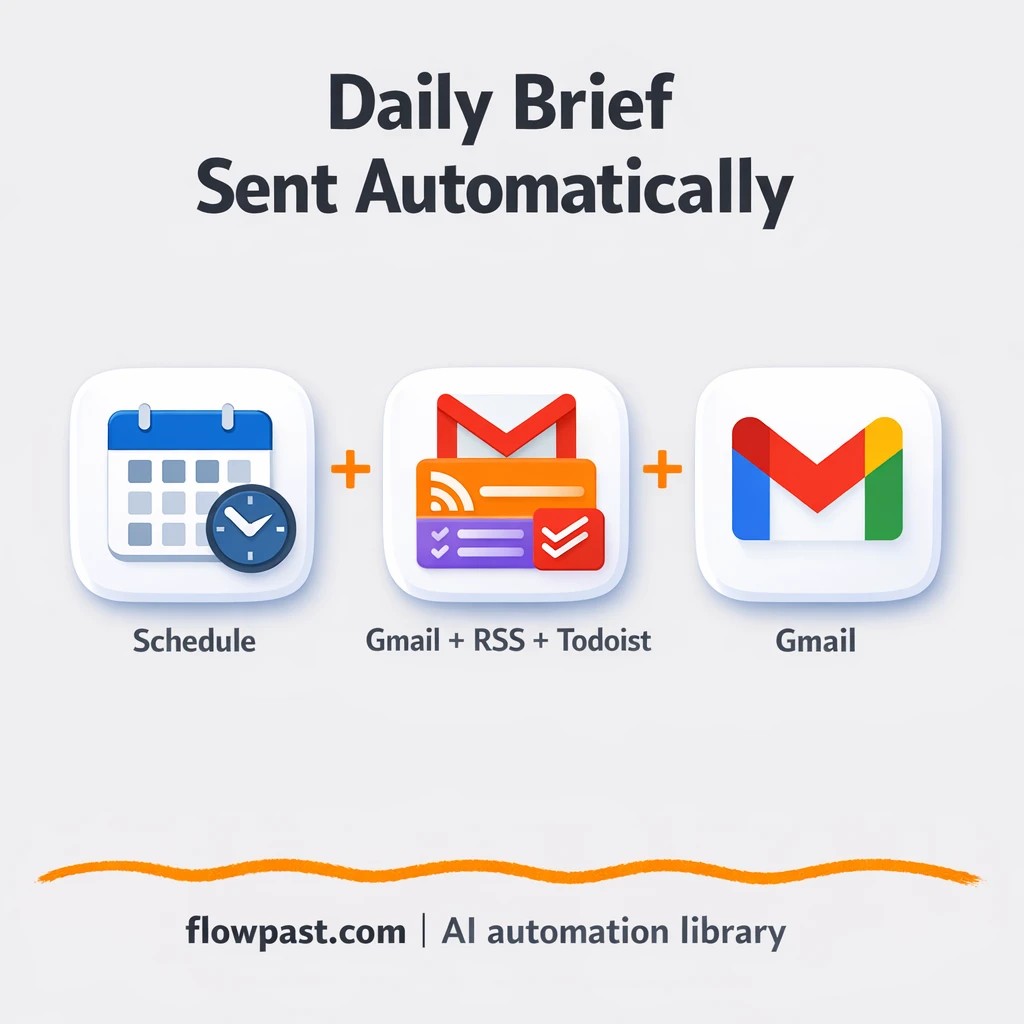
This workflow pulls your latest emails, top RSS headlines, and pending Todoist tasks into one clean daily email. You’ll learn what it does, what you need, how it works, and what to customize so the digest actually fits your day.
How This Automation Works
Here’s the complete workflow you’ll be setting up:
n8n Workflow Template: Gmail + Todoist: one daily digest in your inbox
flowchart LR

    subgraph sg0["Schedule Flow"]
        direction LR
        n0@{ icon: "mdi:cog", form: "rounded", label: "RSS Feed: Times of India", pos: "b", h: 48 }
        n1@{ icon: "mdi:message-outline", form: "rounded", label: "Gmail: Fetch Emails", pos: "b", h: 48 }
        n2["<div style='background:#f5f5f5;padding:10px;border-radius:8px;display:inline-block;border:1px solid #e0e0e0'><img src='https://flowpast.com/wp-content/uploads/n8n-workflow-icons/todoist.svg' width='40' height='40' /></div><br/>TodoList: Fetch Tasks"]
        n3["<div style='background:#f5f5f5;padding:10px;border-radius:8px;display:inline-block;border:1px solid #e0e0e0'><img src='https://flowpast.com/wp-content/uploads/n8n-workflow-icons/code.svg' width='40' height='40' /></div><br/>Format Digest: Merge & Style.."]
        n4@{ icon: "mdi:message-outline", form: "rounded", label: "Gmail: Send Digest", pos: "b", h: 48 }
        n5@{ icon: "mdi:play-circle", form: "rounded", label: "Schedule Trigger", pos: "b", h: 48 }
        n6["<div style='background:#f5f5f5;padding:10px;border-radius:8px;display:inline-block;border:1px solid #e0e0e0'><img src='https://flowpast.com/wp-content/uploads/n8n-workflow-icons/merge.svg' width='40' height='40' /></div><br/>Merge"]
        n6 --> n3
        n5 --> n0
        n5 --> n1
        n5 --> n2
        n1 --> n6
        n2 --> n6
        n0 --> n6
        n3 --> n4
    end

    %% Styling
    classDef trigger fill:#e8f5e9,stroke:#388e3c,stroke-width:2px
    classDef ai fill:#e3f2fd,stroke:#1976d2,stroke-width:2px
    classDef aiModel fill:#e8eaf6,stroke:#3f51b5,stroke-width:2px
    classDef decision fill:#fff8e1,stroke:#f9a825,stroke-width:2px
    classDef database fill:#fce4ec,stroke:#c2185b,stroke-width:2px
    classDef api fill:#fff3e0,stroke:#e65100,stroke-width:2px
    classDef code fill:#f3e5f5,stroke:#7b1fa2,stroke-width:2px
    classDef disabled stroke-dasharray: 5 5,opacity: 0.5
    class n5 trigger
    class n3 code
    classDef customIcon fill:none,stroke:none
    class n2,n3,n6 customIcon
Why This Matters: Your Morning Gets Fragmented
The real cost of a scattered morning isn’t just time. It’s context switching. You open Gmail to “just check what’s urgent,” then you’re triaging threads you won’t reply to until later. You hop to Todoist, add a few tasks, then realize you forgot yesterday’s due items. Then news or RSS pulls you in, and suddenly you’re reading instead of planning. Honestly, it’s a perfect recipe for starting busy and staying behind all day.
It adds up fast. Here’s where it breaks down in day-to-day work.
- You reread the same emails multiple times because there’s no single “morning snapshot” to anchor your decisions.
- RSS/news checking expands to fill the time you have, so you start reacting instead of prioritizing.
- Tasks get missed because Todoist lives in a separate place from the messages that created the work.
- Even good habits fall apart when you’re traveling, slammed, or switching between client work and internal work.
What You’ll Build: A Daily Digest Email That Merges Gmail, RSS, and Todoist
This automation runs on a schedule (you pick the time) and gathers three things you already check: your recent Gmail messages, the latest items from an RSS feed, and your pending Todoist tasks. Then it merges everything into one structured dataset, formats it into a clean HTML email, and sends it to your inbox via Gmail. The result is a single email that reads like a daily briefing, with sections and styling that make it easy to scan. No new app to “remember to open.” It simply shows up.
The workflow starts with a daily scheduled trigger. From there, n8n pulls items from Gmail, RSS, and Todoist in parallel, merges them, and uses a formatting script to generate the final email content. Finally, Gmail sends the digest to the address you specify.
What You’re Building
| What Gets Automated | What You’ll Achieve |
|---|---|
|
|
Expected Results
Say you do a “morning sweep” five days a week: Gmail (about 10 minutes), Todoist (about 5 minutes), and RSS/news (about 10 minutes). That’s roughly 25 minutes a day, or a bit over 2 hours each week, and it’s easy for it to stretch longer. With this workflow, the sweep becomes one email you scan in about 5 minutes. The automation still needs a little processing time in the background, but your active time drops to almost nothing.
Before You Start
- n8n instance (try n8n Cloud free)
- Self-hosting option if you prefer (Hostinger works well)
- Gmail for reading and sending the digest
- Todoist to pull your pending tasks
- RSS feed URL (grab it from the site’s RSS link)
Skill level: Beginner. You’ll connect accounts and adjust a few fields like recipients, filters, and the send time.
Want someone to build this for you? Talk to an automation expert (free 15-minute consultation).
Step by Step
A daily schedule kicks it off. At your chosen time, n8n triggers the workflow automatically, so the digest arrives before you start planning your day.
Information gets collected from three sources. Gmail retrieves recent emails, RSS pulls the newest feed items, and Todoist loads your tasks (typically open tasks, due soon, or whatever you decide to include).
Everything is merged and formatted. The workflow combines those streams into one dataset, then a formatting script turns it into a readable HTML email with sections and clean styling.
The digest lands back in Gmail. A final Gmail step sends the email to your inbox (or to a shared address if you want a team briefing).
You can easily modify the RSS sources and the Gmail/Todoist filters to match what you actually want to see each morning. See the full implementation guide below for customization options.
Step-by-Step Implementation Guide
Step 1: Configure the Schedule Trigger
Set up the time-based trigger that запускает the digest pipeline on a schedule.
- Add the Scheduled Run Starter node to your canvas.
- Open Scheduled Run Starter and define your schedule rule (the current configuration uses the default rule interval).
- Confirm the trigger connects to Retrieve News Feed, Collect Inbox Emails, and Pull Task List in parallel.
Step 2: Connect Gmail and Todoist Data Sources
Configure the inbound data collection for news, inbox emails, and task lists.
- In Retrieve News Feed, set URL to
https://timesofindia.indiatimes.com/rssfeeds/-2128936835.cms. - Open Collect Inbox Emails and set Operation to
getAll. - Credential Required: Connect your gmailOAuth2 credentials in Collect Inbox Emails.
- Open Pull Task List and set Operation to
getAlland Limit to5. - Credential Required: Connect your todoistApi credentials in Pull Task List.
Step 3: Set Up Processing in the Code Node
Merge all sources and format the digest email content using the custom JavaScript formatter.
- Configure Combine Streams with Number Inputs set to
3. - Connect Retrieve News Feed, Collect Inbox Emails, and Pull Task List into Combine Streams.
- Open Digest Formatter Script and keep the JavaScript Code as provided, which compiles top news, emails, and tasks into a single
email.subjectandemail.body. - Ensure Combine Streams outputs to Digest Formatter Script, and Digest Formatter Script outputs to Dispatch Digest Email.
$(\"Collect Inbox Emails\") and $(\"Pull Task List\") to reference specific branches—if you rename nodes, update those references.Step 4: Configure the Output Email
Send the compiled digest to your inbox using Gmail.
- Open Dispatch Digest Email and set Send To to
[YOUR_EMAIL]. - Set Message to
{{ $json.email.body }}. - Set Subject to
{{ $json.email.subject }}. - Credential Required: Connect your gmailOAuth2 credentials in Dispatch Digest Email.
[YOUR_EMAIL] unchanged, the digest won’t reach a real inbox—replace it with a valid address.Step 5: Test and Activate Your Workflow
Validate the full end-to-end run and enable the workflow for daily automation.
- Click Execute Workflow to run Scheduled Run Starter and watch each branch populate Combine Streams.
- Verify Digest Formatter Script outputs a JSON object with
email.subjectandemail.body. - Confirm Dispatch Digest Email sends the formatted digest to your inbox.
- Toggle the workflow to Active to run on the defined schedule.
Troubleshooting Tips
- Gmail credentials can expire or need specific permissions. If things break, check your connected Gmail account in n8n’s Credentials area first, then reconnect.
- If you’re using Wait nodes or external rendering, processing times vary. Bump up the wait duration if downstream nodes fail on empty responses.
- Default prompts in AI nodes are generic. Add your brand voice early or you’ll be editing outputs forever.
Quick Answers
About 30 minutes if your Gmail and Todoist accounts are ready.
No. The workflow includes a prebuilt formatting step, and you mainly configure connections and a few fields.
Yes. n8n has a free self-hosted option and a free trial on n8n Cloud. Cloud plans start at $20/month for higher volume. You’ll also need to factor in normal provider costs (for example, Gmail and Todoist accounts).
Two options: n8n Cloud (managed, easiest setup) or self-hosting on a VPS. For self-hosting, Hostinger VPS is affordable and handles n8n well. Self-hosting gives you unlimited executions but requires basic server management.
Yes, and you should. Most people start by changing the Gmail query in “Collect Inbox Emails,” swapping the RSS feed in “Retrieve News Feed,” and filtering which Todoist tasks “Pull Task List” returns (today only, overdue only, or a specific project). You can also edit the subject line and sections in the “Digest Formatter Script” so the email reads the way you think.
Usually it’s expired OAuth access or the wrong Google account connected. Reconnect the Gmail credential in n8n, then confirm the workflow is allowed to read and send mail. If you recently tightened Google Workspace security settings, you may also need an admin to approve the connection.
For a daily digest, volume is typically small, and most teams run it once per day without thinking about limits.
It depends on how picky you are about formatting and logic. Zapier/Make can do “pull items, send email,” but this kind of digest often needs merging multiple streams, handling empty sections gracefully, and generating clean HTML so it’s readable on mobile. n8n makes that easier because you can combine data flows and tweak the formatting without fighting platform limits. If you want to self-host, that’s another big difference. Talk to an automation expert if you want a quick recommendation for your setup.
Once this is running, your “daily check” becomes one calm scan instead of a scattered routine. The workflow handles the repetitive stuff so you can start focused and keep it that way.
Need Help Setting This Up?
Our automation experts can build and customize this workflow for your specific needs. Free 15-minute consultation—no commitment required.
