


Google Maps to Google Sheets, leads logged clean
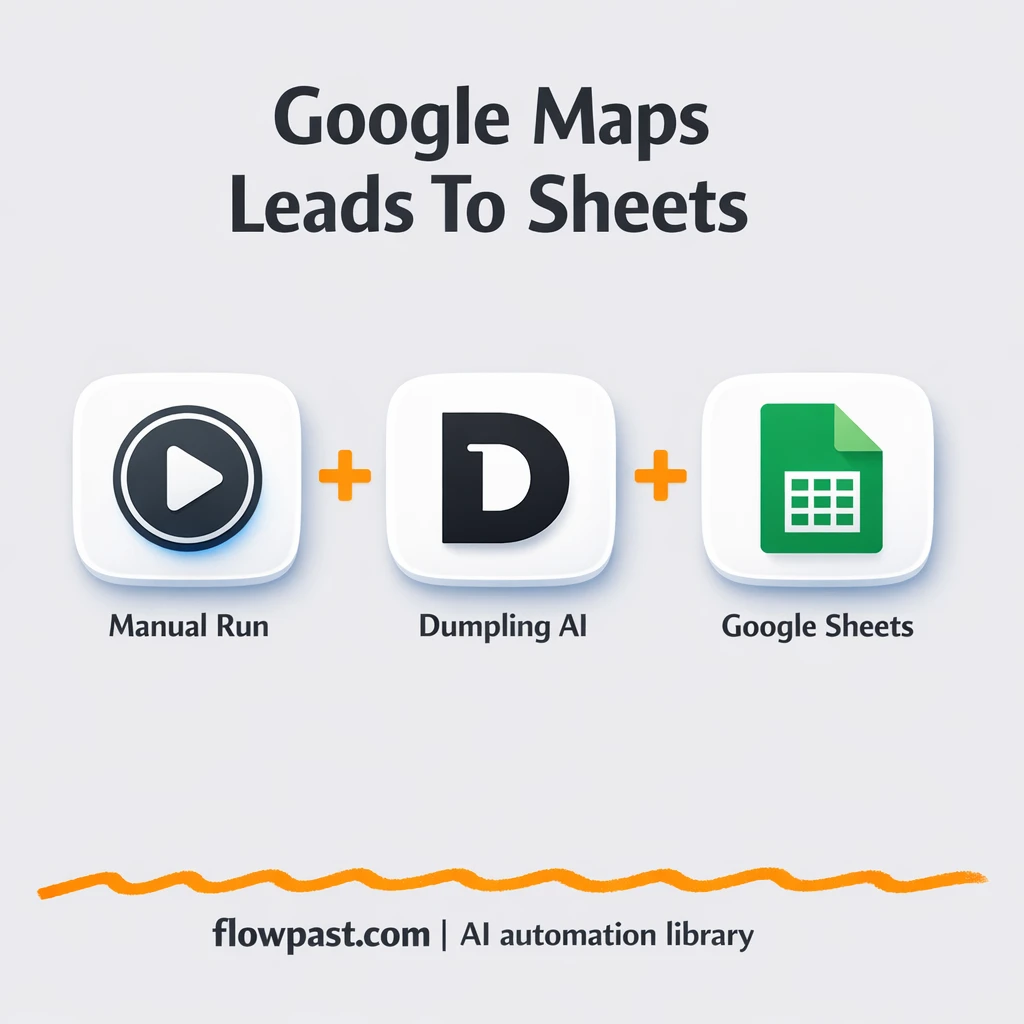

Copying Google Maps listings into a spreadsheet sounds simple. Then you do it for 40 businesses, the formatting breaks, phone numbers land in the wrong column, and you’re not even sure you captured the right website.
This kind of Maps to Sheets automation hits marketers first, because campaigns move fast. Sales reps feel it too. So do VAs who get handed “build me a list” tasks on short notice. The outcome is straightforward: clean lead rows in Google Sheets without the copy-paste chaos.
You’ll see what this workflow does, what you need, and how the moving parts work so you can tweak it for your niche and start outreach quicker.
How This Automation Works
Here’s the complete workflow you’ll be setting up:
n8n Workflow Template: Google Maps to Google Sheets, leads logged clean
flowchart LR

    subgraph sg0["Trigger: Manual Test Run Flow"]
        direction LR
        n0@{ icon: "mdi:play-circle", form: "rounded", label: "Trigger: Manual Test Run", pos: "b", h: 48 }
        n1["<div style='background:#f5f5f5;padding:10px;border-radius:8px;display:inline-block;border:1px solid #e0e0e0'><img src='https://flowpast.com/wp-content/uploads/n8n-workflow-icons/httprequest.dark.svg' width='40' height='40' /></div><br/>Search Google Maps via Dumpl.."]
        n2@{ icon: "mdi:swap-vertical", form: "rounded", label: "Split Places List for Proces..", pos: "b", h: 48 }
        n3@{ icon: "mdi:database", form: "rounded", label: "Save Results to Google Sheet..", pos: "b", h: 48 }
        n0 --> n1
        n2 --> n3
        n1 --> n2
    end

    %% Styling
    classDef trigger fill:#e8f5e9,stroke:#388e3c,stroke-width:2px
    classDef ai fill:#e3f2fd,stroke:#1976d2,stroke-width:2px
    classDef aiModel fill:#e8eaf6,stroke:#3f51b5,stroke-width:2px
    classDef decision fill:#fff8e1,stroke:#f9a825,stroke-width:2px
    classDef database fill:#fce4ec,stroke:#c2185b,stroke-width:2px
    classDef api fill:#fff3e0,stroke:#e65100,stroke-width:2px
    classDef code fill:#f3e5f5,stroke:#7b1fa2,stroke-width:2px
    classDef disabled stroke-dasharray: 5 5,opacity: 0.5
    class n0 trigger
    class n3 database
    class n1 api
    classDef customIcon fill:none,stroke:none
    class n1 customIcon
Why This Matters: Clean lead lists without busywork
Lead research on Google Maps has a sneaky cost. You’re not just “grabbing a name and a phone number.” You’re juggling tabs, copying addresses that wrap into weird lines, and trying to keep websites, ratings, and business types consistent enough to filter later. After a while, the spreadsheet becomes a junk drawer: half the rows look different, some fields are missing, and you waste another hour cleaning before you can even send the first email.
It adds up fast. Here’s where it usually breaks down.
- Manual Google Maps research turns into a 2-hour task the moment you need more than a dozen leads.
- Inconsistent formatting makes simple filters useless, so you can’t quickly isolate “high rating” or “has a website.”
- Copy-paste mistakes are easy to miss, like swapping phone numbers or saving the wrong booking link.
- List building feels finished, but you still need cleanup work before outreach can actually start.
What You’ll Build: Google Maps leads into a ready-to-use Sheet
This workflow takes a Google Maps-style search query and turns it into spreadsheet rows automatically. You trigger it, the workflow sends your query to Dumpling AI through an HTTP request, and Dumpling returns structured place data (think name, address, phone number, website, rating, and more). Then n8n expands that list of places so each business becomes its own item. Finally, it appends each result into your Google Sheet, neatly mapped into the exact columns you set up in a “Leads” tab. No reformatting. No “why is this cell merged.” Just a clean list you can sort, filter, and work from.
The workflow starts with a manual launch (great for testing). From there, Dumpling AI fetches the places data and n8n splits the returned array into individual businesses. Google Sheets gets one new row per business, which means your lead list stays structured even when you pull hundreds of results.
What You’re Building
| What Gets Automated | What You’ll Achieve |
|---|---|
|
|
Expected Results
Say you need 60 local leads for a new outreach campaign. Manually, you might spend about 2 minutes per listing between copying name, address, website, and phone number, plus another 30 minutes fixing formatting, so you’re looking at roughly 2.5 hours. With this workflow, you spend maybe 5 minutes setting the query and confirming your sheet headers, then wait for Dumpling AI to return results and for n8n to write the rows. Most teams get their list in under 15 minutes, ready to filter by rating or type.
Before You Start
- n8n instance (try n8n Cloud free)
- Self-hosting option if you prefer (Hostinger works well)
- Dumpling AI for Google Maps place data.
- Google Sheets to store leads in a “Leads” tab.
- Dumpling AI API key (get it from your Dumpling AI dashboard).
Skill level: Beginner. You’ll connect accounts, paste an API key, and match a few spreadsheet columns.
Want someone to build this for you? Talk to an automation expert (free 15-minute consultation).
Step by Step
Manual launch to start a run. You click execute in n8n, which is perfect while you’re testing queries and making sure your sheet columns match.
Send your search query to Dumpling AI. The workflow uses an HTTP Request node to call the Dumpling Maps API with your query (like “best restaurants in New York”) and your API key in the Authorization header.
Expand the places list into individual businesses. Dumpling returns an array of places, and n8n splits it so each business can be handled on its own instead of getting dumped into one messy cell.
Append each place into Google Sheets. The Google Sheets node maps fields like Name, Address, Phone number, Website, Rating, Price Level, Type, Booking Link, and Position into a new row in your “Leads” tab.
You can easily modify the search query to target different cities or niches based on your needs. See the full implementation guide below for customization options.
Step-by-Step Implementation Guide
Step 1: Configure the Manual Trigger
Set up the manual trigger so you can run the workflow on demand while testing the Dumpling Maps query.
- Add the Manual Launch Trigger node as the workflow trigger.
- Leave all fields at their defaults since no parameters are required.
- Connect Manual Launch Trigger to Dumpling Maps API Request to define the execution order.
Step 2: Connect Dumpling Maps API Request
Configure the HTTP request to pull map search results from Dumpling AI.
- Add the Dumpling Maps API Request node.
- Set Method to
POST. - Set URL to
https://app.dumplingai.com/api/v1/search-maps. - Enable Send Body and set Body Content Type to
json. - Set JSON Body to
{
"query": "best+restaurants+in+New+York",
"language": "en"
}
. - Credential Required: Connect your httpHeaderAuth credentials.
query in the JSON body to target different locations or business types.Step 3: Set Up Place Expansion
Split the API response so each place becomes its own item for downstream mapping.
- Add the Expand Places Array node.
- Set Field To Split Out to
places. - Connect Dumpling Maps API Request to Expand Places Array.
places array, the split will produce no items. Verify the Dumpling API response format.Step 4: Configure Append to Sheets (Places)
Map each place record into your Google Sheet as a new row.
- Add the Append to Sheets (Places) node.
- Credential Required: Connect your googleSheetsOAuth2Api credentials.
- Set Operation to
append. - Select your Document and Sheet (e.g., sheet name
Google Mapsin thePlacesspreadsheet). - In Columns, map fields to expressions:
- type →
{{ $json.type }} - Name →
{{ $json.title }} - rating →
{{ $json.rating }} - Address →
{{ $json.address }} - Website →
{{ $json.website }} - Position →
{{ $json.position }} - priceLevel →
{{ $json.priceLevel }} - Booking Link →
{{ $json.bookingLinks[0] }} - Phone number →
{{ $json.phoneNumber }}
- type →
- Connect Expand Places Array to Append to Sheets (Places).
Step 5: Test and Activate Your Workflow
Run a manual test to confirm data flows from Dumpling AI into Google Sheets, then activate the workflow when ready.
- Click Execute Workflow to run Manual Launch Trigger and process a test batch.
- Verify that Append to Sheets (Places) adds new rows with mapped fields like
Name,Address, andrating. - If no rows appear, inspect Dumpling Maps API Request output to confirm the API response includes a
placesarray. - When the test succeeds, toggle the workflow to Active for production use.
Troubleshooting Tips
- Dumpling AI credentials can expire or need specific permissions. If things break, check your Dumpling AI dashboard (API keys) first.
- If you’re using Wait nodes or external rendering, processing times vary. Bump up the wait duration if downstream nodes fail on empty responses.
- Google Sheets appends can silently fail when the tab name or headers don’t match. Confirm the tab is named “Leads” and that your first row contains the expected columns.
Quick Answers
About 20 minutes if your Dumpling AI key and Google Sheet are ready.
No. You’ll paste an API key and map fields into your Google Sheet.
Yes. n8n has a free self-hosted option and a free trial on n8n Cloud. Cloud plans start at $20/month for higher volume. You’ll also need to factor in Dumpling AI API costs based on your usage.
Two options: n8n Cloud (managed, easiest setup) or self-hosting on a VPS. For self-hosting, Hostinger VPS is affordable and handles n8n well. Self-hosting gives you unlimited executions but requires basic server management.
Yes, and you probably should. The fastest win is changing the query inside the Dumpling Maps API Request node to target a new city or business type. If you want tighter lists, add an If node after the Expand Places Array step to keep only leads above a minimum rating or with a website present. You can also swap the Append to Sheets node for Airtable or a CRM later, once your columns and qualification rules are stable.
Usually it’s the Authorization header. Regenerate your Dumpling AI API key, then update it in the HTTP Request node using Header Auth, and run a single test query. If it still fails, check if your query string is malformed (spaces and special characters are common culprits) or if you’re hitting a usage limit on your Dumpling AI plan.
Plenty for typical list building, and the limit is usually your plan rather than the workflow. On n8n Cloud Starter, you’re working within your monthly execution allowance; each run of this workflow counts as executions as it processes the places returned. If you self-host, there’s no execution cap, but your server resources matter when you’re appending lots of rows. Practically, logging a few hundred places in one go is normal, then you filter down to the best leads.
Often, yes. n8n is nicer when you need to split arrays into items, add filtering, and keep costs predictable as your volume grows. It also gives you a real self-hosting option, which matters when you’re running lots of lead pulls. Zapier or Make can still be fine for very simple “request → row” automations, but they tend to get awkward once you start adding qualification logic and batch processing. Talk to an automation expert if you want help choosing.
Once this is set up, lead research stops being a chore you dread. You run a query, open your Leads tab, and get on with outreach.
Need Help Setting This Up?
Our automation experts can build and customize this workflow for your specific needs. Free 15-minute consultation—no commitment required.
