


YouTube + Apify: transcripts ready for briefs fast
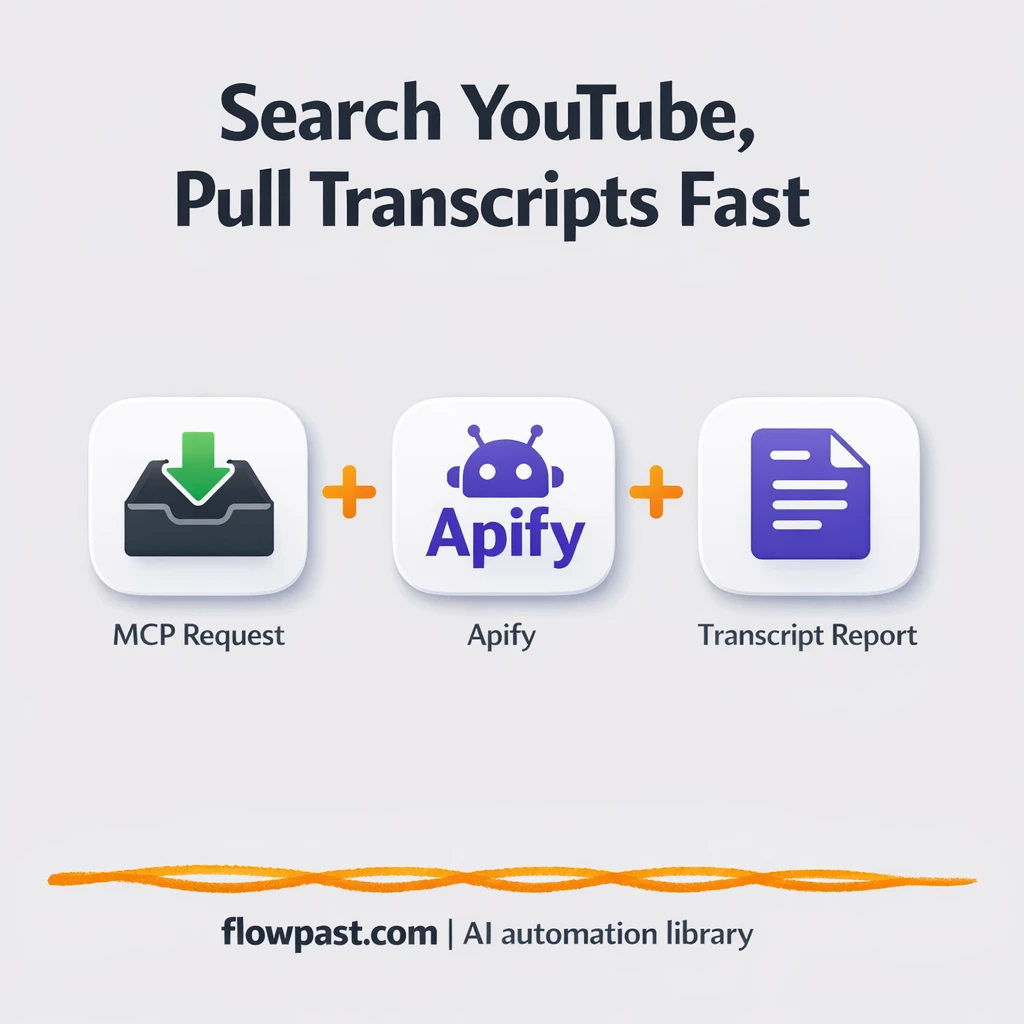

You find a great YouTube video, hit play, and then realize you’ll need to rewatch the same 40 minutes just to pull three quotes and one definition. Notes end up scattered. Sources get lost. And when it’s time to write a brief, you’re back to scrubbing the timeline again.
This is the kind of mess content strategists feel weekly, but marketing leads and researchers building client briefs get hit too. With YouTube transcript automation, you stop treating video research like a manual chore and start turning it into a repeatable input you can actually reuse.
This workflow gives you a simple “research server” inside n8n: search YouTube, pull clean transcripts via Apify, and even check your Apify usage so you don’t get surprised later.
How This Automation Works
The full n8n workflow, from trigger to final output:
n8n Workflow Template: YouTube + Apify: transcripts ready for briefs fast
flowchart LR

    subgraph sg0["When Executed by Another Workflow Flow"]
        direction LR
        n0@{ icon: "mdi:play-circle", form: "rounded", label: "When Executed by Another Wor..", pos: "b", h: 48 }
        n1@{ icon: "mdi:swap-horizontal", form: "rounded", label: "Operation", pos: "b", h: 48 }
        n4["<div style='background:#f5f5f5;padding:10px;border-radius:8px;display:inline-block;border:1px solid #e0e0e0'><img src='https://flowpast.com/wp-content/uploads/n8n-workflow-icons/httprequest.dark.svg' width='40' height='40' /></div><br/>Apify Youtube Search"]
        n5@{ icon: "mdi:swap-vertical", form: "rounded", label: "Simplify Search Results", pos: "b", h: 48 }
        n6["<div style='background:#f5f5f5;padding:10px;border-radius:8px;display:inline-block;border:1px solid #e0e0e0'><img src='https://flowpast.com/wp-content/uploads/n8n-workflow-icons/httprequest.dark.svg' width='40' height='40' /></div><br/>Apify Youtube Transcripts"]
        n7@{ icon: "mdi:swap-vertical", form: "rounded", label: "Simplify Transcript Results", pos: "b", h: 48 }
        n8@{ icon: "mdi:cog", form: "rounded", label: "Aggregate Search Results", pos: "b", h: 48 }
        n9@{ icon: "mdi:cog", form: "rounded", label: "Aggregate Transcript Results", pos: "b", h: 48 }
        n10@{ icon: "mdi:swap-vertical", form: "rounded", label: "Simplify Usage Metrics", pos: "b", h: 48 }
        n11["<div style='background:#f5f5f5;padding:10px;border-radius:8px;display:inline-block;border:1px solid #e0e0e0'><img src='https://flowpast.com/wp-content/uploads/n8n-workflow-icons/httprequest.dark.svg' width='40' height='40' /></div><br/>Get Usage Limits"]
        n13["<div style='background:#f5f5f5;padding:10px;border-radius:8px;display:inline-block;border:1px solid #e0e0e0'><img src='https://flowpast.com/wp-content/uploads/n8n-workflow-icons/httprequest.dark.svg' width='40' height='40' /></div><br/>Get Usage Metrics"]
        n1 --> n4
        n1 --> n6
        n1 --> n13
        n11 --> n10
        n13 --> n11
        n4 --> n5
        n5 --> n8
        n6 --> n7
        n7 --> n9
        n0 --> n1
    end

    subgraph sg1["Apify Youtube MCP Server Flow"]
        direction LR
        n2@{ icon: "mdi:wrench", form: "rounded", label: "Youtube Transcripts", pos: "b", h: 48 }
        n3@{ icon: "mdi:wrench", form: "rounded", label: "Youtube Search", pos: "b", h: 48 }
        n12@{ icon: "mdi:wrench", form: "rounded", label: "Usage Report", pos: "b", h: 48 }
        n14@{ icon: "mdi:play-circle", form: "rounded", label: "Apify Youtube MCP Server", pos: "b", h: 48 }
        n12 -.-> n14
        n3 -.-> n14
        n2 -.-> n14
    end

    %% Styling
    classDef trigger fill:#e8f5e9,stroke:#388e3c,stroke-width:2px
    classDef ai fill:#e3f2fd,stroke:#1976d2,stroke-width:2px
    classDef aiModel fill:#e8eaf6,stroke:#3f51b5,stroke-width:2px
    classDef decision fill:#fff8e1,stroke:#f9a825,stroke-width:2px
    classDef database fill:#fce4ec,stroke:#c2185b,stroke-width:2px
    classDef api fill:#fff3e0,stroke:#e65100,stroke-width:2px
    classDef code fill:#f3e5f5,stroke:#7b1fa2,stroke-width:2px
    classDef disabled stroke-dasharray: 5 5,opacity: 0.5
    class n0,n14 trigger
    class n2,n3,n12 ai
    class n1 decision
    class n4,n6,n11,n13 api
    classDef customIcon fill:none,stroke:none
    class n4,n6,n11,n13 customIcon
The Problem: Turning YouTube Into Brief-Ready Research Is Slow
YouTube is packed with timely insights, but it’s a rough format for doing real research. A single “must-watch” video can turn into an hour of pausing, rewinding, copying timestamps, and trying to capture the speaker’s actual phrasing. Then you repeat it for the next video. The worst part is the mental load: you’re listening, taking notes, and deciding what matters at the same time. It’s easy to miss a key point, grab the wrong quote, or forget where something came from.
It adds up fast. Here’s where it usually breaks down in day-to-day work.
- Most teams burn about 1–2 hours per topic just extracting usable notes from long videos.
- Transcript copy-paste is messy, so you end up cleaning text instead of writing.
- Links and sources get separated from the notes, which means you waste time verifying later.
- Costs can creep up with scraping tools, and nobody notices until the bill lands.
The Solution: Search + Transcript Extraction in One Workflow
This n8n workflow acts like a lightweight YouTube research “MCP server” you can connect to a compatible client (or use inside an n8n AI Agent). You send a request that says what you want to do: search videos, fetch transcripts, or check usage. For search, it calls Apify to return about 10 relevant YouTube results for a query, then normalizes the output so your downstream tools get a clean, consistent structure. For transcripts, it takes one or more YouTube URLs, asks Apify to download subtitles, and returns cleaned text you can feed straight into an AI agent for summarizing or briefing. Finally, it can pull your Apify usage metrics and limits, so you can keep an eye on spend before it becomes a problem.
The workflow starts when the MCP Server Trigger receives an action request. A Switch routes the request to search, transcript download, or usage reporting. Then the relevant Apify HTTP request runs, the results are normalized, and the workflow returns structured output you can immediately reuse.
What You Get: Automation vs. Results
| What This Workflow Automates | Results You’ll Get |
|---|---|
|
|
Example: What This Looks Like
Say you’re building one client brief each week and you typically review 5 YouTube videos. Manually, searching, opening each video, finding transcript options, copying text, and cleaning it up can easily take about 20 minutes per video, or roughly 2 hours. With this workflow, you run one search (returns about 10 results), pick the best 5 links, and fetch transcripts in one go. The “work” becomes 10 minutes of choosing sources, plus a bit of wait time while Apify returns the text.
What You’ll Need
- n8n instance (try n8n Cloud free)
- Self-hosting option if you prefer (Hostinger works well)
- Apify for YouTube search and transcript scraping
- MCP client to send actions and receive results
- Apify API token (get it from Apify account settings)
Skill level: Intermediate. You’ll paste API credentials, test requests, and adjust a couple of fields, but you won’t be writing code.
Don’t want to set this up yourself? Talk to an automation expert (free 15-minute consultation).
How It Works
An MCP request kicks it off. The MCP Server Trigger receives an action like “search,” “get transcripts,” or “usage report,” coming from your MCP client (or an n8n AI agent using an MCP client tool).
Routing happens based on intent. A Switch node (“Route by Action”) sends the request to the right path, so you’re not maintaining three separate automations for what is basically one research job.
Apify does the heavy lifting. The workflow uses HTTP Requests to call Apify for YouTube search results or subtitle extraction. Then it normalizes the response (using Edit Fields/Set and aggregation) so the output is predictable and easy to store or pass forward.
Clean results come back to your tool. You get structured search results, transcript text, or a usage summary. That output can be dropped into a brief, saved into a doc system, or fed into an AI agent that turns “raw transcript” into “key takeaways.”
You can easily modify the returned fields to include extra metadata (channel name, publish date, or your internal “use this clip for” notes) based on your needs. See the full implementation guide below for customization options.
Step-by-Step Implementation Guide
Step 1: Configure the Subflow Execution Trigger
This workflow starts as a subflow and routes requests based on an incoming operation value.
- Add and open Subflow Execution Trigger.
- In Workflow Inputs, define inputs named operation, query, and urls to match the incoming payload.
- Ensure the flow connects from Subflow Execution Trigger to Route by Action.
Step 2: Configure the MCP Trigger for Tool Access
The MCP trigger exposes the tool workflows as callable tools.
- Add and open MCP Server Trigger.
- Set Path to
b975bb25-be7c-49fb-8cd2-8e135d91ed4e. - Confirm Tool: YouTube Search, Tool: Transcript Fetcher, and Tool: Usage Reporter are connected to MCP Server Trigger as AI tools.
Note: These tool workflows are AI tool nodes. Any credentials required by those tools should be configured inside their parent tool workflows, not on the Tool: YouTube Search, Tool: Transcript Fetcher, or Tool: Usage Reporter nodes.
Step 3: Route Operations with the Switch
The workflow branches based on the requested operation string.
- Open Route by Action and keep the three outputs: Youtube Search, Youtube Transcripts, and Usage Metrics.
- For Youtube Search, set the condition left value to
{{ $json.operation }}and right value toyoutube_search. - For Youtube Transcripts, set the condition left value to
{{ $json.operation }}and right value toyoutube_transcripts. - For Usage Metrics, set the condition left value to
{{ $json.operation }}and right value tousage_metrics.
⚠️ Common Pitfall: If the incoming operation value does not exactly match these strings, no branch will run.
Step 4: Configure YouTube Search Requests and Normalization
This branch performs a YouTube search via Apify and normalizes the results.
- Open Apify Search Request and set URL to
https://api.apify.com/v2/acts/streamers~youtube-scraper/run-sync-get-dataset-items. - Set Authentication to Generic Credential Type and Generic Auth Type to httpHeaderAuth.
- Set JSON Body to
{{ { "searchQueries": [$json.query], "maxResultStreams": 0, "maxResults": 5 } }}. - Credential Required: Connect your httpHeaderAuth credentials in Apify Search Request.
- Open Normalize Search Output and map fields with expressions: channelName =
{{ $json.channelName }}, title ={{ $json.title }}, url ={{ $json.url }}, description ={{ $json.text.substr(0,2_000) }}, viewCount ={{ $json.viewCount }}, likes ={{ $json.likes }}. - Open Combine Search Results and set Aggregate to
aggregateAllItemDatawith Destination Field Name set toresponse.
Step 5: Configure Transcript Fetching and Aggregation
This branch fetches subtitles for provided URLs and formats them for output.
- Open Apify Transcript Request and set URL to
https://api.apify.com/v2/acts/streamers~youtube-scraper/run-sync-get-dataset-items. - Set JSON Body to
{{ { "downloadSubtitles": true, "hasCC": false, "hasLocation": false, "hasSubtitles": false, "is360": false, "is3D": false, "is4K": false, "isBought": false, "isHD": false, "isHDR": false, "isLive": false, "isVR180": false, "maxResultStreams": 0, "maxResults": 1, "maxResultsShorts": 0, "preferAutoGeneratedSubtitles": false, "saveSubsToKVS": false, "startUrls": $json.urls.split(',').map(url => ({ "url": url, "method": "GET" })), "subtitlesFormat": "plaintext", "subtitlesLanguage": "en" } }}. - Credential Required: Connect your httpHeaderAuth credentials in Apify Transcript Request.
- Open Normalize Transcript Output and map title =
{{ $json.title }}, url ={{ $json.url }}, transcript ={{ $json.subtitles[0].plaintext }}. - Open Combine Transcript Results and set Aggregate to
aggregateAllItemDatawith Destination Field Name set toresponse.
Step 6: Configure Usage Metrics Retrieval
This branch collects Apify usage and formats a summary.
- Open Retrieve Usage Metrics and set URL to
https://api.apify.com/v2/users/me/usage/monthly. - Credential Required: Connect your httpHeaderAuth credentials in Retrieve Usage Metrics.
- Open Fetch Usage Limits and set URL to
https://api.apify.com/v2/users/me/limits. - Credential Required: Connect your httpHeaderAuth credentials in Fetch Usage Limits.
- Open Format Usage Summary and keep the field expressions, including monthlyUsageCycle_startAt =
{{ $json.data.monthlyUsageCycle.startAt }}and monthlyUsageUsd ={{ $json.data.current.monthlyUsageUsd.toFixed(2) }} of {{ $json.data.limits.maxMonthlyUsageUsd.toFixed(2) }}. - Verify the referenced expressions from Retrieve Usage Metrics, such as
{{ $('Retrieve Usage Metrics').item.json.data.monthlyServiceUsage.ACTOR_COMPUTE_UNITS.amountAfterVolumeDiscountUsd }}, remain unchanged.
⚠️ Common Pitfall: The usage formatting node references Retrieve Usage Metrics by name—renaming that node will break these expressions.
Step 7: Test and Activate Your Workflow
Validate each branch with realistic inputs and then activate the workflow.
- Use Execute Workflow with Subflow Execution Trigger inputs, such as operation =
youtube_searchand query =n8n automation, then confirm results appear in Combine Search Results. - Test the transcript branch with operation =
youtube_transcriptsand urls =https://www.youtube.com/watch?v=VIDEO_ID, then confirm Combine Transcript Results outputs aresponsearray. - Test the usage branch with operation =
usage_metrics, and verify Format Usage Summary returns a formatted usage summary. - If you use the MCP tools, call the MCP Server Trigger endpoint using its path and confirm each tool returns the expected payload.
- When all tests pass, set the workflow to Active to enable production use.
Common Gotchas
- Apify credentials can expire or need specific permissions. If things break, check your Apify token in n8n Credentials and confirm it still has access to the actor you’re calling.
- If you’re using Wait nodes or external rendering, processing times vary. Bump up the wait duration if downstream nodes fail on empty responses.
- Default prompts in AI nodes are generic. Add your brand voice early or you’ll be editing outputs forever.
Frequently Asked Questions
About 30 minutes if you already have your Apify token.
No. You will connect Apify, then test a couple of requests. Most of the work is just mapping fields so the transcript comes back clean.
Yes. n8n has a free self-hosted option and a free trial on n8n Cloud. Cloud plans start at $20/month for higher volume. You’ll also need to factor in Apify costs (there’s a small free tier, then you pay based on usage).
Two options: n8n Cloud (managed, easiest setup) or self-hosting on a VPS. For self-hosting, Hostinger VPS is affordable and handles n8n well. Self-hosting gives you unlimited executions but requires basic server management.
Yes, and it’s a common upgrade. After “Normalize Transcript Output” or “Combine Transcript Results,” add a Google Drive node to create a document (or upload a text file) using the transcript text and the original YouTube URL. You can also store the search results the same way so your team can see what was considered, not just what was chosen.
Usually it’s an API token issue. Regenerate your Apify token, update it in n8n Credentials, and re-run the HTTP Request nodes. If it still fails, check that the actor endpoints you’re calling are correct, and look for usage limits if you’ve been running a lot of searches or transcript pulls back-to-back.
Plenty for normal weekly research. On n8n Cloud, your limit is mainly executions per month on your plan, and Apify usage depends on how many videos you process. If you self-host, n8n itself won’t cap executions, but your server and Apify limits will still matter.
Often, yes, because this workflow benefits from routing (search vs transcripts vs usage), normalization, and structured outputs, which are easier to manage in n8n. Zapier can feel quicker for simple “one trigger, one action” zaps, but it gets awkward when you want branching logic and reusable “tool-like” behaviors. Make is more flexible than Zapier, but you still end up rebuilding a lot of structure by hand. Frankly, cost control is another reason: self-hosting n8n avoids “per task” pricing spirals. Talk to an automation expert if you want help picking the simplest setup for your volume.
Once this is running, YouTube stops being a time sink and starts acting like a searchable research input. Set it up, pull transcripts when you need them, and get back to writing the brief that actually matters.
Need Help Setting This Up?
Our automation experts can build and customize this workflow for your specific needs. Free 15-minute consultation—no commitment required.
