


OpenAI + Telegram: image requests turned into files
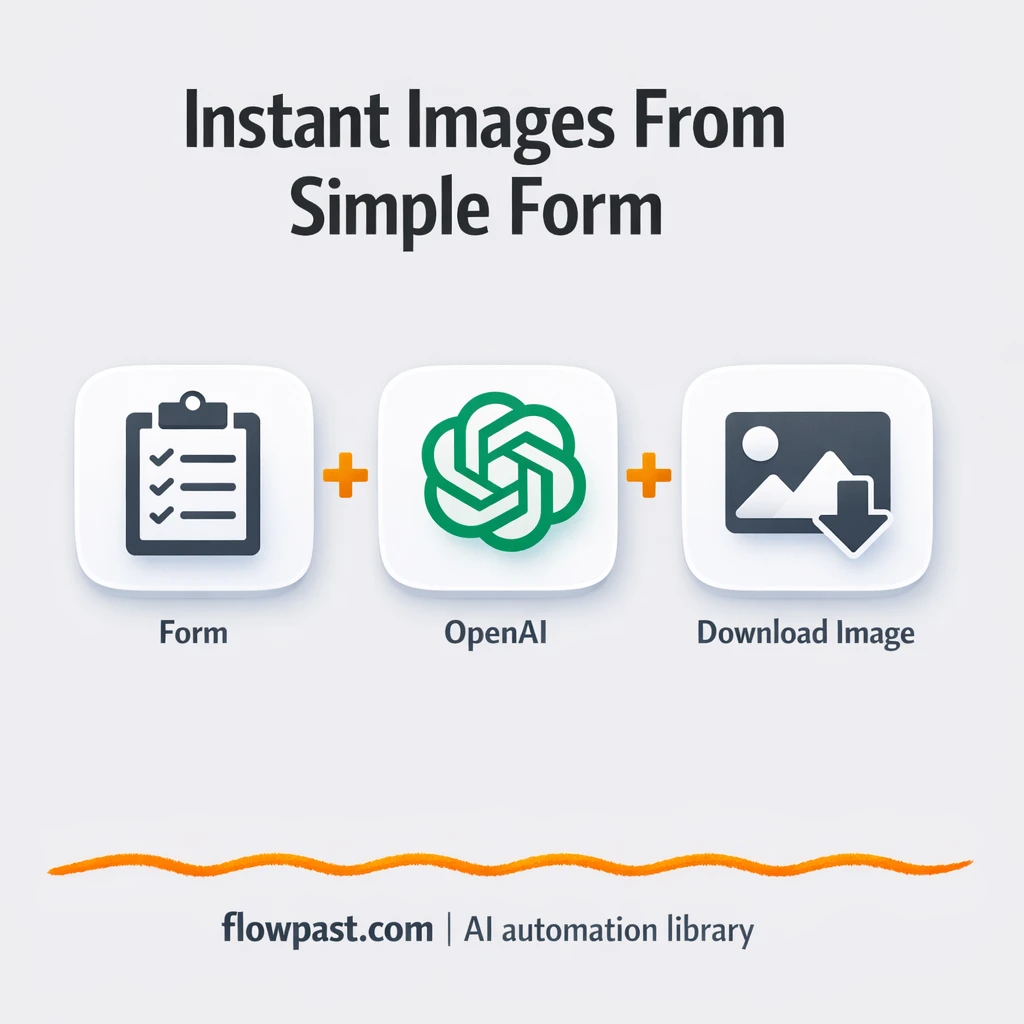

You ask for “a quick image” in chat, then the real work starts. Prompts get rewritten, sizes get missed, someone forgets to save the final file, and the request thread turns into a messy scavenger hunt.
This hits marketers hardest when you’re trying to ship campaigns fast, but agency owners and solo creators feel it too. With OpenAI Telegram automation, you send one clean request and get back a ready-to-download image file without the back-and-forth.
This workflow turns a simple image prompt + size into an OpenAI-generated image, converts it into a proper file, and returns it for download (and easy sharing in Telegram). Below you’ll see how it works, what you’ll need, and what to tweak so it fits your process.
How This Automation Works
The full n8n workflow, from trigger to final output:
n8n Workflow Template: OpenAI + Telegram: image requests turned into files
flowchart LR

    subgraph sg0["Prompt and options Flow"]
        direction LR
        n0@{ icon: "mdi:cog", form: "rounded", label: "Convert to File", pos: "b", h: 48 }
        n1["<div style='background:#f5f5f5;padding:10px;border-radius:8px;display:inline-block;border:1px solid #e0e0e0'><img src='https://flowpast.com/wp-content/uploads/n8n-workflow-icons/form.svg' width='40' height='40' /></div><br/>Prompt and options"]
        n2["<div style='background:#f5f5f5;padding:10px;border-radius:8px;display:inline-block;border:1px solid #e0e0e0'><img src='https://flowpast.com/wp-content/uploads/n8n-workflow-icons/httprequest.dark.svg' width='40' height='40' /></div><br/>OpenAI Image Generation"]
        n3["<div style='background:#f5f5f5;padding:10px;border-radius:8px;display:inline-block;border:1px solid #e0e0e0'><img src='https://flowpast.com/wp-content/uploads/n8n-workflow-icons/form.svg' width='40' height='40' /></div><br/>Return to form"]
        n0 --> n3
        n1 --> n2
        n2 --> n0
    end

    %% Styling
    classDef trigger fill:#e8f5e9,stroke:#388e3c,stroke-width:2px
    classDef ai fill:#e3f2fd,stroke:#1976d2,stroke-width:2px
    classDef aiModel fill:#e8eaf6,stroke:#3f51b5,stroke-width:2px
    classDef decision fill:#fff8e1,stroke:#f9a825,stroke-width:2px
    classDef database fill:#fce4ec,stroke:#c2185b,stroke-width:2px
    classDef api fill:#fff3e0,stroke:#e65100,stroke-width:2px
    classDef code fill:#f3e5f5,stroke:#7b1fa2,stroke-width:2px
    classDef disabled stroke-dasharray: 5 5,opacity: 0.5
    class n1 trigger
    class n2 api
    classDef customIcon fill:none,stroke:none
    class n1,n2,n3 customIcon
The Problem: Image Requests Get Lost in the Shuffle
On paper, “generate an image from a prompt” sounds simple. In practice, the request usually lives in the wrong place (a Telegram thread, a doc, someone’s notes), the specs are incomplete, and the output isn’t packaged in a way anyone can reuse. You end up re-asking the same questions: What size? Which style? Where’s the file? Then there’s the worst part: you do get an image, but it’s not delivered as a clean downloadable asset, so it still takes manual steps to share, store, or hand off.
It adds up fast, especially when the “one quick image” turns into five variations and a rushed handoff.
- Requests come in with missing details, so you spend extra time clarifying basics like size and use case.
- The final image often gets shared inconsistently, which makes it harder to find later or reuse for the next campaign.
- Manual downloading and re-uploading creates little delays that stack up across a week.
- People copy prompts from old chats, and the creative direction drifts without anyone noticing.
The Solution: Turn One Request Into a Downloadable Image File
This n8n workflow standardizes how image requests come in, generates the image via OpenAI’s image model (GPT-Image-1), then returns the result as an actual downloadable file. It starts with an intake form that collects the two details that always matter: the prompt and the image size. n8n then sends that request to OpenAI through an HTTP call. When the image comes back, the workflow converts the response into a proper binary file (so it behaves like a real asset, not a blob of data). Finally, it returns the file to the form output, ready for download and easy to share into Telegram when you need to move fast.
The workflow begins when you submit the form with your prompt and size. OpenAI generates the image, n8n converts it into a file, and the workflow responds with a clean download. Simple input, clean output.
What You Get: Automation vs. Results
| What This Workflow Automates | Results You’ll Get |
|---|---|
|
|
Example: What This Looks Like
Say your team generates 10 images a week for ads, emails, and social. Manually, it’s usually about 10 minutes each to confirm specs, run the request, download the result, rename it, and share it back in Telegram, which is roughly 100 minutes a week. With this workflow, the “work” becomes one form submission that takes maybe a minute, then you simply download the returned file when it’s ready. That’s about 90 minutes back most weeks, and the process feels calmer too.
What You’ll Need
- n8n instance (try n8n Cloud free)
- Self-hosting option if you prefer (Hostinger works well)
- OpenAI API for generating images from prompts
- Telegram to share results with your team
- OpenAI API key (get it from the OpenAI Platform dashboard)
Skill level: Beginner. You’ll connect credentials, confirm the form fields, and paste an API key.
Don’t want to set this up yourself? Talk to an automation expert (free 15-minute consultation).
How It Works
Image prompt intake through a form. You submit two fields: the image prompt and the size you want. That simple structure is what keeps requests consistent instead of drifting across chat messages.
OpenAI generates the image. n8n sends the prompt and size to the OpenAI image endpoint (GPT-Image-1) using an HTTP Request node. When OpenAI replies, the workflow keeps the returned image data attached to the same run, so you don’t have to handle it manually.
The response is converted into a real file. The workflow transforms the image output into a binary file, which means it behaves like a normal downloadable asset. This is the part that removes the annoying “now download it, rename it, and re-upload it” loop.
The file is returned for download and sharing. The final form step outputs the generated image file so you can download it immediately or forward it into Telegram. If you want, you can also extend this to save files into storage tools later.
You can easily modify the prompt format to enforce brand style guidelines based on your needs. See the full implementation guide below for customization options.
Step-by-Step Implementation Guide
Step 1: Configure the Form Trigger
Set up the intake form that collects the image prompt and size before sending it to the image generation request.
- Add the Image Prompt Intake node as your trigger.
- Set the Form Title to
OpenAI Image Generator. - Configure the Prompt field with placeholder
Snow-covered mountain village in the Alpsand set it as required. - Configure the Image size dropdown with options
1024x1024,1024x1536, and1536x1024, and set it as required.
Step 2: Connect OpenAI Image Generation
Configure the OpenAI API request that generates the image based on form input.
- Add the OpenAI Image Request node and connect it to Image Prompt Intake.
- Set the URL to
https://api.openai.com/v1/images/generationsand the Method toPOST. - Enable Send Body and Send Headers.
- Set the body parameters: model to
gpt-image-1, prompt to={{ $json.Prompt }}, n to={{ 1 }}, and size to={{ $json['Image size'] }}. - Credential Required: Connect your openAiApi credentials.
Step 3: Set Up the Processing Node
Convert the Base64 image data from the OpenAI response into a binary file for return.
- Add the Transform to Binary File node and connect it to OpenAI Image Request.
- Set the Operation to
toBinary. - Set the Source Property to
data[0].b64_json.
Step 4: Configure the Output Node
Return the generated image to the form completion page.
- Add the Return Form Output node and connect it to Transform to Binary File.
- Set the Operation to
completion. - Set Respond With to
returnBinary. - Set Completion Title to
Resultand Completion Message toHere is the created image:.
Step 5: Test and Activate Your Workflow
Run a manual test to confirm the form, image generation, and return output work end-to-end.
- Click Execute Workflow and open the form from Image Prompt Intake.
- Submit a sample prompt and image size, then verify the execution flows from Image Prompt Intake → OpenAI Image Request → Transform to Binary File → Return Form Output.
- Confirm the completion page displays the generated image and the message
Here is the created image:. - Toggle the workflow to Active for production use.
Common Gotchas
- OpenAI credentials can expire or be linked to the wrong project. If things break, check the credential selection inside the “OpenAI Image Request” HTTP node first.
- If you later add Telegram delivery, bot permissions matter. When messages fail, check the bot is in the right chat and can post files, not just text.
- Default prompts are generic, honestly. Add style rules (brand colors, composition notes, “no text overlays”) early so you’re not reworking every single image.
Frequently Asked Questions
About 20 minutes if your OpenAI key is ready.
No. You’ll mostly connect credentials and paste an API key. The rest is editing a couple of form fields and testing one request.
Yes. n8n has a free self-hosted option and a free trial on n8n Cloud. Cloud plans start at $20/month for higher volume. You’ll also need to factor in OpenAI API costs, which vary based on image size and usage.
Two options: n8n Cloud (managed, easiest setup) or self-hosting on a VPS. For self-hosting, Hostinger VPS is affordable and handles n8n well. Self-hosting gives you unlimited executions but requires basic server management.
Yes, and you should. Most people customize the prompt text before it’s sent in the “OpenAI Image Request” HTTP node, so every request includes your brand rules (style, background, “no text”, lighting). Common tweaks include forcing a fixed aspect ratio, adding a reusable “house style” prefix, and rejecting vague prompts by adding a simple validation check in the form step.
Usually it’s an invalid or expired API key, or the key is attached to a project without the right billing setup. Double-check the credential selected in the HTTP Request node and confirm your OpenAI account can access the image model you’re calling. If it fails only sometimes, it can also be rate limits when you run lots of requests back-to-back.
On n8n Cloud Starter, you can run a few thousand executions per month, which is plenty for most small teams generating images daily. If you self-host, there’s no execution cap, but you’re limited by your server and OpenAI rate limits. Practically, this workflow can handle steady daily usage easily, and you can queue requests if you expect spikes.
Often, yes. n8n is better when you want more control over the request payload, file handling, and data transformation without paying extra for multi-step logic. It’s also easier to self-host, which matters if you’re generating lots of creative assets and don’t want per-task pricing to balloon. Zapier or Make can still be fine for a simple “send prompt, get result” prototype, especially if your team already lives there. If you’re unsure, Talk to an automation expert and get a quick recommendation based on volume and tools.
Once this is in place, image requests stop feeling like tiny emergencies. You collect the right inputs, generate the asset, and get a real file back. Done.
Need Help Setting This Up?
Our automation experts can build and customize this workflow for your specific needs. Free 15-minute consultation—no commitment required.
