


Amazon to Google Sheets, price tracking that stays live

Price checks start out simple. Then you’re juggling 15 Amazon tabs, a messy spreadsheet, and a half-baked “I’ll check it later” note that never gets updated.
Marketing managers monitoring competitors feel this fast. E-commerce operators chasing margin swings live in it. And if you run an agency doing market research for clients, Amazon price tracking becomes a weekly time sink.
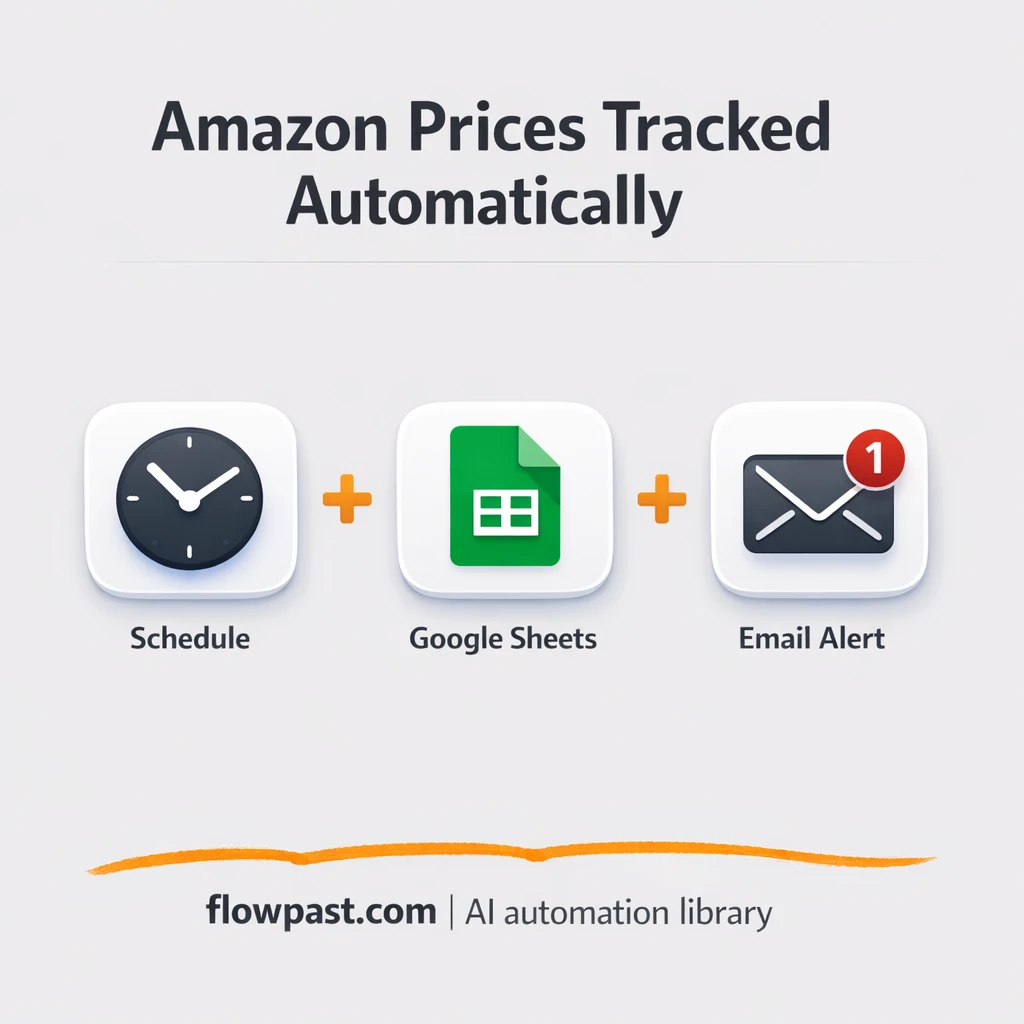
This workflow turns your Google Sheet into a living price tracker. It checks ASINs on a schedule, updates the latest price, logs history, and emails you when a threshold is hit. You’ll see how it works, what you need, and where teams usually trip up.
How This Automation Works
The full n8n workflow, from trigger to final output:
n8n Workflow Template: Amazon to Google Sheets, price tracking that stays live
flowchart LR

    subgraph sg0["Schedule Flow"]
        direction LR
        n0@{ icon: "mdi:database", form: "rounded", label: "Products to Monitor", pos: "b", h: 48 }
        n1@{ icon: "mdi:swap-vertical", form: "rounded", label: "Loop Over Items", pos: "b", h: 48 }
        n2["<div style='background:#f5f5f5;padding:10px;border-radius:8px;display:inline-block;border:1px solid #e0e0e0'><img src='https://flowpast.com/wp-content/uploads/n8n-workflow-icons/httprequest.dark.svg' width='40' height='40' /></div><br/>Scrapeops - Amazon Product"]
        n3@{ icon: "mdi:swap-vertical", form: "rounded", label: "Fields", pos: "b", h: 48 }
        n4@{ icon: "mdi:swap-vertical", form: "rounded", label: "Last Price", pos: "b", h: 48 }
        n5@{ icon: "mdi:swap-vertical", form: "rounded", label: "Price Change", pos: "b", h: 48 }
        n6@{ icon: "mdi:swap-vertical", form: "rounded", label: "Alert Status", pos: "b", h: 48 }
        n7@{ icon: "mdi:database", form: "rounded", label: "Insert - Price History", pos: "b", h: 48 }
        n8@{ icon: "mdi:database", form: "rounded", label: "Update - Products to Monitor", pos: "b", h: 48 }
        n9@{ icon: "mdi:message-outline", form: "rounded", label: "Send Email", pos: "b", h: 48 }
        n10@{ icon: "mdi:swap-horizontal", form: "rounded", label: "Check Valid Price", pos: "b", h: 48 }
        n11@{ icon: "mdi:swap-horizontal", form: "rounded", label: "Alert Decision", pos: "b", h: 48 }
        n12@{ icon: "mdi:swap-vertical", form: "rounded", label: "Setup", pos: "b", h: 48 }
        n13@{ icon: "mdi:play-circle", form: "rounded", label: "Schedule Trigger", pos: "b", h: 48 }
        n12 --> n0
        n3 --> n10
        n4 --> n2
        n9 --> n1
        n6 --> n8
        n5 --> n6
        n11 --> n9
        n11 --> n1
        n1 --> n4
        n13 --> n12
        n10 --> n5
        n10 --> n1
        n0 --> n1
        n7 --> n11
        n2 --> n3
        n8 --> n7
    end

    %% Styling
    classDef trigger fill:#e8f5e9,stroke:#388e3c,stroke-width:2px
    classDef ai fill:#e3f2fd,stroke:#1976d2,stroke-width:2px
    classDef aiModel fill:#e8eaf6,stroke:#3f51b5,stroke-width:2px
    classDef decision fill:#fff8e1,stroke:#f9a825,stroke-width:2px
    classDef database fill:#fce4ec,stroke:#c2185b,stroke-width:2px
    classDef api fill:#fff3e0,stroke:#e65100,stroke-width:2px
    classDef code fill:#f3e5f5,stroke:#7b1fa2,stroke-width:2px
    classDef disabled stroke-dasharray: 5 5,opacity: 0.5
    class n13 trigger
    class n10,n11 decision
    class n0,n7,n8 database
    class n2 api
    classDef customIcon fill:none,stroke:none
    class n2 customIcon
The Problem: Amazon Prices Change, Your Sheet Doesn’t
If you track Amazon prices manually, the work never ends. You check a listing, copy a number, paste it into a spreadsheet, and hope you didn’t grab the wrong variation or miss a coupon-adjusted price. Do that across 20 products and you’ve burned a chunk of your morning on data entry. Then the real pain shows up later. Prices move again, your sheet is stale, and you’re making decisions off yesterday’s numbers. Honestly, that’s how “quick checks” turn into expensive mistakes.
It adds up fast. Here’s where it breaks down in real life.
- Checking prices one-by-one means you only notice changes when you remember to look.
- Copy-paste tracking creates silent errors, like mixing currencies or pulling a different seller’s offer.
- Without a clean history log, you can’t tell if a “drop” is real or just normal daily noise.
- By the time you spot a meaningful change, the window to react is already closing.
The Solution: Live ASIN Monitoring With Sheet Updates + Alerts
This n8n workflow automates Amazon price monitoring using a structured data API, so you’re not building fragile scrapers or babysitting broken selectors. It starts on a schedule (hourly by default), pulls your list of ASINs from a Google Sheet, and checks each product in batches. For every ASIN, it fetches the current price, validates the result, and compares it to the prior value you already had in your sheet. Then it updates your “current price” fields, appends a new row to a separate price-history tab, and evaluates your alert thresholds. If a product crosses the line you set, it sends an email alert with the details.
The workflow starts with your spreadsheet as the “source of truth.” From there, it calls the Amazon product data endpoint via ScrapeOps, computes the price delta, and writes everything back into Google Sheets. Finally, it sends email notifications only when the alert condition is met, so your inbox doesn’t turn into noise.
What You Get: Automation vs. Results
| What This Workflow Automates | Results You’ll Get |
|---|---|
|
|
Example: What This Looks Like
Say you track 40 ASINs for competitor monitoring. Manually, even a “quick” check is maybe 2 minutes per product once you open pages, find the right offer, and update your sheet, which is about 80 minutes per run (and people rarely do it consistently). With this workflow, you spend about 5 minutes setting thresholds and dropping ASINs into Google Sheets, then the hourly run updates prices and history automatically. When a price crosses your line, you get a single email. No tab hopping.
What You’ll Need
- n8n instance (try n8n Cloud free)
- Self-hosting option if you prefer (Hostinger works well)
- Google Sheets to store ASINs, prices, and history.
- ScrapeOps structured data API to fetch reliable Amazon pricing.
- ScrapeOps API key (get it from your ScrapeOps dashboard after signup).
Skill level: Beginner. You’ll connect accounts, paste an API key, and point the workflow at your spreadsheet.
Don’t want to set this up yourself? Talk to an automation expert (free 15-minute consultation).
How It Works
A scheduled run kicks everything off. The workflow starts on a timer (hourly by default), so your sheet stays current without someone remembering to “go check Amazon.”
Your Google Sheet provides the watchlist. n8n reads the “Products to Monitor” rows, including ASINs and the alert thresholds you set for increases or decreases. It then processes items in batches, so a long list doesn’t overload a single run.
Pricing is fetched and compared. For each ASIN, an HTTP request calls the structured product endpoint, the workflow maps the returned fields into a clean format, and it validates that the price is actually present. Then it computes the delta versus the prior price you already had stored.
Sheets get updated and alerts go out. The current-price row gets refreshed, a new entry is appended to your history tab, and the workflow checks the alert condition. If it’s triggered, it sends an email with the product and change details, then moves on to the next item.
You can easily modify the schedule and alert thresholds to match how you work. See the full implementation guide below for customization options.
Step-by-Step Implementation Guide
Step 1: Configure the Scheduled Trigger
Set the workflow schedule so the price checks run automatically.
- Add and open Scheduled Run Trigger.
- Set the interval to run every hour by configuring the rule to Interval with Field set to
hours. - Connect Scheduled Run Trigger to Configuration Setup.
Step 2: Connect Google Sheets
Load the product list and prepare spreadsheet connections for updates and history logging.
- Open Configuration Setup and set the spreadsheet URL value to
https://docs.google.com/spreadsheets/d/[YOUR_ID]. - In Retrieve Monitored Items, set Document to
{{ $json.spreadsheet_url }}and Sheet toProducts to Monitor. - Credential Required: Connect your googleSheetsOAuth2Api credentials in Retrieve Monitored Items.
- In Update Monitored Records, confirm Operation is
updateand Document is{{ $('Configuration Setup').item.json.spreadsheet_url }}. - Credential Required: Connect your googleSheetsOAuth2Api credentials in Update Monitored Records and Append Price History.
- In Append Price History, confirm Operation is
appendand Sheet isPrice History.
Tip: Keep your Products to Monitor sheet’s column names aligned with the fields referenced in Update Monitored Records (for example, asin, pricing, alert_status).
Step 3: Set Up the Processing and API Fetch Chain
Fetch Amazon data, normalize pricing, and compute change metrics.
- Open Iterate Item Batch and ensure it is connected from Retrieve Monitored Items for item-by-item processing.
- In Capture Prior Price, set last_pricing to
{{ $json.pricing }}. - In Fetch Amazon Product Data, set URL to
https://proxy.scrapeops.io/v1/structured-data/amazon/product, enable Send Query, and use query parameters: asin ={{ $('Iterate Item Batch').item.json.asin }}and api_key ={{ $('Configuration Setup').item.json.scrapeops_apikey }}. - In Map Product Fields, map name to
{{ $json.data.name }}, pricing to{{ parseFloat(($json.data.pricing || "").replace(/[^\d.-]/g, "")) || 0 }}, and product_url tohttps://www.amazon.com/dp/{{ $('Iterate Item Batch').item.json.asin }}?th=1&psc=1. - In Validate Price Value, set the condition to pricing >
0using{{ $json.pricing }}. - In Compute Price Delta, confirm price_change and percent_change formulas use
{{ $('Capture Prior Price').item.json.last_pricing }}and{{ $json.pricing }}as provided.
⚠️ Common Pitfall: If scrapeops_apikey in Configuration Setup is empty, Fetch Amazon Product Data will return empty data and Validate Price Value will route items back to Iterate Item Batch without updates.
Step 4: Configure Alert Logic and Spreadsheet Updates
Determine alert thresholds, update the product records, and append history for each item.
- In Determine Alert Status, keep the alert calculation expression:
{{ $json.percent_change > $('Iterate Item Batch').item.json.alert_threshold_high ? "High" : ($json.percent_change < $('Iterate Item Batch').item.json.alert_threshold_low ? "Low" : "") }}. - In Update Monitored Records, ensure columns are mapped using expressions like
{{ $('Fetch Amazon Product Data').item.json.data.pricing.replace(/[^\d.]/g, '') }},{{ $('Compute Price Delta').item.json.price_change }}, and{{ $now.format("MM/dd/yyyy HH:mm:ss") }}. - In Append Price History, confirm asin, pricing, and timestamp are mapped to
{{ $('Iterate Item Batch').item.json.asin }},{{ $('Fetch Amazon Product Data').item.json.data.pricing.replace(/[^\d.]/g, '') }}, and{{ $now.format("MM/dd/yyyy HH:mm:ss") }}. - Verify the execution flow: Determine Alert Status → Update Monitored Records → Append Price History → Evaluate Alert Condition.
Step 5: Configure the Email Alert Output
Send alerts only when the alert status is set to High or Low.
- In Evaluate Alert Condition, keep the condition:
{{ $('Determine Alert Status').item.json.alert_status }}is not empty. - Connect the true branch from Evaluate Alert Condition to Dispatch Email Alert, and the false branch back to Iterate Item Batch.
- In Dispatch Email Alert, set To Email to
{{ $('Configuration Setup').item.json.to_email }}and From Email to{{ $('Configuration Setup').item.json.from_email }}. - Keep the Subject as
Price Monitoring Alert: {{ $('Update Monitored Records').item.json.name }} Change Detectedand the HTML body as provided for the dynamic price summary. - Credential Required: Connect your smtp credentials in Dispatch Email Alert.
Tip: Ensure Configuration Setup includes valid from_email and to_email values or your alerts will fail to send.
Step 6: Test and Activate Your Workflow
Validate each step with a manual run, then enable scheduling for production.
- Click Execute Workflow to run a manual test starting from Scheduled Run Trigger.
- Confirm items flow through Retrieve Monitored Items → Iterate Item Batch → Fetch Amazon Product Data and that Validate Price Value passes when pricing >
0. - Verify that Update Monitored Records and Append Price History write data to the correct sheets, and that Dispatch Email Alert sends an email when alert_status is not empty.
- Once confirmed, toggle the workflow Active to enable scheduled monitoring.
Common Gotchas
- Google Sheets permissions can block updates if you connected the wrong Google account. If rows stop writing, check the credential inside n8n and confirm the sheet is shared with that account.
- If you’re using Wait nodes or external rendering, processing times vary. Bump up the wait duration if downstream nodes fail on empty responses.
- ScrapeOps API keys can be rotated or limited by plan. If Amazon calls start failing, check your ScrapeOps usage and regenerate the key before you rewrite anything else.
Frequently Asked Questions
About 30 minutes if your sheet and API key are ready.
No coding required. You’ll mostly paste credentials and point the workflow to your Google Sheet.
Yes. n8n has a free self-hosted option and a free trial on n8n Cloud. Cloud plans start at $20/month for higher volume. You’ll also need to factor in ScrapeOps API usage based on how often you check prices.
Two options: n8n Cloud (managed, easiest setup) or self-hosting on a VPS. For self-hosting, Hostinger VPS is affordable and handles n8n well. Self-hosting gives you unlimited executions but requires basic server management.
Yes, but you’ll swap the last step. Replace the “Dispatch Email Alert” action with a Telegram message node, while keeping the same “Evaluate Alert Condition” logic and the Google Sheets updates. Many teams also add separate thresholds for “drop” versus “spike” so notifications feel intentional. If you want, you can still keep email as a backup for larger changes.
Most of the time it’s the wrong Google account or missing access to the sheet. Reconnect the Google Sheets credential in n8n, then confirm the spreadsheet is shared with that same account and you’re using the URL of your copied template.
Dozens to hundreds is normal, as long as you batch items and don’t set an aggressive schedule.
Often, yes, because this workflow isn’t just “fetch then notify.” You’re looping through many ASINs, validating results, calculating deltas, updating two different Google Sheets tabs, and only then deciding if an alert should fire. n8n handles that kind of branching and batching cleanly without turning into a giant bill. Zapier or Make can still work if you’re tracking a tiny list and you don’t care about history logging. If you’re unsure, Talk to an automation expert and get a recommendation based on your volume.
Once this is running, your spreadsheet stops being a “someday” document and becomes live market intel. The workflow handles the repetitive checks so you can spend your time acting on the changes.
Need Help Setting This Up?
Our automation experts can build and customize this workflow for your specific needs. Free 15-minute consultation—no commitment required.
