


SearchApi.io + OpenAI: cited web research on demand
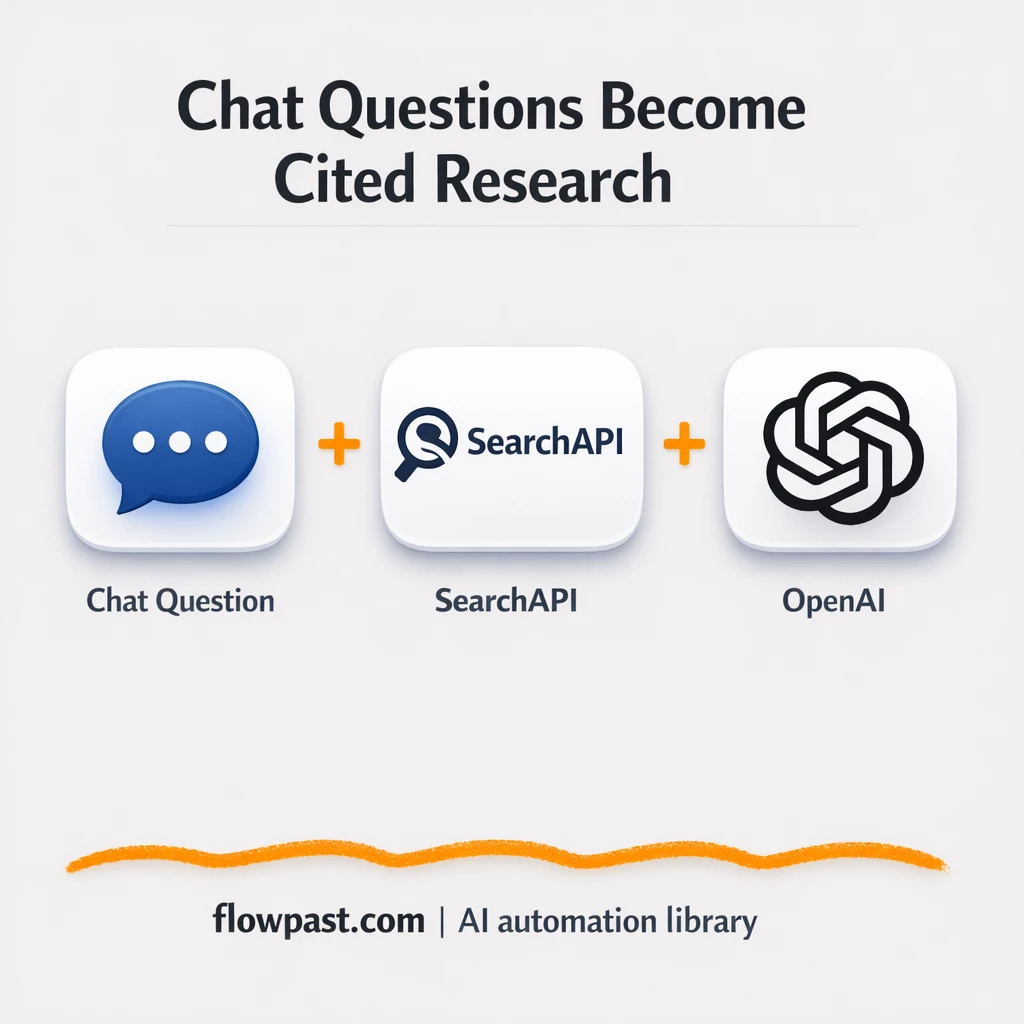

Research gets messy fast. You open 12 tabs, skim three articles, copy a quote into a doc, then realize you can’t find the source again when someone asks, “Where did that come from?”
Content marketers feel it when they’re trying to publish quickly. Consultants run into it during client calls. And founders doing their own market research hit the same wall. This cited web research automation turns a question into a clean summary with sources you can click and verify.
You’ll see how the workflow answers questions in chat, pulls live info from the web, and uses OpenAI to summarize it in a way that’s actually usable (and defensible).
How This Automation Works
Here’s the complete workflow you’ll be setting up:
n8n Workflow Template: SearchApi.io + OpenAI: cited web research on demand
flowchart LR

    subgraph sg0["When chat message received Flow"]
        direction LR
        n0@{ icon: "mdi:play-circle", form: "rounded", label: "When chat message received", pos: "b", h: 48 }
        n1@{ icon: "mdi:memory", form: "rounded", label: "Simple Memory", pos: "b", h: 48 }
        n2@{ icon: "mdi:robot", form: "rounded", label: "AI Agent", pos: "b", h: 48 }
        n3@{ icon: "mdi:web", form: "rounded", label: "SearchApi", pos: "b", h: 48 }
        n4@{ icon: "mdi:brain", form: "rounded", label: "OpenAI Chat Model", pos: "b", h: 48 }
        n3 -.-> n2
        n1 -.-> n2
        n4 -.-> n2
        n0 --> n2
    end

    %% Styling
    classDef trigger fill:#e8f5e9,stroke:#388e3c,stroke-width:2px
    classDef ai fill:#e3f2fd,stroke:#1976d2,stroke-width:2px
    classDef aiModel fill:#e8eaf6,stroke:#3f51b5,stroke-width:2px
    classDef decision fill:#fff8e1,stroke:#f9a825,stroke-width:2px
    classDef database fill:#fce4ec,stroke:#c2185b,stroke-width:2px
    classDef api fill:#fff3e0,stroke:#e65100,stroke-width:2px
    classDef code fill:#f3e5f5,stroke:#7b1fa2,stroke-width:2px
    classDef disabled stroke-dasharray: 5 5,opacity: 0.5
    class n0 trigger
    class n2 ai
    class n4 aiModel
    class n1 ai
    class n3 api
Why This Matters: Research Without Sources Is a Liability
If you’ve ever pasted a stat into a draft and later had to “prove it,” you know the pain. Manual research isn’t just slow; it’s fragile. Links get lost, citations don’t make it into the final doc, and you end up relying on memory or half-baked notes. Then the real cost shows up: an extra hour rewriting sections, awkward back-and-forth in reviews, or shipping content that’s technically “fine” but not trustworthy. Honestly, it’s not the reading that drains you. It’s the tracking.
It adds up fast. Here’s where the friction usually shows up.
- Finding sources is one thing, but keeping them attached to your summary is where research breaks down.
- Fact-checking turns into tab roulette, especially when multiple people touch the same draft.
- “Quick questions” in Slack or email quietly steal about 30 minutes at a time.
- AI answers without citations sound confident, which is exactly why they can create problems later.
What You’ll Build: A Chat-Based Research Agent With Citations
This workflow gives you a simple way to ask a question and get a sourced answer back, directly in chat. It starts when you send a message into n8n’s chat trigger (think of it like a mini help desk for research questions). An AI agent then decides what it needs to look up, runs live searches through SearchApi.io, and collects relevant pages from the open web. Once it has enough context, it uses an OpenAI chat model to write a clear summary and include citations so you can validate each claim. Because the conversation is stored in memory, you can ask follow-up questions without repeating yourself.
The workflow begins with an incoming chat message. SearchApi.io handles the real-time web lookup, and OpenAI turns the results into something readable. The output is an answer you can copy into a doc, send to a client, or use to brief your team, with sources attached.
What You’re Building
| What Gets Automated | What You’ll Achieve |
|---|---|
|
|
Expected Results
Say you handle 10 research questions a week from your team (SEO, sales, clients, whoever). Manually, a “quick answer” often takes about 30 minutes once you include searching, skimming, and pulling links, so that’s roughly 5 hours weekly. With this workflow, you ask in chat, wait a minute or two for search and summarization, and you’re usually done in about 5 minutes. That’s around 4 hours back most weeks, plus fewer last-minute citation hunts.
Before You Start
- n8n instance (try n8n Cloud free)
- Self-hosting option if you prefer (Hostinger works well)
- SearchApi.io for live web search results.
- OpenAI to summarize findings into plain language.
- SearchApi API key (get it from your SearchApi.io dashboard).
Skill level: Beginner. You’ll connect credentials and tweak prompts, but you won’t be writing code.
Want someone to build this for you? Talk to an automation expert (free 15-minute consultation).
Step by Step
A question comes in via chat. The workflow uses an n8n chat trigger so you can interact with it like a simple research assistant instead of a form or a spreadsheet.
The agent figures out what to search. Inside the AI Agent node, the model interprets your question, decides the right search approach, and calls SearchApi.io as a tool to fetch recent, relevant pages.
OpenAI turns raw results into an answer. The OpenAI chat model takes the search output and writes a structured summary. Citations are included so you can click through, confirm, and quote accurately.
Memory keeps the thread intact. The conversation memory node stores the last part of the discussion, which means follow-ups like “Only include official sources” or “Summarize the last 30 days” work without starting over.
You can easily modify the search engine (Google vs Bing) or the style of the summary (bullet points vs narrative) based on your needs. See the full implementation guide below for customization options.
Step-by-Step Implementation Guide
Step 1: Configure the Chat Trigger
Set up the entry point so the workflow receives incoming chat messages.
- Add or open Incoming Chat Trigger.
- Leave Options empty to accept default behavior.
- Connect Incoming Chat Trigger to Conversational Agent Core as shown in the execution flow.
Step 2: Connect the AI Language Model
Attach the OpenAI model used by the agent to generate responses.
- Open OpenAI Chat Engine and set Model to
gpt-4o-mini. - Connect OpenAI Chat Engine to Conversational Agent Core via the ai_languageModel connection.
- Credential Required: Connect your OpenAI API credentials in OpenAI Chat Engine (the agent uses this as its language model).
Step 3: Add Conversation Memory
Enable short-term memory to maintain context between messages.
- Open Conversation Memory Store and set Context Window Length to
20. - Connect Conversation Memory Store to Conversational Agent Core via the ai_memory connection.
- Remember: memory is a sub-node of the agent, so credentials (if needed) are handled by the parent Conversational Agent Core.
Step 4: Configure the Web Search Tool
Enable the agent to perform live web searches using SearchAPI.
- Open SearchAPI Query Tool and set q to
={{ /*n8n-auto-generated-fromAI-override*/ $fromAI('parameter0_Value', ``, 'string') }}. - Connect SearchAPI Query Tool to Conversational Agent Core via the ai_tool connection.
- Credential Required: Connect your SearchAPI credentials in SearchAPI Query Tool (the agent uses this tool at runtime).
Step 5: Set Up the Agent Orchestration
Confirm the agent can use the language model, memory, and tool together.
- Open Conversational Agent Core and verify it is connected to OpenAI Chat Engine, Conversation Memory Store, and SearchAPI Query Tool.
- Leave Options empty unless you need advanced agent behavior.
- Ensure the inbound connection from Incoming Chat Trigger is present.
Step 6: Test and Activate Your Workflow
Validate the workflow end-to-end and then enable it for production use.
- Click Execute Workflow and send a test chat message through Incoming Chat Trigger.
- Successful execution should return a response from Conversational Agent Core and show tool usage from SearchAPI Query Tool when the query requires web data.
- If the run fails, double-check OpenAI and SearchAPI credentials and confirm the node connections are intact.
- Toggle the workflow to Active to enable continuous chat handling.
Troubleshooting Tips
- SearchApi.io credentials can expire or be tied to the wrong workspace. If things break, check your SearchApi.io dashboard key status and usage limits first.
- If you’re using Wait nodes or external rendering, processing times vary. Bump up the wait duration if downstream nodes fail on empty responses.
- Default prompts in AI nodes are generic. Add your brand voice early or you’ll be editing outputs forever.
Quick Answers
About 20 minutes if your API keys are ready.
No. You’ll mostly paste in credentials and adjust the agent instructions.
Yes. n8n has a free self-hosted option and a free trial on n8n Cloud. Cloud plans start at $20/month for higher volume. You’ll also need to factor in SearchApi.io and OpenAI usage-based API costs.
Two options: n8n Cloud (managed, easiest setup) or self-hosting on a VPS. For self-hosting, Hostinger VPS is affordable and handles n8n well. Self-hosting gives you unlimited executions but requires basic server management.
Yes, and it’s the main reason to use n8n for this. You can swap the OpenAI Chat Model for another provider by changing the “OpenAI Chat Engine” node, while keeping the same agent logic. Common tweaks include forcing a specific search engine in the “SearchAPI Query Tool,” changing the output format to bullets for briefs, and tightening the agent prompt so it only cites primary sources.
Most of the time it’s a bad or expired API key. Regenerate it in SearchApi.io, then reselect or update the credential in n8n. Also check that your account has remaining quota, because a hard limit can look like a “random” failure. If it only fails on certain queries, you may be hitting engine-specific restrictions or blocked result types.
A typical setup can handle dozens of questions a day, and the real limiter is usually API quotas rather than n8n itself. On n8n Cloud, your plan’s execution limits apply; self-hosting removes that cap, but you’re still limited by server resources and your SearchApi/OpenAI rate limits. If you expect heavy use, add guardrails like “only search when needed” and shorter memory windows so conversations don’t balloon in cost.
Often, yes, because agent-style workflows need branching, memory, and tool-calling without awkward workarounds. n8n makes it easier to control prompts, preserve context, and self-host if volume grows. Zapier or Make can still work for simple “search once, summarize once” flows, but it gets clunky as soon as you want follow-up questions or stricter citation rules. If you’re not sure which fits, Talk to an automation expert.
This is what “research support” should feel like: ask, verify, copy, move on. Let the workflow do the tab juggling so you can focus on decisions and delivery.
Need Help Setting This Up?
Our automation experts can build and customize this workflow for your specific needs. Free 15-minute consultation—no commitment required.
