


PDF text to Google Sheets, logged clean every time
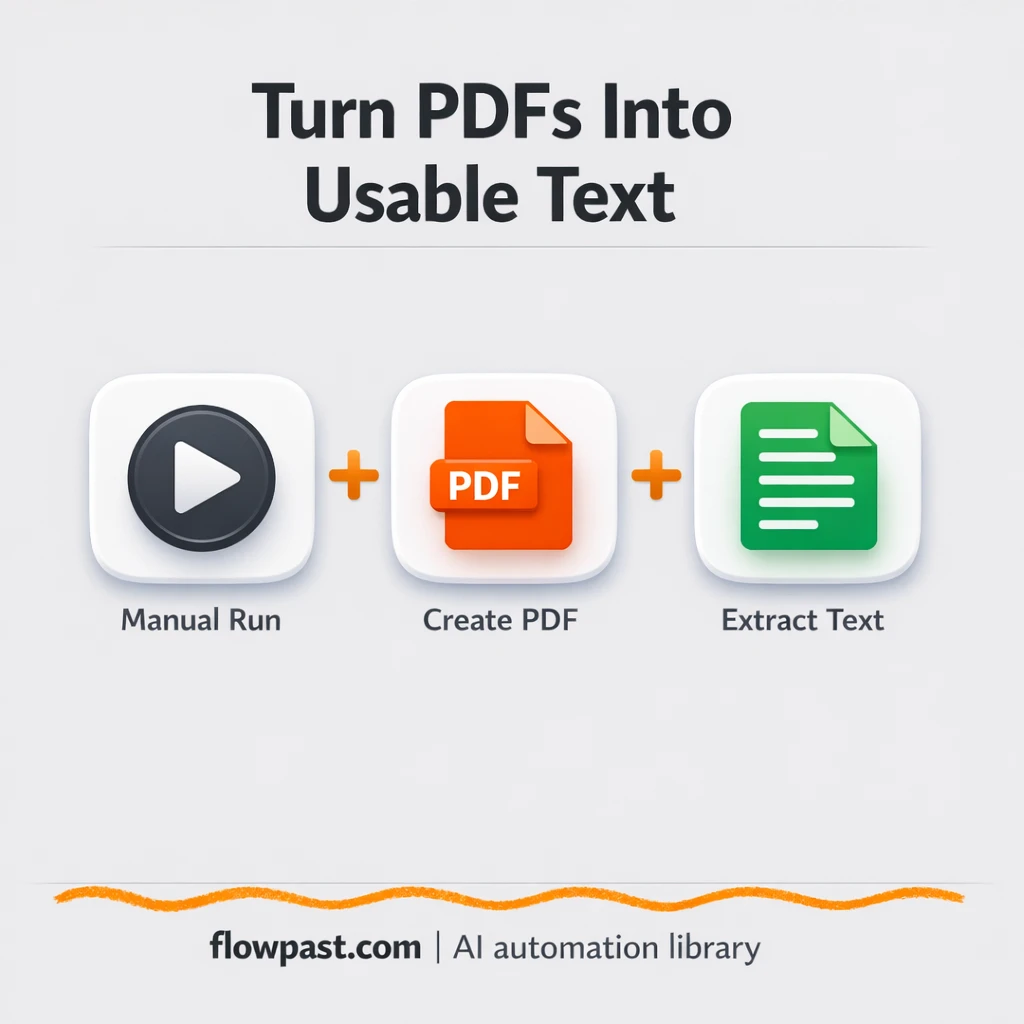

You’ve got useful information trapped in PDFs, and getting it into a spreadsheet turns into a slow, error-prone ritual. Copy. Paste. Fix line breaks. Miss a section. Realize the PDF was actually a link. Start over.
Marketing ops teams feel it when they’re trying to turn partner PDFs into campaign inputs. A business owner hits it when invoices, quotes, or reports need to become rows. And honestly, agency folks deal with it constantly when clients send “final_v7.pdf”. This PDF to Sheets automation takes the busywork out of the loop.
You’ll set up an n8n workflow that converts HTML to a PDF (when needed), extracts text from a PDF (even when it’s sitting behind a URL), and prepares the output so it’s ready to log into Google Sheets for searching and reporting.
How This Automation Works
Here’s the complete workflow you’ll be setting up:
n8n Workflow Template: PDF text to Google Sheets, logged clean every time
flowchart LR

    subgraph sg0["Manual Launch Flow"]
        direction LR
        n0@{ icon: "mdi:cog", form: "rounded", label: "Extract Text from PDF", pos: "b", h: 48 }
        n1@{ icon: "mdi:cog", form: "rounded", label: "Render HTML to PDF", pos: "b", h: 48 }
        n2@{ icon: "mdi:cog", form: "rounded", label: "Parse PDF Text from URL", pos: "b", h: 48 }
        n3["<div style='background:#f5f5f5;padding:10px;border-radius:8px;display:inline-block;border:1px solid #e0e0e0'><img src='https://flowpast.com/wp-content/uploads/n8n-workflow-icons/code.svg' width='40' height='40' /></div><br/>Generate PDF Link"]
        n4@{ icon: "mdi:play-circle", form: "rounded", label: "Manual Launch Trigger", pos: "b", h: 48 }
        n3 --> n2
        n1 --> n0
        n4 --> n1
        n4 --> n3
    end

    %% Styling
    classDef trigger fill:#e8f5e9,stroke:#388e3c,stroke-width:2px
    classDef ai fill:#e3f2fd,stroke:#1976d2,stroke-width:2px
    classDef aiModel fill:#e8eaf6,stroke:#3f51b5,stroke-width:2px
    classDef decision fill:#fff8e1,stroke:#f9a825,stroke-width:2px
    classDef database fill:#fce4ec,stroke:#c2185b,stroke-width:2px
    classDef api fill:#fff3e0,stroke:#e65100,stroke-width:2px
    classDef code fill:#f3e5f5,stroke:#7b1fa2,stroke-width:2px
    classDef disabled stroke-dasharray: 5 5,opacity: 0.5
    class n4 trigger
    class n3 code
    classDef customIcon fill:none,stroke:none
    class n3 customIcon
Why This Matters: PDF Text That’s Actually Usable
PDFs are great for sending information, and terrible for reusing it. The moment you need the text inside a PDF for a tracker, a dashboard, or a quick “how many of these did we get this month?” report, you’re stuck doing manual extraction. It’s never one clean copy-paste either. Headings come across weird. Columns collapse into a single line. Bullet lists turn into a mess of random spacing. Then you spend another 20 minutes cleaning it just to make the data searchable.
The friction compounds, especially when PDFs arrive from different sources and in different formats.
- Copying text from PDFs often brings along broken line breaks, which makes your sheet hard to filter and scan.
- PDFs shared as links add another layer of hassle because you first have to download them (and people forget).
- When you repeat this across a week of documents, you lose a few hours to “small” cleanup tasks that never show up on anyone’s schedule.
- Manual entry invites quiet mistakes, so you end up checking the original PDF anyway.
What You’ll Build: PDF/HTML Text Extraction to Google Sheets
This workflow gives you a repeatable way to turn PDFs into plain text you can actually use. You start the run manually (or later, swap in a webhook trigger), and n8n handles two common realities: sometimes your input is raw HTML that needs to become a PDF first, and sometimes it’s a URL that points to a PDF you want to parse. Using the CustomJS PDF Toolkit community nodes, the workflow renders HTML to a PDF when needed, then converts that PDF into extracted text. If you’re dealing with a PDF link, a Code node generates the right link format and routes it into a PDF-to-text step as well. The end result is clean text output that’s ready to be mapped into rows and columns in Google Sheets.
The workflow starts with your manual launch and branches based on what you’re feeding it. CustomJS does the heavy lifting for PDF creation and text extraction. From there, you format the extracted text so it can be logged consistently in Sheets (and optionally routed to Slack or email when you need visibility).
What You’re Building
| What Gets Automated | What You’ll Achieve |
|---|---|
|
|
Expected Results
Let’s say you process 10 PDFs a week (vendor quotes, ad invoices, partner briefs). Manually, even a “quick” copy/paste plus cleanup is maybe 15 minutes each, so you’re spending about 2.5 hours. With this workflow, you trigger the run and paste the HTML or PDF URL, then let CustomJS convert and extract while you do something else. Your hands-on time drops to about 2 minutes per file, which is roughly 20 minutes a week instead of an entire afternoon.
Before You Start
- n8n instance (try n8n Cloud free)
- Self-hosting option if you prefer (Hostinger works well)
- CustomJS PDF Toolkit (community node) for HTML→PDF and PDF→text.
- Google Sheets to store extracted text as rows.
- CustomJS API key (get it from your CustomJS profile page by pressing “Show”).
Skill level: Intermediate. You’ll be fine if you can add credentials, map fields, and test a run in n8n.
Want someone to build this for you? Talk to an automation expert (free 15-minute consultation).
Step by Step
Manual launch to start a run. You click to execute the workflow when you have a PDF to process (great for testing). If you want it to run automatically later, you can replace this with a Webhook trigger and submit the HTML or PDF URL from a form or internal tool.
Two paths depending on your input. If you’re starting from HTML (like a web page, a receipt template, or a system that exports HTML), the CustomJS “Render HTML to PDF” node generates a PDF first. If you’re starting from a PDF link, the “Generate PDF Link” Code node prepares the URL and sends it to the “Parse PDF Text from URL” node.
Text extraction happens in CustomJS. Once n8n has a PDF (generated from HTML or fetched via URL), the CustomJS PDF-to-text node extracts the content so you can reuse it. This is where you typically decide what “clean” means for your business: a single text blob, separated sections, or fields pulled into columns.
Log it where the team works. The extracted text can be mapped into Google Sheets for later search and reporting, and you can also send a Slack message or email when a document is processed (helpful when multiple people contribute PDFs).
You can easily modify the trigger to accept webhook submissions instead of manual runs based on your needs. See the full implementation guide below for customization options.
Step-by-Step Implementation Guide
Step 1: Configure the Manual Trigger
Set up the workflow to start on demand using the manual trigger, then send execution to the two branches.
- Add Manual Launch Trigger as the workflow trigger.
- Connect Manual Launch Trigger to both Render HTML to PDF and Generate PDF Link.
- Confirm parallel execution: Manual Launch Trigger outputs to both Render HTML to PDF and Generate PDF Link in parallel.
Step 2: Connect PDF Toolkit Credentials
These PDF toolkit nodes require the same custom API credentials for rendering and parsing.
- Open Render HTML to PDF and set Credential Required: Connect your customJsApi credentials.
- Open Extract Text from PDF and set Credential Required: Connect your customJsApi credentials.
- Open Parse PDF Text from URL and set Credential Required: Connect your customJsApi credentials.
Step 3: Set Up PDF Rendering and Text Extraction
Configure the HTML-to-PDF path, then extract text from the generated PDF.
- In Render HTML to PDF, set htmlInput to
<h1>Hello World</h1>. - Connect Render HTML to PDF to Extract Text from PDF.
- Leave Extract Text from PDF parameters at default unless you need custom parsing options.
Step 4: Configure PDF URL Parsing
Set up the URL-based parsing branch that generates a PDF link and extracts text from it.
- In Generate PDF Link, set jsCode to
return {"json": {"path": "https://www.nlbk.niedersachsen.de/download/164891/Test-pdf_3.pdf.pdf"}};. - Connect Generate PDF Link to Parse PDF Text from URL.
- In Parse PDF Text from URL, set resource to
urland field_name to={{ $json.path }}.
Step 5: Test and Activate Your Workflow
Run a manual test to verify both branches return extracted text, then enable the workflow for regular use.
- Click Execute Workflow to run Manual Launch Trigger.
- Confirm that Extract Text from PDF outputs text from the rendered HTML PDF, and Parse PDF Text from URL outputs text from the URL-based PDF.
- If both outputs look correct, toggle the workflow Active for production use.
Troubleshooting Tips
- CustomJS credentials can expire or be pasted incorrectly. If extraction fails, re-check the API key in n8n Credentials and confirm it matches what you see in your CustomJS profile “Show” screen.
- If you’re extracting from a PDF URL, the link handling can be the real culprit. Test the URL in a browser first, then confirm your Code node outputs a direct PDF URL (not a redirect or an access-controlled page).
- Google Sheets writes can look “successful” but still be messy if you dump raw text into one cell. Decide upfront if you want one row per document, one row per page, or one row per extracted section, then map fields consistently.
Quick Answers
About 30 minutes if your CustomJS key and Google account are ready.
No. The only “code” part is a prebuilt Code node you can paste as-is and tweak later if your PDF URLs are unusual.
Yes. n8n has a free self-hosted option and a free trial on n8n Cloud. Cloud plans start at $20/month for higher volume. You’ll also need to factor in CustomJS API usage costs, which depend on how many PDFs you convert and how large they are.
Two options: n8n Cloud (managed, easiest setup) or self-hosting on a VPS. For self-hosting, Hostinger VPS is affordable and handles n8n well. Self-hosting gives you unlimited executions but requires basic server management.
Yes, and you probably should. You can replace the Manual Launch Trigger with a Webhook node to accept PDFs from a form or app, and you can swap the “Render HTML to PDF” node out entirely if you only ever process existing PDFs. Common customizations include saving the original PDF to Google Drive, splitting the extracted text into named fields, or posting a Slack alert when a new row is written.
Usually it’s the API key. Regenerate it in CustomJS, update the n8n credential, and run one test extraction. If you’re using a community node, also confirm you’re on a self-hosted n8n instance and that the @custom-js/n8n-nodes-pdf-toolkit node is installed correctly.
On self-hosted n8n, it’s mostly limited by your server and CustomJS throughput, not an execution cap. In practice, many teams run batches of a few dozen PDFs without issues as long as the files aren’t huge and the URLs are accessible.
Often, yes, because this kind of document processing tends to need branching logic, file handling, and retries. n8n makes that easier to control without paying extra for every conditional path. Another big one: community nodes like the CustomJS PDF Toolkit are typically a self-hosted n8n move, not a Zapier move. If your use case is “one PDF occasionally, one simple action,” Zapier or Make can still be fine. But if you want a dependable pipeline you can extend (Sheets logging, Slack alerts, Drive storage, error routes), n8n is the better fit. Talk to an automation expert if you want a quick recommendation based on your volume.
Once this is in place, PDFs stop being dead ends. You get clean text in Google Sheets, ready for search, reuse, and reporting.
Need Help Setting This Up?
Our automation experts can build and customize this workflow for your specific needs. Free 15-minute consultation—no commitment required.
