


Apify + Airtable: YouTube keyword research, sorted
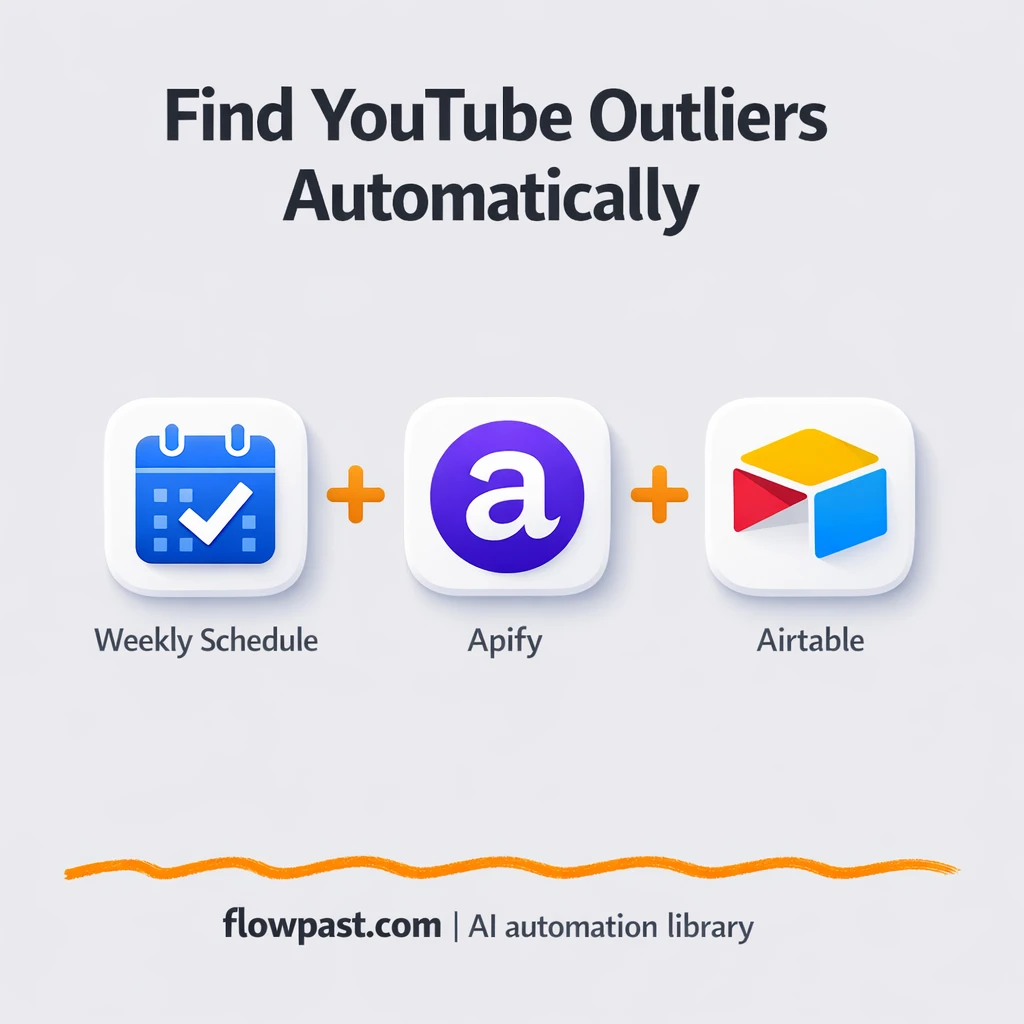

You do “quick” YouTube keyword research… and somehow it turns into an hour of tabs, half-copied notes, and a spreadsheet you don’t trust.
Content creators feel it when they’re trying to plan next week’s videos. A marketing lead feels it when reporting is due. And if you run a small agency, you feel it twice. This YouTube research automation keeps the work consistent without you babysitting it.
This workflow pulls YouTube results for your keywords, cleans and summarizes transcripts with AI, then stores everything in Airtable so you can search, sort, and plan faster.
How This Automation Works
Here’s the complete workflow you’ll be setting up:
n8n Workflow Template: Apify + Airtable: YouTube keyword research, sorted
flowchart LR

    subgraph sg0["Schedule Flow"]
        direction LR
        n0@{ icon: "mdi:cog", form: "rounded", label: "Wait", pos: "b", h: 48 }
        n1@{ icon: "mdi:swap-horizontal", form: "rounded", label: "If", pos: "b", h: 48 }
        n2["<div style='background:#f5f5f5;padding:10px;border-radius:8px;display:inline-block;border:1px solid #e0e0e0'><img src='https://flowpast.com/wp-content/uploads/n8n-workflow-icons/httprequest.dark.svg' width='40' height='40' /></div><br/>Check IF Finished"]
        n3["<div style='background:#f5f5f5;padding:10px;border-radius:8px;display:inline-block;border:1px solid #e0e0e0'><img src='https://flowpast.com/wp-content/uploads/n8n-workflow-icons/httprequest.dark.svg' width='40' height='40' /></div><br/>Get Videos Data"]
        n4["<div style='background:#f5f5f5;padding:10px;border-radius:8px;display:inline-block;border:1px solid #e0e0e0'><img src='https://flowpast.com/wp-content/uploads/n8n-workflow-icons/httprequest.dark.svg' width='40' height='40' /></div><br/>Create Videos Dataset"]
        n5@{ icon: "mdi:swap-vertical", form: "rounded", label: "Loop Over Items", pos: "b", h: 48 }
        n6@{ icon: "mdi:brain", form: "rounded", label: "Mistral Cloud Chat Model", pos: "b", h: 48 }
        n7@{ icon: "mdi:cog", form: "rounded", label: "No Operation, do nothing", pos: "b", h: 48 }
        n8["<div style='background:#f5f5f5;padding:10px;border-radius:8px;display:inline-block;border:1px solid #e0e0e0'><img src='https://flowpast.com/wp-content/uploads/n8n-workflow-icons/airtable.svg' width='40' height='40' /></div><br/>Airtable"]
        n9@{ icon: "mdi:play-circle", form: "rounded", label: "Schedule Trigger", pos: "b", h: 48 }
        n10["<div style='background:#f5f5f5;padding:10px;border-radius:8px;display:inline-block;border:1px solid #e0e0e0'><img src='https://flowpast.com/wp-content/uploads/n8n-workflow-icons/code.svg' width='40' height='40' /></div><br/>Text Cleaning"]
        n11@{ icon: "mdi:robot", form: "rounded", label: "Text Synthesis ", pos: "b", h: 48 }
        n12@{ icon: "mdi:swap-vertical", form: "rounded", label: "Setup Keywords", pos: "b", h: 48 }
        n1 --> n3
        n1 --> n0
        n0 --> n2
        n8 --> n5
        n10 --> n11
        n12 --> n4
        n3 --> n5
        n5 --> n7
        n5 --> n10
        n11 --> n8
        n9 --> n12
        n2 --> n1
        n4 --> n2
        n6 -.-> n11
    end

    %% Styling
    classDef trigger fill:#e8f5e9,stroke:#388e3c,stroke-width:2px
    classDef ai fill:#e3f2fd,stroke:#1976d2,stroke-width:2px
    classDef aiModel fill:#e8eaf6,stroke:#3f51b5,stroke-width:2px
    classDef decision fill:#fff8e1,stroke:#f9a825,stroke-width:2px
    classDef database fill:#fce4ec,stroke:#c2185b,stroke-width:2px
    classDef api fill:#fff3e0,stroke:#e65100,stroke-width:2px
    classDef code fill:#f3e5f5,stroke:#7b1fa2,stroke-width:2px
    classDef disabled stroke-dasharray: 5 5,opacity: 0.5
    class n9 trigger
    class n11 ai
    class n6 aiModel
    class n1 decision
    class n8 database
    class n2,n3,n4 api
    class n10 code
    classDef customIcon fill:none,stroke:none
    class n2,n3,n4,n8,n10 customIcon
Why This Matters: Weekly YouTube research gets messy fast
Keyword research is supposed to be a simple habit. In reality, it’s a weekly scramble. You search YouTube, open a bunch of promising videos, skim intros, try to understand what actually made them work, and then copy notes somewhere “temporary” (which becomes permanent). The worst part isn’t even the time. It’s the inconsistency. One week you capture views and titles, the next week you forget to save publish dates, and suddenly your “research” can’t answer basic questions like “what’s trending right now?” or “which formats keep winning in this niche?”
It adds up fast. Here’s where it breaks down.
- You end up re-checking the same keywords because last week’s notes aren’t searchable.
- Video “inspiration” lives in tabs and bookmarks, so patterns are hard to spot.
- Transcripts are long, messy, and honestly not readable without cleaning.
- Even if you save links, you still have to re-watch to remember what the video covered.
What You’ll Build: Apify → AI summaries → Airtable research base
This automation runs on a schedule (weekly by default). It starts by loading the keywords you want to track, then asks Apify to scrape YouTube search results for those terms using a relevance filter and a date filter you control. Because scraping runs as an asynchronous “dataset job,” the workflow waits and checks the job status until the dataset is ready. Once the results are available, it pulls each video record, cleans the transcript text so it’s usable, and sends it to an AI summarizer. Finally, it writes a structured record into Airtable, so every keyword run becomes a neat, searchable library you can use for planning, briefs, and trend review.
The workflow kicks off from the weekly schedule, generates a fresh dataset in Apify, and polls until it’s complete. After that, each video gets cleaned and summarized, then saved into Airtable as a record you can filter by keyword, date, or whatever fields you decide to keep.
What You’re Building
| What Gets Automated | What You’ll Achieve |
|---|---|
|
|
Expected Results
Say you track 10 keywords each week and you usually review about 5 videos per keyword. Manually, that’s opening around 50 videos, grabbing links, copying titles, finding transcripts, then writing notes, which can easily take about 3 hours. With this workflow, you spend maybe 10 minutes updating keywords (if needed), then let it run while you do other work. When it’s done, you’re reviewing summaries inside Airtable, which is usually closer to 20–30 minutes of actual planning time.
Before You Start
- n8n instance (try n8n Cloud free)
- Self-hosting option if you prefer (Hostinger works well)
- Apify to scrape YouTube search results.
- Airtable to store and search summaries.
- Apify API token (get it from Apify Console → Integrations/API).
Skill level: Intermediate. You’ll paste API tokens, adjust a JSON body, and map fields into Airtable.
Want someone to build this for you? Talk to an automation expert (free 15-minute consultation).
Step by Step
A weekly schedule kicks things off. The workflow starts with the Weekly Schedule Trigger, then loads your tracked keyword list from a Set step so the rest of the run stays consistent.
Apify creates a dataset job for YouTube search. An HTTP request sends your keywords and filters (like dateFilter and relevance settings) to Apify, which begins collecting matching videos in the background.
Status checks and a short delay prevent half-finished data. The workflow waits, checks run status, and branches until the dataset is actually completed. That little loop is what makes this reliable week after week.
Each video is cleaned, summarized, and stored. Results are retrieved in batches, transcript text is cleaned with a small code step, an AI chain summarizes it, and Airtable gets a fresh record per video so you can sort, filter, and plan.
You can easily modify the keyword list and date filters to match your niche and cadence. See the full implementation guide below for customization options.
Step-by-Step Implementation Guide
Step 1: Configure the Schedule Trigger
Set up the weekly schedule that starts the workflow and feeds your keyword configuration.
- Add or open Weekly Schedule Trigger.
- Set the Interval rule to weekly with TriggerAtDay set to
1(Monday). - Connect Weekly Schedule Trigger to Define Search Keywords.
Step 2: Connect the Apify Data Run
Configure the keyword inputs and the Apify requests that generate and monitor the YouTube dataset.
- Open Define Search Keywords and set the three assignments: keyword1 to
Healthy food, keyword2 toMeal prep healthy, and keyword3 toHigh Protein Snack. - Open Generate Video Dataset and set Method to
POST, URL tohttps://api.apify.com/v2/acts/streamers~youtube-scraper/runs?token=[CONFIGURE_YOUR_TOKEN], and JSON Body to the provided payload using{{ $json.keyword1 }},{{ $json.keyword2 }}, and{{ $json.keyword3 }}in searchQueries. - Ensure Generate Video Dataset has Send Body and Send Headers enabled, and set the header Content-Type to
application/json. - Open Check Run Status and set the URL to
https://api.apify.com/v2/acts/streamers~youtube-scraper/runs/last?token=[CONFIGURE_YOUR_TOKEN]. - Configure Status Branch with Left Value set to
{{ $json.data.status }}and Right Value set toSUCCEEDED. - Connect Generate Video Dataset → Check Run Status → Status Branch.
- Connect the False branch of Status Branch to Delay Cycle, then Delay Cycle to Check Run Status to create the polling loop.
[CONFIGURE_YOUR_TOKEN]. Replace it with a valid Apify token or the requests will fail.Step 3: Retrieve and Iterate Video Records
Pull the completed dataset and loop through each video item for processing.
- Open Retrieve Video Records and set the URL to
https://api.apify.com/v2/acts/streamers~youtube-scraper/runs/last/dataset/items?token=[CONFIGURE_YOUR_TOKEN]. - Connect the True branch of Status Branch to Retrieve Video Records.
- Connect Retrieve Video Records to Iterate Video Items to process videos one by one.
- Note that Iterate Video Items outputs to No-Op Placeholder for future expansion and to Clean Transcript Text for processing.
Step 4: Set Up Transcript Cleaning and Summarization
Clean the subtitles text and summarize it with the AI chain connected to your Mistral model.
- Open Clean Transcript Text and keep the JavaScript Code as provided to transform SRT captions into a single paragraph.
- Open Summarize Transcript and set Text to
{{ $json.cleanedText }}. - In Summarize Transcript, keep the Prompt as defined to produce the structured summary.
- Verify Mistral Chat Engine is connected as the language model for Summarize Transcript.
Step 5: Configure Airtable Output
Store the summarized structure and video metadata into Airtable.
- Open Airtable Record Insert and confirm the Operation is
create. - Select the Base named
YTB Trend Finderand the Table namedListing. - Map fields exactly as configured, including Link to
{{ $('Iterate Video Items').item.json.url }}, Title to{{ $('Iterate Video Items').item.json.title }}, Structure to{{ $json.text }}, and Thumbnail to{{ [{ "url": $('Iterate Video Items').item.json.thumbnailUrl }] }}. - Connect Summarize Transcript to Airtable Record Insert, then from Airtable Record Insert back to Iterate Video Items to continue batching.
Step 6: Test and Activate Your Workflow
Validate the end-to-end flow and enable it for weekly production runs.
- Click Execute Workflow to run a manual test starting from Weekly Schedule Trigger.
- Confirm Generate Video Dataset returns a run, Check Run Status reports
SUCCEEDED, and Retrieve Video Records returns items. - Verify Summarize Transcript produces text and Airtable Record Insert creates rows with populated fields.
- Set the workflow Active toggle to on to run automatically each week.
Troubleshooting Tips
- Apify credentials can expire or be pasted incorrectly. If things break, check the HTTP Request node URLs for a missing or outdated API token first.
- If you’re using Wait nodes or external dataset runs, processing times vary. Bump up the wait duration if downstream nodes fail on empty responses.
- Default prompts in AI nodes are generic. Add your brand voice early or you’ll be editing outputs forever.
Quick Answers
About 30 minutes if you already have Apify and Airtable ready.
No. You’ll mainly connect accounts and edit a couple of values like keywords and filters. There is a small “clean transcript” code step included, but you can use it as-is.
Yes. n8n has a free self-hosted option and a free trial on n8n Cloud. Cloud plans start at $20/month for higher volume. You’ll also need to factor in Apify usage costs and AI summarization costs (often just a few dollars a month at small volume).
Two options: n8n Cloud (managed, easiest setup) or self-hosting on a VPS. For self-hosting, Hostinger VPS is affordable and handles n8n well. Self-hosting gives you unlimited executions but requires basic server management.
Yes, and you probably should. Most people tweak the “Define Search Keywords” step, adjust the dateFilter and searchQueries inside the “Generate Video Dataset” HTTP Request, and change what gets written in “Airtable Record Insert.” You can also swap the summarizer model (the workflow includes a Mistral chat engine and an LLM summarization chain) to match your cost and tone. Common variations include adding a “language” filter, saving extra metadata fields, or writing to Google Sheets instead of Airtable.
Usually it’s the base/table permissions or a mismatched field type. Reconnect Airtable in n8n, confirm the base is shared with the right account, and double-check the fields you’re mapping match what your table expects. If it only fails sometimes, you may be hitting Airtable rate limits during large batch inserts.
A typical weekly run of a few dozen videos is fine on most setups.
Often, yes, because this workflow has a “wait + status check” loop and batch processing, which can get awkward (and expensive) in simpler tools. n8n is also more flexible when you need branching logic, data cleanup, and custom mapping into Airtable. The flip side is you have more knobs to configure, which means a bit more initial setup. If you just need “keyword in, row out,” Zapier or Make can work. If you want repeatable weekly research you can trust, n8n is usually the calmer option. Talk to an automation expert if you’re not sure which fits.
Once this is running, your weekly YouTube research stops being a chore and starts being a resource. Set it up, let it collect, then open Airtable and plan with confidence.
Need Help Setting This Up?
Our automation experts can build and customize this workflow for your specific needs. Free 15-minute consultation—no commitment required.
