


OpenAI to Google Docs, interview briefs done fast
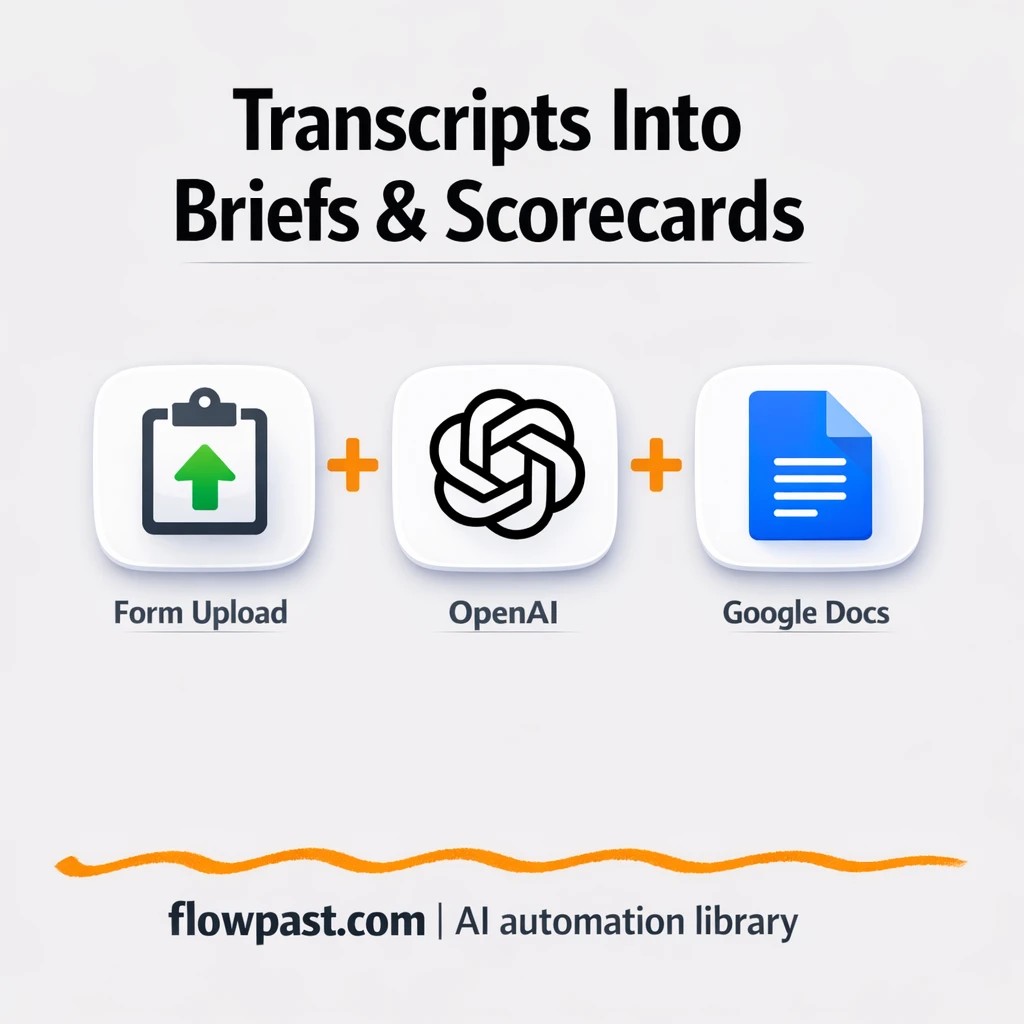

Your intake call ends, the transcript lands in your inbox, and then… nothing. Or worse, you spend the next few hours turning a messy PDF into something the team can actually use, while details get lost and everyone “remembers it differently.”
This OpenAI Google Docs automation hits Talent Acquisition Managers first, but recruiting consultants and hiring managers feel the drag too. You upload the intake transcript once, and you get a clean hiring brief plus interview scorecards in Google Docs without the rewrite marathon.
Below you’ll see how the workflow works, what it replaces, and what to watch for when you adapt it to your own recruiting process.
How This Automation Works
See how this solves the problem:
n8n Workflow Template: OpenAI to Google Docs, interview briefs done fast
flowchart LR

    subgraph sg0["Sending raw hiring brief transcript Flow"]
        direction LR
        n0["<div style='background:#f5f5f5;padding:10px;border-radius:8px;display:inline-block;border:1px solid #e0e0e0'><img src='https://flowpast.com/wp-content/uploads/n8n-workflow-icons/form.svg' width='40' height='40' /></div><br/>Sending raw hiring brief tra.."]
        n1@{ icon: "mdi:cog", form: "rounded", label: "Extracting text", pos: "b", h: 48 }
        n2@{ icon: "mdi:robot", form: "rounded", label: "Summarizing raw transcript", pos: "b", h: 48 }
        n3@{ icon: "mdi:robot", form: "rounded", label: "Generating scorecards", pos: "b", h: 48 }
        n4@{ icon: "mdi:cog", form: "rounded", label: "Creating hiring brief file", pos: "b", h: 48 }
        n5@{ icon: "mdi:cog", form: "rounded", label: "Adding brief to file", pos: "b", h: 48 }
        n6@{ icon: "mdi:cog", form: "rounded", label: "Creating Scorecards file", pos: "b", h: 48 }
        n7@{ icon: "mdi:cog", form: "rounded", label: "Adding scorecards to File", pos: "b", h: 48 }
        n1 --> n2
        n3 --> n6
        n6 --> n7
        n4 --> n5
        n2 --> n4
        n2 --> n3
        n0 --> n1
    end

    %% Styling
    classDef trigger fill:#e8f5e9,stroke:#388e3c,stroke-width:2px
    classDef ai fill:#e3f2fd,stroke:#1976d2,stroke-width:2px
    classDef aiModel fill:#e8eaf6,stroke:#3f51b5,stroke-width:2px
    classDef decision fill:#fff8e1,stroke:#f9a825,stroke-width:2px
    classDef database fill:#fce4ec,stroke:#c2185b,stroke-width:2px
    classDef api fill:#fff3e0,stroke:#e65100,stroke-width:2px
    classDef code fill:#f3e5f5,stroke:#7b1fa2,stroke-width:2px
    classDef disabled stroke-dasharray: 5 5,opacity: 0.5
    class n0 trigger
    class n2,n3 ai
    classDef customIcon fill:none,stroke:none
    class n0 customIcon
The Challenge: Turning messy intakes into usable briefs
Intake transcripts are brutal. They’re long, they’re repetitive, and they’re full of “context” that matters but is scattered across tangents and half-finished thoughts. So you end up re-listening to parts of the call, guessing what should go into the brief, then rewriting again after the hiring manager says “that’s not exactly what I meant.” Meanwhile, candidates are already moving. The hiring team wants a scorecard. You want alignment. And the admin work quietly eats the time you were supposed to spend sourcing, screening, and actually running the process.
It adds up fast. Here’s where it usually breaks down in real recruiting teams.
- Important role requirements get buried in a transcript and resurface too late, usually after the first weak batch of applicants.
- Briefs end up inconsistent across roles, so interviewers ask different questions and you can’t compare candidates cleanly.
- Someone has to manually create scorecards for each round, and it becomes a last-minute scramble before interviews start.
- When you’re hiring often, “just this once” turns into a weekly time sink that honestly drains energy.
The Fix: PDF transcript to brief + scorecards in Google Docs
This workflow takes a raw intake transcript PDF and turns it into two ready-to-use Google Docs: a structured hiring brief and interview scorecards for each interview round. It starts with an upload through an n8n form, then pulls the text out of the PDF so it’s usable for summarization. From there, OpenAI condenses the transcript into a clear brief that covers what a hiring team actually needs (role mission, must-haves, nice-to-haves, dealbreakers, and evaluation signals). Using that brief as context, it generates scorecard templates that match your rounds, so interviewers aren’t inventing criteria on the fly. Finally, it creates the documents in Google Docs and inserts the generated content, so you can tweak wording without starting from scratch.
The workflow begins when you upload an intake transcript PDF via the form. OpenAI produces two outputs: a “brief” summary and a set of round-based scorecards. Google Docs is the landing zone, which means your team can edit, comment, and share using tools they already live in.
What Changes: Before vs. After
| What This Eliminates | Impact You’ll See |
|---|---|
|
|
Real-World Impact
Say you run 4 intake meetings a week. Manually, turning one messy transcript into a solid brief plus round scorecards can take about 2 hours if you’re fast, sometimes longer when the call rambles. That’s roughly a full workday each week lost to documentation. With this workflow, you upload the PDF in a minute and the Google Docs land in under a minute, so you’re spending your time reviewing and tweaking, not rebuilding. Even if you still spend 10 minutes polishing, you’re getting most of that day back.
Requirements
- n8n instance (try n8n Cloud free)
- Self-hosting option if you prefer (Hostinger works well)
- Google Docs for creating and editing the outputs.
- n8n Form Trigger to upload transcript PDFs reliably.
- OpenAI API key (get it from your OpenAI dashboard).
Skill level: Beginner. You’ll connect Google + OpenAI, then adjust two prompts to match your brief and scorecard format.
Need help implementing this? Talk to an automation expert (free 15-minute consultation).
The Workflow Flow
PDF upload through an n8n form. You submit the intake transcript PDF (or a transcript export you saved as PDF). That single upload is the trigger, so you don’t need someone to “remember” to start the process.
Text extraction from the file. n8n parses the PDF to pull out the raw transcript text, which is the part the AI model can actually use. If your transcripts come from different sources, this is where format issues show up first.
OpenAI generates the brief, then scorecards. The first prompt condenses the transcript into a structured hiring brief. That brief becomes the input for the second prompt, which creates interview scorecards aligned to your rounds and evaluation criteria.
Google Docs creation and insertion. The workflow creates two documents (brief and scorecards) and inserts the AI-generated content into each. The result is easy to share, comment on, and refine with the hiring team.
You can easily modify the brief format to match your internal template, or swap Google Docs for a different destination based on your needs. See the full implementation guide below for customization options.
Step-by-Step Implementation Guide
Step 1: Configure the Form Trigger
Set up the workflow’s entry point so candidates or team members can upload the hiring brief PDF and name the output documents.
- Add and open Intake Form Upload.
- Set Form Title to
Upload your raw Hiring Brief (PDF). - Ensure the form fields include Interview transcript (file, required) and Name your document (text, required).
- Confirm the webhook URL is generated by the node so it can accept uploads.
Step 2: Connect Google Docs
Prepare the Google Docs nodes to create and update two documents: a brief and a scorecard.
- Open Create Brief Document and set Title to
={{ $('Intake Form Upload').item.json['Name your document'] }}. - Set Folder ID in Create Brief Document to
[YOUR_ID]. - Open Create Scorecard Document and set Title to
=Scorecard - {{ $('Intake Form Upload').item.json['Name your document'] }}. - Set Folder ID in Create Scorecard Document to
[YOUR_ID]. - Credential Required: Connect your Google Docs credentials for Create Brief Document, Insert Brief Content, Create Scorecard Document, and Insert Scorecard Content.
[YOUR_ID] in the folder fields will cause document creation to fail.Step 3: Set Up AI Processing
Configure the AI nodes to summarize the transcript into a brief and then produce interview scorecards.
- Open Parse PDF Text and set Operation to
pdfand Binary Property Name toInterview_transcript. - In Condense Transcript Brief, keep the system message as provided and set the user message to
=Here is the raw transcript : {{ $json.text }}. - In Build Interview Scorecards, keep the system message as provided and set the user message to
=here is the input : {{ $json.message.content }}. - Credential Required: Connect your OpenAI credentials for Condense Transcript Brief and Build Interview Scorecards.
Interview transcript so the binary property Interview_transcript is populated.Step 4: Configure Output Updates and Parallel Branching
Wire the document creation and content insertion steps, and confirm the parallel paths after the brief is generated.
- In Insert Brief Content, set Operation to
updateand Document URL to={{ $json.id }}. - In Insert Brief Content, add an action with Text set to
={{ $('Condense Transcript Brief').item.json.message.content }}and Action set toinsert. - In Insert Scorecard Content, set Operation to
updateand Document URL to={{ $json.id }}. - In Insert Scorecard Content, add an action with Text set to
={{ $('Build Interview Scorecards').item.json.message.content }}and Action set toinsert. - Confirm the execution order: Intake Form Upload → Parse PDF Text → Condense Transcript Brief.
- Verify the parallel branch: Condense Transcript Brief outputs to both Create Brief Document and Build Interview Scorecards in parallel.
Step 5: Test and Activate Your Workflow
Run a complete test to verify document creation and AI outputs before activating the automation.
- Click Execute Workflow and submit a test PDF through Intake Form Upload.
- Confirm Parse PDF Text extracts text and passes it into Condense Transcript Brief.
- Verify two Google Docs are created: one from Create Brief Document and one from Create Scorecard Document.
- Check that Insert Brief Content and Insert Scorecard Content insert the AI-generated text into the correct documents.
- When successful, toggle the workflow to Active for production use.
Watch Out For
- Google Docs credentials can expire or need specific permissions. If things break, check the Google connection in n8n’s Credentials section first.
- PDF extraction quality depends on how the transcript was generated. If the “Parse PDF Text” output looks garbled, export the transcript as a text-based PDF (not a scanned image) before uploading.
- Default prompts in the OpenAI nodes are a starting point, not a finish line. Add your role-specific sections (location rules, comp bands, level expectations) early or you will keep patching briefs later.
Common Questions
About 30 minutes if your Google Docs and OpenAI accounts are ready.
Yes. You won’t write code, but you will connect accounts and paste in your preferred brief and scorecard prompts.
Yes. n8n has a free self-hosted option and a free trial on n8n Cloud. Cloud plans start at $20/month for higher volume. You’ll also need to factor in OpenAI API costs, which are usually a few cents per run for text-only summarization.
Two options: n8n Cloud (managed, easiest setup) or self-hosting on a VPS. For self-hosting, Hostinger VPS is affordable and handles n8n well. Self-hosting gives you unlimited executions but requires basic server management.
Start with the two OpenAI prompt steps: “Condense Transcript Brief” and “Build Interview Scorecards.” You can add sections like compensation bands, location constraints, or “must-have tools” directly in the brief prompt, then mirror those as scorecard criteria in the scorecard prompt. If you want a different output, you can keep the AI steps and swap the “Create Brief Document” and “Create Scorecard Document” actions for another destination that your team prefers.
Usually it’s expired Google authorization or the wrong Google account connected in n8n. Reconnect the Google Docs credential and confirm it has permission to create documents in the Drive you’re targeting. If it works for one doc but not the other, check that both “Insert Brief Content” and “Insert Scorecard Content” are pointing at the document ID created earlier in the run.
It scales with how you run n8n. On n8n Cloud, your plan limits executions per month, so high-volume recruiting teams may need a bigger plan. If you self-host, there’s no hard execution limit, but your server resources and OpenAI rate limits become the practical ceiling. For most teams, generating a brief and scorecards for a single transcript takes under a minute end-to-end, so it handles day-to-day hiring without drama.
Often, yes, especially if you want to keep expanding the workflow. n8n makes it easier to handle multi-step logic (brief first, scorecards second, then two separate documents) without paying extra for every branch. Self-hosting is also a big deal if you’re running lots of recruiting automations and don’t want execution limits to become a constant tax. Zapier or Make can be quicker for a simple “file in, summary out” setup, but this workflow benefits from the extra control. If you’re unsure, Talk to an automation expert and we’ll map it to your process.
This is the kind of automation that makes recruiting feel lighter. The workflow handles the repetitive documentation, and you get clean alignment artifacts in Google Docs while the intake is still fresh.
Need Help Setting This Up?
Our automation experts can build and customize this workflow for your specific needs. Free 15-minute consultation—no commitment required.
