


Perplexity to Google Docs, market reports on autopilot

Market research is supposed to clarify decisions. Instead, it often turns into five tabs, a half-finished doc, and a pile of copy-pasted “sources” you’ll never find again.
This Perplexity Google Docs automation hits consultants and founders hardest. Analysts doing weekly scans feel it too. You go from a single prompt to a structured, shareable case study without the messy middle.
Below, you’ll see how the workflow runs in n8n, what it produces, and the practical numbers behind the time you get back.
How This Automation Works
The full n8n workflow, from trigger to final output:
n8n Workflow Template: Perplexity to Google Docs, market reports on autopilot
flowchart LR

    subgraph sg0["When chat message received Flow"]
        direction LR
        n0@{ icon: "mdi:play-circle", form: "rounded", label: "When chat message received", pos: "b", h: 48 }
        n1@{ icon: "mdi:brain", form: "rounded", label: "Anthropic Chat Model", pos: "b", h: 48 }
        n2@{ icon: "mdi:cog", form: "rounded", label: "Google Docs", pos: "b", h: 48 }
        n3@{ icon: "mdi:robot", form: "rounded", label: "Research Scope Definer Agent", pos: "b", h: 48 }
        n4["<div style='background:#f5f5f5;padding:10px;border-radius:8px;display:inline-block;border:1px solid #e0e0e0'><img src='https://flowpast.com/wp-content/uploads/n8n-workflow-icons/perplexity.dark.svg' width='40' height='40' /></div><br/>Perplexity Business Case Dee.."]
        n5@{ icon: "mdi:robot", form: "rounded", label: "Claude Business Case Writer", pos: "b", h: 48 }
        n1 -.-> n5
        n0 --> n3
        n5 --> n2
        n3 --> n4
        n4 --> n5
    end

    %% Styling
    classDef trigger fill:#e8f5e9,stroke:#388e3c,stroke-width:2px
    classDef ai fill:#e3f2fd,stroke:#1976d2,stroke-width:2px
    classDef aiModel fill:#e8eaf6,stroke:#3f51b5,stroke-width:2px
    classDef decision fill:#fff8e1,stroke:#f9a825,stroke-width:2px
    classDef database fill:#fce4ec,stroke:#c2185b,stroke-width:2px
    classDef api fill:#fff3e0,stroke:#e65100,stroke-width:2px
    classDef code fill:#f3e5f5,stroke:#7b1fa2,stroke-width:2px
    classDef disabled stroke-dasharray: 5 5,opacity: 0.5
    class n0 trigger
    class n3,n5 ai
    class n1 aiModel
    classDef customIcon fill:none,stroke:none
    class n4 customIcon
The Problem: Research That Dies in Draft Mode
You start with a simple question: “Is this market worth pursuing?” Then the real work begins. You collect stats, skim reports, pull competitor notes, and try to stitch it all into something your team (or a client) can trust. By the time you format a doc, write an executive summary, and add links that don’t look like a random bookmark dump, you’ve burned an afternoon. And frankly, the quality still depends on how caffeinated you were while writing the first paragraph.
It adds up fast. Here’s where it usually breaks down in real teams.
- Live research ends up scattered across browsers, which makes it hard to defend decisions later.
- Turning notes into a coherent business case study can take about 2 to 4 hours each time.
- Sources get copied without context, so your doc looks credible until someone asks, “Where did this number come from?”
- When you need the same structure every week, you still rewrite the structure every week.
The Solution: Prompt-to-Report Automation in Google Docs
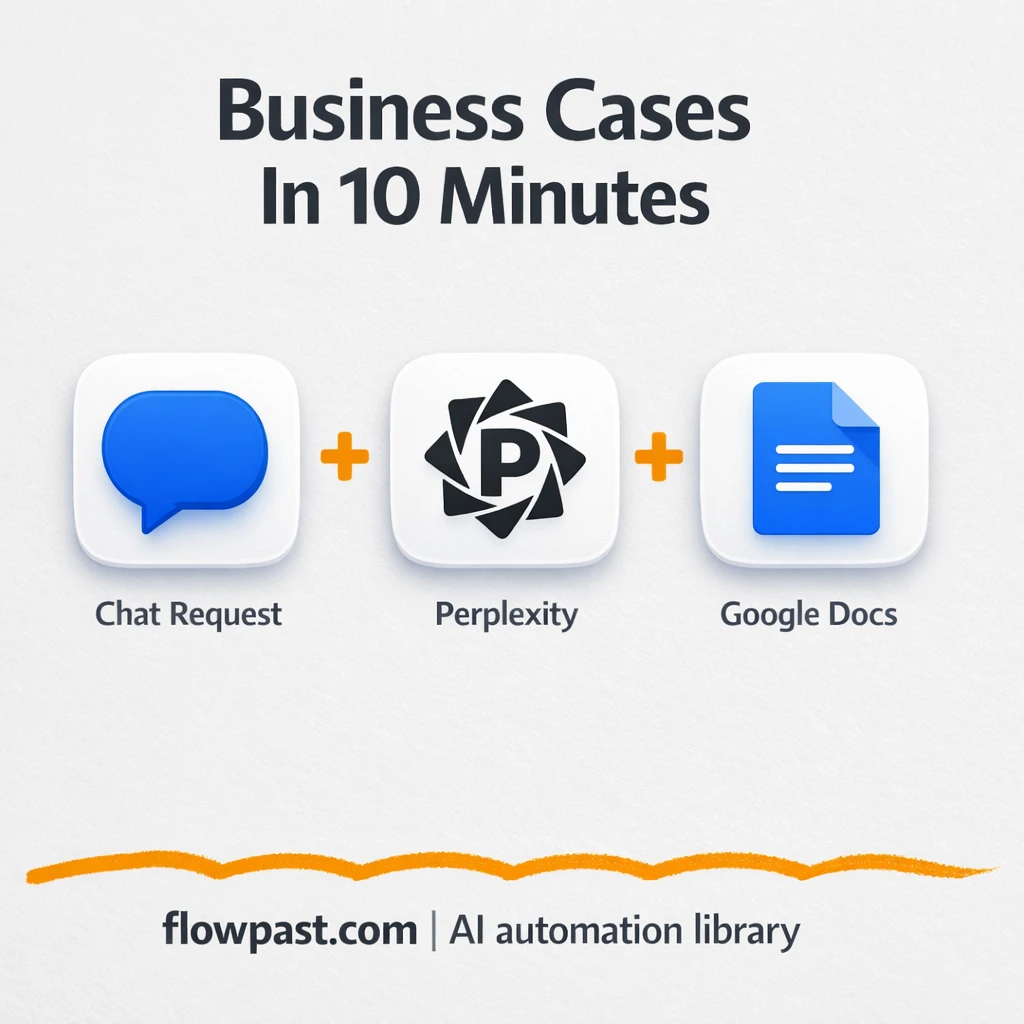
This workflow turns a single chat message into a complete, structured market report and saves it straight into Google Docs. You start by sending a prompt through n8n’s built-in chat trigger (for example, a market opportunity analysis for a specific industry and region). The workflow first uses an AI model to define the research scope, so your input becomes clear components like market, geography, trends, risks, and competitive landscape. Then Perplexity runs live web research and returns relevant, source-backed findings. Finally, another AI chain composes a business case study with consistent sections (executive summary, opportunity analysis, recommendations, and more), and the finished report is appended to a connected Google Doc.
The workflow starts with your prompt in chat. From there, it scopes the research, pulls live sources via Perplexity, and writes a polished case study using a dedicated writing model. The final output lands in Google Docs automatically, ready to share or edit.
What You Get: Automation vs. Results
| What This Workflow Automates | Results You’ll Get |
|---|---|
|
|
Example: What This Looks Like
Say you produce one market report per week for internal planning. Manually, a typical flow is about 30 minutes gathering sources, about 2 hours synthesizing and writing, then another 30 minutes formatting and cleaning links, so roughly 3 hours total. With this workflow, you spend maybe 10 minutes crafting a good prompt and another 20 minutes reviewing the draft in Google Docs after it generates. That’s about 2 hours back each week, without lowering the bar on structure or sources.
What You’ll Need
- n8n instance (try n8n Cloud free)
- Self-hosting option if you prefer (Hostinger works well)
- Google Docs for storing the finished market reports
- Perplexity to run live web research
- OpenAI API key (get it from the OpenAI API dashboard)
Skill level: Intermediate. You’ll connect accounts, add API keys, and adjust prompts safely.
Don’t want to set this up yourself? Talk to an automation expert (free 15-minute consultation).
How It Works
A chat message kicks it off. You send a single prompt through n8n’s Chat Intake Trigger, like “Give me a market opportunity analysis of a bicycle rental business in North Africa.” Short prompts work. Specific prompts work better.
Your idea gets turned into a research scope. The “Define Research Scope” AI step breaks the request into structured parts (industry, geography, trends, challenges). That structure matters because it controls what gets researched and how the final report is organized.
Perplexity gathers live sources. The Perplexity Deep Research node pulls relevant data points, competitor context, and trend signals from the web. This is the “no more random Googling spiral” moment.
A case study is drafted and saved. The workflow composes a full business case study (executive summary through conclusion) and appends it to your Google Doc, so the output is already in the place your team shares and comments.
You can easily modify the report structure to match your org’s template based on your needs. See the full implementation guide below for customization options.
Step-by-Step Implementation Guide
Step 1: Configure the Chat Trigger
Set up the workflow’s entry point so user chat input starts the research pipeline.
- Add the Chat Intake Trigger node as the trigger.
- Keep default Options unless you have custom chat settings.
- Verify the connection from Chat Intake Trigger to Define Research Scope.
Step 2: Connect AI for Scope Definition
This step uses a chat model to turn the chat input into a structured research scope.
- Select Define Research Scope and set the Model to
chatgpt-4o-latest. - Set the first message Content to
{{ $json.chatInput }}. - Keep the system message content exactly as provided to ensure the output is a Perplexity-ready prompt.
- Credential Required: Connect your OpenAI credentials in Define Research Scope.
Step 3: Run Perplexity Research
This node performs deep research based on the scoped prompt and outputs a structured summary.
- Open Perplexity Deep Research and set Model to
sonar-deep-research. - Set the user message Content to
{{ $json.message.content }}. - Confirm the connection from Define Research Scope to Perplexity Deep Research.
- Credential Required: Connect your Perplexity credentials in Perplexity Deep Research.
Step 4: Set Up Case Study Composition with Anthropic
Compose the final case study using a chain LLM node backed by Anthropic.
- In Compose Case Study, set Text to
{{ $json.choices[0].message.content }}. - Keep Prompt Type as
defineand keep the provided message content for the case study structure. - Ensure Anthropic Conversation Model is connected to Compose Case Study as the language model.
- Credential Required: Connect your Anthropic credentials in Anthropic Conversation Model (credentials are set on the parent model, not on Compose Case Study).
Step 5: Configure the Output Document
Send the generated case study into a Google Doc for storage and sharing.
- Open Update Google Document and set Operation to
update. - Set Document URL to
[YOUR_ID]and replace it with your actual Google Doc URL. - In Actions, set the insert Text to
{{ $json.text }}. - Credential Required: Connect your Google Docs credentials in Update Google Document.
⚠️ Common Pitfall: Leaving [YOUR_ID] as-is will cause the update to fail. Paste the full Google Doc URL instead.
Step 6: Test and Activate Your Workflow
Validate each stage before turning the workflow on.
- Click Execute Workflow and send a sample message to Chat Intake Trigger.
- Confirm Define Research Scope outputs a structured prompt and Perplexity Deep Research returns a cited summary.
- Verify Compose Case Study produces a 1500-word formatted case study.
- Check that Update Google Document inserts the content into your target document.
- Turn on the workflow using the Active toggle once tests succeed.
Common Gotchas
- Google Docs credentials can expire or need specific permissions. If things break, check the connected Google account in n8n’s Credentials screen first.
- If you’re using Wait nodes or external rendering, processing times vary. Bump up the wait duration if downstream nodes fail on empty responses.
- Default prompts in AI nodes are generic. Add your brand voice early or you’ll be editing outputs forever.
Frequently Asked Questions
About 30–45 minutes if your accounts are ready.
No. You’ll mostly connect accounts and paste API keys into the right credential fields.
Yes. n8n has a free self-hosted option and a free trial on n8n Cloud. Cloud plans start at $20/month for higher volume. You’ll also need to factor in OpenAI and Perplexity usage costs (often a few dollars a month at low volume).
Two options: n8n Cloud (managed, easiest setup) or self-hosting on a VPS. For self-hosting, Hostinger VPS is affordable and handles n8n well. Self-hosting gives you unlimited executions but requires basic server management.
Yes, and it’s mostly prompt work. Update the “Compose Case Study” chain to produce a one-page brief, and tighten the “Define Research Scope” output so it pulls fewer sections. Common customizations include removing the competitive landscape, forcing a specific output template your team already uses, and adding a “Key sources” section at the end for quick verification.
Usually it’s an expired Google OAuth connection in n8n, or the wrong Google account is connected. Reconnect the Google Docs credentials, then confirm the target document is accessible to that account. If you’re appending to a shared company doc, permissions are the quiet culprit more often than people expect.
On a typical n8n Cloud plan, dozens to hundreds per month is realistic.
Often, yes, because this isn’t a simple two-step “send data from A to B.” This workflow needs structured prompting, branching logic, and multi-stage AI generation, and n8n handles that cleanly without turning every extra step into a cost spike. Zapier and Make can still work, but you’ll usually fight limitations around complex AI chains and data shaping. Another thing: this template uses community nodes that require self-hosted n8n, which pushes you toward n8n anyway. If you want help choosing the right stack for your volume and compliance needs, Talk to an automation expert.
Once this is running, you stop “starting from scratch” every time someone asks for a market scan. The workflow handles the repeatable parts, and you keep your attention for the decisions that actually matter.
Need Help Setting This Up?
Our automation experts can build and customize this workflow for your specific needs. Free 15-minute consultation—no commitment required.
