


Gmail to Google Sheets, stop follow-ups on replies
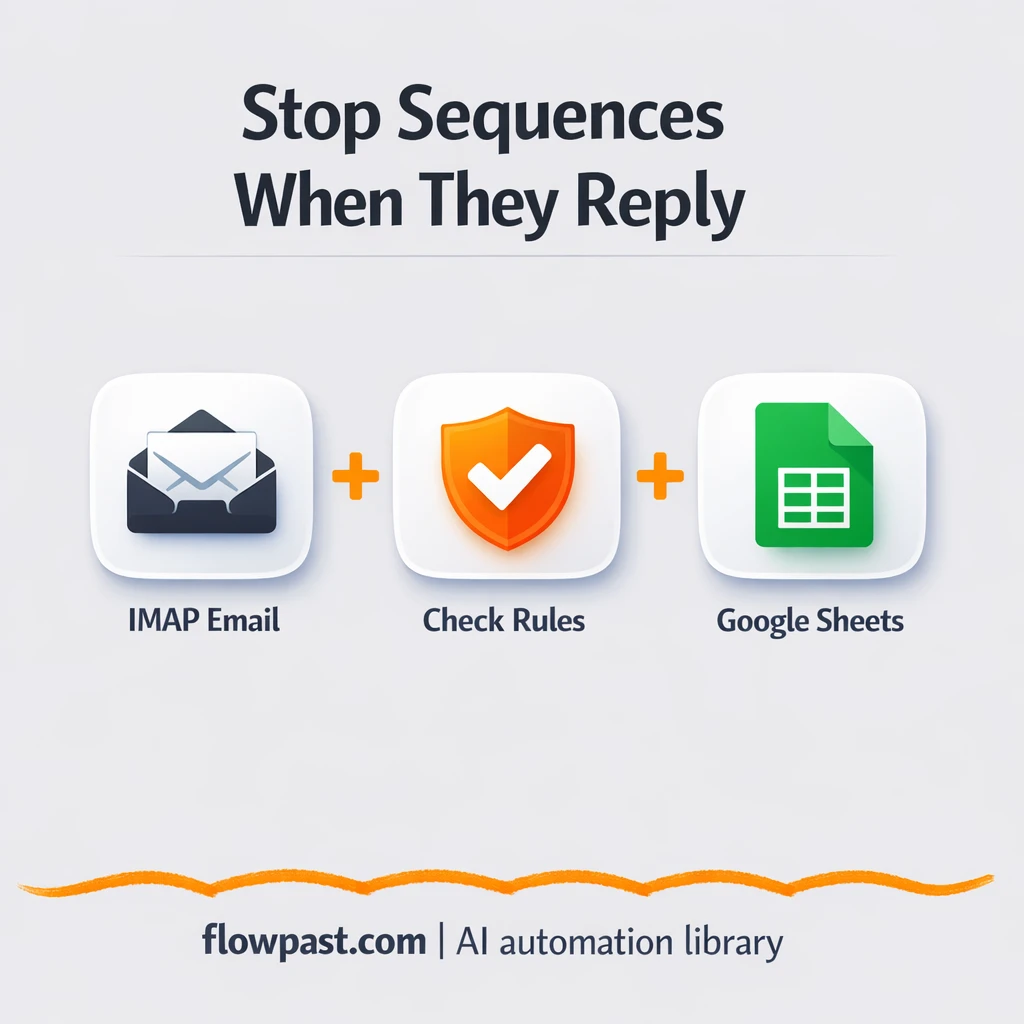

You know that sinking feeling when a prospect replies “not interested,” and your next follow-up still goes out anyway. It looks careless. Worse, it trains people to hit spam instead of reply.
This Gmail Sheets stop automation hits sales teams first, but agency owners running outreach and marketing ops cleaning lists deal with the same mess. The goal is simple: the moment someone replies, they get flagged so your sequences stop automatically.
Below, you’ll see how the workflow catches replies in Gmail via IMAP, finds the matching row in Google Sheets, and marks that contact as “STOP” (plus a reply date) so your follow-ups don’t embarrass you again.
How This Automation Works
See how this solves the problem:
n8n Workflow Template: Gmail to Google Sheets, stop follow-ups on replies
flowchart LR

    subgraph sg0["Flow 1"]
        direction LR
        n0@{ icon: "mdi:message-outline", form: "rounded", label: "IMAP Inbox Listener", pos: "b", h: 48 }
        n1["<div style='background:#f5f5f5;padding:10px;border-radius:8px;display:inline-block;border:1px solid #e0e0e0'><img src='https://flowpast.com/wp-content/uploads/n8n-workflow-icons/code.svg' width='40' height='40' /></div><br/>Reply Tracker Logic"]
        n2@{ icon: "mdi:database", form: "rounded", label: "Smart Match Sheet", pos: "b", h: 48 }
        n3["<div style='background:#f5f5f5;padding:10px;border-radius:8px;display:inline-block;border:1px solid #e0e0e0'><img src='https://flowpast.com/wp-content/uploads/n8n-workflow-icons/code.svg' width='40' height='40' /></div><br/>Sequence Halt Script"]
        n4@{ icon: "mdi:database", form: "rounded", label: "Modify Sheet Record", pos: "b", h: 48 }
        n1 --> n2
        n2 --> n3
        n3 --> n4
        n0 --> n1
    end

    %% Styling
    classDef trigger fill:#e8f5e9,stroke:#388e3c,stroke-width:2px
    classDef ai fill:#e3f2fd,stroke:#1976d2,stroke-width:2px
    classDef aiModel fill:#e8eaf6,stroke:#3f51b5,stroke-width:2px
    classDef decision fill:#fff8e1,stroke:#f9a825,stroke-width:2px
    classDef database fill:#fce4ec,stroke:#c2185b,stroke-width:2px
    classDef api fill:#fff3e0,stroke:#e65100,stroke-width:2px
    classDef code fill:#f3e5f5,stroke:#7b1fa2,stroke-width:2px
    classDef disabled stroke-dasharray: 5 5,opacity: 0.5
    class n2,n4 database
    class n1,n3 code
    classDef customIcon fill:none,stroke:none
    class n1,n3 customIcon
The Challenge: Follow-ups That Ignore Replies
Most outreach systems are great at one thing: sending the next email on time. They’re not great at understanding when they should stop. So the moment a prospect replies, you’re stuck doing the “cleanup” manually, hopping into a spreadsheet, searching for the person, updating a status, and hoping your sequence tool actually checks it. Miss one reply and you risk sending a chipper follow-up to someone who already said no. Honestly, it’s a trust killer, and it can also harm deliverability because annoyed recipients report spam.
It adds up fast. Here’s where it breaks down in real life.
- A single missed reply can trigger two or three extra follow-ups before anyone notices.
- Manual spreadsheet updates usually happen in batches, which means you’re always behind.
- Email addresses get copied with extra spaces or different casing, so matches fail when you need them most.
- If your list is split across tools, you end up “fixing” the wrong place and the sequence keeps running.
The Fix: Auto-Stop Follow-ups When Gmail Gets a Reply
This workflow monitors your inbox using IMAP (Gmail, Outlook, and most providers support it). When a new email comes in, it checks if it’s a reply from someone you previously contacted, then extracts the sender’s email address. Next, it looks up that email in your Google Sheets prospect list and finds the exact row to update. Once it has a match, it sets the “Email Sent Status” field to STOP and logs a reply date so you have a clean audit trail. From that point on, your sending automation can skip anyone marked STOP, so replies instantly turn into suppression rules.
The workflow starts with an inbox listener, then runs reply-detection logic and a Google Sheets lookup. Finally, it updates the matching record so your sequences have a clear “do not follow up” signal, without you touching the sheet.
What Changes: Before vs. After
| What This Eliminates | Impact You’ll See |
|---|---|
|
|
Real-World Impact
Say you run a list of 500 prospects and you get about 10 replies a day during a campaign. Manually, finding the person in Google Sheets, confirming it’s the right row, updating status, and adding a date is maybe 5 minutes each, so roughly 50 minutes daily. With this workflow, the “work” is basically zero: the email arrives, n8n matches it, and the sheet updates in the background. That’s close to an hour back on a normal day, plus fewer mistakes.
Requirements
- n8n instance (try n8n Cloud free)
- Self-hosting option if you prefer (Hostinger works well)
- IMAP-enabled email inbox for monitoring incoming replies.
- Google Sheets to store prospects and their status.
- Gmail App Password (get it from Google Account → Security → App passwords).
Skill level: Beginner. You’ll connect credentials and match your sheet column names exactly.
Need help implementing this? Talk to an automation expert (free 15-minute consultation).
The Workflow Flow
Inbox monitoring via IMAP. The workflow listens for new, unread emails in your inbox (the “UNSEEN” filter is important). When a message arrives, it passes the email data into the reply-check logic.
Reply detection and cleanup. The logic extracts the sender address and normalizes it (think trimming spaces and handling case). This part matters because spreadsheets are picky and real-world data is messy.
Google Sheets matching. n8n searches your prospect sheet for that email. Your sheet needs the right columns (including a row_number) so the workflow can update the correct record, not just “a similar looking one.”
Status update and reply logging. Once matched, the workflow sets “Email Sent Status” to STOP and writes the reply date. Your sending workflow then checks that status before sending anything else.
You can easily modify the STOP value to something like REPLIED or UNSUBSCRIBED based on your needs. See the full implementation guide below for customization options.
Step-by-Step Implementation Guide
Step 1: Configure the IMAP Trigger
This workflow starts by listening for incoming emails and passing them into the reply-tracking logic.
- Add and open IMAP Inbox Listener as the trigger node.
- Configure the mailbox details you want to monitor (IMAP server, port, and search filters).
- Credential Required: Connect your IMAP credentials.
⚠️ Common Pitfall: If your IMAP provider requires app-specific passwords or OAuth, configure that in the IMAP credentials before testing.
Step 2: Connect Google Sheets
Two nodes interact with Google Sheets to locate and update records related to replies.
- Open Smart Match Sheet and configure it to find the correct row for the incoming reply data.
- Open Modify Sheet Record and set it to update the appropriate row based on the match.
- Credential Required: Connect your Google Sheets credentials to both Smart Match Sheet and Modify Sheet Record.
⚠️ Common Pitfall: Make sure both sheet nodes point to the same spreadsheet structure so the match and update steps align correctly.
Step 3: Set Up Processing Logic
Two code nodes handle reply tracking and sequence-stopping logic between the trigger and sheet updates.
- Open Reply Tracker Logic and implement the logic that parses the incoming email data from IMAP Inbox Listener.
- Ensure Reply Tracker Logic outputs the fields needed by Smart Match Sheet.
- Open Sequence Halt Script and implement the logic that determines if the sequence should be halted based on the matched record.
- Confirm Sequence Halt Script outputs the update payload expected by Modify Sheet Record.
Step 4: Configure Output Updates
The final node writes changes back to your spreadsheet once the halt logic has determined the outcome.
- In Modify Sheet Record, set the action to update the row identified earlier in the flow.
- Map the fields from Sequence Halt Script to the columns that store reply or sequence status.
Step 5: Test and Activate Your Workflow
Verify the end-to-end flow from IMAP trigger to Google Sheets update before turning it on.
- Click Execute Workflow and send a test email to the monitored inbox to trigger IMAP Inbox Listener.
- Confirm Reply Tracker Logic passes data into Smart Match Sheet, then into Sequence Halt Script, and finally into Modify Sheet Record.
- Verify the spreadsheet row updates as expected, indicating a successful sequence halt decision.
- Once confirmed, toggle the workflow to Active for production use.
Watch Out For
- Gmail IMAP credentials can expire or require specific permissions. If things break, check your Google Account security settings and App Passwords first.
- If you’re using Wait nodes or external rendering, processing times vary. Bump up the wait duration if downstream nodes fail on empty responses.
- Google Sheets column names must match exactly. If “Email Sent Status” or
row_numberis missing or renamed, the update can silently fail and contacts won’t get stopped.
Common Questions
About 30 minutes if your sheet is already set up.
Yes. You’ll mostly be connecting IMAP and Google Sheets, then confirming your columns match.
Yes. n8n has a free self-hosted option and a free trial on n8n Cloud. Cloud plans start at $20/month for higher volume. You’ll also need to factor in any email provider limits, but there are no required paid AI APIs in this workflow.
Two options: n8n Cloud (managed, easiest setup) or self-hosting on a VPS. For self-hosting, Hostinger VPS is affordable and handles n8n well. Self-hosting gives you unlimited executions but requires basic server management.
You can change the STOP label in the status update logic and in the Google Sheets “Modify Sheet Record” step to match your internal naming (like REPLIED or DO_NOT_CONTACT). Common customizations include writing the reply snippet into a new column, updating an additional table in Airtable, or triggering a Slack notification when a high-value lead replies.
Most of the time it’s an IMAP/App Password issue. Recreate the Gmail App Password, confirm IMAP is enabled, and then reselect the credential inside the IMAP Inbox Listener node in n8n. Also check that you’re using the right host and port (Gmail is typically imap.gmail.com on 993) and that the workflow is actually seeing UNSEEN emails.
If you self-host n8n, there’s no execution cap (it mostly depends on your server and inbox volume). On n8n Cloud, the Starter plan supports a monthly execution limit and higher plans support more. Practically, most small teams can process replies as they come in without any noticeable lag, because each email is just one lookup and one update.
Often, yes. IMAP-based reply handling can get fiddly in simpler tools, and n8n gives you more control over matching logic (like cleaning emails and handling edge cases) without paying extra for branching. You can also self-host, which matters when you’re processing lots of messages. Zapier or Make can still be fine for very simple “new email → update row” cases, but this workflow is designed for reliability, not just connectivity. If you’re unsure, Talk to an automation expert and we’ll map it to your exact setup.
Once replies automatically flip contacts to STOP, your sequences get quieter and your outreach gets sharper. Set it up once, and you’ll feel the difference the next time a “not interested” comes in.
Need Help Setting This Up?
Our automation experts can build and customize this workflow for your specific needs. Free 15-minute consultation—no commitment required.
