


Slack to Google Docs, copy drafts ready to edit

Copy requests show up in chat, then vanish into a scroll of “quick questions,” half-context, and last-minute changes. You end up rewriting the same email three times because the brief was split across four messages.
Marketing managers feel it when approvals drag. Agency owners see it when clients “just need a draft” and it turns into a whole day. And if you run sales, you’re stuck in the same loop. This Slack Docs automation turns those chat asks into clean drafts you can actually edit and send.
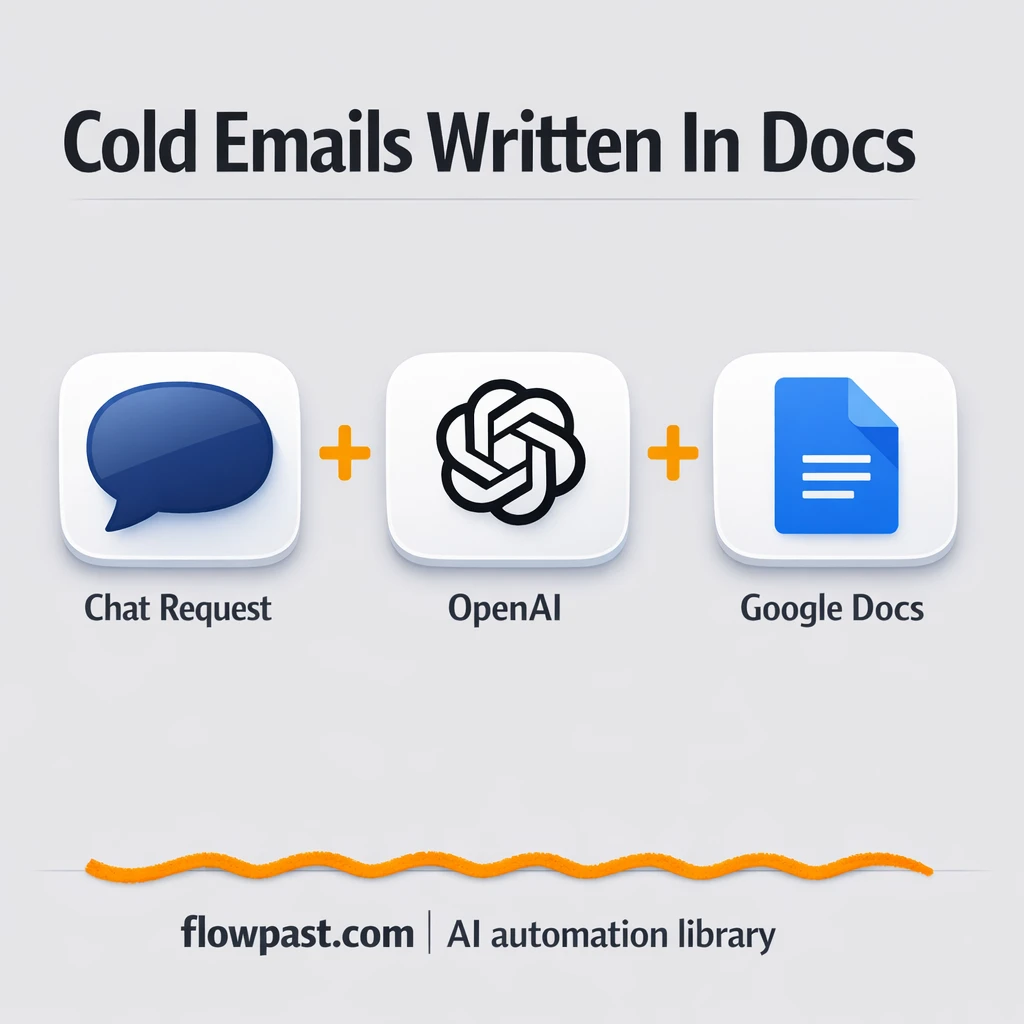
You’ll see how the workflow captures an incoming message, keeps context with memory, picks the right copy format (cold email or sales letter), and saves the draft straight into Google Docs.
How This Automation Works
The full n8n workflow, from trigger to final output:
n8n Workflow Template: Slack to Google Docs, copy drafts ready to edit
flowchart LR

    subgraph sg0["When chat message received Flow"]
        direction LR
        n0@{ icon: "mdi:play-circle", form: "rounded", label: "When chat message received", pos: "b", h: 48 }
        n1@{ icon: "mdi:robot", form: "rounded", label: "Copy Assistant", pos: "b", h: 48 }
        n2@{ icon: "mdi:brain", form: "rounded", label: "OpenAI Chat Model", pos: "b", h: 48 }
        n3@{ icon: "mdi:memory", form: "rounded", label: "Simple Memory", pos: "b", h: 48 }
        n4@{ icon: "mdi:cog", form: "rounded", label: "Update a document", pos: "b", h: 48 }
        n5@{ icon: "mdi:wrench", form: "rounded", label: "Cold Email Writer Tool", pos: "b", h: 48 }
        n6@{ icon: "mdi:wrench", form: "rounded", label: "Sales Letter Tool", pos: "b", h: 48 }
        n3 -.-> n1
        n1 --> n4
        n2 -.-> n1
        n6 -.-> n1
        n5 -.-> n1
        n0 --> n1
    end

    %% Styling
    classDef trigger fill:#e8f5e9,stroke:#388e3c,stroke-width:2px
    classDef ai fill:#e3f2fd,stroke:#1976d2,stroke-width:2px
    classDef aiModel fill:#e8eaf6,stroke:#3f51b5,stroke-width:2px
    classDef decision fill:#fff8e1,stroke:#f9a825,stroke-width:2px
    classDef database fill:#fce4ec,stroke:#c2185b,stroke-width:2px
    classDef api fill:#fff3e0,stroke:#e65100,stroke-width:2px
    classDef code fill:#f3e5f5,stroke:#7b1fa2,stroke-width:2px
    classDef disabled stroke-dasharray: 5 5,opacity: 0.5
    class n0 trigger
    class n1 ai
    class n2 aiModel
    class n5,n6 ai
    class n3 ai
The Problem: Chat-Based Copy Requests Create Rework
“Can you write a quick cold email?” sounds small until you ask the basic questions: who’s it for, what’s the offer, what’s the tone, what objections matter. In chat, those answers arrive in drips. You draft too early, then edit it to death. Worse, every new request starts from scratch, even when your brand voice and structure should stay consistent. The cost isn’t just the writing time. It’s the mental context switching, the missed details, and the approvals that take longer because nobody can find “the latest version.”
The friction compounds.
- You reread message threads to reconstruct the brief, and it’s easy to miss a key constraint buried above.
- Drafts live in DMs, not in a document, which means editing and approvals start later than they should.
- Without saved context, the tone drifts from request to request, so you keep “fixing” voice instead of improving the offer.
- People ask for “a quick version,” then “a more formal one,” and now you’ve created three drafts with no source of truth.
The Solution: Turn Messages Into Drafts in Google Docs
This workflow listens for an incoming chat message, then routes it through a copy coordination agent that understands intent. Your message and the running “memory” (so the assistant remembers preferences and context) get fed into an OpenAI chat model. From there, the agent chooses the right writing tool: one tool generates cold emails, the other generates sales letters. When the draft is ready, the workflow writes the output directly into your target Google Doc using an “Update a document” step. You get a real document draft, ready for edits, comments, and approvals, instead of another block of text lost in a conversation.
The workflow begins with a chat trigger (an incoming-message endpoint). The agent then uses memory plus your prompt to decide which copy format fits. Finally, Google Docs becomes the delivery layer, so the work lands where teams actually collaborate.
What You Get: Automation vs. Results
| What This Workflow Automates | Results You’ll Get |
|---|---|
|
|
Example: What This Looks Like
Say your team fields 10 “write this email” requests a week. Manually, it’s often about 15 minutes to clarify the brief in chat, then another 30 minutes to draft and format into a doc, which puts you around 7–8 hours of stop-and-start work. With this workflow, you send one message, wait a couple minutes for generation, and the draft is already in Google Docs ready to edit. Realistically, you get most of that time back, and the work is easier to review because it’s already in the right place.
What You’ll Need
- n8n instance (try n8n Cloud free)
- Self-hosting option if you prefer (Hostinger works well)
- OpenAI Chat Model to generate cold emails and letters.
- AI Agent to route intent to the right tool.
- Google Docs to store drafts for editing.
- Simple Memory to keep context across requests.
- OpenAI API key (get it from your OpenAI dashboard).
Skill level: Intermediate. You’ll connect credentials, paste an Assistant ID, and test a webhook-style trigger.
Don’t want to set this up yourself? Talk to an automation expert (free 15-minute consultation).
How It Works
An incoming chat message kicks things off. The workflow listens on an incoming-message endpoint, so the moment a request lands, it can respond automatically. In many teams this is a chat channel, but it can be wired to other entry points too.
Context is pulled in before writing. A compact memory buffer supplies “what we already know” (tone, product basics, past preferences), which helps the output feel consistent instead of random.
The agent chooses the right copy tool. If your prompt smells like outreach, it runs the cold email tool. If it’s longer-form persuasion, it runs the sales letter tool. Honestly, that routing is the difference between “generic AI text” and something you can actually use.
The draft is saved into Google Docs automatically. The workflow updates a target document so you have a single place to edit, comment, and approve. No copy-pasting from chat. No hunting for the latest version.
You can easily modify the incoming channel to match your stack (Slack, Teams, WhatsApp) and still keep Google Docs as the final destination. See the full implementation guide below for customization options.
Step-by-Step Implementation Guide
Step 1: Configure the Chat Trigger
This workflow starts when a user sends a chat message into n8n.
- Add the Incoming Chat Trigger node as the workflow trigger.
- Keep the default Options unless you need custom chat behavior.
- Verify the trigger is connected to Copy Coordination Agent.
Step 2: Connect the AI Model and Tools
The agent uses an OpenAI chat model, memory, and tool workflows to route requests.
- Open OpenAI Conversation Model and select the model Model as
gpt-4.1-mini. - Credential Required: Connect your openAiApi credentials in OpenAI Conversation Model.
- Keep Compact Memory Buffer connected to Copy Coordination Agent to retain conversation context.
- Configure Cold Email Tool Runner with Workflow ID set to
[YOUR_ID]and ensure the description isCall this tool when the user requests cold email sequences. - Configure Sales Letter Tool Runner with Workflow ID set to
[YOUR_ID]and ensure the description isCall this tool when user request for sales letters sequence.
Credential Required: AI tool and memory sub-nodes (like Compact Memory Buffer, Cold Email Tool Runner, and Sales Letter Tool Runner) should have credentials added to the parent Copy Coordination Agent if required by your tool workflows.
Step 3: Set Up the Copy Coordination Agent
This node orchestrates intent detection, routing, and response formatting for copywriting requests.
- Open Copy Coordination Agent and review the System Message to ensure the routing logic matches your desired copy types.
- Confirm OpenAI Conversation Model is connected as the language model for Copy Coordination Agent.
- Confirm Compact Memory Buffer is connected as the memory for Copy Coordination Agent.
- Verify both Cold Email Tool Runner and Sales Letter Tool Runner are connected as tools to Copy Coordination Agent.
Step 4: Configure the Google Docs Output
The workflow writes the final copy into a Google Doc.
- Open Update Document Record and set Operation to
update. - Set Document URL to
[YOUR_ID](replace with your actual Google Doc URL). - In Actions, set the insert text to
{{ $json.output }}to write the agent’s response into the document. - Credential Required: Connect your googleDocsOAuth2Api credentials in Update Document Record.
⚠️ Common Pitfall: Leaving [YOUR_ID] in Document URL will cause update failures—replace it with a valid Google Doc URL.
Step 5: Test and Activate Your Workflow
Validate the end-to-end flow before enabling it for live use.
- Click Execute Workflow and send a sample chat message to Incoming Chat Trigger.
- Confirm Copy Coordination Agent returns a response and routes to the correct tool when applicable.
- Verify Update Document Record inserts the output into the Google Doc.
- When satisfied, toggle the workflow to Active for production use.
Common Gotchas
- Google Docs credentials can expire or need specific permissions. If things break, check the n8n Credentials panel and confirm the connected Google account can edit the target document.
- If you’re using Wait nodes or external rendering, processing times vary. Bump up the wait duration if downstream nodes fail on empty responses.
- Default prompts in AI nodes are generic. Add your brand voice early or you’ll be editing outputs forever.
Frequently Asked Questions
About an hour if you already have your credentials ready.
No. You’ll mostly connect accounts and paste in the right IDs and keys. The “hard part” is deciding what you want the assistant to sound like.
Yes. n8n has a free self-hosted option and a free trial on n8n Cloud. Cloud plans start at $20/month for higher volume. You’ll also need to factor in OpenAI API costs, which are usually a few cents per draft depending on length.
Two options: n8n Cloud (managed, easiest setup) or self-hosting on a VPS. For self-hosting, Hostinger VPS is affordable and handles n8n well. Self-hosting gives you unlimited executions but requires basic server management.
Yes, but you’ll swap the output step. Replace the Google Docs “Update Document Record” action with a Microsoft Word document writer node, then keep the agent and tool runner logic the same. Common customizations include adding a “Follow-up Email Writer” tool, tightening the brand voice in the system prompt, and routing finished drafts to Gmail for review instead of a doc.
Usually it’s an expired Google authorization or the connected account simply can’t edit the target document. Reconnect Google Docs in n8n Credentials, then confirm the doc is shared with that same Google user. If you’re updating a doc that lives in a shared drive, permissions are stricter, so double-check access there too.
A lot. On n8n Cloud, your limit mostly comes down to plan executions per month, and on self-hosted it depends on your server. In practice, most teams run dozens of drafts a day without issues, as long as they aren’t hitting OpenAI rate limits.
Often, yes, because the agent routing plus memory is easier to control in n8n, and self-hosting avoids per-task pricing when volume climbs. Zapier or Make can still work if you only need a simple “message in, text out” setup. Where this workflow shines is multi-tool writing (cold email vs sales letter) and keeping context over time, which is where simpler setups start to feel flimsy. If you’re on the fence, Talk to an automation expert and describe your volume and approval process. You’ll get a clear answer fast.
This is the kind of automation you set up once, then quietly benefit from every week. Your requests stay in chat, but your drafts live where work gets finished.
Need Help Setting This Up?
Our automation experts can build and customize this workflow for your specific needs. Free 15-minute consultation—no commitment required.
