


SerpAPI + Google Sheets: tool shortlists on demand

You open five tabs to “quickly” find a tool, then lose 40 minutes reading affiliate-heavy listicles and half-finished G2 summaries. By the time you’ve got options, you’ve forgotten what you were optimizing for. Price, limits, integrations, reviews. It’s a mess.
This SerpAPI tool shortlist automation hits marketers doing stack upgrades, agency owners comparing tools for clients, and ops folks who just want a sane answer without a research day attached.
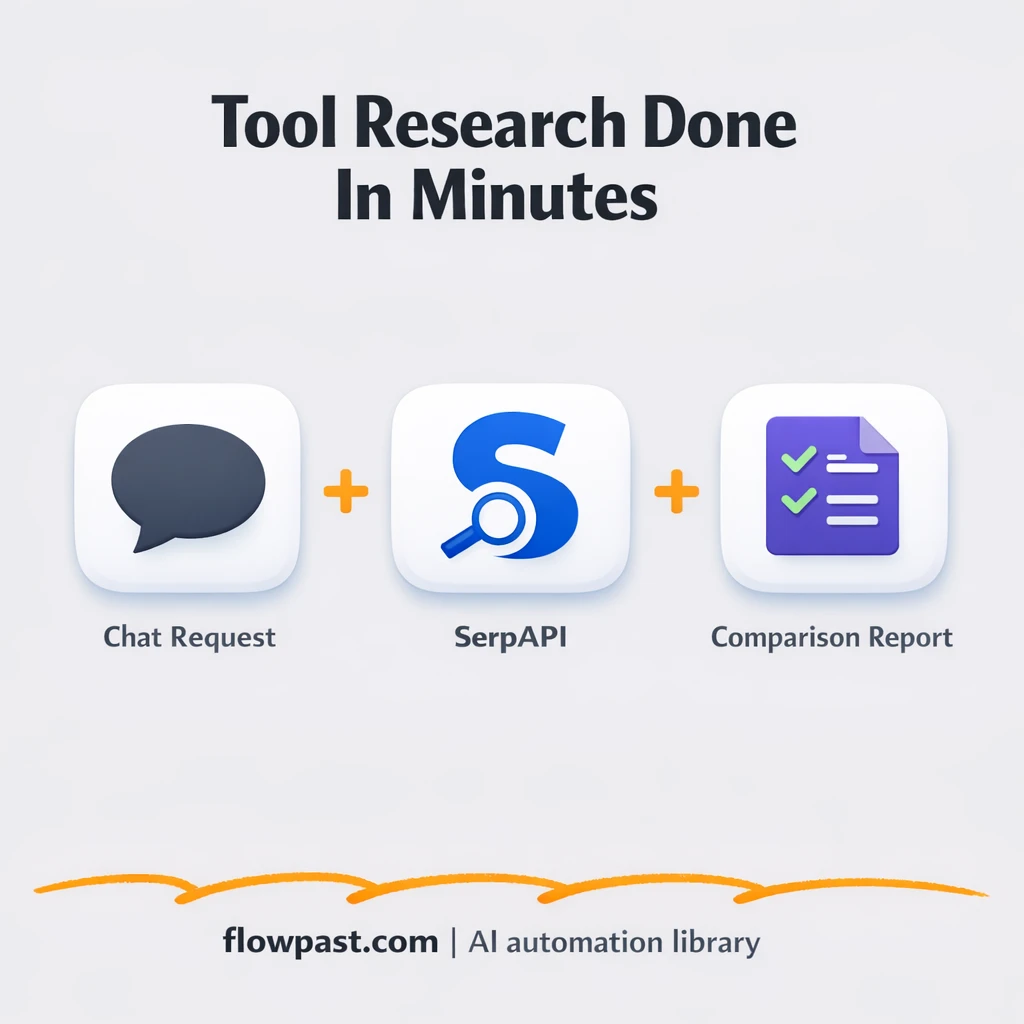
You’ll see how one chat prompt turns into five researched options, compiled into a clean Google Sheet you can scan, share, and decide from.
How This Automation Works
See how this solves the problem:
n8n Workflow Template: SerpAPI + Google Sheets: tool shortlists on demand
flowchart LR

    subgraph sg0["When chat message received Flow"]
        direction LR
        n0@{ icon: "mdi:play-circle", form: "rounded", label: "When chat message received", pos: "b", h: 48 }
        n1@{ icon: "mdi:brain", form: "rounded", label: "OpenAI Chat Model1", pos: "b", h: 48 }
        n2@{ icon: "mdi:memory", form: "rounded", label: "Window Buffer Memory1", pos: "b", h: 48 }
        n3@{ icon: "mdi:wrench", form: "rounded", label: "SerpAPI1", pos: "b", h: 48 }
        n4@{ icon: "mdi:robot", form: "rounded", label: "Structured Output Parser", pos: "b", h: 48 }
        n5["<div style='background:#f5f5f5;padding:10px;border-radius:8px;display:inline-block;border:1px solid #e0e0e0'><img src='https://flowpast.com/wp-content/uploads/n8n-workflow-icons/merge.svg' width='40' height='40' /></div><br/>Merge1"]
        n6@{ icon: "mdi:cog", form: "rounded", label: "Aggregate1", pos: "b", h: 48 }
        n7@{ icon: "mdi:brain", form: "rounded", label: "OpenAI Chat Model", pos: "b", h: 48 }
        n8@{ icon: "mdi:wrench", form: "rounded", label: "SerpAPI", pos: "b", h: 48 }
        n9@{ icon: "mdi:wrench", form: "rounded", label: "SerpAPI3", pos: "b", h: 48 }
        n10@{ icon: "mdi:wrench", form: "rounded", label: "SerpAPI4", pos: "b", h: 48 }
        n11@{ icon: "mdi:wrench", form: "rounded", label: "SerpAPI5", pos: "b", h: 48 }
        n12@{ icon: "mdi:brain", form: "rounded", label: "OpenAI Chat Model2", pos: "b", h: 48 }
        n13@{ icon: "mdi:wrench", form: "rounded", label: "SerpAPI2", pos: "b", h: 48 }
        n14@{ icon: "mdi:brain", form: "rounded", label: "OpenAI Chat Model3", pos: "b", h: 48 }
        n15@{ icon: "mdi:brain", form: "rounded", label: "OpenAI Chat Model4", pos: "b", h: 48 }
        n16@{ icon: "mdi:brain", form: "rounded", label: "OpenAI Chat Model5", pos: "b", h: 48 }
        n17@{ icon: "mdi:brain", form: "rounded", label: "OpenAI Chat Model6", pos: "b", h: 48 }
        n18@{ icon: "mdi:robot", form: "rounded", label: "Reviewer 1", pos: "b", h: 48 }
        n19@{ icon: "mdi:robot", form: "rounded", label: "Reviewer 2", pos: "b", h: 48 }
        n20@{ icon: "mdi:robot", form: "rounded", label: "Reviewer 3", pos: "b", h: 48 }
        n21@{ icon: "mdi:robot", form: "rounded", label: "Reviewer 4", pos: "b", h: 48 }
        n22@{ icon: "mdi:robot", form: "rounded", label: "Reviewer 5", pos: "b", h: 48 }
        n23@{ icon: "mdi:robot", form: "rounded", label: "Compiler", pos: "b", h: 48 }
        n24@{ icon: "mdi:robot", form: "rounded", label: "Tool Finder", pos: "b", h: 48 }
        n5 --> n6
        n8 -.-> n18
        n3 -.-> n24
        n13 -.-> n19
        n9 -.-> n20
        n10 -.-> n21
        n11 -.-> n22
        n6 --> n23
        n18 --> n5
        n19 --> n5
        n20 --> n5
        n21 --> n5
        n22 --> n5
        n24 --> n18
        n24 --> n19
        n24 --> n20
        n24 --> n21
        n24 --> n22
        n7 -.-> n23
        n1 -.-> n24
        n12 -.-> n18
        n14 -.-> n19
        n15 -.-> n20
        n16 -.-> n21
        n17 -.-> n22
        n2 -.-> n24
        n4 -.-> n24
        n0 --> n24
    end

    %% Styling
    classDef trigger fill:#e8f5e9,stroke:#388e3c,stroke-width:2px
    classDef ai fill:#e3f2fd,stroke:#1976d2,stroke-width:2px
    classDef aiModel fill:#e8eaf6,stroke:#3f51b5,stroke-width:2px
    classDef decision fill:#fff8e1,stroke:#f9a825,stroke-width:2px
    classDef database fill:#fce4ec,stroke:#c2185b,stroke-width:2px
    classDef api fill:#fff3e0,stroke:#e65100,stroke-width:2px
    classDef code fill:#f3e5f5,stroke:#7b1fa2,stroke-width:2px
    classDef disabled stroke-dasharray: 5 5,opacity: 0.5
    class n0 trigger
    class n4,n18,n19,n20,n21,n22,n23,n24 ai
    class n1,n7,n12,n14,n15,n16,n17 aiModel
    class n3,n8,n9,n10,n11,n13 ai
    class n2 ai
    classDef customIcon fill:none,stroke:none
    class n5 customIcon
The Challenge: Tool Research That Eats Your Week
Tool research looks easy until you do it properly. You’re not just asking “what’s popular,” you’re trying to find something that fits your budget, your workflow, your team’s tolerance for complexity, and your existing stack. Then you need proof: review sentiment, obvious limitations, and whether the pricing page actually matches reality. And because information is spread across blogs, directories, and vendor sites, you end up stitching together a decision from scraps. Honestly, it’s tiring.
The friction compounds. Here’s where it breaks down.
- You read a “top 10” list that’s really a referral page, so your shortlist starts biased from minute one.
- Pricing and limits are scattered, which means you keep re-checking the same pages and still miss key constraints.
- Review summaries take forever because you’re forced to interpret dozens of comments across multiple sites.
- You can’t compare cleanly, so decisions drag and “let’s revisit next week” becomes the default.
The Fix: One Prompt, Five Options, One Sheet
This workflow turns a simple chat message (like “automatic email responder” or “online spreadsheet”) into a ranked shortlist of five real companies that provide that tool category. It starts by using GPT-4o to generate smart search queries, then pulls current web results through SerpAPI instead of relying on whatever listicle Google happens to rank today. After it finds five candidates, the workflow splits into five reviewer agents. Each reviewer uses GPT-4o plus SerpAPI again to gather details you actually need, including pricing, limits, and a grounded summary of reviews with pros and cons. Finally, a compiler agent (GPT-4o-mini) consolidates everything into a readable format and logs it to Google Sheets, so you can compare in one place.
The workflow begins when you type a tool need into the chat trigger. From there, the Tool Discovery Agent finds five vendors using SerpAPI-backed searches. Five Reviewer Agents produce structured write-ups, then the compiler organizes the final shortlist and saves it into Google Sheets for fast comparison.
What Changes: Before vs. After
| What This Eliminates | Impact You’ll See |
|---|---|
|
|
Real-World Impact
Let’s say you need a new “automatic email responder” tool and want five viable options. Manually, you’ll usually check about 5 sources per vendor (pricing page, docs, two review sites, a couple of “alternatives” posts). At roughly 10 minutes per source, that’s about 4 hours for five vendors, and you still have scattered notes. With this workflow, you type one request in chat, wait a few minutes while the five reviewer agents run, and the finished shortlist lands in Google Sheets ready to scan.
Requirements
- n8n instance (try n8n Cloud free)
- Self-hosting option if you prefer (Hostinger works well)
- SerpAPI for live Google search results.
- Google Sheets to store and compare the shortlist.
- OpenAI API key (get it from platform.openai.com/api-keys)
Skill level: Intermediate. You’ll connect accounts, add API keys, and test one run end-to-end.
Need help implementing this? Talk to an automation expert (free 15-minute consultation).
The Workflow Flow
A chat message kicks things off. You type what you’re looking for (tool category or problem) into the built-in chat trigger inside n8n.
AI turns your request into better searches. The workflow uses an OpenAI chat model plus short-term “memory” so the Tool Discovery Agent can generate multiple search queries and keep the intent consistent.
SerpAPI finds five real vendors. Instead of guessing from old lists, the agent uses SerpAPI to pull current results and returns a structured list of five companies that match your request.
Five reviewers gather the details that matter. Each reviewer agent researches one vendor with SerpAPI and produces a standardized write-up: pricing, limitations, review summary, pros, cons, and a conclusion. Then a compiler agent merges everything and writes the final comparison into Google Sheets.
You can easily modify the output fields (for example, add “integration with HubSpot”) to match how your team evaluates tools. See the full implementation guide below for customization options.
Step-by-Step Implementation Guide
Step 1: Configure the Chat Trigger
Set up the entry point so chat inputs can start the workflow.
- Add the Incoming Chat Trigger node to receive chat messages.
- Keep the default options unless you need custom webhook settings for your chat interface.
- Connect Incoming Chat Trigger to Tool Discovery Agent.
Step 2: Connect Core AI Model, Memory, and Parsing
Define the primary AI model, memory, and structured output parsing used by the discovery agent.
- Open Primary GPT Model and set Model to
gpt-4o. - Credential Required: Connect your
openAiApicredentials in Primary GPT Model. - Attach Dialogue Buffer Memory to Tool Discovery Agent as the ai_memory connection (credentials are added to the parent agent, not the memory node).
- Open Structured Output Reader and confirm JSON Schema Example matches the workflow schema:
{ "topic":"USER_INPUT_TOPIC", "ItemNames": [ "Item_1", "Item_2", "Item_3", "Item_4", "Item_5" ] } - Attach Structured Output Reader to Tool Discovery Agent as the ai_outputParser connection (credentials are added to the parent agent, not the parser).
Step 3: Configure Tool Discovery and Search
Set up the discovery agent to interpret the chat request and use search tools.
- Open Tool Discovery Agent and set Text to
{{ $json.chatInput }}. - Keep Prompt Type as
defineand ensure Has Output Parser is enabled. - Connect Primary GPT Model to Tool Discovery Agent as the ai_languageModel.
- Attach Search Tool Connector to Tool Discovery Agent as the ai_tool.
- Credential Required: Connect your
serpApicredentials in Search Tool Connector (search tool credentials must be added on the tool node, not on the agent).
Step 4: Configure Parallel Reviewer Agents and Models
Each reviewer agent evaluates a different tool in parallel using dedicated GPT and search tool nodes.
- Set Reviewer Agent A Text to
{{ $json.output.ItemNames[0] }}, Reviewer Agent B to{{ $json.output.ItemNames[1] }}, Reviewer Agent C to{{ $json.output.ItemNames[2] }}, Reviewer Agent D to{{ $json.output.ItemNames[3] }}, and Reviewer Agent E to{{ $json.output.ItemNames[4] }}. - Connect Reviewer GPT A, Reviewer GPT B, Reviewer GPT C, Reviewer GPT D, and Reviewer GPT E to their matching agents as the ai_languageModel connections.
- Credential Required: Connect your
openAiApicredentials in all reviewer GPT nodes (these are the models for the reviewer agents). - Connect Search Tool A, Search Tool B, Search Tool C, Search Tool D, and Search Tool E to their matching reviewer agents as the ai_tool connections.
- Credential Required: Connect your
serpApicredentials in all search tool nodes used by the reviewer agents. - Tool Discovery Agent outputs to Reviewer Agent A and Reviewer Agent B and Reviewer Agent C and Reviewer Agent D and Reviewer Agent E in parallel.
Step 5: Combine and Aggregate Reviews
Merge the five parallel review outputs and aggregate them into a single object for compilation.
- Open Combine Reviews and set Number Inputs to
5. - Connect Reviewer Agent A, Reviewer Agent B, Reviewer Agent C, Reviewer Agent D, and Reviewer Agent E into Combine Reviews (inputs 1–5).
- In Aggregate Results, set the Fields to Aggregate list to rename
outputintoOutput 1throughOutput 5as shown in the node configuration. - Connect Combine Reviews → Aggregate Results.
Step 6: Compile Final Output with Summary Model
Use an organizing agent to format the aggregated reviews into a clean comparison output.
- Open Output Compiler and set Text to
{{ $json['Output 1'][0] }}{{ $json['Output 1'][1] }}{{ $json['Output 1'][2] }}{{ $json['Output 1'][3] }}{{ $json['Output 1'][4] }}. - Ensure Has Output Parser is enabled in Output Compiler.
- Connect Summary GPT Mini to Output Compiler as the ai_languageModel and set Model to
gpt-4o-mini. - Credential Required: Connect your
openAiApicredentials in Summary GPT Mini. - Connect Aggregate Results → Output Compiler.
Output 1–Output 5, because Output Compiler reads those exact keys.Step 7: Review Optional Branding Note
The sticky note is informational and does not impact execution.
- Keep Flowpast Branding as-is for documentation, or remove it if you want a cleaner canvas.
Step 8: Test and Activate Your Workflow
Validate the chat input flow, parallel reviews, and final compiled output.
- Click Execute Workflow and send a sample chat message through Incoming Chat Trigger.
- Confirm Tool Discovery Agent produces a structured list of five items via Structured Output Reader.
- Verify that all reviewer agents return outputs and that Combine Reviews receives five inputs.
- Check that Output Compiler produces the final combined comparison output.
- When results look correct, toggle the workflow to Active for production use.
Watch Out For
- SerpAPI credentials can expire or need specific permissions. If things break, check your SerpAPI dashboard usage and API key status first.
- If you’re using Wait nodes or external rendering, processing times vary. Bump up the wait duration if downstream nodes fail on empty responses.
- Default prompts in AI nodes are generic. Add your brand voice early or you’ll be editing outputs forever.
Common Questions
Usually in about 30 minutes once your API keys are ready.
Yes. No coding is required, but someone needs to be comfortable pasting API keys and testing one full run.
Yes. n8n has a free self-hosted option and a free trial on n8n Cloud. Cloud plans start at $20/month for higher volume. You’ll also need to factor in OpenAI API costs (GPT‑4o runs cost around $0.03–$0.04 per workflow run) and SerpAPI usage.
Two options: n8n Cloud (managed, easiest setup) or self-hosting on a VPS. For self-hosting, Hostinger VPS is affordable and handles n8n well. Self-hosting gives you unlimited executions but requires basic server management.
You can tweak what “good” means by changing the prompts used in the Tool Discovery Agent and the five Reviewer Agents. Common customizations include adding required integrations (“must work with Shopify”), forcing a budget cap, or asking for one extra field like data residency or SOC 2 status. If you want more than five options, duplicate the reviewer pattern and adjust the merge/aggregate logic so the compiler still receives a tidy list. You can also swap the destination from Google Sheets to Airtable if you prefer a database view.
It’s usually an expired or incorrect API key, or you’ve hit your monthly search limit in SerpAPI. Check your SerpAPI usage, regenerate the key if needed, then update it everywhere SerpAPI is used inside the workflow.
On n8n Cloud Starter, you’re typically fine for light weekly research, and higher plans handle more volume. If you self-host, there’s no execution limit from n8n itself; it mainly depends on your server and API rate limits. Practically, the real bottleneck is cost and quotas: this workflow can consume about 15–30 SerpAPI searches per run and uses multiple AI calls across six agents. If you plan to run it many times per day, budget for API usage and consider adding caching so you don’t re-research the same vendors repeatedly.
Often, yes, because n8n handles multi-agent logic and branching without turning it into a brittle chain of paid steps. You also get a self-hosting option, which is handy when you want lots of runs without watching task counts. Zapier or Make can still work if your version is “take one search result and send it somewhere,” but this workflow is heavier. Talk to an automation expert if you want help deciding.
This workflow gives you a repeatable way to choose tools without turning research into a part-time job. Set it up once, and your next shortlist is a chat message away.
Need Help Setting This Up?
Our automation experts can build and customize this workflow for your specific needs. Free 15-minute consultation—no commitment required.
