


Gmail to Slack, CVs validated and sorted for HR
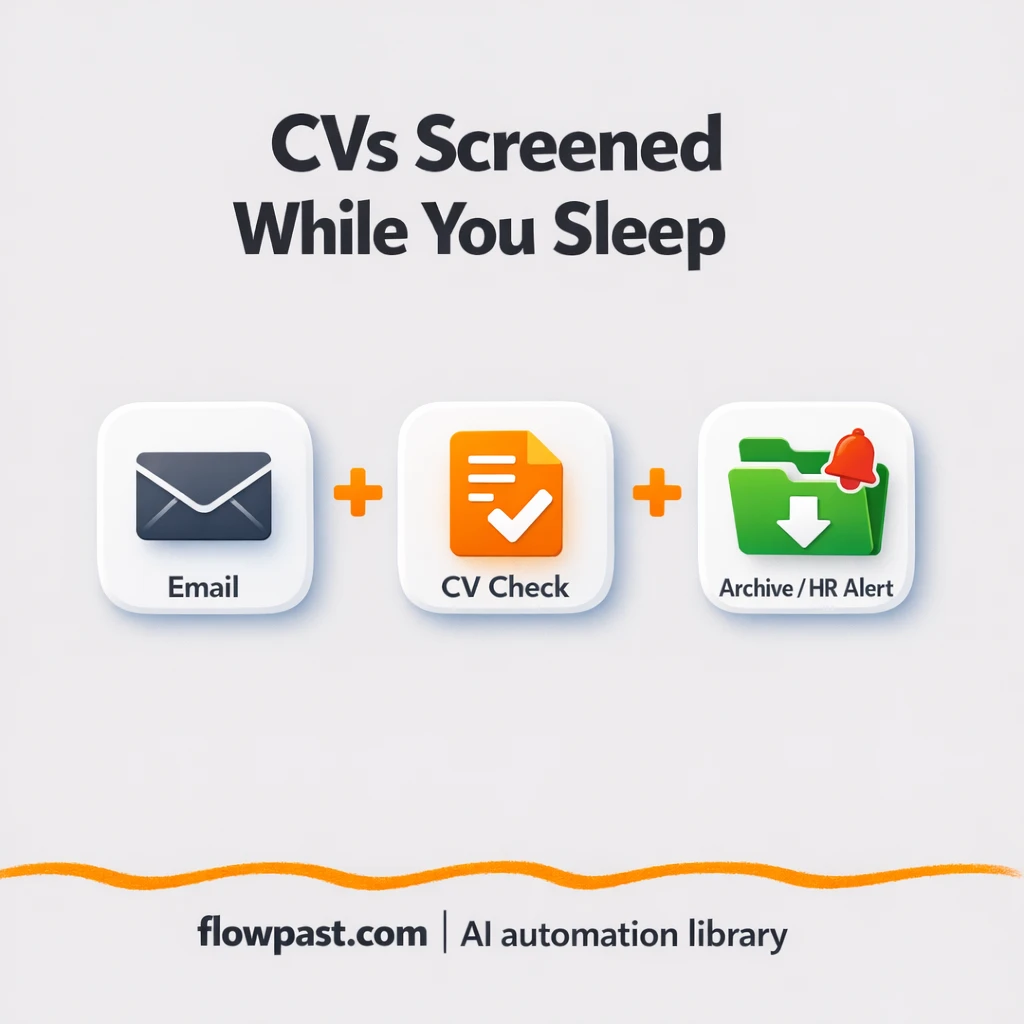

Your inbox shouldn’t be your applicant tracking system. But when CVs arrive as random PDF attachments, someone ends up opening, skimming, downloading, renaming, and chasing missing details. Every day.
This Gmail Slack CV automation hits HR Managers first, honestly, but Recruiters and small Business Owners feel it too. You get a cleaner pipeline: valid CVs go where they belong, and incomplete submissions trigger a clear Slack-style alert so you can follow up fast.
Below you’ll see exactly how the workflow validates CV essentials, sorts candidates into “approved” versus “follow up,” and keeps your team out of the weeds.
How This Automation Works
The full n8n workflow, from trigger to final output:
n8n Workflow Template: Gmail to Slack, CVs validated and sorted for HR
flowchart LR

    subgraph sg0["Flow 1"]
        direction LR
        n0@{ icon: "mdi:message-outline", form: "rounded", label: "Trigger on New CV Email	", pos: "b", h: 48 }
        n1@{ icon: "mdi:cog", form: "rounded", label: "Extract Text from PDF CV	", pos: "b", h: 48 }
        n2@{ icon: "mdi:cog", form: "rounded", label: "Ensure All CV Data Loaded	", pos: "b", h: 48 }
        n3["<div style='background:#f5f5f5;padding:10px;border-radius:8px;display:inline-block;border:1px solid #e0e0e0'><img src='https://flowpast.com/wp-content/uploads/n8n-workflow-icons/code.svg' width='40' height='40' /></div><br/>Parse & Structure CV Informa.."]
        n4@{ icon: "mdi:swap-horizontal", form: "rounded", label: "Check CV for Required Fields	", pos: "b", h: 48 }
        n5@{ icon: "mdi:cog", form: "rounded", label: "Save Valid CV to Folder	", pos: "b", h: 48 }
        n6@{ icon: "mdi:message-outline", form: "rounded", label: "Notify HR of Invalid CV	", pos: "b", h: 48 }
        n0 --> n1
        n1 --> n2
        n2 --> n3
        n4 --> n5
        n4 --> n6
        n3 --> n4
    end

    %% Styling
    classDef trigger fill:#e8f5e9,stroke:#388e3c,stroke-width:2px
    classDef ai fill:#e3f2fd,stroke:#1976d2,stroke-width:2px
    classDef aiModel fill:#e8eaf6,stroke:#3f51b5,stroke-width:2px
    classDef decision fill:#fff8e1,stroke:#f9a825,stroke-width:2px
    classDef database fill:#fce4ec,stroke:#c2185b,stroke-width:2px
    classDef api fill:#fff3e0,stroke:#e65100,stroke-width:2px
    classDef code fill:#f3e5f5,stroke:#7b1fa2,stroke-width:2px
    classDef disabled stroke-dasharray: 5 5,opacity: 0.5
    class n4 decision
    class n3 code
    classDef customIcon fill:none,stroke:none
    class n3 customIcon
The Problem: CV Screening Turns Into Inbox Triage
CV screening looks simple until you’re doing it under time pressure. A candidate emails a PDF with no phone number. Another uses an image-based resume that won’t copy-paste. Someone else forgets to include their email in the document (yes, it happens), so your team goes hunting through the thread. Meanwhile, good candidates sit in limbo because the process is “download first, organize later,” and later never comes. The cost isn’t only time. It’s missed follow-ups, inconsistent evaluation, and a messy folder structure that nobody trusts.
The friction compounds. Here’s where it breaks down.
- Downloading and renaming CV files can easily burn about 5 minutes per applicant, and it gets worse when multiple stakeholders want copies.
- Key details are often missing or buried, which means recruiters keep re-reading the same PDF to confirm basics like email, skills, or recent experience.
- Manual sorting into folders is inconsistent, so “approved” candidates end up mixed with “needs follow-up,” and people stop trusting the pipeline.
- When something is incomplete, the follow-up message is delayed because nobody wants to write it, send it, and then remember to track it.
The Solution: Automatically Validate CVs and Alert HR
This n8n workflow turns incoming CV emails into a simple decision: “good to process” or “needs follow-up.” It starts the moment a new email hits your inbox with a CV attachment. The workflow pulls text from the PDF, waits until the file data is fully available (so you don’t get half-parsed documents), then structures the CV into clean fields like name, email, and skills. After that, it checks for the essentials you care about. If the CV passes, it gets archived to your target directory automatically. If it fails, HR gets a clear notification email with enough context to act quickly instead of guessing.
It begins with an IMAP email trigger watching for CVs. Then PDF parsing and AI-assisted extraction transform unstructured text into usable candidate fields. Finally, an “if” validation routes the file either to an archive folder or to an HR notification.
What You Get: Automation vs. Results
| What This Workflow Automates | Results You’ll Get |
|---|---|
|
|
Example: What This Looks Like
Say you receive 25 CVs in a week. Manually, even a quick flow (open email, download PDF, skim for name/email/skills, rename, file it) is maybe 6 minutes each, which is roughly 2.5 hours weekly. With this workflow, you spend about 10 minutes up front setting the rules, then it’s mostly review time: you glance at the extracted fields and only step in when HR is notified. In practice, most teams get back about 2 hours a week, and the “approved” folder stays clean without effort.
What You’ll Need
- n8n instance (try n8n Cloud free)
- Self-hosting option if you prefer (Hostinger works well)
- Email inbox with IMAP to receive CV attachments reliably.
- OpenAI (Chat Model) for extracting structured CV fields.
- Server file access (target directory) to archive approved CVs.
Skill level: Intermediate. You’ll connect inbox credentials and set a file path, plus tweak the required fields for your hiring rules.
Don’t want to set this up yourself? Talk to an automation expert (free 15-minute consultation).
How It Works
A CV email arrives in your inbox. The workflow monitors Gmail (via IMAP) and triggers when a new message includes a CV PDF attachment.
The PDF gets converted into readable text. n8n pulls the CV file content and extracts text so the workflow can work with it, even when formatting is messy.
Candidate details are structured and validated. A parsing step turns the CV into fields (name, email, skills, experience), then an “if” check confirms the essentials are present based on your requirements.
Approved CVs are archived, and issues get flagged. Passing CVs are saved to your target directory, while incomplete ones trigger an HR notification email so you can follow up immediately.
You can easily modify the required fields to match your role requirements based on your needs. See the full implementation guide below for customization options.
Step-by-Step Implementation Guide
Step 1: Configure the Email Trigger
Set up the workflow to watch your inbox for new CV submissions so the automation can start as soon as an email arrives.
- Add the Inbound CV Email Trigger node as the trigger for the workflow.
- Set Format to
resolved. - In Options, set Custom Email Config to
["UNSEEN", ["SUBJECT", "CV"]]to filter unread CV emails. - Credential Required: Connect your imap credentials.
Tip: Make sure your incoming CV emails include a PDF attachment in the first slot so the next node can read attachment_0.
Step 2: Connect and Extract CV Data
Pull the PDF content and introduce a short wait to ensure the file is available for processing.
- Add Pull Text from PDF CV after Inbound CV Email Trigger.
- Set Operation to
pdfand Binary Property Name toattachment_0. - Add Pause Until CV Ready after Pull Text from PDF CV (no additional fields required).
Step 3: Set Up CV Structuring and Validation
Use a code node to extract department and candidate name, then validate the results before archiving.
- Add Structure CV Details after Pause Until CV Ready.
- Paste the provided JavaScript into JS Code (as-is) to map keywords to departments and extract the first-line username.
- Add Validate CV Essentials after Structure CV Details.
- In Validate CV Essentials, set the boolean condition to Value 1
{{ $json.department }}, OperationnotEqual, and Value 2true.
⚠️ Common Pitfall: If the PDF text is empty, Structure CV Details will return Unknown and route to the failure path.
Step 4: Configure Output Actions
Route valid CVs to local storage and notify HR when a CV fails validation.
- Connect Validate CV Essentials to Archive Approved CV on the true path.
- Set Command in Archive Approved CV to
=mkdir -p /home/node/.n8n/resume/{{ $json.department }}/ && echo "{{ $('Pull Text from PDF CV').item.json.text }}" > /home/node/.n8n/resume/{{ $json.department }}/{{ $json.username.replace(/ /g, '-') }}.pdf. - Connect Validate CV Essentials to Email HR on CV Issue on the false path.
- In Email HR on CV Issue, set Subject to
CV Processing Error, Text toCV Not Found, and update To Email and From Email from[YOUR_EMAIL]. - Credential Required: Connect your smtp credentials.
⚠️ Common Pitfall: The Archive Approved CV command writes to /home/node/.n8n/resume/. Ensure your n8n instance has write permissions to this path.
Step 5: Test and Activate Your Workflow
Verify the full flow using a real CV email and then enable the workflow for continuous operation.
- Click Execute Workflow and send a test email with a PDF CV attachment and subject containing
CV. - Confirm the workflow runs from Inbound CV Email Trigger → Pull Text from PDF CV → Pause Until CV Ready → Structure CV Details → Validate CV Essentials.
- Successful validation should create a file in
/home/node/.n8n/resume/<Department>/via Archive Approved CV. - Failed validation should send an email through Email HR on CV Issue.
- Toggle the workflow to Active to enable production monitoring.
Common Gotchas
- Gmail/IMAP credentials can expire or need specific permissions. If things break, check your mailbox security settings and the IMAP access status first.
- If you’re using Wait nodes or external rendering, processing times vary. Bump up the wait duration if downstream nodes fail on empty responses.
- Default prompts in AI nodes are generic. Add your brand voice early or you’ll be editing outputs forever.
Frequently Asked Questions
About 30–60 minutes if you already have inbox access and a folder path ready.
No. You’ll connect accounts and adjust a few “required fields” rules. If you want custom extraction logic for unusual CV formats, light tweaking helps, but it’s optional.
Yes. n8n has a free self-hosted option and a free trial on n8n Cloud. Cloud plans start at $20/month for higher volume. You’ll also need to factor in OpenAI API costs (often a few cents per CV, depending on length).
Two options: n8n Cloud (managed, easiest setup) or self-hosting on a VPS. For self-hosting, Hostinger VPS is affordable and handles n8n well. Self-hosting gives you unlimited executions but requires basic server management.
Yes, and you should. Update the validation check to require what matters for your roles (education, certifications, location, portfolio link), then adjust the extraction prompt so those fields are reliably pulled from the PDF text.
Most of the time it’s inbox permissions or IMAP access being blocked. Re-check that IMAP is enabled for the mailbox, then refresh the credentials in n8n. If you recently changed a password or enabled stronger security, your old connection can silently fail. Also watch for provider rate limits if you process lots of emails at once.
On n8n Cloud, it depends on your monthly execution limit, but most small teams can handle daily intake comfortably. If you self-host, there’s no execution cap, and the practical limit becomes your server resources plus how quickly PDF text extraction and the AI model respond. For bulk hiring, you may want batching so you don’t hit email provider limits.
Often, yes. This workflow needs multi-step handling (PDF extraction, waiting for file readiness, structured parsing, and branching on validation), and n8n is built for that kind of logic without turning it into a fragile chain of separate zaps. Self-hosting is also a big deal if you expect volume, since you’re not paying per task in the same way. Zapier or Make can still work for basic “email to Slack” alerts, though. If you’re not sure, Talk to an automation expert and get a quick recommendation.
Once this is running, CV intake becomes a quiet background process instead of a daily interruption. Your workflow handles the repetitive checks, and your team spends time on real evaluation.
Need Help Setting This Up?
Our automation experts can build and customize this workflow for your specific needs. Free 15-minute consultation—no commitment required.
