


ScrapeGraphAI to Google Sheets, news tracked clean
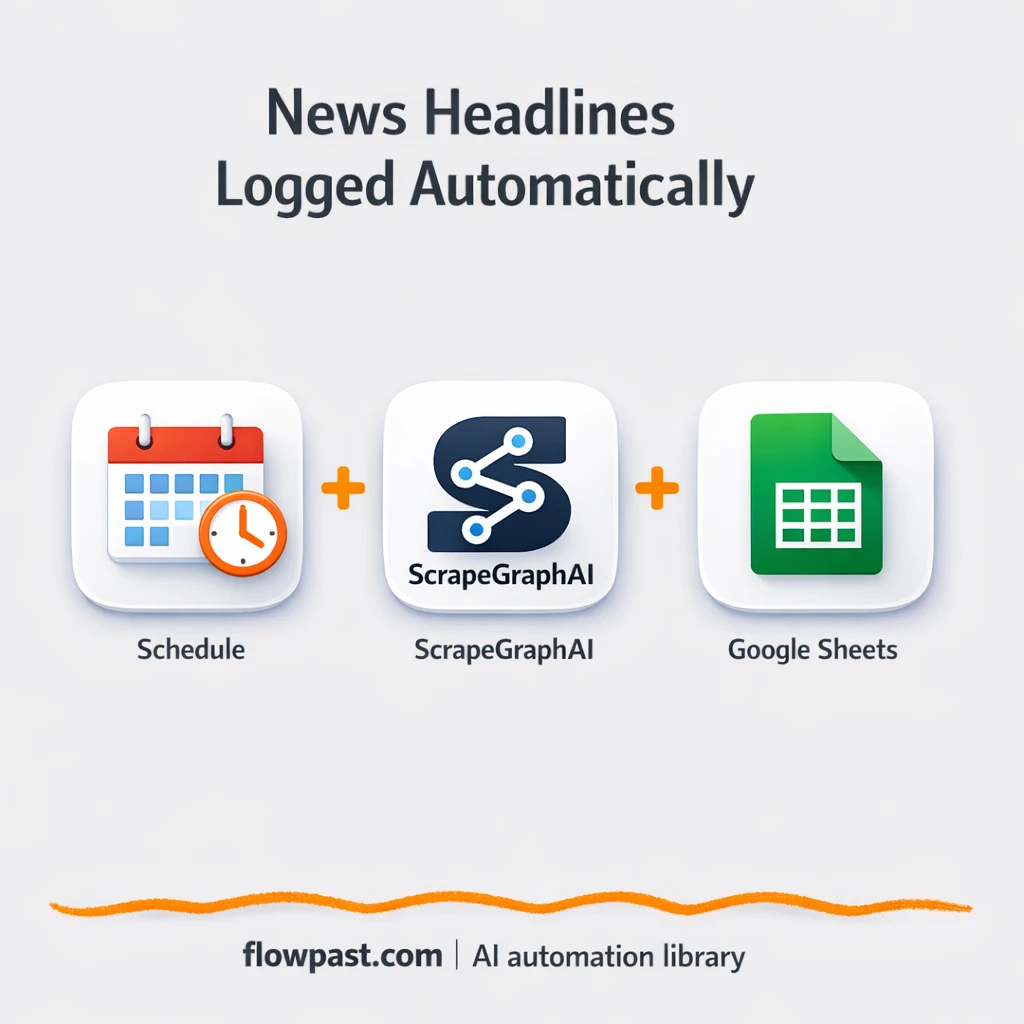

News monitoring sounds simple until it’s your job to check the same sites every day, copy links into a spreadsheet, and still somehow miss the one headline you actually needed.
PR managers feel it when brand mentions slip through. Market researchers feel it when a competitor moves fast. Content teams feel it too. This news scraping automation puts fresh headlines into Google Sheets automatically, so your “news log” stays current without babysitting it.
You’ll see exactly what the workflow does, what you need to run it, and how to think about customizing it for different sources and tracking goals.
How This Automation Works
Here’s the complete workflow you’ll be setting up:
n8n Workflow Template: ScrapeGraphAI to Google Sheets, news tracked clean
flowchart LR

    subgraph sg0["Automated News Collection Flow"]
        direction LR
        n0@{ icon: "mdi:play-circle", form: "rounded", label: "Automated News Collection Tr..", pos: "b", h: 48 }
        n1@{ icon: "mdi:cog", form: "rounded", label: "AI-Powered News Article Scra..", pos: "b", h: 48 }
        n2@{ icon: "mdi:database", form: "rounded", label: "Google Sheets News Storage", pos: "b", h: 48 }
        n3["<div style='background:#f5f5f5;padding:10px;border-radius:8px;display:inline-block;border:1px solid #e0e0e0'><img src='https://flowpast.com/wp-content/uploads/n8n-workflow-icons/code.svg' width='40' height='40' /></div><br/>News Data Formatting and Pro.."]
        n1 --> n3
        n0 --> n1
        n3 --> n2
    end

    %% Styling
    classDef trigger fill:#e8f5e9,stroke:#388e3c,stroke-width:2px
    classDef ai fill:#e3f2fd,stroke:#1976d2,stroke-width:2px
    classDef aiModel fill:#e8eaf6,stroke:#3f51b5,stroke-width:2px
    classDef decision fill:#fff8e1,stroke:#f9a825,stroke-width:2px
    classDef database fill:#fce4ec,stroke:#c2185b,stroke-width:2px
    classDef api fill:#fff3e0,stroke:#e65100,stroke-width:2px
    classDef code fill:#f3e5f5,stroke:#7b1fa2,stroke-width:2px
    classDef disabled stroke-dasharray: 5 5,opacity: 0.5
    class n0 trigger
    class n2 database
    class n3 code
    classDef customIcon fill:none,stroke:none
    class n3 customIcon
Why This Matters: Manual news tracking breaks at scale
Keeping up with headlines is easy when it’s one site and one quick skim. Then the list grows. A few competitor blogs, a couple industry publications, maybe a local outlet that occasionally mentions your brand. Suddenly you’re juggling tabs, copying titles into a sheet, cleaning up URLs, and trying to remember what you already logged yesterday. And when you miss something, it’s not just “oops.” It can mean a late response, a missed partnership opportunity, or reporting that looks incomplete in front of a client.
It adds up fast. Here’s where it usually breaks down.
- Copy-pasting headlines and links is slow, and it’s the kind of slow that drains your attention for the rest of the day.
- You end up with messy tracking rows because each site formats titles and categories differently.
- Manual checks miss articles when news moves quickly or when you’re busy with higher-priority work.
- Once the sheet grows, duplicates and inconsistent categories make filtering feel unreliable.
What You’ll Build: Scrape news sites with AI and log results in Sheets
This workflow runs on a schedule and checks a news page you choose (or any page that lists articles). ScrapeGraphAI then extracts the fields you actually care about, like the headline title, the URL, and the category/section. Next, a small processing step reshapes that data so it lands cleanly in a spreadsheet, instead of showing up as a weird nested blob you have to fix. Finally, n8n appends each article as a new row in Google Sheets, giving you a living news log that stays up to date while you focus on analysis, reporting, or response.
The workflow starts with a timed trigger. ScrapeGraphAI pulls the latest articles and returns structured fields. A Code step standardizes the output, and Google Sheets stores everything in the columns you expect (title, url, category).
What You’re Building
| What Gets Automated | What You’ll Achieve |
|---|---|
|
|
Expected Results
Say you track 5 sites and you log about 10 articles per site each week. Manually, it’s maybe 2 minutes per article to copy the title, grab the URL, and add a category, which comes out to about 100 minutes a week (and that’s on a “good” week). With this workflow, you spend roughly 10 minutes setting the schedule and testing the scrape, then you just review the sheet for a few minutes after each run. That’s about an hour back most weeks, plus fewer gaps in your log.
Before You Start
- n8n instance (try n8n Cloud free)
- Self-hosting option if you prefer (Hostinger works well)
- ScrapeGraphAI for AI article extraction from webpages.
- Google Sheets to store and filter your news log.
- ScrapeGraphAI API key (get it from your ScrapeGraphAI dashboard)
Skill level: Beginner. You’ll connect credentials, choose a URL to track, and confirm the sheet columns match the workflow output.
Want someone to build this for you? Talk to an automation expert (free 15-minute consultation).
Step by Step
A timed trigger runs your collection. You pick the cadence (hourly, daily, weekdays only). n8n starts the workflow automatically, so you don’t have to remember to “do the thing.”
ScrapeGraphAI extracts the article data. The workflow sends your target website URL to ScrapeGraphAI, along with instructions to pull fields like title, url, and category. It’s designed for news-style pages where articles are listed in a feed or section.
A Code step cleans and reshapes fields. This is where the raw extraction gets converted into the exact structure Google Sheets expects, so each piece of data lands in the right column without manual fixing later.
Google Sheets stores the output. Each article becomes a new row you can sort, filter, and share. If you want to track multiple sources, you can duplicate the scrape portion and keep one master sheet.
You can easily modify the target website URL to monitor different publications, or expand the fields to include author, publish date, or a short summary. See the full implementation guide below for customization options.
Step-by-Step Implementation Guide
Step 1: Configure the Schedule Trigger
This workflow begins on a timed schedule to kick off the news scraping cycle.
- Add the Timed Collection Trigger node to your canvas.
- In Timed Collection Trigger, set the schedule interval you want to run (for example, hourly or daily).
- Connect Timed Collection Trigger to AI News Extraction to match the execution flow.
Step 2: Connect the Scrape Source
The scraping step pulls articles from the target site using a structured prompt.
- Select the AI News Extraction node.
- Set Website URL to
https://www.bbc.com/. - Set User Prompt to
Extract all the articles from this site. Use the following schema for response { "request_id": "5a9de102-8a43-4e89-8aae-397c9ca80a9b", "status": "completed", "website_url": "https://www.bbc.com/", "user_prompt": "Extract all the articles from this site.", "title": "'My friend died right in front of me' - Student describes moment air force jet crashed into school", "url": "https://www.bbc.com/news/articles/cglzw8y5wy5o", "category": "Asia" }. - Credential Required: Connect your scrapegraphAIApi credentials.
Step 3: Set Up the Processing Node
The data is transformed into clean fields before being saved to the sheet.
- Open Shape Article Fields.
- Paste the JavaScript into Code so it maps the result to
title,url, andcategoryfrominputData.result.articles. - Confirm the node outputs one item per article with the fields
title,url, andcategory.
inputData.result.articles exists in the incoming JSON.Step 4: Configure the Output Destination
The final step appends each article to Google Sheets.
- Open Append Sheet Records.
- Set Operation to
append. - Set Document to your Google Sheets URL (in the Document ID field).
- Set Sheet Name to
Sheet1. - Ensure the columns are mapped for
title,url, andcategoryusing Auto Map Input Data. - Credential Required: Connect your googleSheetsOAuth2Api credentials.
Step 5: Test and Activate Your Workflow
Run a manual test to confirm articles are extracted and appended to your spreadsheet.
- Click Execute Workflow to trigger Timed Collection Trigger manually.
- Verify that AI News Extraction returns articles and that Shape Article Fields outputs clean
title,url, andcategoryfields. - Check your Google Sheet to confirm new rows were appended by Append Sheet Records.
- Toggle the workflow to Active to run on the schedule set in Timed Collection Trigger.
Troubleshooting Tips
- ScrapeGraphAI credentials can expire or be tied to account status. If things break, check your ScrapeGraphAI dashboard (API key validity and usage limits) first.
- If you’re using Wait nodes or external rendering, processing times vary. Bump up the wait duration if downstream nodes fail on empty responses.
- Default prompts in AI nodes are generic. Add your brand voice early or you’ll be editing outputs forever.
Quick Answers
About 10–15 minutes if your accounts are ready.
No. You’ll mostly paste in your website URL, connect credentials, and test one run.
Yes. n8n has a free self-hosted option and a free trial on n8n Cloud. Cloud plans start at $20/month for higher volume. You’ll also need to factor in ScrapeGraphAI API usage based on how often you scrape and how many pages you process.
Two options: n8n Cloud (managed, easiest setup) or self-hosting on a VPS. For self-hosting, Hostinger VPS is affordable and handles n8n well. Self-hosting gives you unlimited executions but requires basic server management.
Yes, and you should. Swap the website URL inside the “AI News Extraction” node to target a different publication, then adjust the extraction prompt to capture extra fields like author, date, or a short summary. If you want cleaner tracking, change the Google Sheets write behavior from append to an upsert-style approach so duplicates don’t pile up. You can also add a simple filter in the “Shape Article Fields” code step to keep only certain categories.
Usually it’s an invalid or expired API key in n8n. Regenerate the key in ScrapeGraphAI, update the credential in your n8n instance, then rerun a single test execution. If it still fails, check account limits or rate limits, and confirm the target site isn’t blocking requests or returning a different page layout than expected.
It depends more on your server and ScrapeGraphAI limits than on the workflow itself, but most teams run this hourly or daily across a handful of sources without issues.
Often, yes, because this workflow relies on a community node and a bit of data shaping that’s easier to control in n8n. n8n also makes it straightforward to add branching, retries, and data cleanup without paying extra for every “step.” Zapier or Make can be fine for very simple logging, but scraping-style setups tend to get fragile unless you can tune the logic. If you’re deciding between tools, the fastest way is to map your sources and cadence, then pick the platform that won’t punish you for iterating. Talk to an automation expert if you want a second opinion.
Once this is running, your spreadsheet becomes the habit. Not you. Set it up, let it collect, and use the time you get back for decisions instead of busywork.
Need Help Setting This Up?
Our automation experts can build and customize this workflow for your specific needs. Free 15-minute consultation—no commitment required.
