


Google Sheets + Slack: flag negative reviews fast
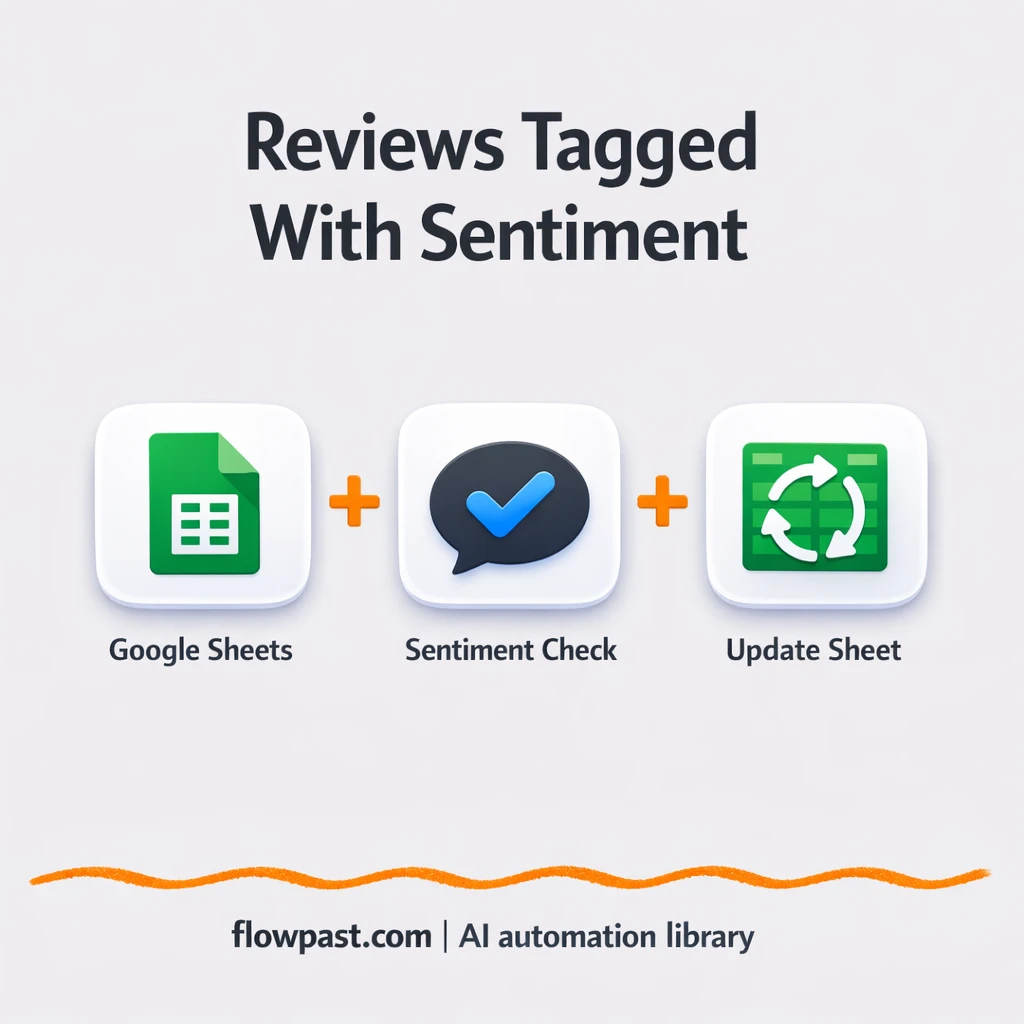

You spot a bad review three days late, after it’s already cost you a customer. Meanwhile, your “reviews sheet” keeps growing, and nobody has time to read every line.
This hits marketing managers and support leads first, honestly. But founders and small teams feel it too. With this Sheets Slack alerts automation, negative reviews get flagged quickly so you can respond the same day, not “when you get to it.”
You’ll learn how the workflow monitors new rows in Google Sheets, tags sentiment automatically, and pushes the right alerts into Slack so follow-ups don’t slip.
How This Automation Works
Here’s the complete workflow you’ll be setting up:
n8n Workflow Template: Google Sheets + Slack: flag negative reviews fast
flowchart LR

    subgraph sg0["Sheets Row Event Flow"]
        direction LR
        n0@{ icon: "mdi:play-circle", form: "rounded", label: "Sheets Row Event Trigger", pos: "b", h: 48 }
        n1["<div style='background:#f5f5f5;padding:10px;border-radius:8px;display:inline-block;border:1px solid #e0e0e0'><img src='https://flowpast.com/wp-content/uploads/n8n-workflow-icons/code.svg' width='40' height='40' /></div><br/>Evaluate Review Tone"]
        n2@{ icon: "mdi:database", form: "rounded", label: "Modify Sheet Sentiment", pos: "b", h: 48 }
        n1 --> n2
        n0 --> n1
    end

    %% Styling
    classDef trigger fill:#e8f5e9,stroke:#388e3c,stroke-width:2px
    classDef ai fill:#e3f2fd,stroke:#1976d2,stroke-width:2px
    classDef aiModel fill:#e8eaf6,stroke:#3f51b5,stroke-width:2px
    classDef decision fill:#fff8e1,stroke:#f9a825,stroke-width:2px
    classDef database fill:#fce4ec,stroke:#c2185b,stroke-width:2px
    classDef api fill:#fff3e0,stroke:#e65100,stroke-width:2px
    classDef code fill:#f3e5f5,stroke:#7b1fa2,stroke-width:2px
    classDef disabled stroke-dasharray: 5 5,opacity: 0.5
    class n0 trigger
    class n2 database
    class n1 code
    classDef customIcon fill:none,stroke:none
    class n1 customIcon
Why This Matters: Negative Reviews Hide in Plain Sight
Most teams don’t have a “review problem.” They have a visibility problem. Reviews come in from different places, someone pastes them into a Google Sheet, and then… nothing. The sheet becomes a graveyard of customer feedback you meant to handle. By the time someone notices a clearly negative comment (“broken,” “refund,” “bad service”), the customer has already churned, and the team is stuck doing reactive cleanup instead of a quick fix and a thoughtful response.
The friction compounds. It starts small, then it becomes a weekly fire drill.
- Someone has to manually read each new row, which quietly turns into a daily “I’ll do it later” task.
- Important reviews don’t get triaged, so support and marketing work off gut feel instead of real signals.
- A single missed negative review can snowball into public back-and-forth that you could’ve prevented with a fast reply.
- Reporting gets messy because sentiment is inconsistent, which makes trend tracking feel unreliable.
What You’ll Build: Auto-Tag Review Sentiment and Alert Slack
This workflow watches a Google Sheet where new reviews are added (often by a teammate copying them in from Google, Trustpilot, email, or social). When a new row appears, n8n pulls the review text and runs a lightweight sentiment check in a Code step. It looks for common positive and negative keywords, then labels the row as Positive, Negative, or Neutral. Finally, the workflow updates the same row, writing the sentiment back into a dedicated “Sentiment” column so your sheet stays clean and usable over time.
In practice, it becomes a simple pipeline. A new review lands in Sheets, analysis happens automatically, and your team gets a clear tag to drive follow-up. If you want Slack notifications, you can extend the workflow to post alerts when sentiment is negative (and only then), which keeps noise low.
What You’re Building
| What Gets Automated | What You’ll Achieve |
|---|---|
|
|
Expected Results
Say you log about 15 reviews per week into a Google Sheet. Manually scanning and tagging them takes maybe 3–5 minutes each, so you’re spending about an hour a week just labeling sentiment, plus another hour chasing “who should reply?” With this workflow, adding the row is still the same, but sentiment tagging happens automatically in under a minute (it polls every minute by default). If you add a Slack alert for negatives, you usually go from “someone notices later” to “someone sees it now,” and that’s the real win.
Before You Start
- n8n instance (try n8n Cloud free)
- Self-hosting option if you prefer (Hostinger works well)
- Google Sheets for storing incoming review rows
- Slack to alert your team on negative sentiment
- Google Sheets OAuth credential (create it inside n8n Credentials)
Skill level: Beginner. You’ll connect Google Sheets, paste a workflow, and map a few fields.
Want someone to build this for you? Talk to an automation expert (free 15-minute consultation).
Step by Step
A new row appears in Google Sheets. The workflow uses a Google Sheets trigger to watch a specific sheet and fire when a fresh review is added. In many teams, that row is created by whoever is “on reviews” that day.
The review text is evaluated. n8n passes the row into a Code step that checks the text for simple keywords tied to positive or negative sentiment. It’s not trying to be perfect. It’s trying to sort your inbox fast.
The sentiment label is written back into the sheet. The workflow updates the same row, filling in a “Sentiment” column so the sheet becomes a reliable dataset, not a raw dump.
Negative items can be pushed to Slack. Add a Slack message action after the sentiment check (and gate it with a simple “If sentiment is Negative”). Then your team gets a clean alert with the review text and a link back to the row.
You can easily modify the keyword rules to match your niche and tone. See the full implementation guide below for customization options.
Step-by-Step Implementation Guide
Step 1: Configure the Sheets Row Event Trigger
Set up the trigger that watches for new rows in your Google Sheet.
- Add the Sheets Row Event Trigger node to your workflow.
- Set Event to
rowAdded. - Choose the target spreadsheet in Document and the worksheet in Sheet Name.
- Credential Required: Connect your googleSheetsTriggerOAuth2Api credentials.
Step 2: Connect Google Sheets
Ensure the update node can write sentiment back to the same spreadsheet.
- Open the Modify Sheet Sentiment node.
- Confirm Document and Sheet Name point to the same sheet used by the trigger.
- Credential Required: Connect your googleSheetsOAuth2Api credentials.
Step 3: Set Up Evaluate Review Tone
Use a code step to analyze review text and generate a sentiment label.
- Add the Evaluate Review Tone node and set JavaScript Code to the provided script in the workflow.
- Verify the code reads the fields
Review TextandReview IDfrom the incoming row. - Ensure the output JSON contains
sentimentandreviewIdas returned in the script.
Step 4: Configure Modify Sheet Sentiment
Update the matching row in the sheet with the calculated sentiment.
- Set Operation to
update. - In Columns, set Review ID to
={{ $json.reviewId }}. - Keep Matching Columns set to
Review IDso the row is updated correctly. - Map the Sentiment column to the output from Evaluate Review Tone (for example, use
={{ $json.sentiment }}if adding it to the mapping).
Review ID exactly matches the values in your sheet.Step 5: Test and Activate Your Workflow
Validate the end-to-end flow and enable it for production use.
- Click Execute Workflow and add a new row to your Google Sheet to trigger Sheets Row Event Trigger.
- Confirm Evaluate Review Tone outputs a
sentimentvalue and areviewId. - Verify Modify Sheet Sentiment updates the correct row’s Sentiment cell.
- Toggle the workflow to Active to run continuously.
Troubleshooting Tips
- Google Sheets credentials can expire or lack spreadsheet access. If things break, check the credential inside n8n and confirm the Google account can edit that specific sheet.
- If you’re relying on polling (the default is about once per minute), new rows might not trigger instantly. If “speed” matters, tighten the schedule carefully or switch to a different ingestion method, then retest.
- Basic keyword sentiment can misclassify sarcasm or industry terms. Update your keyword list and add a few “exception” words early, or you will be cleaning tags by hand later.
Quick Answers
About 30 minutes if your Google Sheet is ready.
No. The workflow includes a Code step, but you can use it as-is. Most of the work is just connecting Google Sheets and mapping the right columns.
Yes. n8n has a free self-hosted option and a free trial on n8n Cloud. Cloud plans start at $20/month for higher volume. You’ll also need to factor in Slack (usually free) and any optional AI costs if you upgrade later (OpenAI usage is typically a few dollars a month at small volumes).
Two options: n8n Cloud (managed, easiest setup) or self-hosting on a VPS. For self-hosting, Hostinger VPS is affordable and handles n8n well. Self-hosting gives you unlimited executions but requires basic server management.
Yes, and you should. You can adjust the “Evaluate Review Tone” Code node to use your own keyword list, or swap the sentiment logic entirely by replacing that step with an OpenAI Chat Model node. Common tweaks include adding a “Needs follow-up” flag, routing only negatives to Slack, and tagging “refund” or “billing” reviews into a separate category.
Usually it’s an OAuth permission issue or the credential is tied to the wrong Google account. Reconnect the Google Sheets credential in n8n, then confirm that same Google user can edit the spreadsheet you’re watching. Also double-check the Sheet ID and the selected tab, because pointing to the wrong file looks like “it’s broken” even when the credential is fine.
Most small teams can run hundreds of new rows a day without issues.
Often, yes, especially once you want more control. n8n makes it easier to keep the logic in one place, update the same Google Sheets row reliably, and add conditions like “only alert Slack on Negative” without paying extra per branch. Zapier and Make are great for quick two-step zaps, but they can get expensive or awkward when you add logic, retries, and data cleanup. If you’re unsure, pick the tool you’ll actually maintain. Talk to an automation expert and we’ll help you choose.
Once this is running, your reviews sheet becomes a live signal instead of a dumping ground. The workflow handles the repetitive sorting so you can spend your time on the responses that actually protect revenue.
Need Help Setting This Up?
Our automation experts can build and customize this workflow for your specific needs. Free 15-minute consultation—no commitment required.
