


Google Sheets to Vapi, instant lead follow-up calls
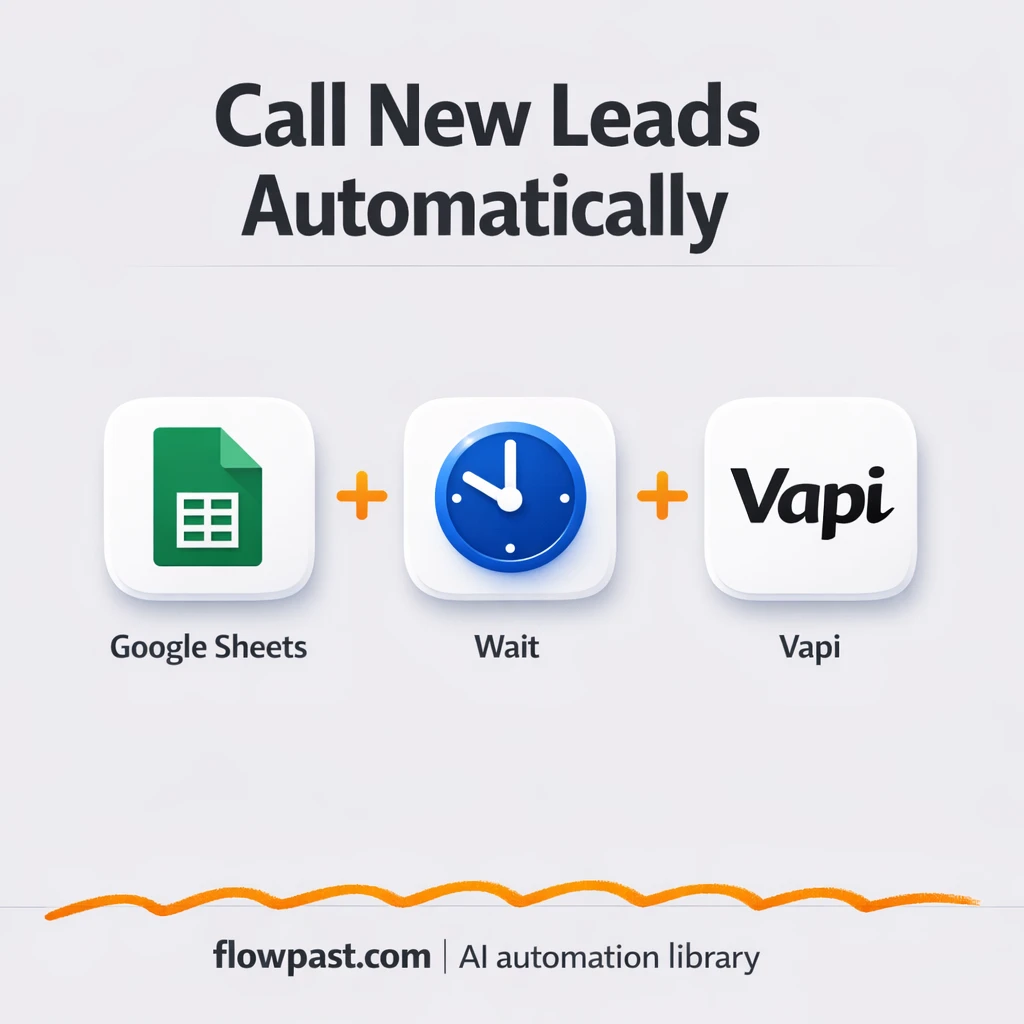

Leads come in, you mean to call them, and then… the day happens. The spreadsheet gets a few new rows, notifications get buried, and “I’ll do it in an hour” turns into tomorrow.
This lead follow-up calls automation hits marketing managers first because speed is the whole game. But small business owners chasing inbound requests and agency teams handling multiple clients feel the same friction. You want the first touch to happen every time, with a decent intro, without someone babysitting a sheet.
This workflow connects Google Sheets to Vapi so a new row can trigger a personalized AI call. You’ll see what it fixes, how it flows, and what you need to run it safely.
How This Automation Works
See how this solves the problem:
n8n Workflow Template: Google Sheets to Vapi, instant lead follow-up calls
flowchart LR

    subgraph sg0["Google Sheets Flow"]
        direction LR
        n0["<div style='background:#f5f5f5;padding:10px;border-radius:8px;display:inline-block;border:1px solid #e0e0e0'><img src='https://flowpast.com/wp-content/uploads/n8n-workflow-icons/httprequest.dark.svg' width='40' height='40' /></div><br/>Start outbound Vapi call"]
        n1@{ icon: "mdi:swap-vertical", form: "rounded", label: "Set fields", pos: "b", h: 48 }
        n2@{ icon: "mdi:play-circle", form: "rounded", label: "Google Sheets Trigger", pos: "b", h: 48 }
        n3@{ icon: "mdi:cog", form: "rounded", label: "Wait 4min", pos: "b", h: 48 }
        n3 --> n1
        n1 --> n0
        n2 --> n3
    end

    %% Styling
    classDef trigger fill:#e8f5e9,stroke:#388e3c,stroke-width:2px
    classDef ai fill:#e3f2fd,stroke:#1976d2,stroke-width:2px
    classDef aiModel fill:#e8eaf6,stroke:#3f51b5,stroke-width:2px
    classDef decision fill:#fff8e1,stroke:#f9a825,stroke-width:2px
    classDef database fill:#fce4ec,stroke:#c2185b,stroke-width:2px
    classDef api fill:#fff3e0,stroke:#e65100,stroke-width:2px
    classDef code fill:#f3e5f5,stroke:#7b1fa2,stroke-width:2px
    classDef disabled stroke-dasharray: 5 5,opacity: 0.5
    class n2 trigger
    class n0 api
    classDef customIcon fill:none,stroke:none
    class n0 customIcon
The Challenge: Fast Lead Follow-Up Without Dropping the Ball
Google Sheets is where leads go to wait. Someone pastes a form submission, a VA imports a CSV, or a Zap dumps rows in bulk, and suddenly you’ve got a growing list with no guaranteed action attached. The worst part isn’t the calling itself. It’s the constant mental overhead of remembering to check the sheet, figuring out which rows are new, and rewriting the same “Hi, is this a good time?” opener all day. Missed follow-up is rarely dramatic. It’s quiet. A lead cools off, books a competitor, and you only notice when the month ends.
It adds up fast. Here’s where it usually breaks down in real life.
- New rows blend into old ones, so someone has to manually track what’s been contacted.
- Calls happen in batches at the end of the day, which means “hot leads” aren’t hot anymore.
- Scripts drift between team members, so the first-touch experience feels inconsistent and a bit sloppy.
- Phone numbers get entered in the wrong format, and you find out only after a failed dial attempt.
The Fix: Auto-Call New Google Sheets Leads via Vapi
This n8n workflow turns your spreadsheet into a reliable trigger, not a passive list. When a new row is added to your Google Sheet, n8n notices immediately, waits a short buffer period (useful for letting imports finish or giving you a small correction window), then maps the row data into the fields Vapi needs to place a call. Vapi receives a simple API request with the lead’s phone number plus any extra context you pass along (like first name, product, or appointment interest). Then the Vapi AI assistant places the call from your connected number and opens with a personalized introduction. No checking the sheet. No “who’s calling this one?” confusion. It just happens.
The workflow starts with a “new row” event in Google Sheets. After a short wait, it packages the right IDs and the lead’s phone number for Vapi. Finally, a single HTTP request triggers the outbound call from your AI voice agent.
What Changes: Before vs. After
| What This Eliminates | Impact You’ll See |
|---|---|
|
|
Real-World Impact
Say you get 15 new leads in a day and you’re using a sheet as the intake. Manually, it’s easy to spend about 5 minutes per lead just to notice the row, format the number, and place the call (and that assumes you don’t get interrupted). That’s roughly an hour of pure admin before you’ve even had real conversations. With this workflow, adding the row is the only “work,” then n8n waits about 4 minutes and Vapi calls automatically. You’re mostly just answering replies and handling warm handoffs.
Requirements
- n8n instance (try n8n Cloud free)
- Self-hosting option if you prefer (Hostinger works well)
- Google Sheets for capturing and storing new leads.
- Vapi to place AI-assisted outbound calls.
- Vapi API key (get it from your Vapi dashboard).
Skill level: Beginner. You’ll connect accounts, map a few fields, and paste IDs/API keys into n8n.
Need help implementing this? Talk to an automation expert (free 15-minute consultation).
The Workflow Flow
A new lead row appears in Google Sheets. The workflow listens for “New Row” events on the specific sheet and tab you choose, so you’re not relying on someone to click anything.
A short pause gives you breathing room. The built-in wait (often set around 4 minutes) helps in two common situations: bulk imports that add multiple rows quickly, and quick fixes when someone pasted the wrong phone number.
Lead data gets mapped into Vapi’s call payload. n8n sets your assistant_id, phone_number_id, and the destination “to” number from the sheet. If you have fields like first_name, email, product, or consent, those can be passed along too so the intro feels informed.
Vapi receives a request and places the call. An HTTP request from n8n triggers the call via Vapi’s API, using your configured AI assistant and originating number.
You can easily modify the wait time to match your operations and add conditions like “only call if consent is TRUE” based on your needs. See the full implementation guide below for customization options.
Step-by-Step Implementation Guide
Step 1: Configure the Google Sheets Trigger
This workflow starts when a new row is added to your Google Sheet via Spreadsheet Row Watcher.
- Add Spreadsheet Row Watcher to your workflow.
- Set Event to
rowAdded. - Select your spreadsheet in Document (replace
[YOUR_ID]with your actual file). - Select the target sheet in Sheet Name (example:
Sheet1withgid=0). - Credential Required: Connect your
googleSheetsTriggerOAuth2Apicredentials.
phone column, as Initiate Vapi Call pulls the number from {{ $('Spreadsheet Row Watcher').item.json.phone }}.Step 2: Configure the Wait Step
Pause Four Minutes delays the call to allow the new row data to settle.
- Add Pause Four Minutes after Spreadsheet Row Watcher.
- Set Unit to
minutes. - Set Amount to
4.
Step 3: Set Up the Vapi Configuration
Map Vapi Settings defines the Vapi phone number, assistant ID, and API key used later.
- Add Map Vapi Settings after Pause Four Minutes.
- Set vapiPhoneNumberId to your Vapi phone number ID (replace
[YOUR_ID]). - Set vapiAssistantId to your Vapi assistant ID (replace
[YOUR_ID]). - Set vapiApi to your Vapi API key (replace
[CONFIGURE_YOUR_API_KEY]).
[YOUR_ID] will cause the call initiation to fail.Step 4: Configure the Call Initiation Request
Initiate Vapi Call sends the outbound call request to Vapi using the mapped settings and the phone number from the spreadsheet row.
- Add Initiate Vapi Call after Map Vapi Settings.
- Set URL to
https://api.vapi.ai/call. - Set Method to
POST. - Enable Send Body and Send Headers.
- Set Specify Body to
json. - Set JSON Body to
{
"assistantId": "{{ $json.vapiAssistantId }}",
"phoneNumberId": "{{ $json.vapiPhoneNumberId }}",
"customer": {
"number": "{{ $('Spreadsheet Row Watcher').item.json.phone }}"
}
}
. - Add a header parameter with Name
Authorizationand Value=Bearer {{ $json.vapiApi }}.
Step 5: Test and Activate Your Workflow
Run a full test to verify the trigger, delay, mapping, and API call are working as expected.
- Click Execute Workflow and add a new row to your sheet with a valid
phonevalue. - Confirm Spreadsheet Row Watcher triggers and Pause Four Minutes waits before continuing.
- Verify Map Vapi Settings outputs your IDs and API key correctly.
- Check Initiate Vapi Call returns a successful HTTP response from Vapi.
- Toggle the workflow to Active to enable production monitoring.
Watch Out For
- Google Sheets credentials can expire or lose access if your Google account permissions change. If things break, check n8n’s Credentials test for Google Sheets first.
- If you’re using Wait nodes or external processing, timing can vary. Bump up the wait duration if the HTTP request fires before your row data is fully available or corrected.
- Vapi will fail calls if phone numbers aren’t in E.164 format. Enforce “+countrycode…” in the sheet and don’t allow spaces or dashes.
Common Questions
About 30 minutes if your Vapi assistant and Google Sheet are ready.
Yes. No coding is required, but someone needs to carefully map fields and paste the right Vapi IDs and API key into n8n.
Yes. n8n has a free self-hosted option and a free trial on n8n Cloud. Cloud plans start at $20/month for higher volume. You’ll also need to factor in Vapi usage and call costs based on your setup.
Two options: n8n Cloud (managed, easiest setup) or self-hosting on a VPS. For self-hosting, Hostinger VPS is affordable and handles n8n well. Self-hosting gives you unlimited executions but requires basic server management.
You can, and it’s mostly field mapping plus one or two conditions. The easiest place to customize is the “Map Vapi Settings” step where you pass sheet columns like first_name, product, region, or appointment_time into Vapi. If you only want to call certain leads, add an IF check before the HTTP request (for example, only proceed when a “consent” column is TRUE). You can also swap which assistant_id you send so different assistants handle different products or territories.
Usually it’s an invalid API key, the wrong assistant_id/phone_number_id, or a phone number that isn’t in E.164 format with the leading “+”. Check the HTTP response in n8n’s execution logs to see what Vapi rejected, then update the values in the “Map Vapi Settings” step.
On self-hosted n8n there’s no execution cap, so capacity mostly depends on your server and Vapi limits. On n8n Cloud, plan limits are based on monthly executions (the Starter tier is a good fit for many small teams, and you can move up when volume grows). Practically, this workflow is lightweight: one trigger, a short wait, and a single API call per lead.
Often, yes, if you care about control and cost at higher volume. n8n makes it easy to add small bits of logic (like consent checks, routing to different assistants, or waiting a few minutes) without hitting “premium feature” walls. Self-hosting is also a big deal when your lead flow spikes and you don’t want every extra task billed. Zapier or Make can still be fine for very simple “new row → webhook” setups. If you want help choosing, Talk to an automation expert and we’ll sanity-check your use case.
Reliable speed-to-lead is one of those unsexy advantages that quietly wins deals. Set this up once, and your spreadsheet stops being a graveyard for “I’ll call them later.”
Need Help Setting This Up?
Our automation experts can build and customize this workflow for your specific needs. Free 15-minute consultation—no commitment required.
