


Vapi + Google Sheets: call new leads right away
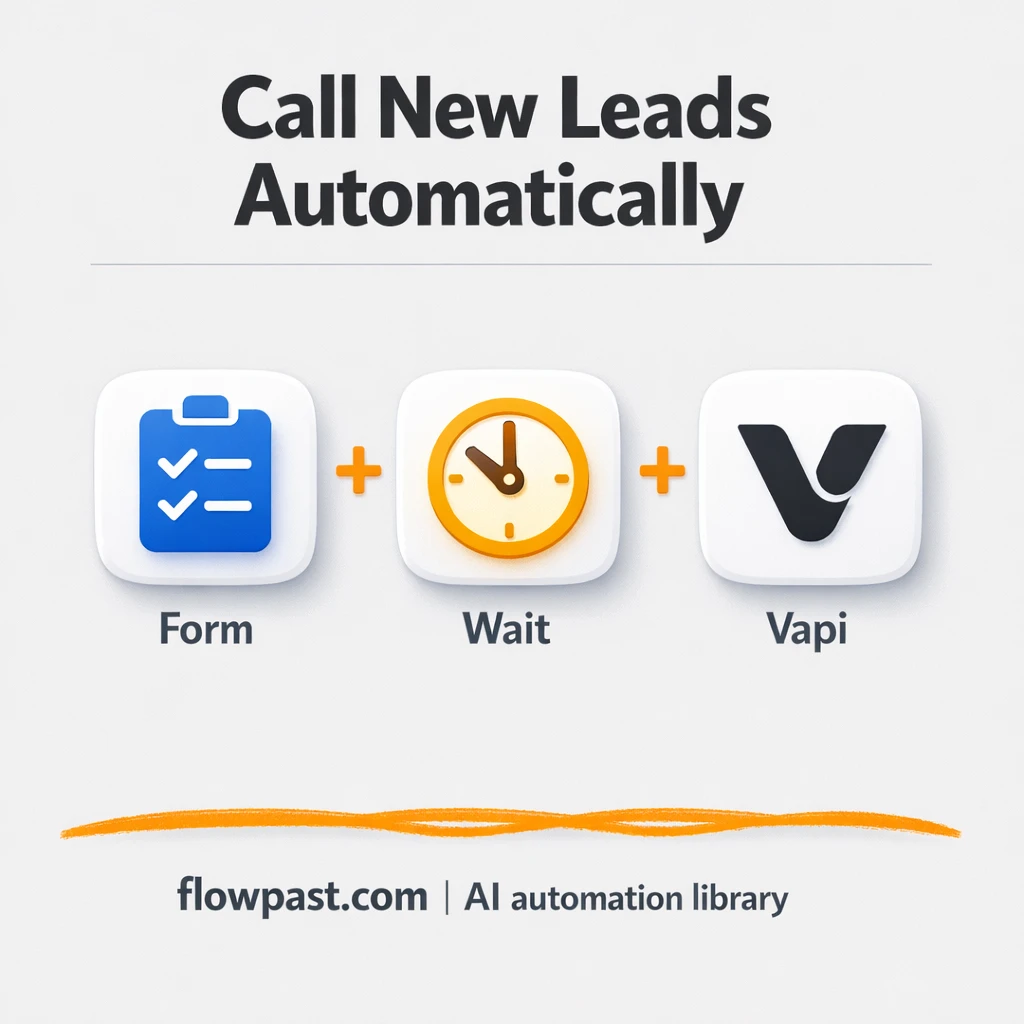

Leads come in, you mean to call “in a minute,” and somehow it’s already tomorrow. Meanwhile the prospect cools off, your team forgets, and the follow-up becomes a messy guessing game.
This Vapi lead automation hits marketing managers hardest, but solo founders and agency ops feel it too. You get immediate outbound calls to new form respondents and a clean Google Sheets log, so nothing slips through.
Below you’ll see exactly what the workflow does, what you need to run it, and how to make it fit your offer and lead form without turning it into a tech project.
How This Automation Works
The full n8n workflow, from trigger to final output:
n8n Workflow Template: Vapi + Google Sheets: call new leads right away
flowchart LR

    subgraph sg0["On form submission Flow"]
        direction LR
        n0["<div style='background:#f5f5f5;padding:10px;border-radius:8px;display:inline-block;border:1px solid #e0e0e0'><img src='https://flowpast.com/wp-content/uploads/n8n-workflow-icons/httprequest.dark.svg' width='40' height='40' /></div><br/>Start outbound Vapi call"]
        n1@{ icon: "mdi:swap-vertical", form: "rounded", label: "Set fields", pos: "b", h: 48 }
        n2["<div style='background:#f5f5f5;padding:10px;border-radius:8px;display:inline-block;border:1px solid #e0e0e0'><img src='https://flowpast.com/wp-content/uploads/n8n-workflow-icons/form.svg' width='40' height='40' /></div><br/>On form submission"]
        n3@{ icon: "mdi:cog", form: "rounded", label: "Wait 2min", pos: "b", h: 48 }
        n3 --> n1
        n1 --> n0
        n2 --> n3
    end

    %% Styling
    classDef trigger fill:#e8f5e9,stroke:#388e3c,stroke-width:2px
    classDef ai fill:#e3f2fd,stroke:#1976d2,stroke-width:2px
    classDef aiModel fill:#e8eaf6,stroke:#3f51b5,stroke-width:2px
    classDef decision fill:#fff8e1,stroke:#f9a825,stroke-width:2px
    classDef database fill:#fce4ec,stroke:#c2185b,stroke-width:2px
    classDef api fill:#fff3e0,stroke:#e65100,stroke-width:2px
    classDef code fill:#f3e5f5,stroke:#7b1fa2,stroke-width:2px
    classDef disabled stroke-dasharray: 5 5,opacity: 0.5
    class n2 trigger
    class n0 api
    classDef customIcon fill:none,stroke:none
    class n0,n2 customIcon
The Problem: New leads go stale before you call
“We’ll call you shortly” is easy to promise and surprisingly hard to deliver. New leads usually arrive while you’re in meetings, heads-down working, or off-hours. Then the manual chase starts: check the form tool, copy the phone number, decide what to say, make the call, and later try to remember to log the outcome somewhere. A few misses here and there do real damage. Not because you’re bad at sales, but because speed is a competitive advantage and you’re letting it leak away.
The friction compounds. Small delays turn into dropped balls, and dropped balls turn into “we never heard back” revenue.
- Someone has to notice the submission, which is easy to miss on busy days.
- Copy-pasting phone numbers invites typos, and one digit wrong means you’re calling nobody.
- Follow-ups become inconsistent because different people improvise different scripts.
- Your reporting gets fuzzy since lead details and call activity live in different places.
The Solution: Instant Vapi calls, with every lead logged to Sheets
This n8n workflow connects an n8n Form submission to a Vapi outbound call, then keeps your lead data organized in Google Sheets. A new form response triggers the automation, waits a short moment (useful for avoiding accidental double-submits and giving your systems a beat to settle), then prepares the call variables you want Vapi to use. After that, n8n sends a secure HTTP request to Vapi’s call endpoint with the lead’s phone number, your Vapi phone number ID, and the assistant you want speaking on your behalf. The end result is simple: new leads get contacted quickly, and you can keep a clean spreadsheet record to track volume, timing, and outcomes.
The workflow starts when someone submits your n8n form. After a 2-minute delay, it maps your Vapi parameters (API key, assistant ID, phone number ID) and launches an outbound AI call via Vapi. With a small extension (commonly added), the same lead details can be written into Google Sheets so you have one reliable source of truth.
What You Get: Automation vs. Results
| What This Workflow Automates | Results You’ll Get |
|---|---|
|
|
Example: What This Looks Like
Say you get 15 new leads a day. Manually, it’s usually about 10 minutes per lead to notice the submission, copy details, place the call, and jot notes somewhere, which is roughly 2.5 hours daily. With this workflow, the “work” is basically zero: the form submission triggers instantly, the workflow waits 2 minutes, and Vapi calls the lead automatically. You check Google Sheets later to see who came in and what happened. That’s about 2 hours back on a normal day.
What You’ll Need
- n8n instance (try n8n Cloud free)
- Self-hosting option if you prefer (Hostinger works well)
- n8n Forms to collect lead details and phone numbers
- Vapi to place the outbound AI phone calls
- Google Sheets to log leads and call activity
- Vapi API key (get it from your Vapi dashboard)
Skill level: Beginner. You’ll connect accounts, paste IDs/API keys, and test a real submission.
Don’t want to set this up yourself? Talk to an automation expert (free 15-minute consultation).
How It Works
A lead submits your n8n form. The workflow triggers immediately from the form submission, capturing the phone number (it must include the + and country code) plus any extra fields you collect, like name or service interest.
A short delay keeps things stable. n8n waits 2 minutes before calling, which helps when submissions come in duplicates or you want a tiny buffer to avoid calling someone who instantly corrects their entry.
Call details are assembled for Vapi. The workflow maps your Vapi phone number ID, assistant ID, and API key, then combines them with the lead’s phone number (and optional personalization fields) into a clean request body.
Vapi places the outbound call. n8n sends a POST request to Vapi’s call endpoint to start the conversation with your voice AI assistant, using the context you passed in.
You can easily modify which form fields get passed to Vapi and which fields get written to Google Sheets based on your needs. See the full implementation guide below for customization options.
Step-by-Step Implementation Guide
Step 1: Configure the Form Trigger
This workflow starts when a lead submits a form, which then triggers the outbound call sequence.
- Add and open Form Submission Trigger.
- Set Form Title to
Lead form. - Configure the form fields to match the workflow: Name (required), Email (type
email, required), and Phone with placeholderInsert + symbol and country code without spaces. - Verify the trigger output feeds into Delay Two Minutes.
{{ $('Form Submission Trigger').item.json.Phone }}.Step 2: Connect Vapi
Prepare the Vapi identifiers and API token used by the outbound call request.
- Open Assign Vapi Variables.
- Set vapiPhoneNumberId to your Vapi phone number ID (replace
[YOUR_ID]). - Set vapiAssistantId to your Vapi assistant ID (replace
[YOUR_ID]). - Set vapiApi to your Vapi API key (replace
[CONFIGURE_YOUR_API_KEY]).
Step 3: Set Up Processing and Output Actions
After the form submission, the workflow waits two minutes, assigns Vapi variables, and then initiates the call.
- Open Delay Two Minutes and set Unit to
minutesand Amount to2. - Confirm the execution order: Form Submission Trigger → Delay Two Minutes → Assign Vapi Variables → Initiate Vapi Call.
- Open Initiate Vapi Call and set URL to
https://api.vapi.ai/calland Method toPOST. - Enable Send Body and Send Headers, and set Specify Body to
json. - Set the JSON Body to
={ "assistantId": "{{ $json.vapiAssistantId }}", "phoneNumberId": "{{ $json.vapiPhoneNumberId }}", "customer": { "number": "{{ $('Form Submission Trigger').item.json.Phone }}" } }. - Add a header parameter Authorization with value
=Bearer {{ $json.vapiApi }}.
Step 4: Test and Activate Your Workflow
Run a controlled test to confirm the delay and outbound call flow works end-to-end.
- Click Execute Workflow and submit a test entry via Form Submission Trigger.
- Verify that the execution pauses at Delay Two Minutes and then continues to Assign Vapi Variables.
- Confirm that Initiate Vapi Call returns a successful response and the call is placed to the submitted phone number.
- When everything works, switch the workflow to Active to run in production.
Common Gotchas
- Vapi credentials can expire or be rotated. If calls stop, check the API key and your assistant/phone number IDs in the Vapi dashboard first.
- If you’re using Wait nodes or external processing, timing varies. Bump the wait duration if the Vapi call fires before your lead fields are available or you see empty payload values.
- Default AI instructions tend to sound generic. Add your brand voice and qualification questions into the Vapi assistant early, or you’ll be “fixing” conversations after the fact.
Frequently Asked Questions
About 30 minutes if your Vapi assistant is already ready.
No. You will mostly paste IDs, map a few fields, and run a test submission.
Yes. n8n has a free self-hosted option and a free trial on n8n Cloud. Cloud plans start at $20/month for higher volume. You’ll also need to factor in Vapi usage credits for outbound calls.
Two options: n8n Cloud (managed, easiest setup) or self-hosting on a VPS. For self-hosting, Hostinger VPS is affordable and handles n8n well. Self-hosting gives you unlimited executions but requires basic server management.
Yes, and it’s one of the best parts. You can pass extra form fields (like first_name, product, reason, appointment_time, or preferred language) by adding them to the “Assign Vapi Variables” step and including them in the HTTP Request body to Vapi. Common customizations include choosing a different assistant based on a form answer, only calling when a checkbox is ticked, and changing the wait time for after-hours submissions.
Usually it’s an invalid or rotated API key, or an assistant_id/phone_number_id that doesn’t match what’s in your Vapi account. Confirm the IDs in your Vapi dashboard, then re-paste them into the “Assign Vapi Variables” node. Also double-check the lead phone format. Vapi needs a full international number with a + and country code, otherwise calls can fail silently or be rejected.
Practically, it can handle a lot, but your limits come down to your n8n plan, your server (if self-hosted), and how many concurrent calls your Vapi setup can support. On n8n Cloud, the Starter plan supports a monthly execution cap, while higher plans handle more volume. If you self-host, you’re not capped by executions, but you still need enough CPU/RAM to keep things smooth during spikes. If you expect dozens of leads per hour, consider queueing behavior (a longer Wait, or scheduling) so calls don’t collide.
Often, yes, especially when you care about control and cost at higher volume. n8n makes it easier to manage request payloads, retries, and branching logic without paying extra for every small step. It also gives you the option to self-host, which is a big deal if you plan to run a lot of lead follow-up calls. Zapier or Make can still be fine for very simple flows, but the moment you want conditional routing (different assistants, different scripts, after-hours behavior), n8n is usually less frustrating. If you want help picking the simplest path for your setup, Talk to an automation expert.
Fast follow-up is one of those unsexy advantages that quietly wins deals. Set this up once, and your leads get called while they still care.
Need Help Setting This Up?
Our automation experts can build and customize this workflow for your specific needs. Free 15-minute consultation—no commitment required.
