


Google Sheets + Gmail: instant lead replies sent
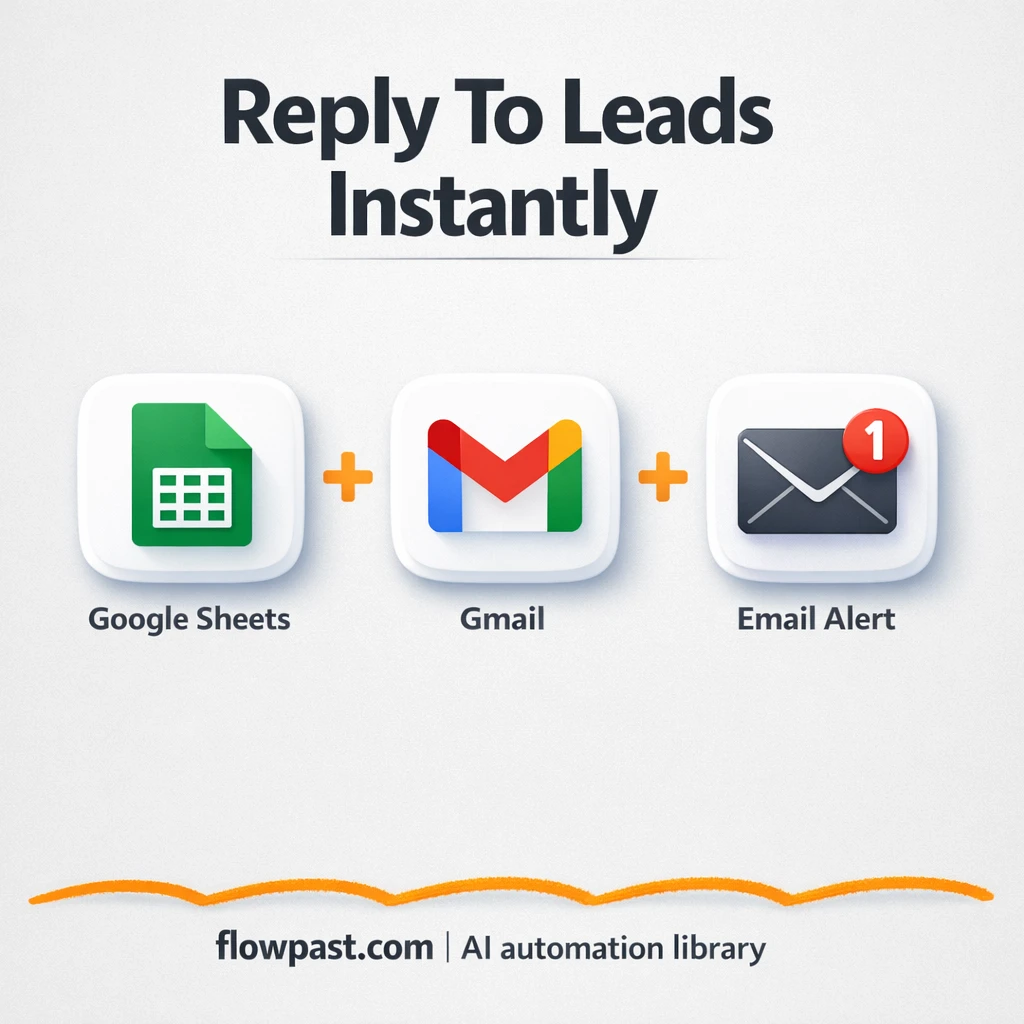

You get a new lead… and it sits in a spreadsheet. No notification, no reply, just a quiet row in Google Sheets that you only notice once it’s too late.
Sheets Gmail leads automation fixes that gap fast. Marketing managers feel it when form volume spikes. A small business owner notices it when weekends happen. Agencies juggling multiple inboxes run into it constantly.
This n8n workflow sends an instant confirmation email to the lead, then alerts your team with the full submission details. You’ll see what it automates, what you need, and how to make it fit your form.
How This Automation Works
The full n8n workflow, from trigger to final output:
n8n Workflow Template: Google Sheets + Gmail: instant lead replies sent
flowchart LR

    subgraph sg0["Google Sheets Flow"]
        direction LR
        n0@{ icon: "mdi:play-circle", form: "rounded", label: "Google Sheets Trigger", pos: "b", h: 48 }
        n1@{ icon: "mdi:message-outline", form: "rounded", label: "Send a message", pos: "b", h: 48 }
        n2@{ icon: "mdi:message-outline", form: "rounded", label: "Send a message1", pos: "b", h: 48 }
        n1 --> n2
        n0 --> n1
    end

    %% Styling
    classDef trigger fill:#e8f5e9,stroke:#388e3c,stroke-width:2px
    classDef ai fill:#e3f2fd,stroke:#1976d2,stroke-width:2px
    classDef aiModel fill:#e8eaf6,stroke:#3f51b5,stroke-width:2px
    classDef decision fill:#fff8e1,stroke:#f9a825,stroke-width:2px
    classDef database fill:#fce4ec,stroke:#c2185b,stroke-width:2px
    classDef api fill:#fff3e0,stroke:#e65100,stroke-width:2px
    classDef code fill:#f3e5f5,stroke:#7b1fa2,stroke-width:2px
    classDef disabled stroke-dasharray: 5 5,opacity: 0.5
    class n0 trigger
The Problem: Leads Don’t Wait for You to Check Sheets
When your lead capture runs through Google Forms, the data usually lands in Google Sheets. Convenient. But also risky, because spreadsheets don’t tap you on the shoulder. So follow-ups become “when I get a minute,” and that minute turns into hours. Then the lead goes cold, or they submit to a competitor who replies instantly. Worse, the internal team often has no context, so even when someone does reply, it’s missing key details or gets routed to the wrong person.
None of this feels dramatic in the moment. It’s just a little friction, repeating all week.
- You end up checking the sheet several times a day “just in case,” which is distracting and easy to forget.
- A lead might wait half a day for a basic confirmation, and that silence makes your business feel slower than it is.
- Copy-pasting form answers into emails introduces small errors, and those errors lead to awkward back-and-forth.
- Internal handoffs break because the person who should respond never sees the submission details.
The Solution: Instant Google Sheets to Gmail Follow-Up
This workflow watches the Google Sheet that’s connected to your Google Form. The moment a new row appears (meaning someone just filled out your form), n8n grabs the important fields like name, email, and what they’re interested in. Then it immediately sends a personalized confirmation email from Gmail to the lead, so they know you got their message. Right after that, it sends a second email to your internal team with the full submission details, which keeps everyone aligned and makes it easier to respond quickly.
The workflow starts with a new form response landing in Sheets. Gmail handles the external confirmation first, then the internal alert goes out with the same data. You get speed for the lead and clarity for your team, without living in spreadsheets.
What You Get: Automation vs. Results
| What This Workflow Automates | Results You’ll Get |
|---|---|
|
|
Example: What This Looks Like
Say you get 20 inquiries a week from a Google Form. Manually, you might spend about 10 minutes per lead opening the sheet, reading the response, sending a confirmation, and forwarding details to your team (or Slack, or whoever). That’s roughly 3 hours a week, and it’s scattered across your day. With this workflow, the only “work” is reviewing replies: the trigger happens instantly when the row is added, and the emails go out in under a minute.
What You’ll Need
- n8n instance (try n8n Cloud free)
- Self-hosting option if you prefer (Hostinger works well)
- Google Sheets to store Google Form responses.
- Gmail to send confirmations and internal alerts.
- Google account access (connect OAuth in n8n credentials)
Skill level: Beginner. You will connect accounts and map a few sheet columns into the email body.
Don’t want to set this up yourself? Talk to an automation expert (free 15-minute consultation).
How It Works
A new form submission hits Google Sheets. The workflow uses a Google Sheets trigger that watches for new rows created by your connected Google Form.
The lead details are captured and cleaned up. n8n pulls fields like timestamp, name, email, and the “what are you interested in?” answer. If your sheet uses Spanish labels (this public version does), you’ll map those to your own columns once.
Gmail sends the lead confirmation. The confirmation email is personalized using the values from that row, so the message feels intentional, not automated.
Your team gets the internal alert. A second Gmail message goes to your chosen recipient (or shared inbox) with the full submission details, which means follow-up can start immediately.
You can easily modify the email subject and body text to match your brand voice based on your needs. See the full implementation guide below for customization options.
Step-by-Step Implementation Guide
Step 1: Configure the Google Sheets Trigger
Set up the trigger to watch for new rows added to your lead intake spreadsheet.
- Add the Sheets Row Monitor node as your trigger.
- Set Event to
rowAdded. - Set Document to
What are you interested in? (answers). - Set Sheet to
Answers what are you interested in?. - Credential Required: Connect your
googleSheetsTriggerOAuth2Apicredentials.
Step 2: Connect Google Sheets
Confirm the spreadsheet fields align with the email templates used later in the workflow.
- Verify your sheet includes columns for Full Name, Email, Additional Message or Query, Phone (optional), and What are you interested in?.
- Ensure the column names match the expressions used in downstream nodes (case-sensitive).
Step 3: Configure Output Email Nodes
Set up outbound emails for both the lead confirmation and the internal notification. The execution order is Sheets Row Monitor → Dispatch Lead Confirmation → Internal Lead Alert.
- Open Dispatch Lead Confirmation and set Send To to
={{$json["Email"]}}. - Set Subject to
Thank you for contacting us!. - Set Message to
=Hello {{$json["Full Name"]}},<br><br> Thank you for contacting us. We've received your message:<br> <em>{{$json["Additional Message or Query"]}}</em><br><br> We'll be in touch soon.<br><br> Best regards,<br> Your team. - In Dispatch Lead Confirmation options, set CC to
[YOUR_EMAIL]if you want a copy. - Credential Required: Connect your
gmailOAuth2credentials in Dispatch Lead Confirmation. - Open Internal Lead Alert and set Send To to
[YOUR_EMAIL]. - Set Subject to
📥 New lead from the form. - Set Message to
=📬 A new lead was received: <br><br> <strong>Name:</strong> {{$json["Full Name"]}} <br> <strong>Email:</strong> {{$json["Email"]}} <br> <strong>Phone:</strong> {{$json["Phone (optional)"]}} <br> <strong>Interest:</strong> {{$json["What are you interested in?"]}} <br> <strong>Message:</strong> {{$json["Additional message or Query"]}} <br><br> 📄 View spreadsheet answers. - Credential Required: Connect your
gmailOAuth2credentials in Internal Lead Alert.
Step 4: Review Non-Operational Notes
The Flowpast Branding sticky note is informational and does not affect execution.
- Keep or remove Flowpast Branding based on your documentation preferences.
Step 5: Test and Activate Your Workflow
Run a manual test to confirm emails and data mappings work as expected, then activate for live use.
- Click Execute Workflow and add a test row to your spreadsheet.
- Confirm Dispatch Lead Confirmation sends an email to the lead with their name and message populated.
- Confirm Internal Lead Alert sends an internal notification to
[YOUR_EMAIL]with all fields filled. - Once verified, toggle the workflow to Active for production use.
Common Gotchas
- Google Sheets credentials can expire or need specific permissions. If things break, check your n8n Credentials for Google Sheets access and confirm the right Google account is connected first.
- If you’re using Wait nodes or external rendering, processing times vary. Bump up the wait duration if downstream nodes fail on empty responses.
- Gmail can silently fail if you’re sending from the wrong “From” address or missing permission scopes. Open the Gmail credential in n8n and re-authorize, then send a test email to yourself.
Frequently Asked Questions
About 30 minutes if your Sheet and Gmail are ready.
No. You’ll mainly connect accounts and map your sheet columns into the Gmail email body.
Yes. n8n has a free self-hosted option and a free trial on n8n Cloud. Cloud plans start at $20/month for higher volume. You won’t pay extra API fees for this workflow because it uses Google Sheets and Gmail only.
Two options: n8n Cloud (managed, easiest setup) or self-hosting on a VPS. For self-hosting, Hostinger VPS is affordable and handles n8n well. Self-hosting gives you unlimited executions but requires basic server management.
Yes, and you probably should. This workflow’s public version uses Spanish field labels, so you’ll update the Google Sheets field mappings and then edit the two Gmail nodes (lead confirmation and internal alert). Common tweaks include changing the subject line, adding your calendar link, and routing internal alerts to different recipients based on “What are you interested in?”.
Most of the time it’s expired authorization or the wrong Google account connected in n8n. Re-authenticate the Gmail credential, then confirm the “From” address matches the mailbox you’re allowed to send from. If it only fails when you get a lot of leads at once, you may be bumping into sending limits, so slow it down or use a shared inbox.
On n8n Cloud Starter, you can run about 2,500 workflow executions per month, which is enough for most small lead gen setups. If you self-host, there’s no execution cap from n8n, so the practical limit is your server and Google sending limits. In day-to-day use, this workflow can process new rows as they arrive, one after another, without any special tuning.
Sometimes. If you only want “new row → send email,” Zapier or Make can be quicker to click together. But n8n is nicer when you want branching logic later (different templates, different recipients, deduping), and self-hosting can keep costs predictable as volume grows. Also, you own the workflow logic end to end, which is comforting when leads are on the line, honestly. Talk to an automation expert if you want help choosing.
Fast replies win leads, and this workflow makes “fast” the default. Set it up once, then let the inbox handle itself.
Need Help Setting This Up?
Our automation experts can build and customize this workflow for your specific needs. Free 15-minute consultation—no commitment required.
