


Google Drive to Google Sheets, expense claims logged
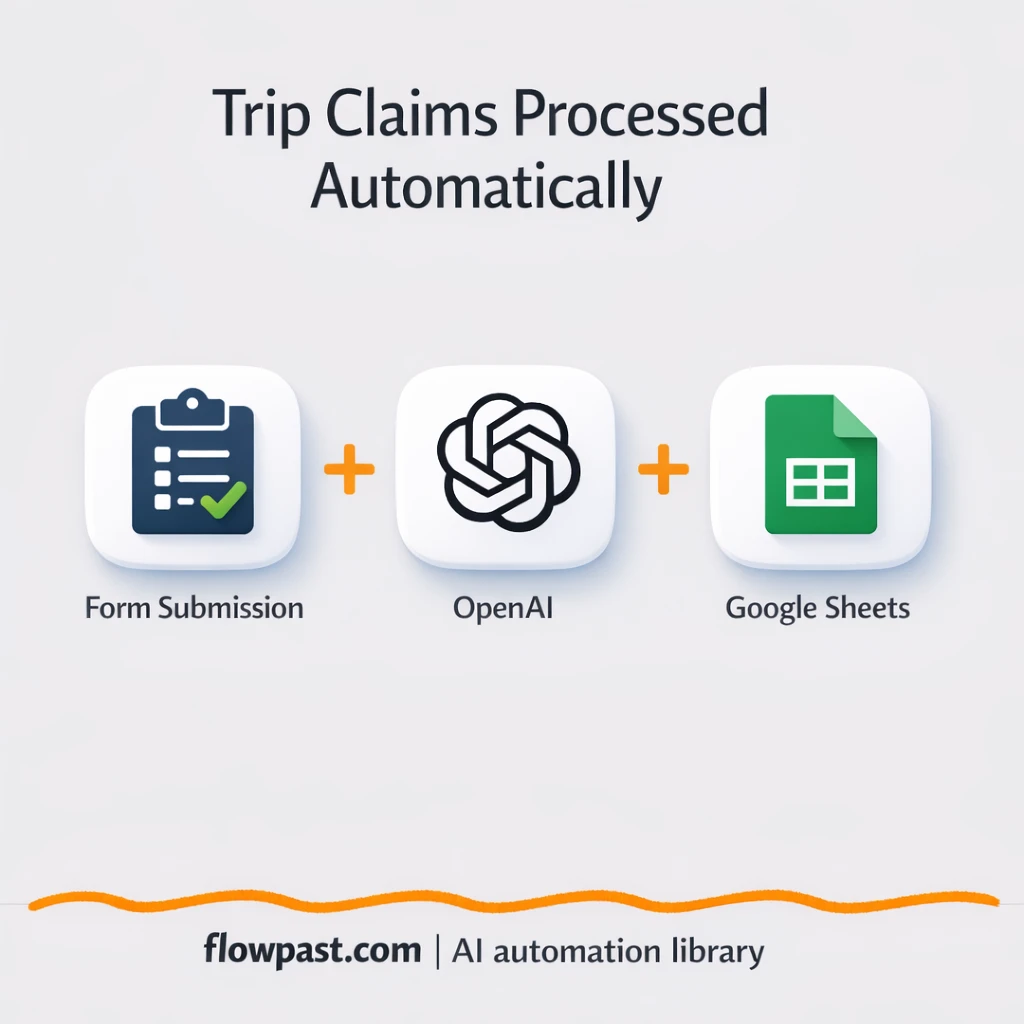

Expense claims fall apart in the boring parts. Receipts get buried in inboxes, totals don’t match what’s on the PDF, and finance ends up chasing people for missing fields.
If you run ops or finance, you already feel it. Team admins cleaning up after trips feel it too. This Drive Sheets expenses setup turns “send me the receipt” into a clean log and a clear summary, without the endless follow-ups.
Below you’ll see the exact automation, what it fixes, and how to roll it out without turning your reimbursement process into a new project.
How This Automation Works
The full n8n workflow, from trigger to final output:
n8n Workflow Template: Google Drive to Google Sheets, expense claims logged
flowchart LR

    subgraph sg0["On form submission Flow"]
        direction LR
        n0["<div style='background:#f5f5f5;padding:10px;border-radius:8px;display:inline-block;border:1px solid #e0e0e0'><img src='https://flowpast.com/wp-content/uploads/n8n-workflow-icons/form.svg' width='40' height='40' /></div><br/>On form submission"]
        n1["<div style='background:#f5f5f5;padding:10px;border-radius:8px;display:inline-block;border:1px solid #e0e0e0'><img src='https://flowpast.com/wp-content/uploads/n8n-workflow-icons/code.svg' width='40' height='40' /></div><br/>Transform Output"]
        n2@{ icon: "mdi:cog", form: "rounded", label: "Upload file", pos: "b", h: 48 }
        n3@{ icon: "mdi:cog", form: "rounded", label: "Extract from File", pos: "b", h: 48 }
        n4@{ icon: "mdi:robot", form: "rounded", label: "DocClaim Assistant Agent", pos: "b", h: 48 }
        n5@{ icon: "mdi:database", form: "rounded", label: "Append row in sheet", pos: "b", h: 48 }
        n6["<div style='background:#f5f5f5;padding:10px;border-radius:8px;display:inline-block;border:1px solid #e0e0e0'><img src='https://flowpast.com/wp-content/uploads/n8n-workflow-icons/code.svg' width='40' height='40' /></div><br/>Transform invoice record"]
        n7@{ icon: "mdi:robot", form: "rounded", label: "Structured Output Parser", pos: "b", h: 48 }
        n8["<div style='background:#f5f5f5;padding:10px;border-radius:8px;display:inline-block;border:1px solid #e0e0e0'><img src='https://flowpast.com/wp-content/uploads/n8n-workflow-icons/code.svg' width='40' height='40' /></div><br/>Create HTML Email Template"]
        n9@{ icon: "mdi:message-outline", form: "rounded", label: "Send trip expense request to..", pos: "b", h: 48 }
        n10["<div style='background:#f5f5f5;padding:10px;border-radius:8px;display:inline-block;border:1px solid #e0e0e0'><img src='https://flowpast.com/wp-content/uploads/n8n-workflow-icons/code.svg' width='40' height='40' /></div><br/>Handle multiple files"]
        n11@{ icon: "mdi:brain", form: "rounded", label: "GPT", pos: "b", h: 48 }
        n11 -.-> n4
        n2 --> n6
        n1 --> n8
        n3 --> n4
        n0 --> n10
        n10 --> n2
        n10 --> n3
        n4 --> n1
        n7 -.-> n4
        n6 --> n5
        n8 --> n9
    end

    %% Styling
    classDef trigger fill:#e8f5e9,stroke:#388e3c,stroke-width:2px
    classDef ai fill:#e3f2fd,stroke:#1976d2,stroke-width:2px
    classDef aiModel fill:#e8eaf6,stroke:#3f51b5,stroke-width:2px
    classDef decision fill:#fff8e1,stroke:#f9a825,stroke-width:2px
    classDef database fill:#fce4ec,stroke:#c2185b,stroke-width:2px
    classDef api fill:#fff3e0,stroke:#e65100,stroke-width:2px
    classDef code fill:#f3e5f5,stroke:#7b1fa2,stroke-width:2px
    classDef disabled stroke-dasharray: 5 5,opacity: 0.5
    class n0 trigger
    class n4,n7 ai
    class n11 aiModel
    class n5 database
    class n1,n6,n8,n10 code
    classDef customIcon fill:none,stroke:none
    class n0,n1,n6,n8,n10 customIcon
The Problem: Expense Claims Create Busywork (and Errors)
Manual expense claims feel simple until you do them at scale. One person submits three PDFs, another sends a blurry screenshot, and someone else forgets the trip dates entirely. Then finance has to interpret receipts, retype totals, guess tax, and reconcile it all against company policy. That’s not “admin.” It’s a recurring data-entry job with real consequences: wrong reimbursements, messy audit trails, and a constant drip of Slack pings and email threads that never quite die.
It adds up fast. Here’s where it usually breaks down.
- Receipts arrive in different formats, so someone must normalize them before they’re usable.
- Totals and tax get typed by hand, which means small mistakes become awkward reimbursement conversations.
- There’s no single source of truth, so finance ends up building a “shadow spreadsheet” anyway.
- Missing context (purpose, dates, department) forces follow-ups that delay payouts and reporting.
The Solution: Auto-Save Receipts, Extract Totals, Log to Sheets, Notify Finance
This workflow turns a trip claim into a repeatable, trackable intake process. An employee submits a form with trip details (name, department, purpose, dates) and uploads one or more receipt PDFs. Each file gets stored in a dedicated Google Drive folder for record-keeping. Then the workflow reads the PDF text and sends it to an AI agent (powered by an OpenAI chat model) that extracts structured fields like vendor, date, total, and tax. Finally, n8n formats the data into a clean claim record, appends one row per receipt into Google Sheets, and generates a readable HTML summary that gets emailed to finance so they can approve and pay without hunting for context.
The workflow starts at the form submission. It splits multiple uploads into individual receipts, processes each PDF, then merges the results into two outcomes: a tidy spreadsheet log and a finance-ready email summary. No extra tools for employees to learn, and no manual rekeying for finance.
What You Get: Automation vs. Results
| What This Workflow Automates | Results You’ll Get |
|---|---|
|
|
Example: What This Looks Like
Say a consultant submits one trip with 6 receipt PDFs. Manually, finance usually spends about 8 minutes per receipt to open the file, find the total and tax, and type it into a sheet, plus another 10 minutes emailing questions. That’s roughly an hour per claim. With this workflow, the employee submits the form in about 5 minutes, n8n processes the PDFs in the background, and finance gets a single email summary and a pre-filled Google Sheet log. The “finance time” often drops to a quick review.
What You’ll Need
- n8n instance (try n8n Cloud free)
- Self-hosting option if you prefer (Hostinger works well)
- Google Drive for storing uploaded receipt PDFs.
- Google Sheets to log one row per expense.
- OpenAI API key (get it from the OpenAI dashboard)
Skill level: Intermediate. You’ll connect Google credentials, add an API key, and tweak a couple of mapping fields to match your sheet columns.
Don’t want to set this up yourself? Talk to an automation expert (free 15-minute consultation).
How It Works
Form submission kicks everything off. An employee enters trip details and uploads one or more receipt PDFs via the n8n form trigger.
Receipts are split and stored. If multiple files are uploaded, n8n breaks them into individual items, then saves each PDF into the right Google Drive folder so nothing gets lost later.
The workflow reads each PDF and extracts the numbers. It pulls text from the file, then the AI agent (using an OpenAI chat model plus a structured output parser) returns consistent fields like vendor, total, tax, and date.
Two outputs are produced for finance. One path appends a clean row into Google Sheets per receipt. The other compiles the trip context and receipt breakdown into an HTML email and sends it to the finance inbox.
You can easily modify the fields captured on the form to match your policy, then adjust the sheet columns to fit your reporting. See the full implementation guide below for customization options.
Step-by-Step Implementation Guide
Step 1: Configure the Form Trigger
Set up the intake form that captures employee trip details and receipt uploads.
- Add and open Form Intake Trigger.
- Set Form Title to
Business Trip Claim Submission. - Set Form Description to
Submit your business trip expense claim by providing trip details and uploading all related invoices or receipts.. - Confirm the form fields include Employee Name, Department, Trip Purpose, From Date, To Date, and a file upload labeled Receipts / Invoices restricted to
.pdf. - Connect Form Intake Trigger to Split Uploaded Files.
Step 2: Connect Google Drive and Sheets
Store uploaded receipts in Drive and log metadata in Sheets.
- Open Store File to Drive and set Name to
=invoice-{{ $now.toFormat("yyyyLLdd-HHmmss") }}-{{$binary.data.fileName}}. - Choose the target Drive and folder in Store File to Drive (the folder ID currently uses
[YOUR_ID]). - Credential Required: Connect your googleDriveOAuth2Api credentials in Store File to Drive.
- Open Append Sheet Record, set Operation to
append, and select the spreadsheet and sheet (currently[YOUR_ID]andSheet1). - Credential Required: Connect your googleSheetsOAuth2Api credentials in Append Sheet Record.
Split Uploaded Files outputs to both Store File to Drive and Parse PDF Text in parallel.
Step 3: Set Up File Processing and Mapping
Split multiple uploads, map Drive metadata into a sheet row, and ensure receipt text extraction is enabled.
- In Split Uploaded Files, keep the JavaScript that filters binary keys starting with
Receipts___Invoices_and outputs one file per item. - In Parse PDF Text, set Operation to
pdf. - In Map Claim Row, keep Mode as
runOnceForEachItemand map fields likeEmployeeName,Department, andTripPurposefrom Form Intake Trigger. - Ensure Store File to Drive connects to Map Claim Row, then to Append Sheet Record.
Step 4: Configure AI Receipt Extraction and Summary Build
Extract structured receipt data with AI, assemble claim data, and build an HTML summary.
- In Receipt Analysis Agent, keep the prompt text and ensure Has Output Parser is enabled.
- Open Structured Parsing Helper and verify the JSON schema example used for structured outputs (do not add credentials here).
- Open OpenAI Mini Model and confirm the model is set to
gpt-4.1-mini. - Credential Required: Connect your openAiApi credentials in OpenAI Mini Model.
- In Assemble Claim Data, keep the JavaScript that builds the
employeeobject andexpensesarray from the AI output. - In Build HTML Summary, keep the HTML generator script that formats the summary tables.
OpenAI Mini Model is connected as the language model for Receipt Analysis Agent — ensure credentials are added to OpenAI Mini Model, not the agent or Structured Parsing Helper.
Step 5: Configure the Email Output
Email the finance team a formatted summary after the HTML is built.
- Open Email Finance Summary and set HTML to
={{ $json.html }}. - Set Subject to
=Expense Claim Request - {{ $('Assemble Claim Data').item.json.employee.name }} – {{ $('Assemble Claim Data').item.json.employee.department }} - {{ $('Assemble Claim Data').item.json.employee.tripPurpose }}. - Credential Required: Connect your smtp credentials in Email Finance Summary.
- Confirm Build HTML Summary connects to Email Finance Summary.
Step 6: Test and Activate Your Workflow
Validate the end-to-end process before turning it on for production use.
- Click Test workflow and submit a sample form through Form Intake Trigger with one or more PDF receipts.
- Verify the workflow runs both branches: files are uploaded by Store File to Drive and parsed by Parse PDF Text.
- Confirm a new row appears in the spreadsheet from Append Sheet Record and the email is sent by Email Finance Summary.
- When satisfied, toggle the workflow to Active for production use.
Common Gotchas
- Google Drive credentials can expire or need specific permissions. If things break, check the Google connection inside n8n Credentials and confirm the Drive folder is accessible to that account first.
- PDF text extraction can be messy when receipts are scans. If the AI output looks wrong, the issue is often the “Parse PDF Text” step returning incomplete text, not the model itself.
- Default AI prompts are generic. Add your expense categories, tax rules, and preferred date format early or you will keep “fixing” rows in Google Sheets by hand.
Frequently Asked Questions
About 30–60 minutes if your Google accounts are ready.
No. You’ll mostly connect accounts and paste in an API key. You might do light field mapping if your Google Sheet columns differ.
Yes. n8n has a free self-hosted option and a free trial on n8n Cloud. Cloud plans start at $20/month for higher volume. You’ll also need to factor in OpenAI API usage, which is usually small per receipt but depends on how long your PDFs are.
Two options: n8n Cloud (managed, easiest setup) or self-hosting on a VPS. For self-hosting, Hostinger VPS is affordable and handles n8n well. Self-hosting gives you unlimited executions but requires basic server management.
Yes, and it’s a common tweak. You can route the “Build HTML Summary” output to a manager first, then only send “Email Finance Summary” if the manager approves. Teams also customize the agent prompt to auto-tag categories (travel, meals, accommodation) and to enforce policy rules like “no alcohol” or max daily meal totals.
Usually it’s permissions. The Google account connected in n8n must have access to the target Drive folder, and the OAuth consent can lose scope if the credential was edited. Reconnect the Google Drive credential in n8n, then retry with a single test receipt to confirm the folder path is correct.
Plenty for normal business use. On n8n Cloud, your limit is mainly your monthly execution allowance, and each submitted claim can trigger multiple executions if there are multiple PDFs. If you self-host, there’s no execution cap, but throughput depends on your server and how quickly the AI and Google APIs respond.
Often, yes, because this workflow benefits from multi-file handling, structured parsing, and custom code/mapping in the middle. n8n also gives you self-hosting, which keeps costs predictable when volume grows, and branching logic without making every extra step feel “premium.” Zapier or Make can still be fine for very simple receipt logging, but AI extraction plus email summaries gets complex fast. If you want a second opinion on tool choice, Talk to an automation expert.
Once this is running, receipts land where they should, numbers show up where you need them, and finance gets a summary that’s actually actionable. Set it up once, then let the workflow do the clerical work.
Need Help Setting This Up?
Our automation experts can build and customize this workflow for your specific needs. Free 15-minute consultation—no commitment required.
