


Square to Outlook, daily sales CSVs sent for you
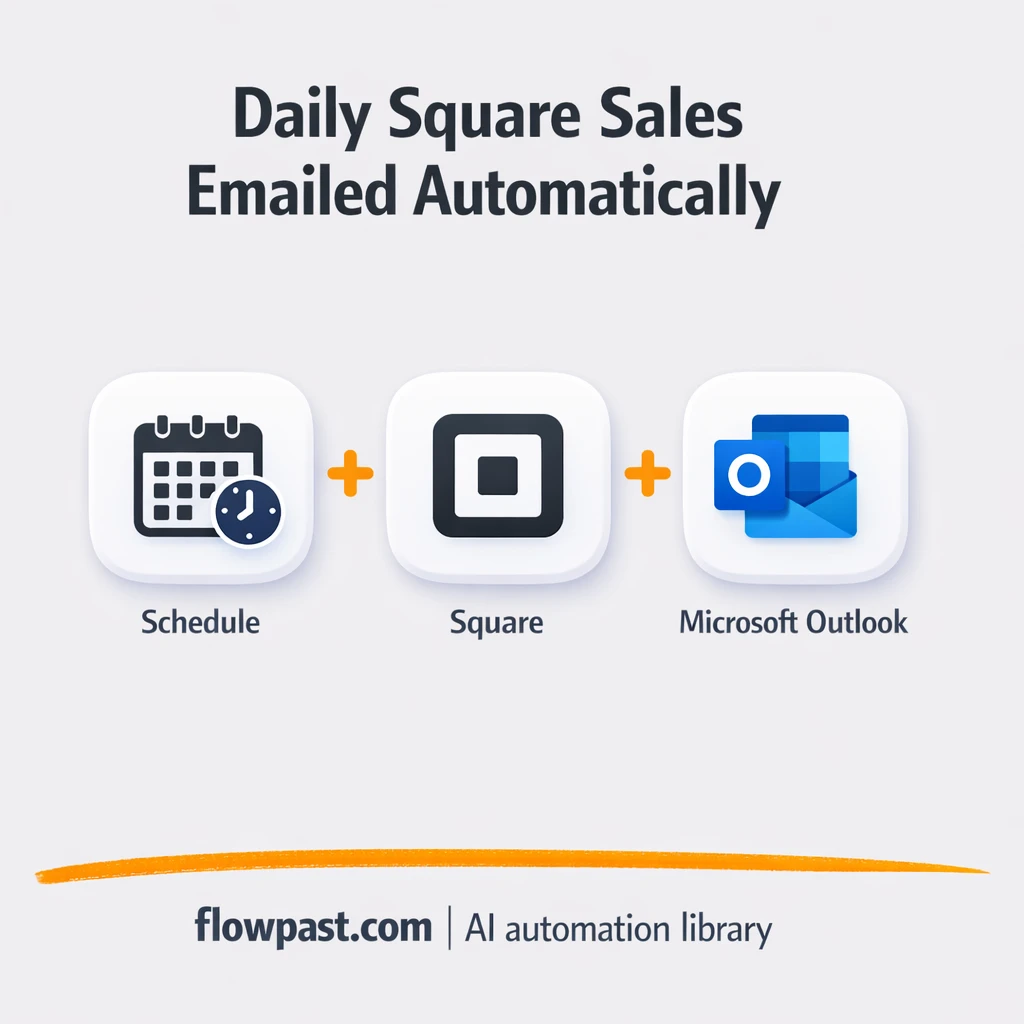

You know the drill. Someone has to log into Square, click into reports, set the right date, export, rename the file, then email it out. Miss a step and the “daily numbers” turn into a guessing game before the day even starts.
This Square Outlook automation hits store managers and finance teams first, but ops leads feel it too because staffing and purchasing decisions get made off yesterday’s totals. The outcome is simple: a clean CSV in your inbox every morning, with numbers that match Square’s own Sales Summary report.
Below, you’ll see how the workflow runs, what it removes from your day, and what you need to make it reliable across one location or many.
How This Automation Works
See how this solves the problem:
n8n Workflow Template: Square to Outlook, daily sales CSVs sent for you
flowchart LR

    subgraph sg0["Schedule Flow"]
        direction LR
        n0["<div style='background:#f5f5f5;padding:10px;border-radius:8px;display:inline-block;border:1px solid #e0e0e0'><img src='https://flowpast.com/wp-content/uploads/n8n-workflow-icons/httprequest.dark.svg' width='40' height='40' /></div><br/>Get Square Locations"]
        n1@{ icon: "mdi:swap-vertical", form: "rounded", label: "Turn Locations Into List", pos: "b", h: 48 }
        n2@{ icon: "mdi:swap-horizontal", form: "rounded", label: "Ignore Locations w/o Sales", pos: "b", h: 48 }
        n3["<div style='background:#f5f5f5;padding:10px;border-radius:8px;display:inline-block;border:1px solid #e0e0e0'><img src='https://flowpast.com/wp-content/uploads/n8n-workflow-icons/httprequest.dark.svg' width='40' height='40' /></div><br/>Get Sales from Square"]
        n4["<div style='background:#f5f5f5;padding:10px;border-radius:8px;display:inline-block;border:1px solid #e0e0e0'><img src='https://flowpast.com/wp-content/uploads/n8n-workflow-icons/code.svg' width='40' height='40' /></div><br/>Compile Sales Reports"]
        n5@{ icon: "mdi:play-circle", form: "rounded", label: "Schedule Trigger", pos: "b", h: 48 }
        n6@{ icon: "mdi:cog", form: "rounded", label: "Convert Sales Summary to CSV..", pos: "b", h: 48 }
        n7@{ icon: "mdi:cog", form: "rounded", label: "Send Report", pos: "b", h: 48 }
        n5 --> n0
        n0 --> n1
        n4 --> n6
        n3 --> n2
        n1 --> n3
        n2 --> n4
        n6 --> n7
    end

    %% Styling
    classDef trigger fill:#e8f5e9,stroke:#388e3c,stroke-width:2px
    classDef ai fill:#e3f2fd,stroke:#1976d2,stroke-width:2px
    classDef aiModel fill:#e8eaf6,stroke:#3f51b5,stroke-width:2px
    classDef decision fill:#fff8e1,stroke:#f9a825,stroke-width:2px
    classDef database fill:#fce4ec,stroke:#c2185b,stroke-width:2px
    classDef api fill:#fff3e0,stroke:#e65100,stroke-width:2px
    classDef code fill:#f3e5f5,stroke:#7b1fa2,stroke-width:2px
    classDef disabled stroke-dasharray: 5 5,opacity: 0.5
    class n5 trigger
    class n2 decision
    class n0,n3 api
    class n4 code
    classDef customIcon fill:none,stroke:none
    class n0,n3,n4 customIcon
The Challenge: Getting Yesterday’s Sales Out of Square (Every Day)
Daily sales reporting sounds basic, but manually pulling it from Square becomes a recurring tax on your team. You have to remember to run it, select the right date (yesterday, not “last 24 hours”), and export in a format people can actually use. Then there’s the follow-up: “Can you resend it as CSV?” or “These totals don’t match the dashboard.” The real cost isn’t only the minutes spent exporting. It’s the interruptions, the uncertainty, and the slow start to the day when decisions depend on numbers you do not fully trust.
It adds up fast. And the more locations you have, the more brittle the whole routine gets.
- Someone has to do the export at the same time every day, which is easy to forget during openings, closings, or staff call-outs.
- File names and formats drift, so the “same report” looks different depending on who pulled it.
- Multi-location reporting gets messy because totals may be pulled one location at a time, then stitched together later.
- When numbers do not match the Square dashboard, people waste time reconciling instead of acting.
The Fix: A Daily Square Sales Summary CSV, Delivered via Outlook
This workflow runs on a schedule (set to 4:00 AM) and pulls yesterday’s completed orders from Square for every location on your account. It starts by fetching your Square locations, then loops through each one to request order data for the report date. Locations with no sales get skipped automatically, so you don’t receive empty noise. Next, a processing step aggregates orders into a summary designed to match what you see inside Square Dashboard → Reports → Sales Summary. Finally, the workflow turns that summary into a CSV file and emails it through Microsoft Outlook to whoever needs it (manager, finance, bookkeeper, even a landlord on commission).
The flow is straightforward. Schedule triggers the run, Square data gets collected and cleaned, and Outlook delivers a file your team can open instantly. No exporting. No renaming. No “who pulled the report today?” thread.
What Changes: Before vs. After
| What This Eliminates | Impact You’ll See |
|---|---|
|
|
Real-World Impact
Say you run 3 Square locations and you email one daily report to two people (a manager and a bookkeeper). Manually, it’s usually about 10 minutes per location to pull the right date, export, name the file, and sanity-check totals, plus another 5 minutes to attach and send it twice. That’s roughly 45 minutes each day. With this workflow, the “work” is basically zero after setup: it runs at 4:00 AM, generates the CSV, and sends it via Outlook automatically, so your team starts the day with the file already waiting.
Requirements
- n8n instance (try n8n Cloud free)
- Self-hosting option if you prefer (Hostinger works well)
- Square to access locations and orders data.
- Microsoft Outlook to email the CSV report automatically.
- Square access token (get it from Square Developer dashboard).
Skill level: Intermediate. You’ll connect credentials, confirm report fields, and test one run end-to-end.
Need help implementing this? Talk to an automation expert (free 15-minute consultation).
The Workflow Flow
A daily schedule starts it. The workflow triggers at 4:00 AM, so the report is built after the prior day has fully closed.
Square locations are pulled first. An HTTP request retrieves every location tied to your Square account, then the workflow splits that list so each site gets processed independently.
Orders are fetched and summarized. For each location, another HTTP request pulls completed orders for the report date. If a location has no sales, it gets skipped. Otherwise, the workflow aggregates the order data into a sales summary designed to match Square’s own reporting.
A CSV is generated and emailed via Outlook. The summary becomes a CSV file, then Microsoft Outlook sends it to the recipient(s) you choose, with a consistent subject line and message body.
You can easily modify the schedule (daily vs. weekly) or the recipient list based on your needs. See the full implementation guide below for customization options.
Step-by-Step Implementation Guide
Step 1: Configure the Schedule Trigger
This workflow runs on a schedule to generate yesterday’s sales report from Square.
- Add the Scheduled Run Starter node as your trigger.
- Open Scheduled Run Starter and set the schedule rule to match your desired interval (e.g., daily at a set time).
- Leave other defaults as-is unless you need a custom interval configuration.
Step 2: Connect Square and Fetch Order Data
These nodes pull locations from Square and then retrieve completed orders for each location.
- Configure Fetch Square Sites with URL set to
https://connect.squareup.com/v2/locationsand keep Authentication set togenericCredentialTypewith genericAuthTypehttpHeaderAuth. - Credential Required: Connect your
httpHeaderAuthcredentials in Fetch Square Sites. - In Split Location List, set Field to Split Out to
locationsand Fields to Include toidto process each location independently. - In Retrieve Square Orders, set URL to
https://connect.squareup.com/v2/orders/search, Method toPOST, and Body to the provided JSON expression: - Paste this into JSON Body in Retrieve Square Orders:
={ "location_ids": ["{{ $json.locations.id }}"], "query": { "filter": { "state_filter": { "states": ["COMPLETED"] }, "date_time_filter": { "created_at": { "start_at": "{{ $('Scheduled Run Starter').item.json.timestamp.toDateTime().minus(1, 'days').format('yyyy-MM-dd') }}T00:00:00-05:00", "end_at": "{{ $('Scheduled Run Starter').item.json.timestamp.toDateTime().minus(1, 'days').format('yyyy-MM-dd') }}T23:59:59-05:00" } } } }, "limit": 1000, "return_entries": false} - Credential Required: Connect your
httpHeaderAuthcredentials in Retrieve Square Orders. - In Filter Empty Locations, add a condition where leftValue is
={{ $json.orders }}and Operator isarray→notEmpty.
Step 3: Set Up Sales Processing and CSV Output
This stage calculates totals and converts them into a CSV file for email attachment.
- Open Assemble Sales Summary and keep Mode set to
runOnceForEachItem. - Paste the provided JavaScript into jsCode (as included in the workflow) to calculate totals like gross sales, tax, tips, and net total.
- In Generate CSV Report, set Binary Property Name to
sales_report. - Set the file name in Generate CSV Report to
=sales_report_{{ $('Scheduled Run Starter').item.json.timestamp }}.csv.
Step 4: Configure the Email Delivery
The report is delivered via Outlook with the CSV attached.
- In Dispatch Email Report, set To Recipients to
[YOUR_EMAIL](replace with your actual address). - Set Subject to
=Your Square Sales Report for {{ $('Scheduled Run Starter').item.json['Readable date'].split(',')[0] }}. - Set Body Content to
<p>Hello,</p>|<p>Please see the attached report containing yesterday's sales.</p><p>Best,<br> Automation Team</p>and keep Body Content Type ashtml. - Credential Required: Connect your
Microsoft Outlookcredentials in Dispatch Email Report.
Step 5: Test and Activate Your Workflow
Validate end-to-end execution before enabling the scheduled run.
- Click Execute Workflow to run Scheduled Run Starter manually.
- Confirm Fetch Square Sites returns location data and Retrieve Square Orders returns completed orders for the date range.
- Verify Generate CSV Report produces a
sales_reportbinary file and Dispatch Email Report sends the email with an attached CSV. - Once verified, toggle the workflow to Active to enable scheduled execution.
Watch Out For
- Square credentials can expire or lack access to the right resources. If it fails, check the Authorization header token in n8n Credentials first, then confirm the token is still active in Square.
- If you add pagination for high-order locations (over 1,000 orders/day), a missing loop will quietly drop orders. When totals look “too low,” this is usually why.
- Microsoft Outlook sending can fail if your tenant blocks programmatic sending or the mailbox lacks permission. Check the Outlook credential connection in n8n and confirm the account can send as the chosen sender.
Common Questions
About an hour if you already have Square and Outlook credentials ready.
Yes. You won’t write code, but you will paste an access token, connect Outlook, and run a test to confirm the CSV looks right.
Yes. n8n has a free self-hosted option and a free trial on n8n Cloud. Cloud plans start at $20/month for higher volume. You’ll also need to factor in Square API access (typically included with your Square account).
Two options: n8n Cloud (managed, easiest setup) or self-hosting on a VPS. For self-hosting, Hostinger VPS is affordable and handles n8n well. Self-hosting gives you unlimited executions but requires basic server management.
You can change the schedule to weekly by editing the Scheduled Run Starter node, and you can adjust recipients in the Dispatch Email Report step. If you need different report columns, update the Assemble Sales Summary logic and the Generate CSV Report mapping. For high-volume locations, add pagination to the Retrieve Square Orders request so the report doesn’t miss anything.
Usually it’s an expired or malformed access token in the Square Header Auth credential (the Authorization value should look like “Bearer …”). It can also be missing permissions for the endpoints you’re calling, especially if the token was created for a different app or environment. Less common, but real: rate limiting when you’re pulling lots of orders across several locations at once, so retries or pagination become necessary.
For most small teams, it’s effectively “daily, forever.” On n8n Cloud, capacity depends on your plan’s monthly executions, and each location processed counts toward that. If you self-host, there’s no execution cap, but your server still needs enough memory and timeouts to handle large order pulls, especially when you add pagination.
Often, yes. Square reporting tends to need looping through locations, filtering empty results, and custom aggregation so your CSV matches what the dashboard shows. n8n handles that kind of logic cleanly and you can self-host for unlimited runs, which is honestly a big deal if you scale. Zapier and Make can work, but multi-step logic and iteration can get expensive or awkward. Talk to an automation expert if you want a quick recommendation based on your volume.
Once this is running, daily sales reporting stops being a task your team has to remember. The workflow handles the repetitive stuff, and you get your mornings back.
Need Help Setting This Up?
Our automation experts can build and customize this workflow for your specific needs. Free 15-minute consultation—no commitment required.
