


Gmail + Slack: instant lead follow ups that convert

Inbound leads are exciting… until they land in the “I’ll reply later” pile. Then hours pass, context goes stale, and the prospect books with someone faster.
This Gmail Slack followups setup hits agency owners hard because every inquiry feels urgent. But marketing managers chasing pipeline and solo consultants handling calls between client work run into the same issue. You want instant response time without sending lazy, copy-paste emails.
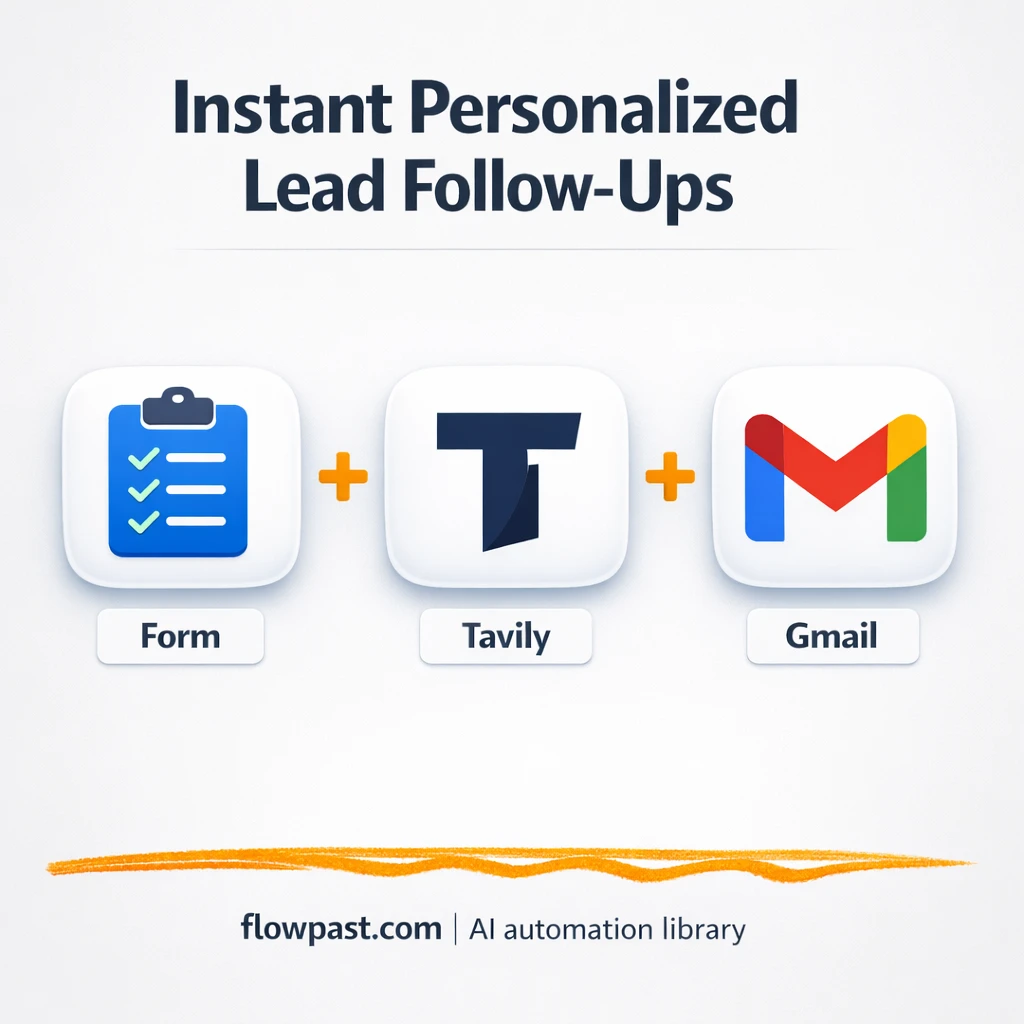
This workflow turns a form submission into researched context, a human-sounding email, and a Slack ping your team can act on. You’ll see what it does, what you need, and how it fits into a real lead process.
How This Automation Works
See how this solves the problem:
n8n Workflow Template: Gmail + Slack: instant lead follow ups that convert
flowchart LR

    subgraph sg0["On form submission Flow"]
        direction LR
        n0["<div style='background:#f5f5f5;padding:10px;border-radius:8px;display:inline-block;border:1px solid #e0e0e0'><img src='https://flowpast.com/wp-content/uploads/n8n-workflow-icons/form.svg' width='40' height='40' /></div><br/>On form submission"]
        n1@{ icon: "mdi:brain", form: "rounded", label: "OpenAI Chat Model", pos: "b", h: 48 }
        n2@{ icon: "mdi:memory", form: "rounded", label: "Simple Memory", pos: "b", h: 48 }
        n3@{ icon: "mdi:cog", form: "rounded", label: "Tavily", pos: "b", h: 48 }
        n4@{ icon: "mdi:robot", form: "rounded", label: "Structured Output Parser", pos: "b", h: 48 }
        n5@{ icon: "mdi:message-outline", form: "rounded", label: "Gmail", pos: "b", h: 48 }
        n6@{ icon: "mdi:robot", form: "rounded", label: "GPT-5 Research & Copywriting", pos: "b", h: 48 }
        n3 -.-> n6
        n2 -.-> n6
        n1 -.-> n6
        n0 --> n6
        n4 -.-> n6
        n6 --> n5
    end

    %% Styling
    classDef trigger fill:#e8f5e9,stroke:#388e3c,stroke-width:2px
    classDef ai fill:#e3f2fd,stroke:#1976d2,stroke-width:2px
    classDef aiModel fill:#e8eaf6,stroke:#3f51b5,stroke-width:2px
    classDef decision fill:#fff8e1,stroke:#f9a825,stroke-width:2px
    classDef database fill:#fce4ec,stroke:#c2185b,stroke-width:2px
    classDef api fill:#fff3e0,stroke:#e65100,stroke-width:2px
    classDef code fill:#f3e5f5,stroke:#7b1fa2,stroke-width:2px
    classDef disabled stroke-dasharray: 5 5,opacity: 0.5
    class n0 trigger
    class n4,n6 ai
    class n1 aiModel
    class n2 ai
    classDef customIcon fill:none,stroke:none
    class n0 customIcon
The Challenge: fast replies without sounding generic
Most lead follow-up systems fail in a boring way. The lead comes in, you see the notification, and you plan to respond “after this meeting.” Then you have to re-open the form, figure out what they asked, Google the company, skim their site, and finally write an email that doesn’t feel like a template. Meanwhile, the prospect is still in “shopping mode,” which is exactly when speed matters. Miss the window and you’re not just late, you’re forgettable.
It adds up fast. Here’s where it breaks down in day-to-day work.
- You spend about 10 minutes researching a company before you can even start writing.
- Quick replies become bland replies, so you get fewer responses and more ghosting.
- Leads slip through when notifications are scattered across inboxes, forms, and DMs.
- Even when you do reply, the call-to-action is inconsistent (no link, wrong link, or no next step).
The Fix: AI-researched emails sent instantly via Gmail (plus Slack alerts)
This n8n workflow responds the moment a lead submits your form. It captures the basics (name, email, business URL, and their inquiry), then uses an AI research step to pull real context from the web so the follow-up doesn’t feel generic. Next, a GPT-5 agent writes a friendly, persuasive email with a strong subject line and a clear next step, like booking a meeting through your scheduling link. Finally, Gmail sends it automatically, so the prospect hears from you while the intent is still hot. You get speed and relevance at the same time, which is honestly the only combo that consistently wins.
The flow starts with an inbound form trigger. Research happens in the background using a web search tool, then the AI agent drafts the email content and hands it off to Gmail for delivery. You can also add a Slack message so the team knows a high-intent lead just came in and can follow up personally.
What Changes: Before vs. After
| What This Eliminates | Impact You’ll See |
|---|---|
|
|
Real-World Impact
Say you get 10 inbound leads a week. A decent manual follow-up usually takes about 10 minutes of research plus another 10 minutes to write and send, so that’s roughly 3 hours weekly. With this workflow, the “manual” part becomes near zero: the form triggers instantly, AI does the research and draft, and Gmail sends without waiting for you. Even if you spend 2 minutes skimming the sent email and replying personally to the best leads, you still get a couple hours back every week.
Requirements
- n8n instance (try n8n Cloud free)
- Self-hosting option if you prefer (Hostinger works well)
- Gmail for sending the follow-up email automatically
- Slack to alert your team on new leads
- OpenAI API key (GPT-5) (get it from your OpenAI dashboard)
Skill level: Intermediate. You’ll connect accounts, paste an API key, and adjust a prompt to match your tone.
Need help implementing this? Talk to an automation expert (free 15-minute consultation).
The Workflow Flow
A lead submits your form. That submission is the trigger, and it brings in the lead’s name, email, business URL, plus the message they typed.
AI gathers useful context. The workflow uses a web research tool to pull up-to-date details about the lead’s business, then structures that info so the next step can reliably use it.
The email is drafted in your voice. A GPT-5 agent writes the subject line and message body, referencing what it learned so it reads like you actually did the homework. You can bake in your Calendly link (or similar) so every email has a clear “book a call” path.
Gmail sends the follow-up, and Slack can notify the team. The lead receives an immediate response, and your Slack channel can get a ping so a human can jump in on high-value inquiries.
You can easily modify the research depth to match your market, or swap the Slack notification rules so only certain leads create an alert. See the full implementation guide below for customization options.
Step-by-Step Implementation Guide
Step 1: Configure the Form Trigger
Set up the inbound form that captures lead details and starts the workflow.
- Add and open Incoming Form Trigger.
- Set Form Title to
Business Inquiry. - Set Form Description to
Thank you for your inquiry, we'll get back to you soon!. - In Form Fields, add fields for First Name, Last Name, Business URL, Email, Phone Number (Optional), and How can we help you?, matching the labels exactly.
- Optionally keep Flowpast Branding as a visual note; it doesn’t affect execution.
Step 2: Connect OpenAI
Configure the language model that powers the AI agent’s research and drafting.
- Open OpenAI Chat Engine and set Model to
gpt-5. - Credential Required: Connect your OpenAI credentials in OpenAI Chat Engine.
- Open Session Memory Buffer and set Session ID Type to
customKey. - Set Session Key to
={{ $workflow.id }}. - Open Web Research Tool and keep Query set to
={{ /*n8n-auto-generated-fromAI-override*/ $fromAI('Query', ``, 'string') }}.
Step 3: Set Up Lead Research & Email Draft
Configure the AI agent’s prompt and structured output so it generates a subject line and body for the reply.
- Open Lead Research & Email Draft and set Prompt Type to
define. - Set Text to:
=First Name: {{ $json['First Name'] }}
Last Name: {{ $json['Last Name'] }}
Business URL: {{ $json['Business URL'] }}
Email: {{ $json.Email }}
Phone Number: {{ $json['Phone Number (Optional)'] }}
How Can We Help:{{ $json['How can we help you?'] }} - In Options → System Message, keep the full instruction block that requests research and a JSON output with subject and body.
- Ensure Has Output Parser is enabled and that Structured JSON Parser is connected as the output parser.
- Open Structured JSON Parser and keep JSON Schema Example set to:
{
	"Subject Line": "Hello from Purple Unicorn Marketing",
	"Body": "Hey Jake, this is bob from Purpler Unicorn Marketing. Thank you for your inquiry, booking a meeting with me here: www.calendly.com/book-now"
}
Step 4: Configure Dispatch Email via Gmail
Send the AI-generated email to the lead’s address collected from the form.
- Open Dispatch Email via Gmail.
- Credential Required: Connect your Gmail credentials.
- Set Send To to
={{ $('Incoming Form Trigger').item.json.Email }}. - Set Subject to
={{ $json.output['Subject Line'] }}. - Set Message to
={{ $json.output.Body }}. - Set Email Type to
text.
Step 5: Test and Activate Your Workflow
Validate that the form submission produces a researched email and that Gmail sends it successfully.
- Click Execute Workflow and submit a test entry in Incoming Form Trigger.
- Confirm Lead Research & Email Draft outputs a JSON object with Subject Line and Body.
- Verify Dispatch Email via Gmail sends an email to the test address with the AI-generated subject and body.
- Fix any mapping issues if the email is blank or missing details, then re-test.
- When successful, toggle the workflow to Active to run in production.
Watch Out For
- Gmail credentials can expire or need specific permissions. If things break, check the Gmail connection status in n8n’s Credentials page first.
- If your web research step returns thin results (or the lead URL is missing), the AI draft can become vague. Add a fallback that uses only the inquiry text when the business URL is empty.
- Default prompts in AI nodes are generic. Add your brand voice early or you will be editing outputs forever.
Common Questions
About 30 minutes if you already have your Gmail, Slack, and OpenAI accounts ready.
Yes. You won’t write code, but you will connect accounts and tweak the email prompt to match your voice.
Yes. n8n has a free self-hosted option and a free trial on n8n Cloud. Cloud plans start at $20/month for higher volume. You’ll also need to factor in OpenAI API usage (often a few cents per lead) and any web research tool costs.
Two options: n8n Cloud (managed, easiest setup) or self-hosting on a VPS. For self-hosting, Hostinger VPS is affordable and handles n8n well. Self-hosting gives you unlimited executions but requires basic server management.
You can change the tone and structure inside the “Lead Research & Email Draft” agent prompt, which is where the subject line, CTA, and personalization rules live. If you don’t want web research for every lead, keep the agent but reduce or remove the “Web Research Tool” input so it relies on the form message only. Common tweaks include adding qualifying questions, routing “enterprise” inquiries to a different CTA, and posting a short summary to Slack for handoff.
Usually it’s expired OAuth access in n8n Credentials. Reconnect Gmail, confirm the sending address matches the authorized account, and check that your Google Workspace admin hasn’t restricted third-party app access. If it fails only during high volume, you may be hitting Google sending limits for the account.
If you self-host n8n, there’s no execution cap (your server is the limit). On n8n Cloud, capacity depends on the plan, and most small teams are fine on starter tiers for regular inbound volume. Practically, this workflow can handle lots of leads because it processes one submission at a time, but web research and AI calls can slow down bursts.
Often, yes, because this workflow leans on AI research, structured parsing, and more flexible logic than typical two-step zaps. n8n also gives you a self-host option, which is a big deal if you don’t want per-task pricing as volume grows. Zapier and Make can still work if you only need “form → send email” with a basic template. The moment you want consistent prompts, fallback logic, and richer lead context, n8n is usually the cleaner fit. Talk to an automation expert if you want a quick recommendation based on your lead volume and stack.
This is what “fast follow-up” should look like: instant, relevant, and consistent. Set it up once, then let the workflow handle the repetitive parts while you focus on closing.
Need Help Setting This Up?
Our automation experts can build and customize this workflow for your specific needs. Free 15-minute consultation—no commitment required.
