


Google Drive + ClickUp: client onboarding done right
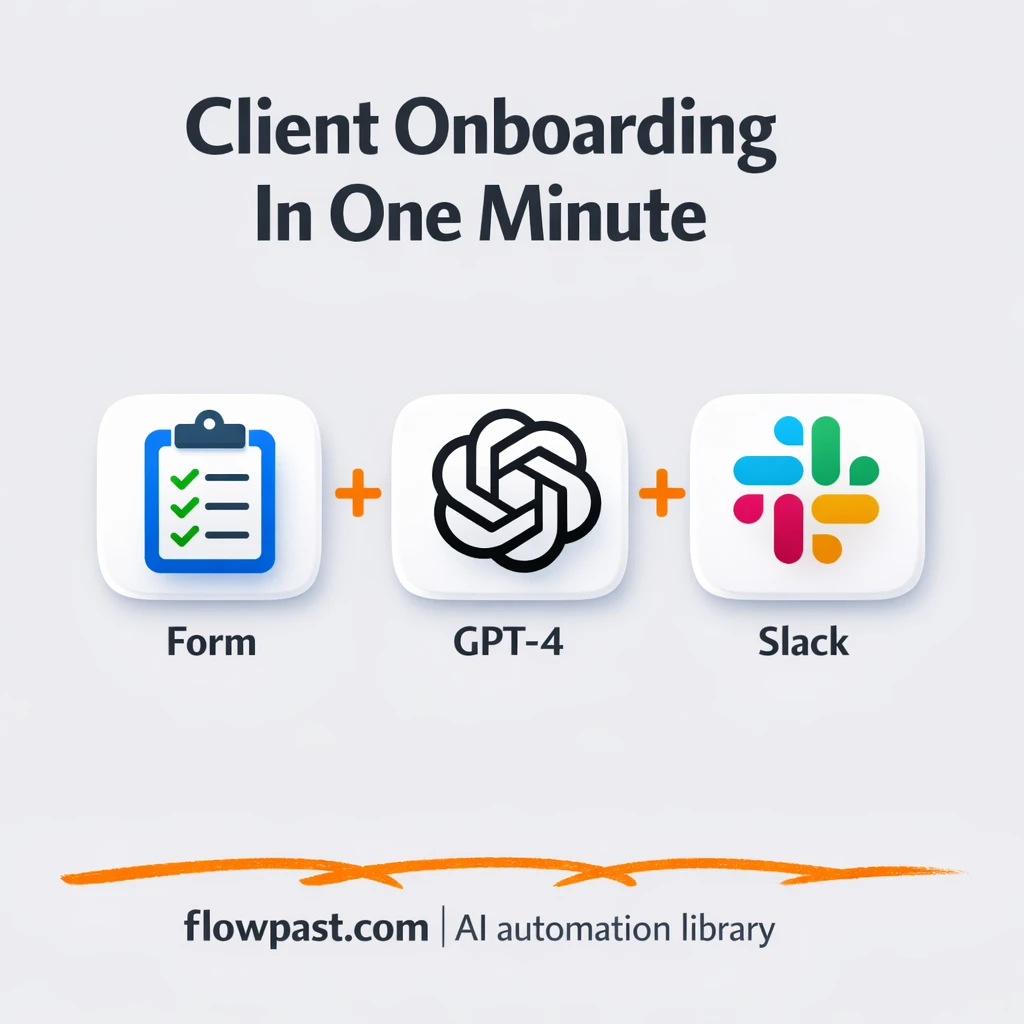

Client onboarding breaks in the boring places. A folder gets created with the wrong name, tasks get copied from an old project, and the “welcome” email goes out two days late (or not at all).
Agency owners feel it first because every new client is a mini fire drill. But project managers and solo consultants feel it too. This ClickUp onboarding automation turns one intake into a complete, consistent setup in about a minute.
You’ll see how this workflow reads the client’s proposal, creates the right workspace in Google Drive and ClickUp, opens a Slack channel, and sends a personalized welcome email without the usual scramble.
How This Automation Works
The full n8n workflow, from trigger to final output:
n8n Workflow Template: Google Drive + ClickUp: client onboarding done right
flowchart LR

    subgraph sg0["On form submission1 Flow"]
        direction LR
        n0["<div style='background:#f5f5f5;padding:10px;border-radius:8px;display:inline-block;border:1px solid #e0e0e0'><img src='https://flowpast.com/wp-content/uploads/n8n-workflow-icons/form.svg' width='40' height='40' /></div><br/>On form submission1"]
        n1@{ icon: "mdi:cog", form: "rounded", label: "Extract from File1", pos: "b", h: 48 }
        n2@{ icon: "mdi:swap-vertical", form: "rounded", label: "Remane Doc", pos: "b", h: 48 }
        n3@{ icon: "mdi:cog", form: "rounded", label: "Create Main Client Folder", pos: "b", h: 48 }
        n4@{ icon: "mdi:swap-vertical", form: "rounded", label: "Remane Folder ID", pos: "b", h: 48 }
        n5["<div style='background:#f5f5f5;padding:10px;border-radius:8px;display:inline-block;border:1px solid #e0e0e0'><img src='https://flowpast.com/wp-content/uploads/n8n-workflow-icons/clickup.svg' width='40' height='40' /></div><br/>Click Up~Create a folder"]
        n6["<div style='background:#f5f5f5;padding:10px;border-radius:8px;display:inline-block;border:1px solid #e0e0e0'><img src='https://flowpast.com/wp-content/uploads/n8n-workflow-icons/clickup.svg' width='40' height='40' /></div><br/>Click Up~Create a list"]
        n7@{ icon: "mdi:robot", form: "rounded", label: "Segment Task", pos: "b", h: 48 }
        n8@{ icon: "mdi:brain", form: "rounded", label: "OpenAI Chat Model", pos: "b", h: 48 }
        n9@{ icon: "mdi:robot", form: "rounded", label: "Structured Output Parser", pos: "b", h: 48 }
        n10@{ icon: "mdi:message-outline", form: "rounded", label: "Send Welcome Email", pos: "b", h: 48 }
        n11["<div style='background:#f5f5f5;padding:10px;border-radius:8px;display:inline-block;border:1px solid #e0e0e0'><img src='https://flowpast.com/wp-content/uploads/n8n-workflow-icons/slack.svg' width='40' height='40' /></div><br/>Slack | Create Channel"]
        n12["<div style='background:#f5f5f5;padding:10px;border-radius:8px;display:inline-block;border:1px solid #e0e0e0'><img src='https://flowpast.com/wp-content/uploads/n8n-workflow-icons/slack.svg' width='40' height='40' /></div><br/>Slack | Post Message"]
        n13@{ icon: "mdi:swap-vertical", form: "rounded", label: "Split Out1", pos: "b", h: 48 }
        n14@{ icon: "mdi:swap-vertical", form: "rounded", label: "Loop Over Items", pos: "b", h: 48 }
        n15["<div style='background:#f5f5f5;padding:10px;border-radius:8px;display:inline-block;border:1px solid #e0e0e0'><img src='https://flowpast.com/wp-content/uploads/n8n-workflow-icons/clickup.svg' width='40' height='40' /></div><br/>Create a task"]
        n2 --> n3
        n13 --> n14
        n7 --> n13
        n15 --> n14
        n14 --> n11
        n14 --> n15
        n4 --> n5
        n8 -.-> n7
        n1 --> n2
        n0 --> n1
        n12 --> n10
        n6 --> n7
        n11 --> n12
        n5 --> n6
        n9 -.-> n7
        n3 --> n4
    end

    %% Styling
    classDef trigger fill:#e8f5e9,stroke:#388e3c,stroke-width:2px
    classDef ai fill:#e3f2fd,stroke:#1976d2,stroke-width:2px
    classDef aiModel fill:#e8eaf6,stroke:#3f51b5,stroke-width:2px
    classDef decision fill:#fff8e1,stroke:#f9a825,stroke-width:2px
    classDef database fill:#fce4ec,stroke:#c2185b,stroke-width:2px
    classDef api fill:#fff3e0,stroke:#e65100,stroke-width:2px
    classDef code fill:#f3e5f5,stroke:#7b1fa2,stroke-width:2px
    classDef disabled stroke-dasharray: 5 5,opacity: 0.5
    class n0 trigger
    class n7,n9 ai
    class n8 aiModel
    classDef customIcon fill:none,stroke:none
    class n0,n5,n6,n11,n12,n15 customIcon
The Problem: Onboarding Falls Apart Between Tools
Most onboarding “processes” are really just a checklist living in someone’s head. You get a form submission, then you jump into Google Drive, then ClickUp, then Slack, then email. Somewhere in that shuffle, details get lost: the client’s preferred name, the timeline, deliverables pulled from the proposal, or the internal handoff note your team needs. It’s not hard work. It’s repetitive work, which is exactly why it gets done inconsistently when you’re busy. And you are always busy when a new client signs.
The friction compounds. Here’s where it usually breaks down.
- You end up doing the same setup steps 10+ times a month, and it quietly steals a few hours you never get back.
- Proposal details get retyped by hand, which means small mistakes show up later as big misunderstandings.
- Tasks start from a generic template, so your team spends kickoff week rewriting what should already be clear.
- Handoffs get messy because Drive, ClickUp, and Slack aren’t created in a single, traceable flow.
The Solution: One Intake Creates the Full Workspace
This workflow starts the moment a client submits your onboarding form (including an uploaded proposal). It pulls text out of that file, maps the important fields into clean structured data, and then uses GPT-4 to draft a complete onboarding task list based on what the client actually bought. Next, it creates a Google Drive folder for the client, builds the matching structure in ClickUp (folder, list, then tasks), and opens a dedicated Slack channel for your team to collaborate. Finally, it posts a welcome message in Slack and sends the client a personalized welcome email from Gmail. The whole chain is designed to finish in under a minute from submission, so kickoff can happen while the deal is still warm.
The workflow begins with a form trigger and proposal parsing. AI turns the proposal into a structured task plan, then n8n loops through those tasks and creates them in ClickUp in batches. Google Drive, Slack, and email get handled at the end so the client experience matches the internal setup.
What You Get: Automation vs. Results
| What This Workflow Automates | Results You’ll Get |
|---|---|
|
|
Example: What This Looks Like
Say you onboard 5 new clients in a month. Manually, you might spend about 10 minutes creating a Drive folder, 20 minutes setting up ClickUp (folder, list, and tasks), 5 minutes creating a Slack channel and welcome message, and another 10 minutes writing a decent welcome email. That’s roughly 45 minutes per client, or close to 4 hours a month. With this workflow, the client submits one form, n8n does the setup automatically, and you only spend a few minutes sanity-checking the output.
What You’ll Need
- n8n instance (try n8n Cloud free)
- Self-hosting option if you prefer (Hostinger works well)
- Google Drive for client folders and shared files
- ClickUp to create lists and onboarding tasks
- Slack for an internal client channel and welcome post
- Gmail to send the client a welcome email
- OpenAI API key (get it from your OpenAI dashboard)
Skill level: Intermediate. You’ll connect accounts, map a few form fields, and tweak the AI prompt to match your delivery process.
Don’t want to set this up yourself? Talk to an automation expert (free 15-minute consultation).
How It Works
A client submits your intake form. That submission is the trigger, and it includes the standard fields plus an uploaded proposal or scope document.
The proposal gets turned into usable data. n8n extracts text from the uploaded file, maps it into the fields you care about, then sends it to GPT-4 to draft an onboarding task list that matches the proposal.
Workspace setup happens across your tools. Google Drive creates the client folder first (and stores the folder ID so it can be referenced later). ClickUp then creates the folder and list, and n8n loops over the AI-generated tasks in batches to create each ClickUp task without timing out.
Notifications and welcome messages go out. Slack creates a channel and posts a welcome message for your internal team. Gmail sends a personalized welcome email to the client so they know what happens next.
You can easily modify the task template and the AI prompt to match your delivery style based on your needs. See the full implementation guide below for customization options.
Step-by-Step Implementation Guide
Step 1: Configure the Form Submission Trigger
Set up the intake form that starts the workflow whenever a client submits onboarding details and a proposal file.
- Add the Form Submission Trigger node and set Form Title to
Client Onboarding Form. - In Form Fields, add the required fields: Name, Email (type: email), Company Name, Website, and Proposal_Scope_Document (type: file, accept
.pdf,.doc,.docx). - Save the form and note the public URL for testing submissions.
Step 2: Connect the Uploaded File Parser
This step extracts the proposal text and maps it into a clean field for the AI task generator.
- Add Parse Uploaded File and set Operation to
pdf. - Set Binary Property Name to
Proposal_Scope_Document. - Add Map Proposal Text and create a field named projectInformation with value
{{ $json.text }}. - Connect Form Submission Trigger → Parse Uploaded File → Map Proposal Text.
Step 3: Connect Google Drive
Create a dedicated client folder in Drive and store the ID for later use in messaging and tasking.
- Add Generate Client Drive Folder and set Resource to
folder. - Set Name to
{{ $('Form Submission Trigger').item.json['Company Name'] }} ~ Client Folder. - Select the destination Folder using your Drive location (e.g.,
Onboardings). - Credential Required: Connect your googleDriveOAuth2Api credentials to Generate Client Drive Folder.
- Add Store Drive Folder ID and set DriveFolderId to
{{ $json.id }}. - Connect Map Proposal Text → Generate Client Drive Folder → Store Drive Folder ID.
Step 4: Set Up ClickUp Structure
Create a ClickUp folder, list, and tasks to organize onboarding work items.
- Add Create ClickUp Folder with Resource set to
folderand Name set to{{ $('Form Submission Trigger').item.json['Company Name'] }}~Client Folder. - Set Team to
[YOUR_ID]and Space to[YOUR_ID]. - Credential Required: Connect your clickUpOAuth2Api credentials to Create ClickUp Folder.
- Add Create ClickUp List with Name set to
{{ $('Form Submission Trigger').item.json['Company Name'] }} Onboardingand Folder set to{{ $json.id }}. - Credential Required: Connect your clickUpOAuth2Api credentials to Create ClickUp List.
- Add Create ClickUp Task and set List to
{{ $('Create ClickUp List').item.json.id }}, Name to{{ $json.title }}, and Folder to{{ $('Create ClickUp Folder').item.json.id }}. - In Additional Fields, set Content to
{{ $json.description }}, Due Date to{{ $json.due_date }}, Priority to3, and Assignees to[YOUR_ID]. - Credential Required: Connect your clickUpOAuth2Api credentials to Create ClickUp Task.
- Connect Store Drive Folder ID → Create ClickUp Folder → Create ClickUp List.
Step 5: Set Up Draft Onboarding Tasks (AI)
Generate a structured task list from the proposal using the AI agent and parse it into individual tasks.
- Add Draft Onboarding Tasks and set Text to
{{ $('Map Proposal Text').item.json.projectInformation }}. - Ensure Has Output Parser is enabled and that Structured Result Parser is attached as the output parser.
- Connect OpenAI Chat Engine as the language model for Draft Onboarding Tasks and select model
gpt-4.1-mini. - Credential Required: Connect your openAiApi credentials to OpenAI Chat Engine. (The Structured Result Parser uses the parent node’s credentials.)
- Add Split Tasks List and set Field To Split Out to
output.tasks. - Add Iterate Task Batches after the split to batch the task creation flow.
- Connect Create ClickUp List → Draft Onboarding Tasks → Split Tasks List → Iterate Task Batches.
⚠️ Common Pitfall: If the AI output doesn’t match the schema in Structured Result Parser, task splitting will fail. Keep the schema example aligned with your expected task fields.
Step 6: Configure Slack and Email Outputs
Create the client Slack channel, post a welcome message, and send a confirmation email with onboarding details.
- Add Create Slack Channel and set Channel ID to
{{ $('Form Submission Trigger').item.json['Company Name'].replace(/\s+/g, '_').toLowerCase() + '_channel' }}with Channel Visibility set topublic. - Credential Required: Connect your Slack OAuth2 credentials to Create Slack Channel.
- Add Post Slack Welcome and set Text to the provided onboarding message, using
{{ $('Form Submission Trigger').item.json.Name }}for personalization. - Credential Required: Connect your Slack OAuth2 credentials to Post Slack Welcome.
- Add Dispatch Welcome Email with Send To set to
{{ $('Form Submission Trigger').item.json.Email }}and Subject set toWelcome to (YOUR COMPANY NAME) {{ $('Form Submission Trigger').item.json.Name }}-Your Onboarding is Complete!. - In Message, keep the Drive link using
{{ $('Generate Client Drive Folder').item.json.id }}to render the client’s folder URL. - Credential Required: Connect your gmailOAuth2 credentials to Dispatch Welcome Email.
- Connect Iterate Task Batches → Create Slack Channel → Post Slack Welcome → Dispatch Welcome Email.
Iterate Task Batches outputs to both Create Slack Channel and Create ClickUp Task in parallel.
⚠️ Common Pitfall: The Slack nodes have no credentials configured in the workflow. Make sure you add Slack OAuth2 credentials before testing.
Step 7: Test and Activate Your Workflow
Run a full test submission to validate each integration and ensure the onboarding experience is complete.
- Click Execute Workflow and submit the Form Submission Trigger form with a sample PDF proposal.
- Confirm a new Drive folder is created in Generate Client Drive Folder and the ID is stored in Store Drive Folder ID.
- Verify ClickUp receives the folder, list, and tasks generated by Create ClickUp Folder, Create ClickUp List, and Create ClickUp Task.
- Check Slack for the new channel and the message posted by Post Slack Welcome.
- Confirm the client receives the email from Dispatch Welcome Email with the correct Drive link.
- When successful, toggle the workflow to Active to enable production onboarding.
Common Gotchas
- ClickUp credentials can expire or need specific permissions. If things break, check your ClickUp token/app authorization in n8n’s Credentials section first.
- If you’re using Wait nodes or external rendering, processing times vary. Bump up the wait duration if downstream nodes fail on empty responses.
- Default prompts in AI nodes are generic. Add your brand voice early or you’ll be editing outputs forever.
Frequently Asked Questions
About 30–45 minutes if your accounts are already connected.
No. You’ll mostly connect accounts and map your form fields to the right places in the workflow.
Yes. n8n has a free self-hosted option and a free trial on n8n Cloud. Cloud plans start at $20/month for higher volume. You’ll also need to factor in OpenAI API usage, which is usually a small cost per onboarding.
Two options: n8n Cloud (managed, easiest setup) or self-hosting on a VPS. For self-hosting, Hostinger VPS is affordable and handles n8n well. Self-hosting gives you unlimited executions but requires basic server management.
Yes, and you should. The easiest place is the “Draft Onboarding Tasks” AI step, where you can instruct GPT-4 to generate different task sets based on a package field from your form. You can also change how tasks are created by adjusting the structured output parser and the batch loop, which controls how many tasks get created at once.
Usually it’s expired authorization or a workspace permission problem. Reconnect the ClickUp credential in n8n, then confirm the token has access to the space where you’re creating the folder and list. If it fails only on larger onboardings, you may be hitting rate limits, so lowering the batch size in the loop can help.
Plenty for normal onboarding. On n8n Cloud, your limit is mostly about monthly executions, and on self-hosted n8n there’s no hard execution cap (it depends on your server). This workflow also creates tasks in batches, so it can handle long task lists without falling over, even if you generate 50–100 tasks for a complex client.
Often, yes. This workflow has a few moving parts that simpler tools don’t love: extracting text from an uploaded file, generating a structured task plan with AI, parsing that output reliably, then looping over tasks in batches. n8n handles branching and batching without punishing you for complexity, and self-hosting is a real escape hatch when volume grows. Zapier or Make can still work if your onboarding is basically “create a folder and send an email,” but once you want proposal-aware tasks, it gets fiddly fast. If you want a second opinion, Talk to an automation expert.
Once this is live, onboarding becomes boring again (in the best way). Set it up, run it every time, and keep your kickoff days calm.
Need Help Setting This Up?
Our automation experts can build and customize this workflow for your specific needs. Free 15-minute consultation—no commitment required.
