


YouTube to Google Sheets, trend research logged clean
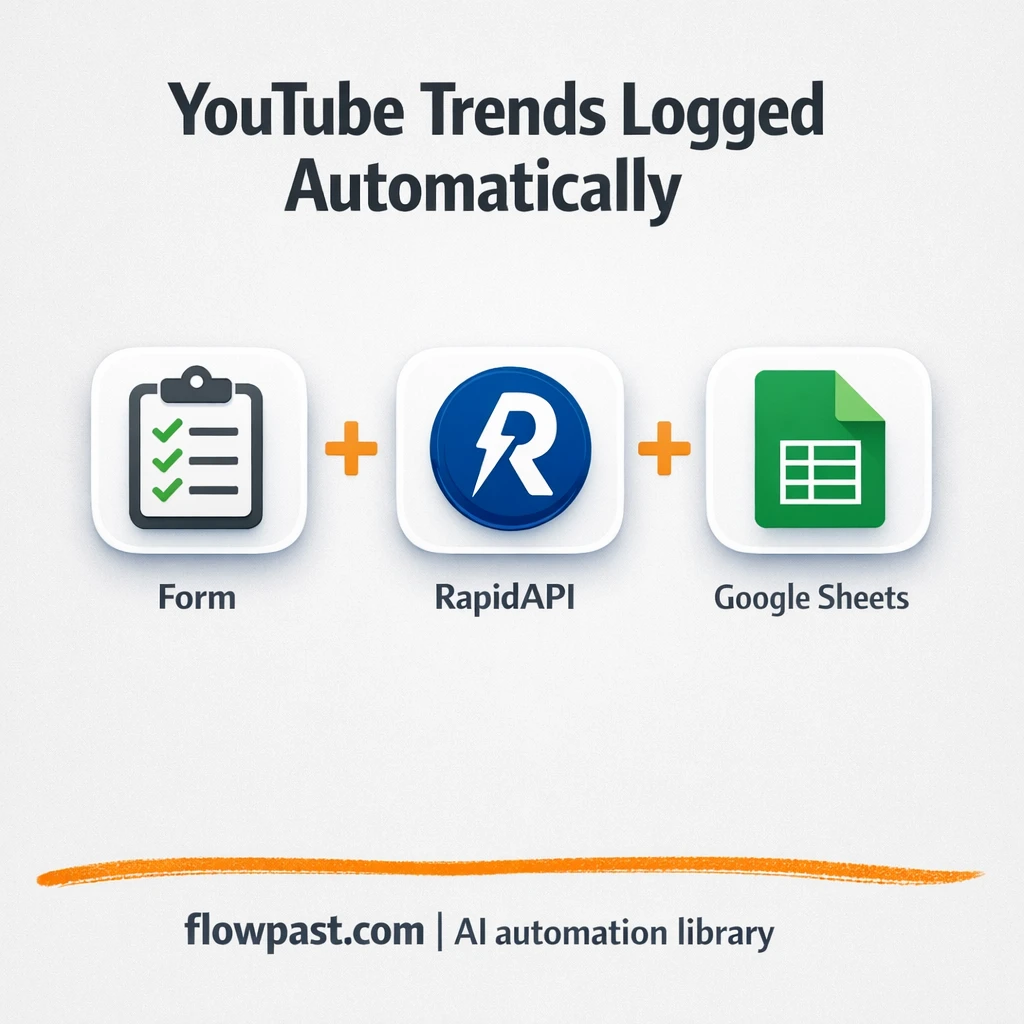

You open YouTube to “quickly check what’s trending,” then you’re 40 minutes deep with 12 tabs open and nowhere to put the useful findings. Copy-pasting titles, links, and tags into a spreadsheet feels small. It isn’t. It’s the kind of recurring busywork that quietly wrecks consistency.
Content strategists feel this first. But marketing managers planning campaigns and solo founders trying to stay relevant run into the same wall. This YouTube trends automation gives you a clean Google Sheet log by country and language, so your research becomes something you can actually reuse.
You’ll see how the workflow captures your inputs, pulls real-time trending video data through an API, reshapes it, and appends it into a structured spreadsheet you can share with your team.
How This Automation Works
See how this solves the problem:
n8n Workflow Template: YouTube to Google Sheets, trend research logged clean
flowchart LR

    subgraph sg0["On form submission Flow"]
        direction LR
        n0["<div style='background:#f5f5f5;padding:10px;border-radius:8px;display:inline-block;border:1px solid #e0e0e0'><img src='https://flowpast.com/wp-content/uploads/n8n-workflow-icons/form.svg' width='40' height='40' /></div><br/>On form submission"]
        n1["<div style='background:#f5f5f5;padding:10px;border-radius:8px;display:inline-block;border:1px solid #e0e0e0'><img src='https://flowpast.com/wp-content/uploads/n8n-workflow-icons/code.svg' width='40' height='40' /></div><br/>Re format output"]
        n2["<div style='background:#f5f5f5;padding:10px;border-radius:8px;display:inline-block;border:1px solid #e0e0e0'><img src='https://flowpast.com/wp-content/uploads/n8n-workflow-icons/httprequest.dark.svg' width='40' height='40' /></div><br/>Trend Finder Api Request "]
        n3@{ icon: "mdi:database", form: "rounded", label: "Google Sheets", pos: "b", h: 48 }
        n1 --> n3
        n0 --> n2
        n2 --> n1
    end

    %% Styling
    classDef trigger fill:#e8f5e9,stroke:#388e3c,stroke-width:2px
    classDef ai fill:#e3f2fd,stroke:#1976d2,stroke-width:2px
    classDef aiModel fill:#e8eaf6,stroke:#3f51b5,stroke-width:2px
    classDef decision fill:#fff8e1,stroke:#f9a825,stroke-width:2px
    classDef database fill:#fce4ec,stroke:#c2185b,stroke-width:2px
    classDef api fill:#fff3e0,stroke:#e65100,stroke-width:2px
    classDef code fill:#f3e5f5,stroke:#7b1fa2,stroke-width:2px
    classDef disabled stroke-dasharray: 5 5,opacity: 0.5
    class n0 trigger
    class n3 database
    class n2 api
    class n1 code
    classDef customIcon fill:none,stroke:none
    class n0,n1,n2 customIcon
The Challenge: Trend Research That Never Stays Organized
Trend research is supposed to be quick. In practice, it turns into a messy routine: you check what’s trending in one country, then you try another market, then you realize you didn’t track what you saw last week. So you start over. The manual steps are the worst part because they don’t feel “important,” yet they still steal about 2 hours a week once you add them up. And the moment your research isn’t logged in one place, planning gets fuzzy, decisions get slower, and “we should post something about this” never becomes an actual post.
It adds up fast. Here’s where it breaks down.
- You end up saving trends in random places (tabs, notes, Slack messages), which means nothing is searchable later.
- Copy-pasting video titles and links into a sheet is easy to mess up, especially when you’re grabbing 20 results at a time.
- Country and language context gets lost, so your “trend list” becomes a pile of untagged ideas.
- When someone asks “what did we see last month?”, you can’t answer without redoing the research.
The Fix: Capture YouTube Trends and Auto-Log Them in Sheets
This workflow turns trend checking into a repeatable input-and-log process. You start with a simple form where you choose the country and language you want to research. n8n takes that input and sends it to the YouTube Trend Finder API (via an HTTP request), which returns a list of trending videos for that exact region. Next, the workflow reshapes the response so it’s spreadsheet-friendly (think title, link, tags, and any other fields you choose to keep). Finally, it appends the cleaned rows into Google Sheets, creating a running “trend ledger” that stays consistent over time. No more rebuilding your research history from memory. Honestly, this is what makes trend work usable.
The workflow begins when you submit the form. Then it pulls live trending data and reformats it into clean columns. Google Sheets becomes the final destination, so your team has one place to reference, filter, and plan from.
What Changes: Before vs. After
| What This Eliminates | Impact You’ll See |
|---|---|
|
|
Real-World Impact
Say you track trends for 5 countries each week and you like to capture the top 20 videos per country. Manually, grabbing titles, URLs, and a few tags is maybe 10 minutes per country, plus time cleaning the sheet, so you’re around an hour weekly. With this workflow, submitting 5 form entries takes about 5 minutes total, then n8n fetches and logs everything automatically. You keep the same insight, but the “admin” part mostly disappears.
Requirements
- n8n instance (try n8n Cloud free)
- Self-hosting option if you prefer (Hostinger works well)
- Google Sheets for the shared research log.
- YouTube Trend Finder API (RapidAPI) to fetch trending videos by region.
- RapidAPI key (get it from your RapidAPI dashboard)
Skill level: Beginner. You will connect accounts, paste an API key, and pick a target spreadsheet.
Need help implementing this? Talk to an automation expert (free 15-minute consultation).
The Workflow Flow
Form submission kicks things off. You enter the country and language you want to check (for example, US + English, or DE + German). This keeps the workflow simple for anyone on your team.
The workflow fetches trends through an API call. n8n sends your inputs to the YouTube Trend Finder endpoint using an HTTP request and receives a list of trending videos in return.
The response is cleaned and reshaped. A code step extracts only what you actually need, like titles, links, and tags, so your spreadsheet doesn’t become a dump of raw JSON.
Google Sheets is updated automatically. Each run appends new rows to your chosen sheet, which means your research history grows over time and stays shareable.
You can easily modify the captured fields (for example, add channel name or publish date) to match your planning process. See the full implementation guide below for customization options.
Step-by-Step Implementation Guide
Step 1: Configure the Form Trigger
Set up the form that collects country and language inputs to start the workflow.
- Add and open Form Intake Trigger.
- Set Form Title to
YouTube Trend Finder. - Set Form Description to
YouTube Trend Finder. - In Form Fields, add required fields labeled
countryandlanguage.
Step 2: Connect the Trend Analysis API Call
Send the form inputs to the external trend API using a POST request.
- Add and open Trend Analysis API Call.
- Set URL to
https://youtube-trend-finder.p.rapidapi.com/trend.phpand Method toPOST. - Enable Send Body and set Content Type to
multipart-form-data. - Add body parameters: country =
{{ $json.country }}and language ={{ $json.language }}. - Enable Send Headers and add x-rapidapi-host =
youtube-trend-finder.p.rapidapi.comand x-rapidapi-key =[CONFIGURE_YOUR_API_KEY].
⚠️ Common Pitfall: The API key is a placeholder. Replace [CONFIGURE_YOUR_API_KEY] with your actual RapidAPI key or the request will fail.
Step 3: Set Up Data Reshaping
Transform the API response into a list of trend items that can be appended to Google Sheets.
- Add and open Reshape Response Data.
- Set JavaScript Code to
return $input.first().json.data. - Confirm the execution flow connects Trend Analysis API Call → Reshape Response Data.
Step 4: Configure Google Sheets Output
Append each trend item into your spreadsheet.
- Add and open Append to Spreadsheet.
- Credential Required: Connect your googleApi credentials.
- Set Authentication to
serviceAccountand Operation toappend. - Set Document to the file with ID
[YOUR_ID]and Sheet toSheet1(gid=0). - Ensure columns map to
thumbnail,title,link, andtagsusing Auto Map Input Data. - Confirm the execution flow connects Reshape Response Data → Append to Spreadsheet.
Tip: Make sure your sheet has headers that match thumbnail, title, link, and tags so auto-mapping works correctly.
Step 5: Test and Activate Your Workflow
Run a manual test to validate the end-to-end flow, then activate for production use.
- Click Test workflow and submit the form in Form Intake Trigger with a valid
countryandlanguage. - Verify Trend Analysis API Call returns a response and Reshape Response Data outputs a list of trend items.
- Confirm new rows appear in the Google Sheet configured in Append to Spreadsheet.
- Click Activate to run the workflow continuously for new form submissions.
Watch Out For
- RapidAPI credentials can expire or get blocked by plan limits. If things break, check your RapidAPI dashboard usage and the API key permissions first.
- If you’re using Wait nodes or external rendering, processing times vary. Bump up the wait duration if downstream nodes fail on empty responses.
- Default prompts in AI nodes are generic. Add your brand voice early or you’ll be editing outputs forever.
Common Questions
About 30 minutes if your Google Sheet and RapidAPI key are ready.
Yes. You’ll mainly connect Google Sheets and paste an API key into n8n.
Yes. n8n has a free self-hosted option and a free trial on n8n Cloud. Cloud plans start at $20/month for higher volume. You’ll also need to factor in RapidAPI costs for the YouTube Trend Finder API (usually a small monthly plan once you scale).
Two options: n8n Cloud (managed, easiest setup) or self-hosting on a VPS. For self-hosting, Hostinger VPS is affordable and handles n8n well. Self-hosting gives you unlimited executions but requires basic server management.
You can extend the “Reshape Response Data” step to keep more fields (like channel name, publish date, or view count) and map them into new Google Sheets columns. If you want different markets, add more form fields for category or max results, then pass them into the HTTP request. Some teams also add an optional “notes” field in the form so the row includes why the trend matters.
Usually it’s an expired or rotated API key, or you’ve hit your RapidAPI usage limit for the month. Open the HTTP request node, confirm the key/header is still correct, then check your RapidAPI dashboard for quota and subscription status. Also confirm the endpoint expects the same country/language format you’re submitting in the form.
On n8n Cloud, capacity depends on your plan’s monthly executions, and self-hosting removes execution limits (your server becomes the bottleneck). In practice, this workflow is lightweight; it’s usually the API quota on RapidAPI that sets the real ceiling.
Often, yes, because this workflow leans on an HTTP request plus data reshaping, and n8n handles that kind of “API + cleanup + append” pattern cleanly. You also get a self-hosting option, which matters when you run trend checks a lot. Zapier or Make can still do it, but you may spend more time fiddling with formatting and paid tiers for premium steps. If you’re unsure, Talk to an automation expert and we’ll help you pick the simplest setup for your volume and team.
Once this is running, trend research stops being a recurring chore and starts behaving like an asset. The workflow handles the logging. You decide what to do with the ideas.
Need Help Setting This Up?
Our automation experts can build and customize this workflow for your specific needs. Free 15-minute consultation—no commitment required.
