


Google Sheets + Gemini AI, ranked CVs in one place
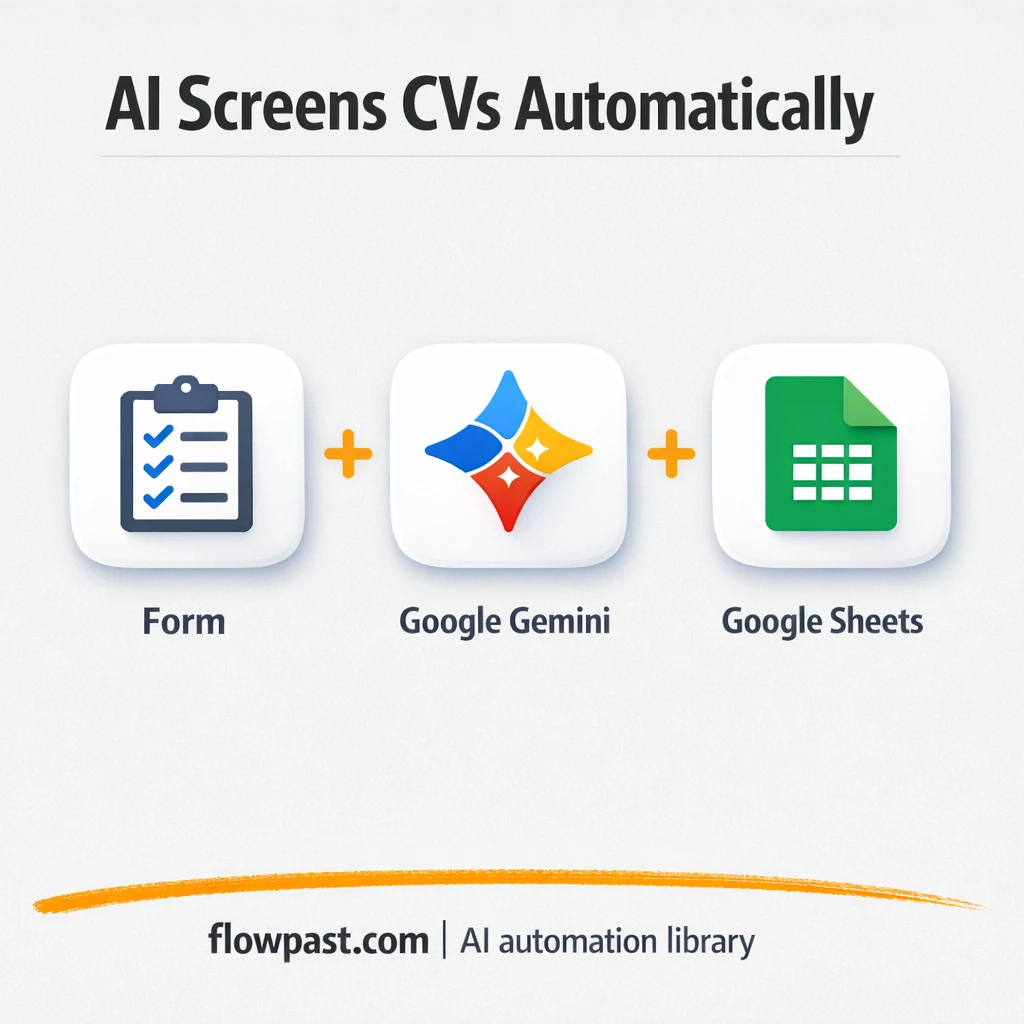

Your hiring inbox fills up fast. Then the real problem starts: downloading PDFs, naming files, reading the same “skills” section 40 times, and trying to remember why Candidate A felt stronger than Candidate B.
This hits recruiters and HR leads hardest, honestly. But founders doing their own hiring and ops managers pitching in feel the same pain. With Gemini CV scoring, you get every applicant logged, scored, and explained in one sortable Google Sheet.
This guide walks you through what the workflow does, what you need, and how to run it so your shortlist takes minutes, not an afternoon.
How This Automation Works
Here’s the complete workflow you’ll be setting up:
n8n Workflow Template: Google Sheets + Gemini AI, ranked CVs in one place
flowchart LR

    subgraph sg0["Candidate Intake Form Flow"]
        direction LR
        n0["<div style='background:#f5f5f5;padding:10px;border-radius:8px;display:inline-block;border:1px solid #e0e0e0'><img src='https://flowpast.com/wp-content/uploads/n8n-workflow-icons/form.svg' width='40' height='40' /></div><br/>Candidate Intake Form"]
        n2["<div style='background:#f5f5f5;padding:10px;border-radius:8px;display:inline-block;border:1px solid #e0e0e0'><img src='https://flowpast.com/wp-content/uploads/n8n-workflow-icons/mistralAi.svg' width='40' height='40' /></div><br/>Parse CV Content"]
        n3@{ icon: "mdi:database", form: "rounded", label: "Record Applicant Entry", pos: "b", h: 48 }
        n4@{ icon: "mdi:database", form: "rounded", label: "Update Qualification Results", pos: "b", h: 48 }
        n5@{ icon: "mdi:robot", form: "rounded", label: "Structured JSON Interpreter", pos: "b", h: 48 }
        n6@{ icon: "mdi:brain", form: "rounded", label: "Gemini Flash Lite Engine", pos: "b", h: 48 }
        n8@{ icon: "mdi:robot", form: "rounded", label: "AI Eligibility Review", pos: "b", h: 48 }
        n2 --> n8
        n8 --> n4
        n0 --> n2
        n0 --> n3
        n5 -.-> n8
        n6 -.-> n8
    end

    subgraph sg1["Manual Launch Flow"]
        direction LR
        n1@{ icon: "mdi:play-circle", form: "rounded", label: "Manual Launch", pos: "b", h: 48 }
        n7@{ icon: "mdi:database", form: "rounded", label: "Generate CV Spreadsheet", pos: "b", h: 48 }
        n1 --> n7
    end

    %% Styling
    classDef trigger fill:#e8f5e9,stroke:#388e3c,stroke-width:2px
    classDef ai fill:#e3f2fd,stroke:#1976d2,stroke-width:2px
    classDef aiModel fill:#e8eaf6,stroke:#3f51b5,stroke-width:2px
    classDef decision fill:#fff8e1,stroke:#f9a825,stroke-width:2px
    classDef database fill:#fce4ec,stroke:#c2185b,stroke-width:2px
    classDef api fill:#fff3e0,stroke:#e65100,stroke-width:2px
    classDef code fill:#f3e5f5,stroke:#7b1fa2,stroke-width:2px
    classDef disabled stroke-dasharray: 5 5,opacity: 0.5
    class n0,n1 trigger
    class n5,n8 ai
    class n6 aiModel
    class n3,n4,n7 database
    classDef customIcon fill:none,stroke:none
    class n0,n2 customIcon
Why This Matters: CV Screening Gets Messy Fast
Most hiring teams don’t have a “screening process.” They have a pile. Applications arrive in bursts, CVs show up as PDFs with inconsistent layouts, and notes live in five different places. You start with good intentions (“I’ll skim these tonight”), then a new urgent task lands and the pile sits there. Later, you rush. That’s when great candidates slip through, and weak ones move forward because they were easier to remember. The time cost is bad, but the mental load is worse.
It adds up fast. Here’s where it breaks down in real life:
- Manual CV review turns into a 2-hour block every time you post a role.
- Without consistent scoring, “gut feel” ends up driving who gets interviewed.
- Applicants get lost when a download fails or someone forgets to log them.
- It’s hard to collaborate because there’s no single, shared view of candidates.
What You’ll Build: A Form-to-Sheet CV Scoring Pipeline
This workflow creates a simple, reliable first-pass screening system. Candidates submit their details and CV through a public web form. The moment they submit, their name and email are recorded in Google Sheets so you have an audit trail even if later steps fail. Next, the CV PDF is sent through Mistral OCR to extract the text (even if the PDF is “image-based” or formatted oddly). That extracted text is then analyzed by Google Gemini with your job requirements, returning a score and a clear explanation. Finally, the workflow writes those results back into the same row in your sheet, so every candidate is tracked, sortable, and easy to shortlist.
The workflow starts at the application form. From there, OCR turns the CV into text, Gemini evaluates it against your job description, and a structured parser keeps the output clean. Google Sheets becomes your single source of truth.
What You’re Building
| What Gets Automated | What You’ll Achieve |
|---|---|
|
|
Expected Results
Say you’re hiring for one role and you receive 30 CVs in a week. Manually, if you spend about 5 minutes per CV to skim and take notes, that’s around 2.5 hours (and it rarely stays at 5 minutes). With this workflow, setup is about 15 minutes once, then each submission is logged automatically and scored without you touching a PDF. You usually only spend time reviewing the top candidates and the edge cases, which is often closer to 15–30 minutes total.
Before You Start
- n8n instance (try n8n Cloud free)
- Self-hosting option if you prefer (Hostinger works well)
- Google Sheets for storing applicants, scores, and reasoning
- Mistral OCR to extract text from CV PDFs
- Google AI (Gemini) API key (get it from Google AI Studio)
Skill level: Beginner. You’ll connect accounts, paste API keys, and edit your job requirements prompt.
Want someone to build this for you? Talk to an automation expert (free 15-minute consultation).
Step by Step
A candidate submits the form. The workflow uses an n8n Form Trigger to collect name, email, and the CV PDF via a shareable public URL.
Basic details are saved right away. A Google Sheets step logs the candidate’s name and email immediately, which means you never lose the submission even if OCR or AI has a hiccup.
The CV PDF becomes usable text. Mistral OCR extracts the content from the PDF so the workflow can evaluate it reliably, even when formatting is inconsistent.
Gemini scores and explains the fit. The AI chain compares the extracted CV text to your job requirements, then an output parser forces the result into a structured JSON format you can trust in a spreadsheet.
Results update the same row. The score and explanation are written back into Google Sheets so you can sort, filter, and shortlist without opening another file.
You can easily modify the job requirements to fit different roles, or adjust the scoring rubric based on seniority. See the full implementation guide below for customization options.
Step-by-Step Implementation Guide
Step 1: Configure the Form Trigger
Set up the intake form so applicants can submit their details and CV file.
- Add and open Candidate Intake Form.
- Set Form Title to
Submit Your Applicationand Form Description toPlease fill out the form below and upload your CV to apply. - Confirm the three fields exist: Full Name, Email, and Upload CV with Accept File Types set to
.pdf. - Keep Response Mode set to
lastNodeso the user receives the final processing result.
Step 2: Connect Google Sheets
Create and populate the CV tracking spreadsheet, and record each applicant’s submission.
- Open Generate CV Spreadsheet and set Resource to
spreadsheetand Title toCVs. - In Generate CV Spreadsheet, confirm the sheet headers are
FullName,Email,QualificationRate, andQualificationDescription. - Open Record Applicant Entry and set Operation to
append. - Map the columns in Record Applicant Entry: Email to
{{ $json.Email }}and FullName to{{ $json["Full Name"] }}. - Open Update Qualification Results and set Operation to
updatewith Matching Columns set toEmail. - Map the update fields in Update Qualification Results: Email to
{{ $('Candidate Intake Form').last().json.Email }}, QualificationRate to{{ $json.output.qualificationRate }}, and QualificationDescription to{{ $json.output.explanation }}. - Credential Required: Connect your Google Sheets credentials in Generate CV Spreadsheet, Record Applicant Entry, and Update Qualification Results.
Step 3: Set Up the AI Processing Chain
Parse the uploaded CV, evaluate it with the AI prompt, and enforce structured JSON output.
- Open Parse CV Content and set Binary Property to
{{ $('Candidate Intake Form').last().binary.keys()[0] }}to pass the uploaded PDF. - Credential Required: Connect your Mistral AI credentials in Parse CV Content.
- Open AI Eligibility Review and keep Text set to the provided job-requirements prompt (do not add extra text outside the JSON output format).
- Confirm Gemini Flash Lite Engine is connected as the language model for AI Eligibility Review, with Model Name set to
models/gemini-2.5-flash-lite. - Credential Required: Connect your Google Gemini credentials in Gemini Flash Lite Engine (credentials are added to this parent node).
- Ensure Structured JSON Interpreter is connected as the output parser with Schema Type set to
manualand the provided JSON schema intact.
Step 4: Configure Execution Flow and Parallel Branches
Wire the workflow so intake data records immediately while the CV is analyzed in parallel.
- Connect Manual Launch to Generate CV Spreadsheet to allow one-click spreadsheet initialization.
- Ensure Candidate Intake Form outputs to both Parse CV Content and Record Applicant Entry in parallel.
- Connect Parse CV Content to AI Eligibility Review to send the parsed CV text into the LLM chain.
- Connect AI Eligibility Review to Update Qualification Results to write the score and explanation back to the sheet.
{{ $('Candidate Intake Form').last().json.Email }} exactly matches the row created by Record Applicant Entry.Step 5: Test and Activate Your Workflow
Run a manual test to confirm form submission, AI scoring, and spreadsheet updates all work end to end.
- Click Manual Launch and run the workflow once to create the
CVsspreadsheet. - Open Candidate Intake Form and submit a test application with a PDF CV.
- Confirm a new row appears from Record Applicant Entry with
FullNameandEmail. - Verify that Update Qualification Results populates
QualificationRateandQualificationDescriptionafter the AI chain completes. - When satisfied, switch the workflow status to Active to accept real candidates.
Troubleshooting Tips
- Google Sheets credentials can expire or need specific permissions. If things break, check the credential status in n8n and confirm the Google account still has access to the target spreadsheet.
- If OCR results look empty, the CV may be scanned or low quality. In the Mistral OCR node, confirm the correct file field is mapped from the form submission and rerun one test item to inspect the raw extracted text.
- Default prompts in AI nodes are generic. Add your real job requirements and “what good looks like” early, or you will keep second-guessing the scores and rewriting explanations later.
Quick Answers
About 15 minutes if you already have your API keys.
No. You’ll connect your accounts and paste two API keys. The only “editing” is replacing the example job requirements with your own.
Yes. n8n has a free self-hosted option and a free trial on n8n Cloud. Cloud plans start at $20/month for higher volume. You’ll also need to factor in Mistral OCR and Google Gemini API usage costs, which typically depend on CV length and how many applications you process.
Two options: n8n Cloud (managed, easiest setup) or self-hosting on a VPS. For self-hosting, Hostinger VPS is affordable and handles n8n well. Self-hosting gives you unlimited executions but requires basic server management.
Yes, and you probably should. Update the job_requirements text inside the AI Eligibility Review prompt to match each role, and adjust the scoring rubric (for example, weighting portfolio work higher for designers). You can also swap the intake method by replacing the Candidate Intake Form with an email trigger, while keeping the same Mistral OCR → Gemini → Google Sheets pattern.
Usually it’s expired or mismatched Google credentials in n8n. Reconnect the Google Sheets credential used by both “Record Applicant Entry” and “Update Qualification Results,” then confirm the spreadsheet still exists in the same Drive. If the sheet was renamed, moved, or recreated, update the spreadsheet ID or re-run the “Generate CV Spreadsheet” step to get a fresh, known-good target.
A typical small team can comfortably process dozens of CVs per day; the real limit is your n8n plan, server resources, and the OCR/AI rate limits.
Often, yes, especially if you want structured AI output and control over the logic. n8n makes it easier to chain OCR + prompting + JSON parsing, and self-hosting is a real advantage when volume spikes. Zapier and Make can still work, but complex AI steps tend to get expensive or awkward as you add branching and retries. If you’re unsure, map your “must-have” requirements first (audit trail, scoring consistency, collaboration), then choose the tool that fits. Talk to an automation expert if you want a second opinion.
Once this is running, your “first pass” stops being a calendar event. The workflow handles the repetitive screening work so you can spend your time interviewing the people who actually fit.
Need Help Setting This Up?
Our automation experts can build and customize this workflow for your specific needs. Free 15-minute consultation—no commitment required.
