


Mailchimp to Slack, daily subscriber count updates
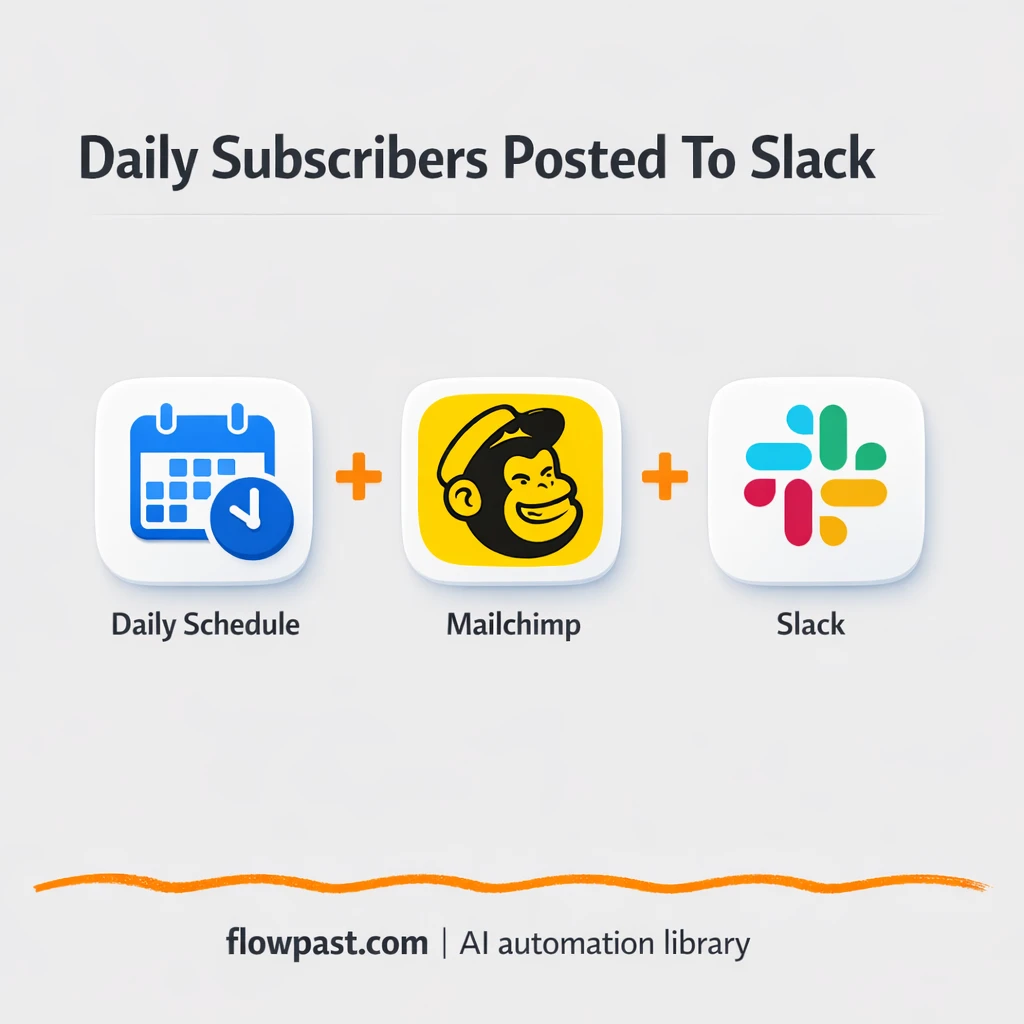

You check Mailchimp “real quick,” then get pulled into a dozen tabs, a couple of side questions, and suddenly it’s 20 minutes later. The number is easy to find, but the habit is messy. And it happens again tomorrow.
Marketing managers feel it when leadership asks for momentum mid-week. A founder sees it during busy launches. And the growth lead who lives in Slack? They just want Mailchimp Slack updates to show up automatically, once a day, without chasing anyone.
This n8n workflow posts your current Mailchimp subscriber count into a Slack channel daily. You’ll see how it works, what you need, what to watch out for, and a few smart ways to extend it later.
How This Automation Works
The full n8n workflow, from trigger to final output:
n8n Workflow Template: Mailchimp to Slack, daily subscriber count updates
flowchart LR

    subgraph sg0["Flow 1"]
        direction LR
        n0@{ icon: "mdi:cog", form: "rounded", label: "Start: Daily at 09:00", pos: "b", h: 48 }
        n1["<div style='background:#f5f5f5;padding:10px;border-radius:8px;display:inline-block;border:1px solid #e0e0e0'><img src='https://flowpast.com/wp-content/uploads/n8n-workflow-icons/mailchimp.dark.svg' width='40' height='40' /></div><br/>Mailchimp: Get Subscribers"]
        n2["<div style='background:#f5f5f5;padding:10px;border-radius:8px;display:inline-block;border:1px solid #e0e0e0'><img src='https://flowpast.com/wp-content/uploads/n8n-workflow-icons/slack.svg' width='40' height='40' /></div><br/>Daily Mailchimp Report Message"]
        n0 --> n1
        n1 --> n2
    end

    %% Styling
    classDef trigger fill:#e8f5e9,stroke:#388e3c,stroke-width:2px
    classDef ai fill:#e3f2fd,stroke:#1976d2,stroke-width:2px
    classDef aiModel fill:#e8eaf6,stroke:#3f51b5,stroke-width:2px
    classDef decision fill:#fff8e1,stroke:#f9a825,stroke-width:2px
    classDef database fill:#fce4ec,stroke:#c2185b,stroke-width:2px
    classDef api fill:#fff3e0,stroke:#e65100,stroke-width:2px
    classDef code fill:#f3e5f5,stroke:#7b1fa2,stroke-width:2px
    classDef disabled stroke-dasharray: 5 5,opacity: 0.5
    classDef customIcon fill:none,stroke:none
    class n1,n2 customIcon
The Problem: Daily subscriber tracking turns into busywork
Subscriber count is one of those “simple” numbers that still causes friction. Someone has to log into Mailchimp, pick the right audience, find the total, then paste it into Slack (or reply in a thread, or update a doc, or all three). It’s not hard, it’s just constant. And because it feels small, it slips. Then you get the worst version of the process: people asking for updates, someone scrambling, and everybody trusting a number they can’t verify in the moment.
It adds up fast. Here’s where it breaks down.
- Someone forgets to post the update, so the team makes decisions off yesterday’s number.
- Different people check different Mailchimp audiences, which creates “why don’t our numbers match?” conversations.
- Manual copy-paste invites little mistakes, like dropping a digit or grabbing the wrong field.
- You end up giving Mailchimp access to people who only need one metric.
The Solution: A daily Slack post with your Mailchimp subscriber count
This workflow runs on a schedule, pulls the current subscriber total from a specific Mailchimp audience list, and posts that number into Slack as a clean daily update. You set it once, pick the time (the default is 9:00 AM), and it quietly keeps your channel current. No more “can someone grab the latest count?” messages. No more bouncing into Mailchimp just to confirm if yesterday’s campaign moved the needle. It’s a small automation, honestly, but it changes the feel of how the team tracks growth because the metric shows up where the team already works.
The workflow starts with a Cron trigger that fires once per day. Then n8n calls Mailchimp to retrieve the total subscribers for your chosen List ID. Finally, Slack posts a formatted message to your chosen channel so the update is visible without logins, screenshots, or reminders.
What You Get: Automation vs. Results
| What This Workflow Automates | Results You’ll Get |
|---|---|
|
|
Example: What This Looks Like
Say you post one update per day into Slack for your team. Manually, it’s usually 10 minutes to log in, find the right audience, confirm the total, and write a message, plus another 10 minutes of interruptions (“wait, which list?”). Call it about 20 minutes a day. With this workflow, it’s closer to 5 minutes to set it up once, then the daily run is automatic at 9:00 AM and the message appears in your channel. Over a month, that’s roughly a full workday you don’t spend chasing a single metric.
What You’ll Need
- n8n instance (try n8n Cloud free)
- Self-hosting option if you prefer (Hostinger works well)
- Mailchimp for pulling subscriber totals from an audience.
- Slack to post the daily update to your channel.
- Mailchimp List ID (get it from Mailchimp Audience settings).
Skill level: Beginner. You’ll connect accounts, paste a List ID, and choose a Slack channel.
Don’t want to set this up yourself? Talk to an automation expert (free 15-minute consultation).
How It Works
A daily schedule kicks it off. n8n runs this workflow once per day using a Cron trigger (typically 9:00 AM, but you can change it).
Mailchimp is queried for the right audience. The workflow uses your Mailchimp credentials and a specific List ID so you’re not accidentally reporting the wrong list.
The subscriber total is turned into a readable message. Instead of raw API output, the workflow prepares a short summary so the Slack post is easy to scan during standups.
Slack receives the update in the channel you choose. The message lands where the team already collaborates, which means fewer logins and fewer “someone confirm this” threads.
You can easily modify the schedule time to match your reporting rhythm based on your needs. See the full implementation guide below for customization options.
Step-by-Step Implementation Guide
Step 1: Configure the Cron Trigger
Set up the scheduled trigger that runs the workflow daily.
- Add the Daily Schedule Trigger node to your canvas.
- In Trigger Times, add an item and set Hour to
9. - Confirm the workflow connects from Daily Schedule Trigger to Retrieve Mailchimp Subscribers.
Step 2: Connect Mailchimp
Pull your current subscriber totals from Mailchimp.
- Select the Retrieve Mailchimp Subscribers node.
- Set Operation to
getAll. - Verify the node outputs to Post Mailchimp Summary.
Step 3: Configure Slack Output
Send the daily subscriber count to Slack with a formatted message.
- Open the Post Mailchimp Summary node.
- Set Text to
=📊 Daily Mailchimp Report:|Total Subscribers: {{$json["_total"]}}. - Credential Required: Connect your slackApi credentials.
Step 4: Test and Activate Your Workflow
Validate the workflow end-to-end and enable it for daily execution.
- Click Execute Workflow to run the workflow manually.
- Confirm Retrieve Mailchimp Subscribers returns a total count and Post Mailchimp Summary posts the message to your Slack channel.
- Turn on the workflow using the Active toggle to run it ежедневно at 9:00.
Common Gotchas
- Mailchimp credentials can expire or need specific permissions. If things break, check your Mailchimp API access and the connected credential in n8n first.
- Slack posting can fail if the app isn’t allowed in that channel. Check the Slack app permissions and confirm the workflow is targeting the right channel name.
- Cron schedules can surprise you when time zones change. If the update is posting “late,” confirm the n8n instance time zone and the Cron node settings match your expectation.
Frequently Asked Questions
About 20 minutes if you already have access to Mailchimp and Slack.
No. You will connect your accounts and paste in your Mailchimp List ID.
Yes. n8n has a free self-hosted option and a free trial on n8n Cloud. Cloud plans start at $20/month for higher volume. You’ll also need to factor in Mailchimp costs based on your plan, but this workflow itself doesn’t require an extra paid API add-on.
Two options: n8n Cloud (managed, easiest setup) or self-hosting on a VPS. For self-hosting, Hostinger VPS is affordable and handles n8n well. Self-hosting gives you unlimited executions but requires basic server management.
Yes, but you’ll want to duplicate the Mailchimp “Get Subscribers” step for each audience and then post a combined message to Slack. Many teams also add a simple Google Sheets log so you can compare today vs. yesterday for “new subscribers in the last 24 hours.” You can even route the message through an If condition so milestone days (like crossing 10,000) get a different tone. Keep it simple at first, then layer on the extras once the daily post is reliable.
Usually it’s an API key or permission issue. Regenerate your Mailchimp API key, update the credential in n8n, and double-check you’re using the correct Audience List ID. If the List ID is wrong, the workflow can’t pull the total, even if your login is valid.
A daily run is trivial for n8n, and most teams can run this for years without hitting limits.
Often, yes, if you care about control and cost as you expand. n8n is great when you want to add logic later (like multiple lists, milestone messages, or writing results to Google Sheets) without rebuilding everything from scratch. You also have the option to self-host, which matters when you don’t want to count every task. Zapier or Make can be quicker for a tiny two-step setup, especially if your team already lives there. If you’re unsure, Talk to an automation expert and map it to your exact reporting needs.
Once this is running, subscriber count updates stop being a daily chore and become simple shared context. The workflow handles the repeatable part, so you can focus on the work that actually grows the list.
Need Help Setting This Up?
Our automation experts can build and customize this workflow for your specific needs. Free 15-minute consultation—no commitment required.
