


FTP to Google Drive, files stay shared and current

Someone exports a file to an FTP folder, someone else is supposed to grab it, and somehow the “latest version” turns into three different files with three different timestamps. It’s not hard work. It’s just never-ending work.
This FTP Drive sync hits marketing ops hard when reports fuel weekly decisions, but agency owners and small business teams feel it too when client files and exports drift out of date. You want one place to open, one file to trust, and no one chasing the person who “has the newest one.”
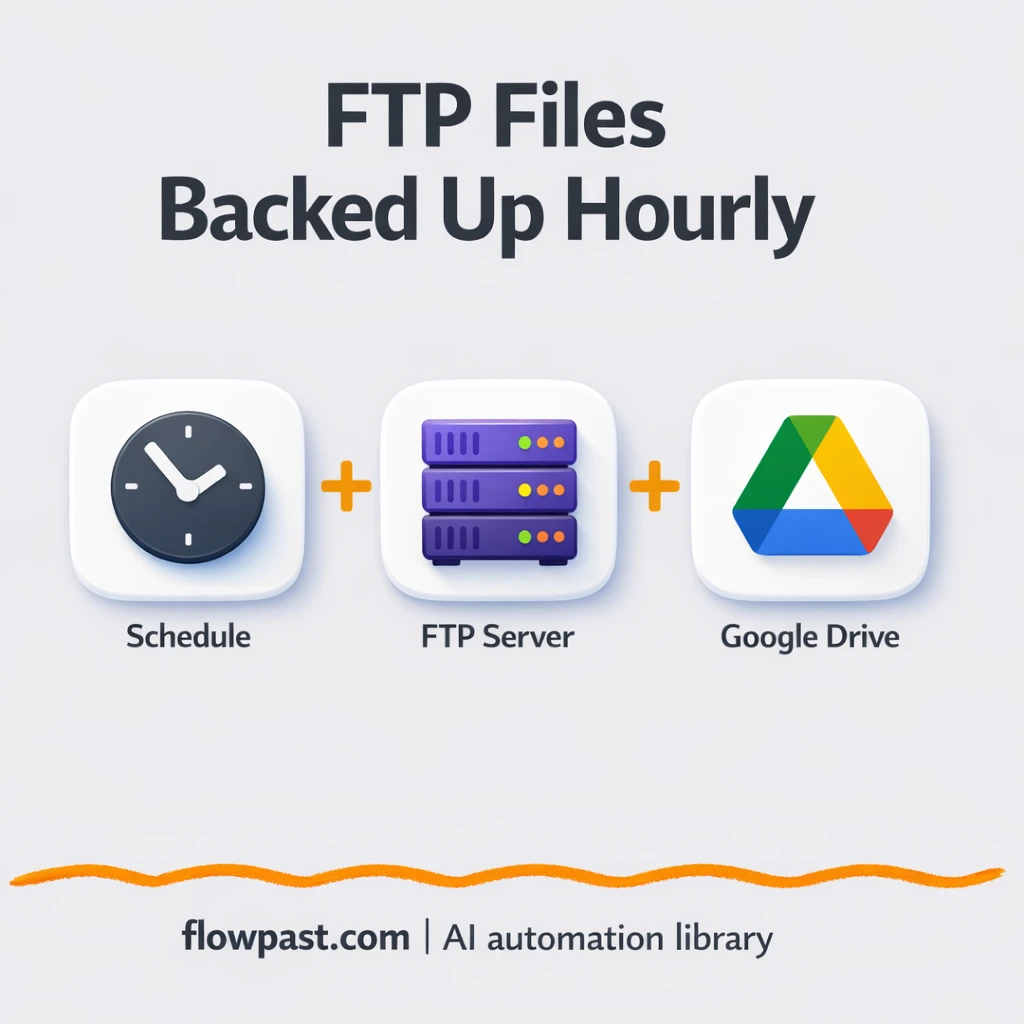
This workflow pulls files from an FTP folder on a schedule and drops them into Google Drive automatically. You’ll see how it works, what you need to run it, and the gotchas that usually trip people up.
How This Automation Works
See how this solves the problem:
n8n Workflow Template: FTP to Google Drive, files stay shared and current
flowchart LR

    subgraph sg0["Flow 1"]
        direction LR
        n0@{ icon: "mdi:cog", form: "rounded", label: "Start: Every Hour", pos: "b", h: 48 }
        n1@{ icon: "mdi:cog", form: "rounded", label: "FTP: List Files", pos: "b", h: 48 }
        n2@{ icon: "mdi:cog", form: "rounded", label: "FTP: Download File", pos: "b", h: 48 }
        n3@{ icon: "mdi:cog", form: "rounded", label: "Google Drive: Upload", pos: "b", h: 48 }
        n1 --> n2
        n0 --> n1
        n2 --> n3
    end

    %% Styling
    classDef trigger fill:#e8f5e9,stroke:#388e3c,stroke-width:2px
    classDef ai fill:#e3f2fd,stroke:#1976d2,stroke-width:2px
    classDef aiModel fill:#e8eaf6,stroke:#3f51b5,stroke-width:2px
    classDef decision fill:#fff8e1,stroke:#f9a825,stroke-width:2px
    classDef database fill:#fce4ec,stroke:#c2185b,stroke-width:2px
    classDef api fill:#fff3e0,stroke:#e65100,stroke-width:2px
    classDef code fill:#f3e5f5,stroke:#7b1fa2,stroke-width:2px
    classDef disabled stroke-dasharray: 5 5,opacity: 0.5
The Challenge: Keeping shared files current across FTP and Drive
FTP is still where a lot of “system-generated” files land. Nightly exports, POS logs, ERP reports, vendor drops, even the occasional mysterious CSV that nobody wants to touch. The problem is what happens next. Somebody has to remember to log in, find the right folder, download the right file, upload it to Drive, then tell the team where it is. Miss a run and your spreadsheet review is suddenly based on yesterday’s numbers. Upload the wrong copy and you’re debugging decisions, not data.
It adds up fast. Here’s where it usually breaks down in real teams.
- Manual FTP downloads turn into a recurring calendar task that people skip when they get busy.
- Files end up living in personal laptops or inboxes, so Drive stops being the “source of truth.”
- One overwritten file name can quietly wipe out a version you actually needed for audit or comparison.
- When a sync fails, you often find out days later, right when a client or exec asks for the latest report.
The Fix: Scheduled FTP downloads that land in Google Drive automatically
This n8n workflow runs on a schedule (hourly by default) and checks a folder on your FTP server for files. When it finds them, it downloads each file and uploads it into a specific Google Drive folder you control. From your team’s perspective, nothing “special” is happening. They just open Drive and the newest exports are already there, ready to review, share, or pull into Google Sheets. The big win is consistency: the workflow doesn’t forget, doesn’t get pulled into meetings, and doesn’t accidentally grab the wrong file from the wrong directory.
The workflow starts with a Cron schedule, then lists what’s in your FTP folder. Each file is fetched and sent straight into your chosen Drive folder (using the folder ID), so your shared workspace stays current without constant manual handoffs.
What Changes: Before vs. After
| What This Eliminates | Impact You’ll See |
|---|---|
|
|
Real-World Impact
Say your business drops 10 files a day into FTP (exports, logs, partner files). Manually, someone usually spends about 5 minutes finding the right folder, downloading, and uploading each one, which is roughly 50 minutes a day. With this workflow, the “human time” becomes close to zero after setup: the Cron trigger runs hourly, the files move in the background, and your team simply works from Drive. Even if you only avoid a couple missed uploads a month, the reduction in scramble is worth it.
Requirements
- n8n instance (try n8n Cloud free)
- Self-hosting option if you prefer (Hostinger works well)
- FTP server access for the folder you want synced
- Google Drive to store and share the synced files
- Google Drive Folder ID (copy it from the Drive folder URL)
Skill level: Beginner. You’ll connect accounts, paste a folder path, and select a Drive destination.
Need help implementing this? Talk to an automation expert (free 15-minute consultation).
The Workflow Flow
A schedule kicks things off. The Cron trigger runs every hour by default, but you can change it to daily, weekly, or whatever matches how often files appear on your FTP server.
The workflow checks your FTP folder. It lists the directory you specify (your {{FTP_FOLDER}} equivalent), then loops through the files it finds. If the folder is empty, nothing happens. Quiet is good.
Files get pulled down one-by-one. Each file is downloaded from FTP so n8n can pass the actual file contents forward, not just a filename. That’s what makes the Drive upload reliable.
Google Drive becomes the destination. The workflow uploads each file into the Drive folder you define with {{GDRIVE_FOLDER_ID}}, so the team always sees the newest items in the shared workspace.
You can easily modify file filtering to only sync certain extensions based on your needs. See the full implementation guide below for customization options.
Step-by-Step Implementation Guide
Step 1: Configure the Schedule Trigger
Set up the hourly schedule that initiates the file transfer pipeline.
- Add and open Hourly Schedule Trigger to define the workflow start time.
- Confirm the schedule is set for hourly execution in Hourly Schedule Trigger (this node uses the default cron schedule when left unchanged).
- Ensure the connection flow is Hourly Schedule Trigger → Retrieve FTP Directory.
Step 2: Connect FTP Access
Configure the FTP nodes to list and fetch files from your server.
- Open Retrieve FTP Directory and select the FTP operation you want (for example, list or search the target directory).
- Credential Required: Connect your FTP credentials in Retrieve FTP Directory.
- Open Fetch FTP File and configure it to download the specific file(s) returned by Retrieve FTP Directory.
- Credential Required: Connect your FTP credentials in Fetch FTP File.
- Verify the sequence is Retrieve FTP Directory → Fetch FTP File.
Step 3: Configure the Output Destination
Upload the fetched file to Google Drive as the final output.
- Open Upload to Drive Storage and set the destination folder and file handling options as needed.
- Credential Required: Connect your Google Drive credentials in Upload to Drive Storage.
- Ensure the final connection is Fetch FTP File → Upload to Drive Storage.
Step 4: Test and Activate Your Workflow
Validate the workflow end-to-end and turn it on for continuous hourly transfers.
- Click Execute Workflow to run a manual test from Hourly Schedule Trigger.
- Confirm that Retrieve FTP Directory returns files, Fetch FTP File downloads them, and Upload to Drive Storage uploads the file to Google Drive.
- When results are correct, toggle the workflow to Active to enable the hourly schedule.
Watch Out For
- Google Drive credentials can expire or need specific permissions. If things break, check the n8n credentials screen and confirm the connected Google account can access the target folder.
- If you’re moving bigger files, FTP downloads can be slower than you expect. Increase the schedule interval (or add a longer wait) if uploads sometimes start before downloads finish.
- Duplicate filenames are the silent killer here. If your FTP system reuses names like
report.csv, Drive may overwrite or create confusing duplicates, so add a rename step (timestamping) early.
Common Questions
Usually under an hour if you already have FTP and Drive access.
Yes. You’ll mostly paste in the FTP folder path and select the Google Drive folder ID.
Yes. n8n has a free self-hosted option and a free trial on n8n Cloud. Cloud plans start at $20/month for higher volume. You’ll also need to factor in FTP and Google Drive access (typically no extra per-transfer fee).
Two options: n8n Cloud (managed, easiest setup) or self-hosting on a VPS. For self-hosting, Hostinger VPS is affordable and handles n8n well. Self-hosting gives you unlimited executions but requires basic server management.
You can filter what gets synced by adding an IF check right after the FTP directory listing, for example only pulling .csv or .pdf files. If naming collisions are your problem, add a Set step before the Drive upload to rename files with a date stamp. Some teams also archive processed files by uploading to a second “Archive” Drive folder (or moving them on FTP) so the main folder stays clean.
Most of the time it’s incorrect FTP credentials or the wrong folder path. Double-check the host, port, username/password, and confirm the account can actually list the target directory. If it worked before and suddenly doesn’t, your FTP server may have changed IP rules or rotated credentials. Also check for special characters in passwords that weren’t saved correctly in n8n.
For most small teams, hourly syncs and dozens of files per day are fine.
Often, yes, because FTP handling tends to get awkward (and expensive) in simpler automation tools. n8n is more flexible when you need loops, file processing, and conditional logic without paying per tiny step. You can also self-host, which matters if you run frequent schedules or move a lot of files. Zapier or Make can still be fine for lightweight, low-volume transfers, especially if your team refuses to touch anything that looks “technical.” If you want a quick sanity check before building, Talk to an automation expert and we’ll help you pick the simplest option that won’t bite you later.
Once this is running, Drive stays current without someone playing courier between systems. Set it up, let it run, and get those “do we have the latest file?” messages out of your week.
Need Help Setting This Up?
Our automation experts can build and customize this workflow for your specific needs. Free 15-minute consultation—no commitment required.
