


YouTube to Google Docs, clean research notes fast
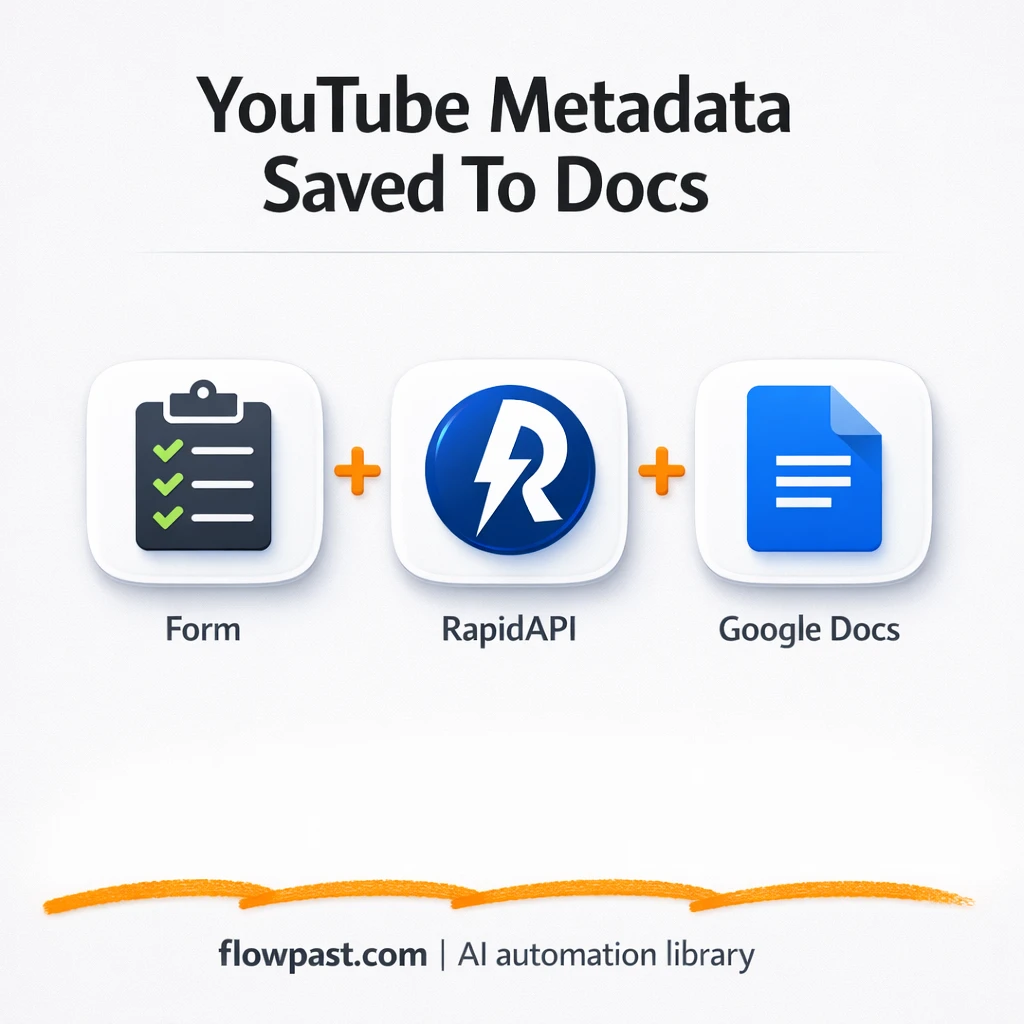

Researching YouTube videos sounds simple until you’re juggling 12 tabs, copying titles by hand, and still ending up with messy notes that don’t match what the video actually says.
This YouTube Docs automation hits marketers hard, but content strategists and consultants building competitor tear-downs feel it too. You send a link, and your doc gets a clean entry with the video title, key stats, and channel info. No fiddly formatting.
Below, you’ll see exactly how the workflow runs in n8n, what it produces, and what you need to set it up without turning it into a “project.”
How This Automation Works
The full n8n workflow, from trigger to final output:
n8n Workflow Template: YouTube to Google Docs, clean research notes fast
flowchart LR

    subgraph sg0["On form submission Flow"]
        direction LR
        n0["<div style='background:#f5f5f5;padding:10px;border-radius:8px;display:inline-block;border:1px solid #e0e0e0'><img src='https://flowpast.com/wp-content/uploads/n8n-workflow-icons/form.svg' width='40' height='40' /></div><br/>On form submission"]
        n1["<div style='background:#f5f5f5;padding:10px;border-radius:8px;display:inline-block;border:1px solid #e0e0e0'><img src='https://flowpast.com/wp-content/uploads/n8n-workflow-icons/httprequest.dark.svg' width='40' height='40' /></div><br/>YouTube Metadata"]
        n2["<div style='background:#f5f5f5;padding:10px;border-radius:8px;display:inline-block;border:1px solid #e0e0e0'><img src='https://flowpast.com/wp-content/uploads/n8n-workflow-icons/code.svg' width='40' height='40' /></div><br/>Reformat"]
        n3@{ icon: "mdi:cog", form: "rounded", label: "Append Data in Google Docs", pos: "b", h: 48 }
        n2 --> n3
        n1 --> n2
        n0 --> n1
    end

    %% Styling
    classDef trigger fill:#e8f5e9,stroke:#388e3c,stroke-width:2px
    classDef ai fill:#e3f2fd,stroke:#1976d2,stroke-width:2px
    classDef aiModel fill:#e8eaf6,stroke:#3f51b5,stroke-width:2px
    classDef decision fill:#fff8e1,stroke:#f9a825,stroke-width:2px
    classDef database fill:#fce4ec,stroke:#c2185b,stroke-width:2px
    classDef api fill:#fff3e0,stroke:#e65100,stroke-width:2px
    classDef code fill:#f3e5f5,stroke:#7b1fa2,stroke-width:2px
    classDef disabled stroke-dasharray: 5 5,opacity: 0.5
    class n0 trigger
    class n1 api
    class n2 code
    classDef customIcon fill:none,stroke:none
    class n0,n1,n2 customIcon
The Problem: YouTube Research Notes Get Messy Fast
You open a YouTube video because you need facts. Title, channel name, upload date, views, maybe likes and comments. Then you copy it into a doc. Then you paste the URL. Then you try to make it readable. Do that a few times and the “quick research” turns into an hour of cleanup. Worse, your notes don’t stay consistent, so searching later is painful, and comparing videos turns into guesswork.
It adds up fast. Here’s where it breaks down in real teams doing real research.
- Copy-pasting titles, stats, and channel info across multiple videos burns about 10 minutes per link, especially when you also clean formatting.
- Manual notes drift, so two people log the same kind of info in totally different formats.
- It’s easy to grab the wrong URL, the wrong channel, or outdated numbers, which means your “insights” start on a shaky foundation.
- When you want to scale research (20 videos for a campaign, 50 for a niche scan), you end up avoiding it because it feels like admin work.
The Solution: Turn Any YouTube URL Into a Clean Google Docs Entry
This workflow starts with a simple form submission that contains a YouTube link. n8n takes that URL and calls the YouTube Metadata API (through a secure HTTP request) to fetch the video details you normally copy by hand: title, description, views, likes, comments, duration, publish date, and channel info. Then a formatting step turns the raw JSON into a tidy, human-readable block. Finally, the workflow appends that block into a Google Doc you choose, so your research log stays organized and searchable.
The workflow begins when you submit a YouTube URL through an n8n form or webhook. It fetches metadata from the YouTube Metadata API, then reformats it into a consistent “video entry” you can skim. Google Docs gets updated automatically, so you can keep one running research document for a campaign, a client, or a niche.
What You Get: Automation vs. Results
| What This Workflow Automates | Results You’ll Get |
|---|---|
|
|
Example: What This Looks Like
Say you’re logging 20 competitor videos for a launch. Manually, you might spend about 10 minutes per video copying the title, channel, publish date, stats, URL, and then cleaning the doc. That’s roughly 3 hours of pure admin work. With this workflow, submitting each link takes about a minute, and the rest runs on its own in the background. You still review the notes, but you’re reviewing, not formatting.
What You’ll Need
- n8n instance (try n8n Cloud free)
- Self-hosting option if you prefer (Hostinger works well)
- YouTube Metadata API (RapidAPI) for reliable video metadata lookups
- Google Docs to store clean, searchable research entries
- RapidAPI key (get it from your RapidAPI dashboard)
Skill level: Beginner. You’ll connect one API key and one Google credential, then choose your target Google Doc.
Don’t want to set this up yourself? Talk to an automation expert (free 15-minute consultation).
How It Works
A form submission triggers the run. You paste a YouTube URL into a simple intake form (or a webhook-based form on your site), then n8n starts immediately.
The workflow requests metadata from the API. n8n sends the URL to the YouTube Metadata endpoint using your RapidAPI key. In return you get structured fields like title, description, view count, duration, publish date, and channel details.
The raw fields get reformatted into notes humans actually want. A code step reshapes the JSON into a consistent block you can skim during research. Honestly, this is the piece that keeps your doc from becoming a junk drawer.
Google Docs becomes your single research log. The final step appends the formatted entry into your chosen document, so every new link becomes a new “video entry” without you touching the doc.
You can easily modify the output template to include tags, campaign names, or a “why this matters” field based on your needs. See the full implementation guide below for customization options.
Step-by-Step Implementation Guide
Step 1: Configure the Form Trigger
The workflow starts when a user submits a form containing a YouTube video URL.
- Add the Form Intake Trigger node as the trigger.
- Set Form Title to
YouTube Metadata. - Set Form Description to
YouTube Metadata. - Under Form Fields, add a required field labeled
url.
url because Video Metadata Request reads {{ $json.url }}.Step 2: Connect the Metadata API Request
This step sends the submitted URL to the RapidAPI endpoint to retrieve video metadata.
- Add the Video Metadata Request node and connect it to Form Intake Trigger.
- Set URL to
https://youtube-metadata1.p.rapidapi.com/video_metadata.php. - Set Method to
POSTand enable Send Body. - Set Content Type to
multipart-form-dataand enable Send Headers. - In Body Parameters, set url to
{{ $json.url }}. - In Header Parameters, set x-rapidapi-host to
youtube-metadata1.p.rapidapi.com. - Set x-rapidapi-key to your API key (replace
[CONFIGURE_YOUR_API_KEY]).
[CONFIGURE_YOUR_API_KEY] with your RapidAPI key.Step 3: Set Up the Video Formatting Logic
The response data is transformed into a formatted, readable block of text for insertion into Google Docs.
- Add the Format Video Details node and connect it to Video Metadata Request.
- Paste the provided JavaScript into the Code field to generate
docContent. - Confirm the output creates
docContentwith the formatted title, description, stats, and URL.
Step 4: Configure Google Docs Output
The formatted content is inserted into a Google Doc.
- Add the Update Docs Record node and connect it to Format Video Details.
- Set Operation to
update. - Set Authentication to
serviceAccount. - In Actions, add an insert action with Text set to
{{ $json.docContent }}. - Credential Required: Connect your googleApi credentials.
Step 5: Test and Activate Your Workflow
Verify the workflow processes a form submission end-to-end.
- Click Test workflow in n8n.
- Open the Form Intake Trigger test URL and submit a valid YouTube video link.
- Confirm Video Metadata Request returns video data and Format Video Details outputs
docContent. - Check the target Google Doc to ensure Update Docs Record inserted the formatted content.
- When successful, toggle the workflow to Active for production use.
Common Gotchas
- YouTube Metadata API (RapidAPI) credentials can expire or be tied to the wrong app. If things break, check your RapidAPI dashboard subscription and key status first.
- If you’re using Wait nodes or external rendering, processing times vary. Bump up the wait duration if downstream nodes fail on empty responses.
- Google Docs permissions trip people up. If the doc won’t update, confirm the Google account used in n8n can edit that specific document and that the Document ID is correct.
Frequently Asked Questions
About 30 minutes if you already have your accounts ready.
No. You’ll paste in an API key and connect Google Docs once.
Yes. n8n has a free self-hosted option and a free trial on n8n Cloud. Cloud plans start at $20/month for higher volume. You’ll also need to factor in RapidAPI costs for the YouTube Metadata API (often a free tier, then paid as volume grows).
Two options: n8n Cloud (managed, easiest setup) or self-hosting on a VPS. For self-hosting, Hostinger VPS is affordable and handles n8n well. Self-hosting gives you unlimited executions but requires basic server management.
Yes, and it’s a practical tweak. You can edit the “Format Video Details” step to include a “Tags” line, a campaign label, or even a short notes field pulled from the form submission. Many teams also add a date header (daily or weekly) so the Google Doc reads like a research journal. If you’d rather store tags in a spreadsheet, you can swap the final Google Docs append step for a Google Sheets “add row” action.
Usually it’s an invalid RapidAPI key or the subscription tier doesn’t include the endpoint you’re calling. Double-check the API host value and confirm the key in n8n matches what’s shown in your RapidAPI dashboard. If it works in RapidAPI’s testing console but fails in n8n, look for missing headers in the HTTP request node. Rate limits can also show up once you start processing lots of URLs back-to-back.
On n8n Cloud Starter, you can handle a few thousand executions per month, which is plenty for most research workflows. If you self-host, there’s no execution limit, but you’ll still be constrained by your server resources and RapidAPI rate limits. In practice, this workflow can comfortably log many links per day because each run is a single request plus a doc append.
It depends on how picky you are about formatting and control. Zapier and Make can absolutely send a YouTube URL somewhere, but this workflow’s “format then append” pattern is where n8n tends to shine because you can shape the output exactly how you want. Self-hosting is also a big deal if you expect higher volume, since you’re not paying per tiny step the same way. If you only need a simple “URL goes in, title comes out” setup, Zapier might feel faster. Talk to an automation expert if you want a quick recommendation for your specific stack.
Once this is running, YouTube links stop being busywork and start being usable inputs. Set it up once, then keep your research doc clean without thinking about it.
Need Help Setting This Up?
Our automation experts can build and customize this workflow for your specific needs. Free 15-minute consultation—no commitment required.
