


Google Sheets + Drive: dedupe leads, share one clean file
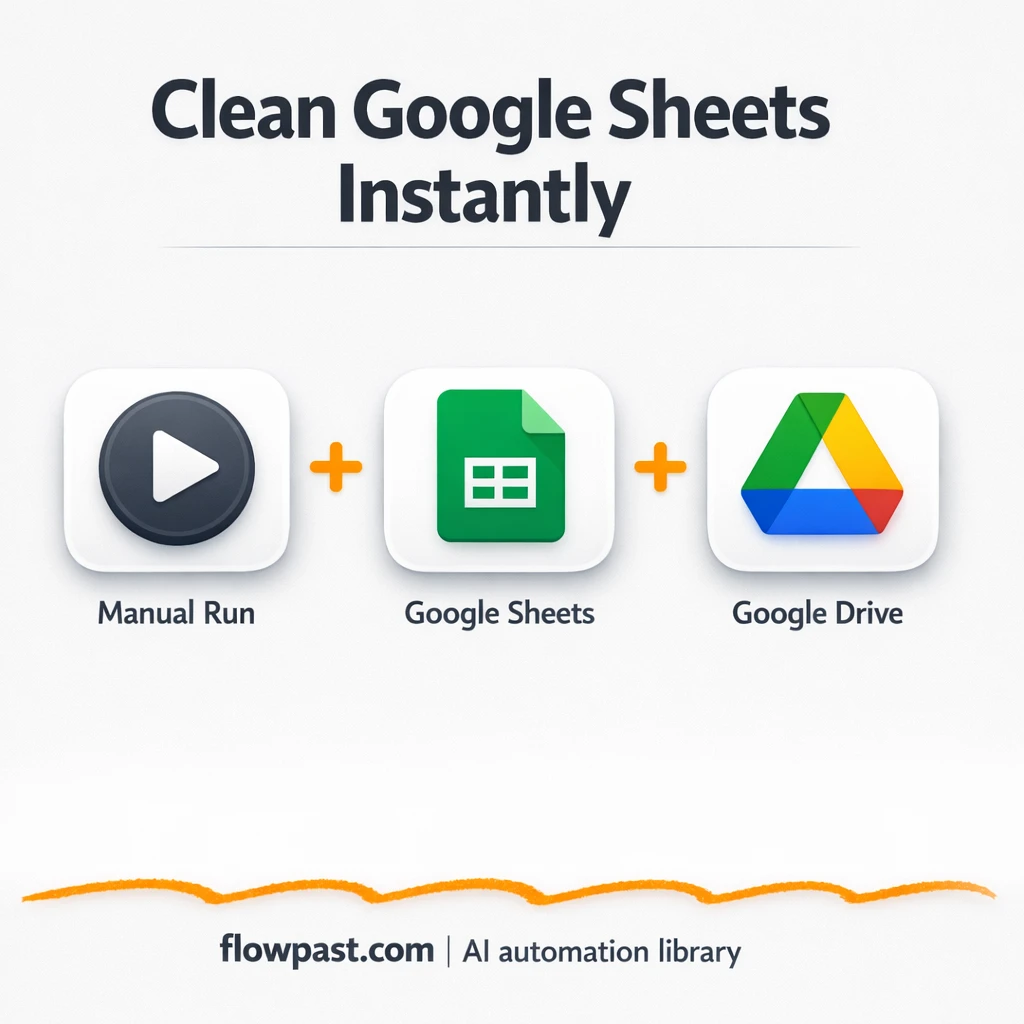

Duplicate leads don’t look like a big deal. Until you’re staring at a “master” sheet nobody trusts, your team is arguing over which row is correct, and you’re one bad import away from emailing the same prospect twice.
This is the kind of mess marketing ops runs into first, but agency owners and small sales teams get dragged into it fast. With this Sheets dedupe automation, you keep one clean list and one shareable file in Drive, so you can actually use your data again.
Below, you’ll see exactly what the workflow does, what you need, and what “cleaning” a lead list looks like when it takes seconds instead of an afternoon.
How This Automation Works
The full n8n workflow, from trigger to final output:
n8n Workflow Template: Google Sheets + Drive: dedupe leads, share one clean file
flowchart LR

    subgraph sg0["When clicking ‘Execute workflow’ Flow"]
        direction LR
        n0@{ icon: "mdi:play-circle", form: "rounded", label: "When clicking ‘Execute workf..", pos: "b", h: 48 }
        n1@{ icon: "mdi:database", form: "rounded", label: "Get row(s) in sheet", pos: "b", h: 48 }
        n2@{ icon: "mdi:cog", form: "rounded", label: "Remove Duplicates", pos: "b", h: 48 }
        n3@{ icon: "mdi:cog", form: "rounded", label: "Convert to File", pos: "b", h: 48 }
        n4@{ icon: "mdi:cog", form: "rounded", label: "Update file", pos: "b", h: 48 }
        n3 --> n4
        n2 --> n3
        n1 --> n2
        n0 --> n1
    end

    %% Styling
    classDef trigger fill:#e8f5e9,stroke:#388e3c,stroke-width:2px
    classDef ai fill:#e3f2fd,stroke:#1976d2,stroke-width:2px
    classDef aiModel fill:#e8eaf6,stroke:#3f51b5,stroke-width:2px
    classDef decision fill:#fff8e1,stroke:#f9a825,stroke-width:2px
    classDef database fill:#fce4ec,stroke:#c2185b,stroke-width:2px
    classDef api fill:#fff3e0,stroke:#e65100,stroke-width:2px
    classDef code fill:#f3e5f5,stroke:#7b1fa2,stroke-width:2px
    classDef disabled stroke-dasharray: 5 5,opacity: 0.5
    class n0 trigger
    class n1 database
The Problem: Duplicate leads keep coming back
Lead lists get duplicates for boring reasons. You import from a new source, a form captures the same person twice, a scraper returns a slightly different row, or two teammates “fix” the same record in different tabs. Then the damage spreads. One campaign audience is built from the messy sheet, another from someone’s exported CSV, and now you have multiple versions of the truth. Honestly, the worst part isn’t the duplicates. It’s the doubt. You stop trusting the list, which makes every next task slower.
It adds up fast. Here’s where it breaks down in real teams:
- You waste about 1–2 hours each week hunting repeats and comparing rows side by side.
- Duplicates slip into outreach, so prospects get double-tapped and replies get awkward.
- Reporting gets noisy because “leads” includes repeats, which makes channel performance look better or worse than it is.
- People stop collaborating in one sheet and start making private copies, which makes the next cleanup even worse.
The Solution: Deduplicate your Sheet, then update one Drive file
This n8n workflow cleans a Google Sheet by removing duplicate rows, then publishes the cleaned dataset as a file in Google Drive so everyone shares the same output. You trigger it manually when you want a cleanup (after an import, before a campaign, at the end of the week). The workflow pulls every row from your chosen Sheet, finds duplicates using a specific field (in this case, profileUrl), and keeps only one version of each unique record. After that, it converts the cleaned data into a file format your team can easily share, and uploads or replaces the file in Google Drive. No exporting, re-importing, or copy-paste gymnastics.
The workflow starts with a manual run, then fetches all rows from Google Sheets. Next, it dedupes by profileUrl, generates a clean file, and revises the Drive file so the shared link always points to the latest “trusted” list.
What You Get: Automation vs. Results
| What This Workflow Automates | Results You’ll Get |
|---|---|
|
|
Example: What This Looks Like
Say you import a fresh lead list twice a week and you’re working with about 5,000 rows. Manually, you might spend 45 minutes filtering, spot-checking, and deleting duplicates, then another 15 minutes exporting and re-uploading a “clean” version to Drive. That’s roughly 2 hours a week. With this workflow, you click Execute, wait a few seconds for the sheet to be fetched and deduped, and your Drive file gets replaced automatically. The “after” time is basically the click.
What You’ll Need
- n8n instance (try n8n Cloud free)
- Self-hosting option if you prefer (Hostinger works well)
- Google Sheets as the source lead database.
- Google Drive to store the cleaned shareable file.
- Google account access (authorize Sheets and Drive in n8n).
Skill level: Beginner. You’ll select the Sheet, confirm the dedupe field (profileUrl), and connect Google credentials.
Don’t want to set this up yourself? Talk to an automation expert (free 15-minute consultation).
How It Works
Manual cleanup trigger. You run the workflow when it makes sense for your process, like after importing new leads or before launching outreach.
Sheet rows are pulled in one go. n8n reads all rows from your chosen Google Sheet tab so the workflow can evaluate duplicates across the full dataset, not just the newest entries.
Duplicates are removed using a single “truth” field. The workflow checks the profileUrl field and keeps one unique row per URL. This is ideal for LinkedIn-style datasets where the URL is more reliable than name spelling or company formatting.
A clean file is generated and pushed to Drive. The cleaned list is converted into a file and your Google Drive file is revised so anyone with the link sees the newest deduped version.
You can easily modify the dedupe field from profileUrl to email (or another unique key) based on your needs. See the full implementation guide below for customization options.
Step-by-Step Implementation Guide
Step 1: Configure the Manual Trigger
This workflow starts manually so you can validate your deduplication logic before running it in production.
- Add a Manual Run Trigger node as the starting point of the workflow.
- Keep the default settings in Manual Run Trigger since no parameters are required.
- Connect Manual Run Trigger to Fetch Sheet Rows.
Step 2: Connect Google Sheets
Pull the source records from your Google Sheet before cleaning duplicates.
- Add Fetch Sheet Rows and set Document to
[YOUR_ID](cached name:Digital Marketing Agencies). - Set Sheet Name to
[YOUR_ID](cached name:With Email/Unused). - Credential Required: Connect your googleSheetsOAuth2Api credentials.
profileUrl column because the deduplication step relies on it.Step 3: Set Up the Deduplication Logic
Remove duplicate records based on the unique profile URL field.
- Add Eliminate Duplicate Records after Fetch Sheet Rows.
- Set Compare to
selectedFields. - Set Fields To Compare to
profileUrl.
profileUrl is missing or empty in some rows, duplicates may not be removed as expected. Validate your source data.Step 4: Configure the Output to Google Drive
Convert the cleaned dataset to a file and update the existing Drive file.
- Add Generate File Output and connect it after Eliminate Duplicate Records.
- Add Revise Drive File and connect it after Generate File Output.
- In Revise Drive File, set Operation to
update. - Enable Change File Content (set to
true). - Set File to
[YOUR_ID](cached name:Digital Marketing Agencies). - Credential Required: Connect your googleDriveOAuth2Api credentials.
Step 5: Test and Activate Your Workflow
Run a manual test to verify the deduplication and file update behavior, then activate the workflow.
- Click Execute Workflow from Manual Run Trigger to test the full flow.
- Confirm that Eliminate Duplicate Records outputs fewer items when duplicates exist.
- Verify that Revise Drive File updates the target file with the cleaned data.
- Once confirmed, toggle the workflow to Active for production use.
Common Gotchas
- Google Sheets credentials can expire or need specific permissions. If things break, check the n8n credential connection status and Google account access first.
- If you’re using Wait nodes or external rendering, processing times vary. Bump up the wait duration if downstream nodes fail on empty responses.
- Google Drive uploads can fail if the target folder is restricted or the workflow is trying to revise a file you don’t own. Confirm the Drive file ID and sharing settings match the account connected in n8n.
Frequently Asked Questions
About 20–30 minutes once your Google accounts are connected.
No. You’ll mainly select the Sheet and confirm the unique field used for deduping.
Yes. n8n has a free self-hosted option and a free trial on n8n Cloud. Cloud plans start at $20/month for higher volume. You’ll also need to factor in Google Workspace costs if your team uses paid accounts (the workflow itself doesn’t require paid APIs).
Two options: n8n Cloud (managed, easiest setup) or self-hosting on a VPS. For self-hosting, Hostinger VPS is affordable and handles n8n well. Self-hosting gives you unlimited executions but requires basic server management.
Yes, but choose the field carefully. You can switch the dedupe key from profileUrl to email in the Eliminate Duplicate Records step, as long as your Sheet has a consistently filled email column. Common customizations include normalizing emails to lowercase, trimming whitespace before comparison, and keeping the newest row when duplicates exist.
Usually it’s expired Google authorization or the connected account no longer has access to the spreadsheet. Reconnect the Google Sheets credential in n8n, then confirm the spreadsheet is shared with that same Google user. If it still fails, check that the Sheet ID and tab name match what you set in the Fetch Sheet Rows node, because a renamed tab can look like a “permissions” problem.
For most lead lists, thousands of rows is fine, and the workflow typically finishes in under a minute.
Often, yes, because deduping tends to need “read a lot, compare, then write back” logic that can get expensive or clunky in simpler tools. n8n is comfortable handling bulk rows, and you can self-host for unlimited executions if you run cleanups frequently. Zapier or Make can still work if your list is small and you’re doing a light-touch cleanup, but many teams hit limits once they scale imports. If you’re not sure, Talk to an automation expert and you’ll get a straight recommendation based on your volume.
Clean leads are usable leads. Run the workflow, share one Drive link, and move on to work that actually grows revenue.
Need Help Setting This Up?
Our automation experts can build and customize this workflow for your specific needs. Free 15-minute consultation—no commitment required.
