


LinkedIn to Google Sheets, hiring signals tracked
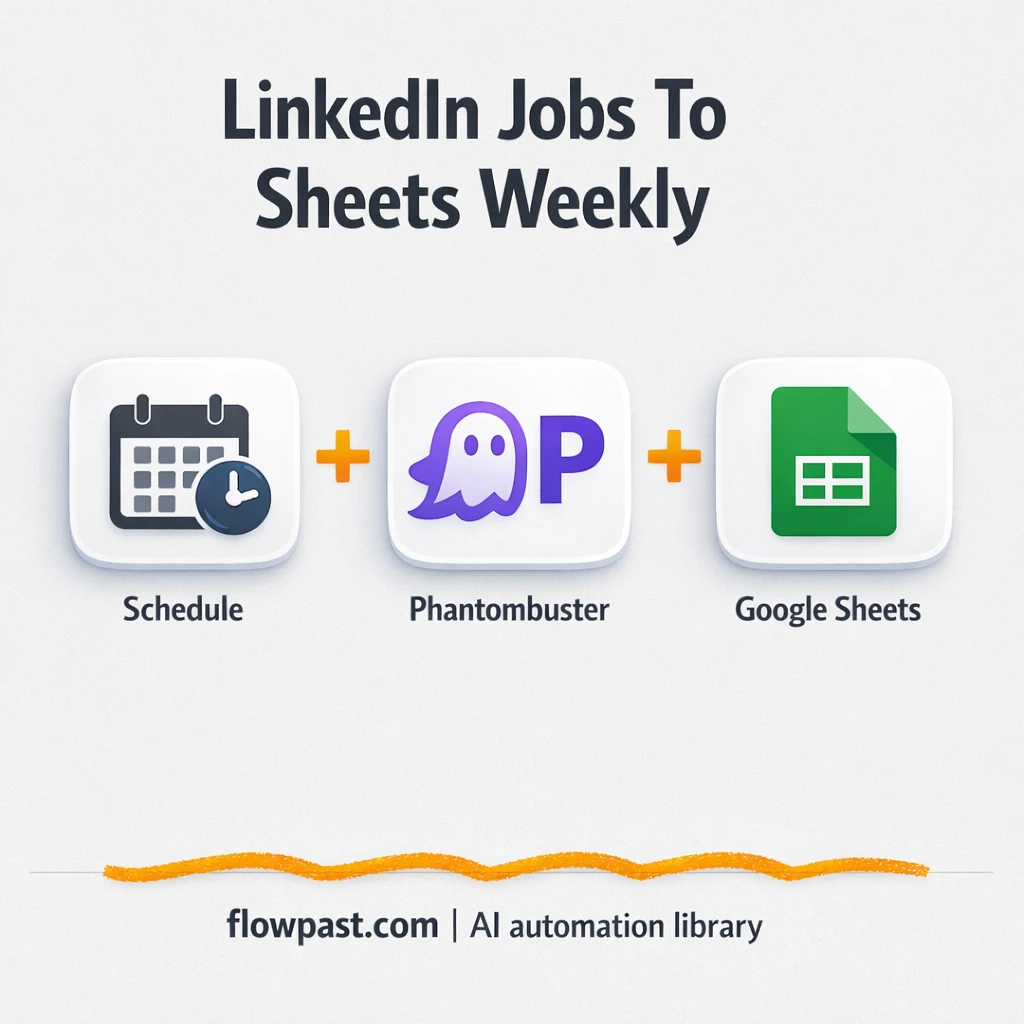

Tracking competitor hiring on LinkedIn sounds simple until you’re copy-pasting job links into a spreadsheet at 8:30 a.m. on a Monday. Miss a week, and you’ve lost the story.
This LinkedIn job tracking automation hits marketing leads doing market research hardest, but recruiters and ops folks doing competitive intel feel it too. You get a clean, searchable sheet of job postings, updated on a schedule, without babysitting scrapes.
Below, you’ll see exactly how the workflow runs, what it captures, and what “set it up once” really looks like in practice.
How This Automation Works
The full n8n workflow, from trigger to final output:
n8n Workflow Template: LinkedIn to Google Sheets, hiring signals tracked
flowchart LR

    subgraph sg0["⏰Schedule Flow"]
        direction LR
        n0["<div style='background:#f5f5f5;padding:10px;border-radius:8px;display:inline-block;border:1px solid #e0e0e0'><img src='https://flowpast.com/wp-content/uploads/n8n-workflow-icons/httprequest.dark.svg' width='40' height='40' /></div><br/>🚀 Trigger Phantombuster Scra.."]
        n1@{ icon: "mdi:cog", form: "rounded", label: "⏳ Wait for Scraper to Finish", pos: "b", h: 48 }
        n2["<div style='background:#f5f5f5;padding:10px;border-radius:8px;display:inline-block;border:1px solid #e0e0e0'><img src='https://flowpast.com/wp-content/uploads/n8n-workflow-icons/httprequest.dark.svg' width='40' height='40' /></div><br/>📦 Fetch Scraped CSV Link"]
        n3@{ icon: "mdi:play-circle", form: "rounded", label: "⏰Schedule Trigger", pos: "b", h: 48 }
        n4@{ icon: "mdi:database", form: "rounded", label: "📄Read Companies Sheet", pos: "b", h: 48 }
        n5@{ icon: "mdi:swap-vertical", form: "rounded", label: "🛠️Format Job Data", pos: "b", h: 48 }
        n6@{ icon: "mdi:database", form: "rounded", label: "📊Write to Results Sheet", pos: "b", h: 48 }
        n3 --> n4
        n5 --> n6
        n4 --> n0
        n2 --> n5
        n1 --> n2
        n0 --> n1
    end

    %% Styling
    classDef trigger fill:#e8f5e9,stroke:#388e3c,stroke-width:2px
    classDef ai fill:#e3f2fd,stroke:#1976d2,stroke-width:2px
    classDef aiModel fill:#e8eaf6,stroke:#3f51b5,stroke-width:2px
    classDef decision fill:#fff8e1,stroke:#f9a825,stroke-width:2px
    classDef database fill:#fce4ec,stroke:#c2185b,stroke-width:2px
    classDef api fill:#fff3e0,stroke:#e65100,stroke-width:2px
    classDef code fill:#f3e5f5,stroke:#7b1fa2,stroke-width:2px
    classDef disabled stroke-dasharray: 5 5,opacity: 0.5
    class n3 trigger
    class n4,n6 database
    class n0,n2 api
    classDef customIcon fill:none,stroke:none
    class n0,n2 customIcon
The Problem: LinkedIn hiring signals get messy fast
Hiring pages change every day, and LinkedIn job postings disappear, move, or get reposted under slightly different titles. So you start with “quick research” and end up in a weekly routine: open 15 company pages, scan openings, copy links, paste descriptions, and try to remember what was new versus what you already logged. Then someone asks, “Are they building a sales team or just replacing churn?” and you realize your notes aren’t searchable, dates are missing, and half the context lives in browser tabs. It’s not hard work. It’s the kind of work that drains attention.
The friction compounds. Here’s where it breaks down.
- You lose consistency because each person logs postings a little differently, so trend analysis becomes guesswork.
- Manual tracking eats about 2 hours a week once your target list grows past 20 companies.
- Jobs get missed when research depends on memory, calendar reminders, and “I’ll do it later.”
- It’s hard to share insights when the raw data is scattered, incomplete, or buried in Slack messages.
The Solution: A weekly LinkedIn scrape that logs clean rows
This workflow runs every Monday morning and does the boring part for you. It starts by reading a “Companies Sheet” in Google Sheets, then filters to only the companies you’ve marked as Pending. For those targets, it launches a Phantombuster scrape via an HTTP request using the LinkedIn URLs you already store in your sheet. After a short wait to let the scrape complete, it grabs the output CSV link, pulls the results, and maps each job posting into a consistent structure. Finally, it appends those rows into a “Job Results” sheet, including a scrape date, so you can compare week-over-week activity without guessing.
The workflow starts with a scheduled trigger at 9:00 AM on Monday. Then it reads your target company queue, runs the scrape, and formats the output into fields you can actually filter and pivot. The final result is a growing log you can search, sort, and share.
What You Get: Automation vs. Results
| What This Workflow Automates | Results You’ll Get |
|---|---|
|
|
Example: What This Looks Like
Say you track 25 competitors and you usually check each LinkedIn company page for about 5 minutes. That’s roughly 2 hours every week, plus the extra time to clean up titles, locations, and duplicate roles. With this workflow, the “work” is basically maintaining your company list (maybe 10 minutes when you add or remove targets). The scrape runs Monday at 9:00 AM, waits about 3 minutes, and your “Job Results” tab fills in on its own. You get the same signal, without the weekly scramble.
What You’ll Need
- n8n instance (try n8n Cloud free)
- Self-hosting option if you prefer (Hostinger works well)
- Google Sheets to store company queue and job results.
- Phantombuster to scrape LinkedIn job postings.
- Phantombuster API key (get it from your Phantombuster account settings)
Skill level: Beginner. You’ll connect accounts, paste an API key, and confirm your sheet column names match the workflow.
Don’t want to set this up yourself? Talk to an automation expert (free 15-minute consultation).
How It Works
A Monday-morning schedule kicks things off. At 9:00 AM every Monday, n8n starts the run automatically, so this doesn’t rely on reminders or someone being “on it” that week.
Your company list gets pulled from Google Sheets. The workflow reads your “Companies Sheet” and filters to the rows marked Pending, which keeps the scrape focused on the targets you actually want to monitor right now.
Phantombuster handles the LinkedIn scrape. n8n sends an HTTP request to launch the Phantombuster agent using the LinkedIn URLs from your sheet, then waits about 3 minutes for the scrape to finish before requesting the output link.
Results get cleaned and appended into a “Job Results” sheet. Each posting is mapped into consistent fields (company name, title, description, link, date posted, location, employment type), then added as new rows with a scrape date so you can build history over time.
You can easily modify the company filters to include “Active” targets, or swap the output from Google Sheets into Excel 365 based on your needs. See the full implementation guide below for customization options.
Step-by-Step Implementation Guide
Step 1: Configure the Schedule Trigger
Set up the workflow schedule so it runs automatically each week.
- Add and open Scheduled Workflow Kickoff.
- Set the cron expression in Rule to
0 9 * * 1to run every Monday at 9:00 AM.
Step 2: Connect Google Sheets
Pull the company queue from Google Sheets and prepare the input for the scrape.
- Open Retrieve Company Queue and select the Document named
Companies Listwith ID[YOUR_ID]. - Set Sheet Name to
Sheet1(gid=0) and filter Status equalsPending. - Credential Required: Connect your
googleSheetsOAuth2Apicredentials in Retrieve Company Queue.
Step 3: Set Up Phantombuster Requests and Wait
Launch the Phantombuster agent, pause for results, then fetch the output link.
- In 🚀 Launch Phantombuster Crawl, set URL to
=https://api.phantombuster.com/api/v2/agents/launchand Method toPOST. - Set JSON Body to
={
  "id": "[YOUR_ID]",
  "argument": {
    "profileUrls": ["{{ $json.LinkedIn }}"]
  }
}
and ensure Send Body is enabled. - Configure Header Parameters with
X-Phantombuster-Key-1=[CONFIGURE_YOUR_API_KEY]andContent-Type=application/json. - In ⏳ Pause for Scrape, set Unit to
minutesand Amount to3. - In 📦 Get Scrape Output Link, set URL to
=https://api.phantombuster.com/api/v2/containers/fetch-output?id={{ $('🚀 Launch Phantombuster Crawl').item.json.containerId }}and add the headerX-Phantombuster-Key-1=[CONFIGURE_YOUR_API_KEY].
Execution Flow: Retrieve Company Queue → 🚀 Launch Phantombuster Crawl → ⏳ Pause for Scrape → 📦 Get Scrape Output Link.
Step 4: Map Fields and Append Results
Normalize the scraped data and write it to the results sheet.
- Open 🛠️ Map Job Fields and ensure the fields include
Company Name,Job Title,Job Description,Job Link,Date Posted,Location, andEmployment Type. - Open 📊 Append Results Sheet and set Operation to
append. - Set Sheet Name to
Job Resultsand Document ID to[YOUR_ID]. - Map columns using expressions:
={{$json["Job Link"]}},={{$json["Location"]}},={{$json["Job Title"]}},={{$json["Date Posted"]}},={{$json["Company Name"]}},={{new Date().toISOString().split('T')[0]}},={{$json["Employment Type"]}},={{$json["Job Description"]}}. - Credential Required: Connect your
googleSheetsOAuth2Apicredentials in 📊 Append Results Sheet.
Execution Flow: 📦 Get Scrape Output Link → 🛠️ Map Job Fields → 📊 Append Results Sheet.
Step 5: Test and Activate Your Workflow
Run a manual test to confirm data flows from the queue to the results sheet.
- Click Execute Workflow and verify that Retrieve Company Queue returns a row with
Status=Pending. - Check that 🚀 Launch Phantombuster Crawl returns a
containerIdand 📦 Get Scrape Output Link returns a valid output link. - Confirm that 📊 Append Results Sheet adds a new row in the
Job Resultssheet with populated fields and aScraped Date. - Toggle the workflow to Active to enable the scheduled run in production.
Common Gotchas
- Phantombuster credentials can expire or need specific permissions. If things break, check your Phantombuster API key in n8n’s Credentials first.
- If you’re using Wait nodes or external rendering, processing times vary. Bump up the wait duration if downstream nodes fail on empty responses.
- Google Sheets appends can quietly fail when columns change. If you rename headers in “Job Results,” revisit the field mapping so the right values still land in the right places.
Frequently Asked Questions
About 30 minutes if your Google Sheet and Phantombuster account are ready.
No. You’ll connect Google Sheets, add your Phantombuster API key, and match a few field names.
Yes. n8n has a free self-hosted option and a free trial on n8n Cloud. Cloud plans start at $20/month for higher volume. You’ll also need to factor in Phantombuster usage costs based on your plan.
Two options: n8n Cloud (managed, easiest setup) or self-hosting on a VPS. For self-hosting, Hostinger VPS is affordable and handles n8n well. Self-hosting gives you unlimited executions but requires basic server management.
Yes, and it’s straightforward. Change the schedule trigger from weekly to monthly, then adjust your company filter so you don’t keep re-scraping the same “Pending” rows forever. Common tweaks include writing to a new tab per month, adding a “Competitor Segment” column in the mapping step, and tagging jobs by department using a simple rule in the field-mapping node.
Usually it’s an expired or incorrect API key, so regenerate it in Phantombuster and update the credential in n8n. It can also fail if your agent ID changed, the workspace doesn’t have permission to run that agent, or your account hit a usage limit. If the “launch crawl” call works but the output fetch returns nothing, increase the wait time so the scrape has time to finish.
A lot, as long as you respect your scraper limits. On n8n Cloud, your monthly execution limit depends on your plan, and each weekly run counts as a small handful of executions. If you self-host, you’re mostly constrained by your server and how much Phantombuster can scrape reliably in one go, so teams often batch by running “Pending” companies in smaller groups.
Often, yes. This workflow relies on HTTP requests, waiting for an external scrape to complete, and then mapping fields cleanly before appending to Sheets, and n8n handles that kind of multi-step logic without turning into a pricing headache. Zapier and Make can still do it, but you may end up stitching together extra steps for the “wait and fetch” behavior. If your process is simply “new row in a sheet → send a Slack message,” they’re fine. For competitive scraping workflows, n8n is usually the calmer choice, honestly. Talk to an automation expert if you’re not sure which fits.
Once this is running, you stop collecting hiring signals and start using them. The sheet stays clean, the timeline stays intact, and Monday morning feels a lot less chaotic.
Need Help Setting This Up?
Our automation experts can build and customize this workflow for your specific needs. Free 15-minute consultation—no commitment required.
