


BananaAPI to Google Sheets, image links ready to use
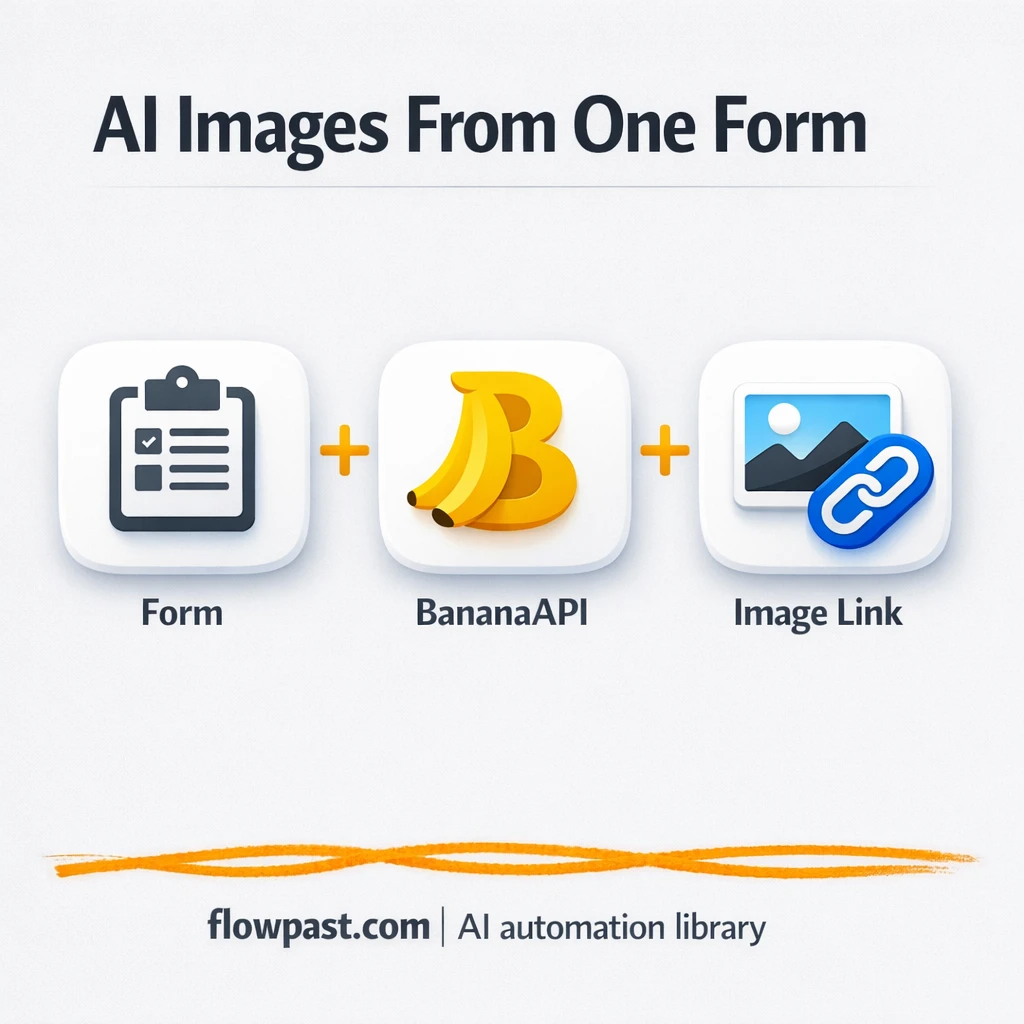

Generating AI images is easy. Managing the requests, retries, and final links is the part that quietly wastes your day.
This BananaAPI Sheets automation hits marketers first because approvals live in spreadsheets, but agency owners and content teams feel it too. You get one clean row per request, plus a final image URL you can share without digging through tabs, screenshots, or chat threads.
You’ll see how the workflow collects prompts, submits them to BananaAPI, waits and checks status until the job completes, then outputs an image link that’s ready to log and hand off.
How This Automation Works
The full n8n workflow, from trigger to final output:
n8n Workflow Template: BananaAPI to Google Sheets, image links ready to use
flowchart LR

    subgraph sg0["Form — Get Prompt Flow"]
        direction LR
        n0["<div style='background:#f5f5f5;padding:10px;border-radius:8px;display:inline-block;border:1px solid #e0e0e0'><img src='https://flowpast.com/wp-content/uploads/n8n-workflow-icons/form.svg' width='40' height='40' /></div><br/>Form — Get Prompt"]
        n1["<div style='background:#f5f5f5;padding:10px;border-radius:8px;display:inline-block;border:1px solid #e0e0e0'><img src='https://flowpast.com/wp-content/uploads/n8n-workflow-icons/httprequest.dark.svg' width='40' height='40' /></div><br/>Submit — Banana API"]
        n2@{ icon: "mdi:cog", form: "rounded", label: "Wait 5s", pos: "b", h: 48 }
        n3["<div style='background:#f5f5f5;padding:10px;border-radius:8px;display:inline-block;border:1px solid #e0e0e0'><img src='https://flowpast.com/wp-content/uploads/n8n-workflow-icons/httprequest.dark.svg' width='40' height='40' /></div><br/>Check Status"]
        n4@{ icon: "mdi:cog", form: "rounded", label: "Wait 5s (loop)", pos: "b", h: 48 }
        n5@{ icon: "mdi:swap-vertical", form: "rounded", label: "Return Links", pos: "b", h: 48 }
        n6@{ icon: "mdi:swap-horizontal", form: "rounded", label: "If", pos: "b", h: 48 }
        n6 --> n5
        n6 --> n4
        n2 --> n3
        n3 --> n6
        n4 --> n3
        n0 --> n1
        n1 --> n2
    end

    %% Styling
    classDef trigger fill:#e8f5e9,stroke:#388e3c,stroke-width:2px
    classDef ai fill:#e3f2fd,stroke:#1976d2,stroke-width:2px
    classDef aiModel fill:#e8eaf6,stroke:#3f51b5,stroke-width:2px
    classDef decision fill:#fff8e1,stroke:#f9a825,stroke-width:2px
    classDef database fill:#fce4ec,stroke:#c2185b,stroke-width:2px
    classDef api fill:#fff3e0,stroke:#e65100,stroke-width:2px
    classDef code fill:#f3e5f5,stroke:#7b1fa2,stroke-width:2px
    classDef disabled stroke-dasharray: 5 5,opacity: 0.5
    class n0 trigger
    class n6 decision
    class n1,n3 api
    classDef customIcon fill:none,stroke:none
    class n0,n1,n3 customIcon
The Problem: AI image requests get messy fast
When image generation is “manual,” it doesn’t feel manual at first. You write a prompt, upload a reference, wait, refresh, download, re-upload somewhere else, then try to remember which version the client approved. After a few days, you’ve got five different links for “final,” someone’s asking for the task ID, and you’re stuck re-running prompts because you can’t reproduce what worked last time. Meanwhile, small errors creep in: wrong aspect ratio, the wrong output format, or a request that actually finished but you never checked again.
It adds up fast. Here’s where it breaks down in real teams.
- People paste prompts in random places, so you lose consistency and can’t easily repeat a “winning” creative.
- Status checking becomes a time sink because you’re refreshing, waiting, then forgetting to come back.
- Approvals drag on when nobody has a single, reliable URL to review.
- A missed setting (like 9:16 vs 1:1) can force a complete redo, which is frustrating even if the image is cheap.
The Solution: Generate images via BananaAPI and capture the final link
This workflow turns AI image generation into a simple, repeatable intake process. Someone submits a form with a prompt and optional settings like output format and image size, plus up to five reference image URLs if they’re doing edits or transformations. n8n then sends that request to BananaAPI (which runs it through the Nano Banana image engine), waits briefly, and polls the job status until it’s actually completed. Once it’s done, the workflow outputs a clean payload that includes the final image URL, the task ID, and the completion status. That makes it easy to log the result in Google Sheets and share one link for review.
The workflow starts with a structured form submission. From there it fires a POST request to BananaAPI, then cycles through a short wait plus a status check until the job finishes. Finally, it formats the output so the image link is ready to paste into Sheets, send to a client, or push into the next automation.
What You Get: Automation vs. Results
| What This Workflow Automates | Results You’ll Get |
|---|---|
|
|
Example: What This Looks Like
Say your team generates 20 ad variations a week, and each one needs a prompt, a check-in to see if it’s done, and then a link pasted into a Google Sheet for approvals. Manually, that’s maybe 5 minutes per image once you count the waiting, refreshing, and copying links, so you burn about 2 hours a week. With this workflow, the “human time” is basically the form submission, about a minute each, while n8n handles the waiting and polling in the background. You still wait for the render, but you stop babysitting it.
What You’ll Need
- n8n instance (try n8n Cloud free)
- Self-hosting option if you prefer (Hostinger works well)
- BananaAPI for generating images via Nano Banana
- Google Sheets to log prompts, status, and links
- BananaAPI API key (get it from your BananaAPI account dashboard)
Skill level: Beginner. You will connect accounts, paste an API key into n8n Credentials, and edit a couple of form fields.
Don’t want to set this up yourself? Talk to an automation expert (free 15-minute consultation).
How It Works
A form submission kicks everything off. You (or a teammate) enter the prompt, choose output format and image size if needed, and optionally add up to five reference image URLs for editing-style requests.
The workflow sends the request to BananaAPI. n8n posts the data to BananaAPI’s generate endpoint with Authorization set to a Bearer token, so your key stays secure inside n8n Credentials.
Status polling handles the annoying part. After a short wait, n8n checks the task status. If it’s still pending, it waits again and rechecks until the job is completed.
The final output is a clean link you can log. Once the job finishes, the workflow formats the response (image URL, task ID, status). From there, you can add a Google Sheets row, send it to Slack, or hand it off to another workflow.
You can easily modify the form fields to enforce your naming conventions, then route the final link into a specific spreadsheet tab based on campaign, client, or channel. See the full implementation guide below for customization options.
Step-by-Step Implementation Guide
Step 1: Configure the Form Trigger
Set up the form that captures user prompts and optional image inputs before the workflow sends a request to the image generation API.
- Add the Form Input Capture node as your trigger.
- Set Form Title to
Banana API — Image Generator. - Set Form Description to
Enter the prompt and (optionally) the original image link for the Banana API to generate a new image.. - Configure fields exactly as shown: api_token (required), prompt (required), Output Format [optional], Image Size [optional], and image_url_1 [optional] through image_url_5 [optional].
Step 2: Connect the Banana API Request
Send the user’s input to Banana API to start the image generation job.
- Add the Send Image Request node and connect it after Form Input Capture.
- Set URL to
https://bananaapi.com/api/n8n/generate/and Method toPOST. - Enable Send Body and set Specify Body to
JSON. - Set JSON Body to
={
"input": {
"prompt": "{{ $json.prompt }}",
"image_size": "{{ $json['Image Size [optional]'] }}",
"output_format": "{{ $json['Output Format [optional]'] }}",
"image_urls": ["{{ $json['image_url_1 [optional]'] }}","{{ $json['image_url_2 [optional]'] }}","{{ $json['image_url_3 [optional]'] }}","{{ $json['image_url_4 [optional]'] }}","{{ $json['image_url_5 [optional]'] }}"]
}
}
. - Add header parameters: Content-Type =
application/jsonand Authorization ==Bearer {{ $json.api_token }}.
Step 3: Set Up the Status Polling Loop
Poll the Banana API until the image generation job is completed.
- Add Pause 5 Seconds after Send Image Request to introduce a delay before checking status.
- Add Query Job Status and set URL to
=https://bananaapi.com/api/n8n/image-status/{{$('Send Image Request').item.json.taskId}}. - Add Completion Check with condition: Left Value =
={{ $('Query Job Status').item.json.status }}, Operation =equals, Right Value ==completed. - Connect the false output of Completion Check to Repeat Pause 5s, then back to Query Job Status to loop until complete.
Step 4: Configure the Output Fields
Once the job is completed, format the response so users receive the image URL and job metadata.
- Add Output Image Links after the true path of Completion Check.
- Create assignments for output fields:
- Set image_url to
={{$json.imageUrl}}. - Set task_id to
={{$('Send Image Request').item.json.taskId}}. - Set status to
={{$json.status}}.
Step 5: Test and Activate Your Workflow
Validate the end-to-end flow and then enable it for production use.
- Click Execute Workflow and open the Form Input Capture test URL.
- Submit a prompt and a valid api_token; optionally include image URLs.
- Confirm the workflow reaches Output Image Links with status =
completedand a populated image_url. - Once validated, toggle the workflow to Active for production use.
Common Gotchas
- BananaAPI credentials can expire or be pasted incorrectly. If requests start failing, check the Authorization Bearer token in n8n Credentials first.
- If you’re using Wait nodes or external rendering, processing times vary. Bump up the wait duration if downstream nodes fail on empty responses.
- Google Sheets permissions can block writes even when everything else works. If your logging step fails, check the spreadsheet sharing settings and the connected Google account access.
Frequently Asked Questions
About 30 minutes if you already have your BananaAPI key and a target Google Sheet.
No. You’ll paste credentials, map a few fields, and test one sample request.
Yes. n8n has a free self-hosted option and a free trial on n8n Cloud. Cloud plans start at $20/month for higher volume. You’ll also need to factor in BananaAPI costs at about $0.025 per image.
Two options: n8n Cloud (managed, easiest setup) or self-hosting on a VPS. For self-hosting, Hostinger VPS is affordable and handles n8n well. Self-hosting gives you unlimited executions but requires basic server management.
Yes, and it’s a common upgrade. You can keep the existing “Output Image Links” formatting step, then add a Google Sheets node to append a new row with prompt, size, format, task_id, status, and image_url. Many teams also add a “Campaign” field to the form, then route rows into different tabs. If you want cleaner outputs for a frontend tool, you can add a Webhook Response node to return only the fields you care about.
Most of the time it’s an Authorization header issue. Regenerate your BananaAPI key (Bearer token) and update it in n8n Credentials, then re-run one test submission. If the POST body is malformed, BananaAPI may respond with invalid JSON errors, so double-check field mapping from the form. And if you’re polling too quickly, slow things down by increasing the wait interval before the status check.
On n8n Cloud, it depends on your monthly execution limit, and self-hosting mostly depends on your server. Practically, teams run dozens to hundreds of images a day with this pattern, because each image is just one request plus a few status checks. If you scale up, increase the wait time so you’re not hammering the status endpoint.
Usually, yes, because polling and branching logic is where simpler tools get awkward or expensive. n8n makes it straightforward to wait, re-check status, and loop until completion without turning your scenario into a fragile chain of hacks. It’s also nice that you can self-host for unlimited executions when you’re doing a lot of creative testing. Zapier or Make can still win for quick two-step automations, frankly. Talk to an automation expert if you want help choosing.
Once your image generation has a consistent intake and a single shareable link, approvals get simpler and your creative pipeline stops feeling chaotic. Set it up once, then let the workflow babysit the waiting.
Need Help Setting This Up?
Our automation experts can build and customize this workflow for your specific needs. Free 15-minute consultation—no commitment required.
