


CoinGecko + Google Sheets, crypto and FX in sync

Price checks are deceptively annoying. One tab for BTC, another for ETH, another for FX, then you paste values into a sheet and hope you didn’t mix up columns or timestamps.
Marketing analysts building weekly reports feel this. So do founders watching runway in multiple currencies, and ops leads trying to keep dashboards consistent. A CoinGecko Sheets sync fixes the messy part, so your numbers stop drifting.
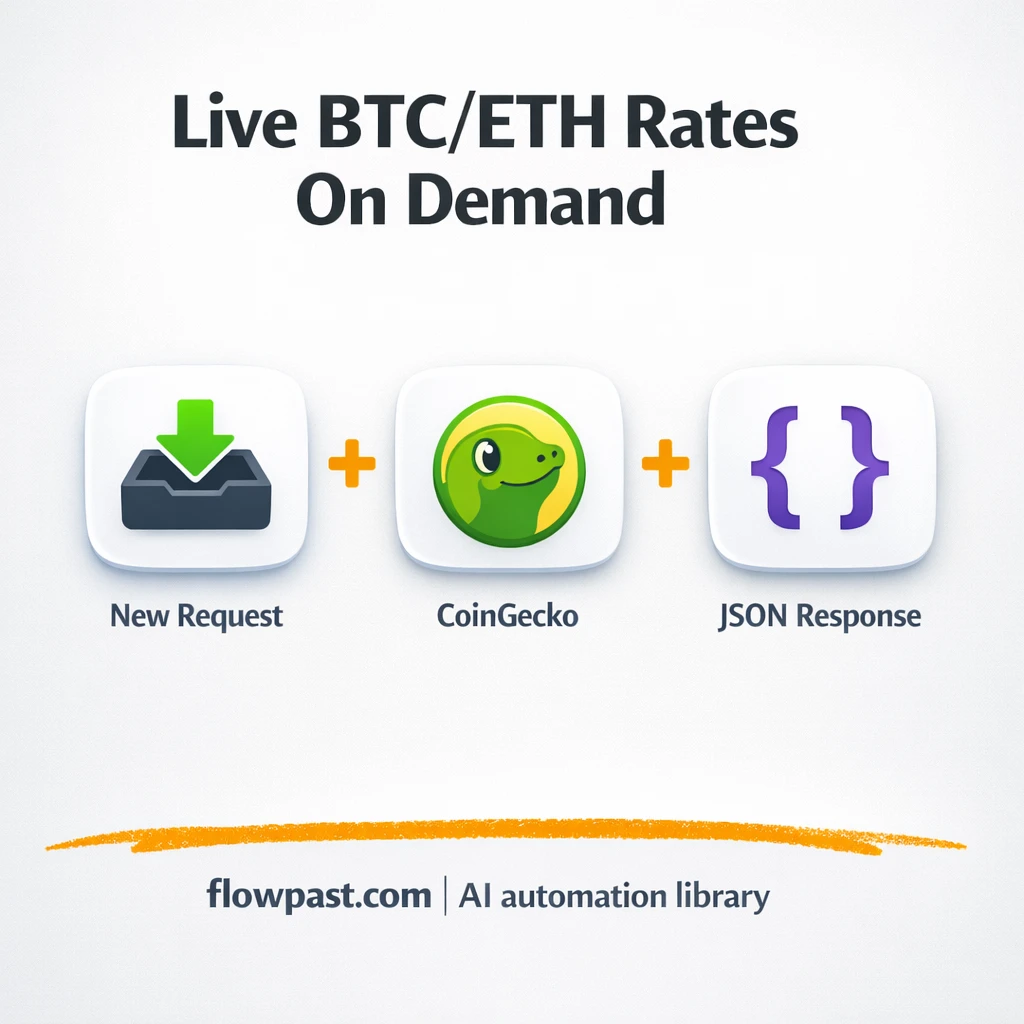
This workflow turns n8n into a tiny “micro-API” that returns clean BTC/ETH + FX data on demand, then makes it easy to store and use in Google Sheets. You’ll see what it automates, what you get back, and how teams typically plug it into dashboards.
How This Automation Works
The full n8n workflow, from trigger to final output:
n8n Workflow Template: CoinGecko + Google Sheets, crypto and FX in sync
flowchart LR

    subgraph sg0["Flow 1"]
        direction LR
        n0["<div style='background:#f5f5f5;padding:10px;border-radius:8px;display:inline-block;border:1px solid #e0e0e0'><img src='https://flowpast.com/wp-content/uploads/n8n-workflow-icons/webhook.dark.svg' width='40' height='40' /></div><br/>Webhook"]
        n1["<div style='background:#f5f5f5;padding:10px;border-radius:8px;display:inline-block;border:1px solid #e0e0e0'><img src='https://flowpast.com/wp-content/uploads/n8n-workflow-icons/httprequest.dark.svg' width='40' height='40' /></div><br/>Get Fiat Exchange Rates"]
        n2["<div style='background:#f5f5f5;padding:10px;border-radius:8px;display:inline-block;border:1px solid #e0e0e0'><img src='https://flowpast.com/wp-content/uploads/n8n-workflow-icons/httprequest.dark.svg' width='40' height='40' /></div><br/>Get Crypto Prices"]
        n3["<div style='background:#f5f5f5;padding:10px;border-radius:8px;display:inline-block;border:1px solid #e0e0e0'><img src='https://flowpast.com/wp-content/uploads/n8n-workflow-icons/merge.svg' width='40' height='40' /></div><br/>Merge"]
        n4["<div style='background:#f5f5f5;padding:10px;border-radius:8px;display:inline-block;border:1px solid #e0e0e0'><img src='https://flowpast.com/wp-content/uploads/n8n-workflow-icons/code.svg' width='40' height='40' /></div><br/>Build JSON"]
        n5["<div style='background:#f5f5f5;padding:10px;border-radius:8px;display:inline-block;border:1px solid #e0e0e0'><img src='https://flowpast.com/wp-content/uploads/n8n-workflow-icons/webhook.dark.svg' width='40' height='40' /></div><br/>Respond"]
        n3 --> n4
        n0 --> n1
        n0 --> n2
        n4 --> n5
        n2 --> n3
        n1 --> n3
    end

    %% Styling
    classDef trigger fill:#e8f5e9,stroke:#388e3c,stroke-width:2px
    classDef ai fill:#e3f2fd,stroke:#1976d2,stroke-width:2px
    classDef aiModel fill:#e8eaf6,stroke:#3f51b5,stroke-width:2px
    classDef decision fill:#fff8e1,stroke:#f9a825,stroke-width:2px
    classDef database fill:#fce4ec,stroke:#c2185b,stroke-width:2px
    classDef api fill:#fff3e0,stroke:#e65100,stroke-width:2px
    classDef code fill:#f3e5f5,stroke:#7b1fa2,stroke-width:2px
    classDef disabled stroke-dasharray: 5 5,opacity: 0.5
    class n0,n1,n2,n5 api
    class n4 code
    classDef customIcon fill:none,stroke:none
    class n0,n1,n2,n3,n4,n5 customIcon
The Problem: Price Data Gets Messy Fast
If you’ve ever tried to keep crypto and FX in the same Google Sheet, you know the failure mode. It starts simple, then reality shows up. BTC is updated “now,” FX was updated “some time today,” and your dashboard quietly turns into a patchwork of mismatched timestamps. Someone asks why the EUR conversion looks off, you retrace steps, and it turns out one value was copied from a different source. That’s time you don’t get back, and worse, it chips away at trust in the spreadsheet itself.
The friction compounds. Here’s where it usually breaks down.
- Manual lookups become a daily habit, and that habit eats about 20 minutes a day once you include checks and re-checks.
- Fields drift over time because one source calls it “price,” another calls it “rate,” and your sheet ends up inconsistent.
- Dashboards update at different times, which means you can’t confidently compare crypto moves to FX moves.
- One small copy-paste error can ripple into reports, invoices, or decisions that rely on that sheet.
The Solution: A Micro-API That Feeds Sheets Clean Data
This n8n workflow creates a simple GET endpoint (a webhook) you can call anytime you need fresh numbers. When that endpoint is hit, it pulls USD-based FX rates from ExchangeRate-API and crypto pricing from CoinGecko for BTC and ETH, including the 24-hour change. n8n then merges both responses and shapes them into a tidy JSON payload with consistent field names like btc.price, eth.change_24h, usd_eur, and usd_ngn, plus an ISO timestamp. Finally, it responds instantly with HTTP 200 so whatever called it (a sheet script, a dashboard, an internal tool) gets a predictable, reusable result.
The workflow starts when your app (or a simple script) calls /crypto-fx. Two public data requests run in parallel, then n8n merges the outputs and formats one clean response. From there, you can store it in Google Sheets on a timer, or use it live for a dashboard readout.
What You Get: Automation vs. Results
| What This Workflow Automates | Results You’ll Get |
|---|---|
|
|
Example: What This Looks Like
Say you update a Google Sheet twice a day for a small dashboard: BTC price, ETH price, plus USD→EUR and USD→NGN. Manually, that’s four lookups and careful copy-paste, which is usually about 5 minutes each once you verify you didn’t grab an old value. Call it 20 minutes per update, roughly 40 minutes a day. With this workflow, your “work” is one webhook call and one write to Sheets, which is closer to a minute of effort while n8n does the fetching in the background.
What You’ll Need
- n8n instance (try n8n Cloud free)
- Self-hosting option if you prefer (Hostinger works well)
- CoinGecko for BTC/ETH pricing and 24h change
- ExchangeRate-API to fetch USD-based FX rates
- Google Sheets to store and chart the returned values
Skill level: Intermediate. You’ll be comfortable editing a webhook URL and mapping a few fields into a sheet.
Don’t want to set this up yourself? Talk to an automation expert (free 15-minute consultation).
How It Works
A client hits your webhook endpoint. You call the n8n webhook path (GET /crypto-fx) from wherever you want: a small dashboard, a Google Apps Script, or even a browser test while you’re validating outputs.
Two public data sources are pulled in parallel. n8n runs one HTTP request to ExchangeRate-API for USD-based FX rates and another to CoinGecko for BTC/ETH price and the 24-hour change values.
The responses are combined and cleaned up. A merge combines both payloads, then a code step shapes the output into a stable JSON format with predictable field names and a timestamp.
The workflow replies immediately. The Respond to Webhook node returns the JSON (HTTP 200), which means your sheet script or dashboard gets exactly what it expects without extra mapping.
You can easily modify the list of coins and FX pairs to match your reporting needs. See the full implementation guide below for customization options.
Step-by-Step Implementation Guide
Step 1: Configure the Webhook Trigger
Set up the entry point that receives incoming POST requests for your Crypto FX API.
- Add the Incoming Webhook Trigger node and set HTTP Method to
POST. - Set Path to
crypto-fx. - Set Response Mode to
responseNodeto use Return Webhook Reply for the response.
crypto-fx path—copy it from the node’s webhook URL field after saving.Step 2: Connect the Parallel Data Sources
Configure the two HTTP requests that run simultaneously to fetch fiat rates and crypto quotes.
- Configure Fetch Fiat Rates with URL set to
https://api.exchangerate-api.com/v4/latest/USD. - Configure Retrieve Crypto Quotes with URL set to
https://api.coingecko.com/api/v3/simple/price?ids=bitcoin,ethereum&vs_currencies=usd&include_24hr_change=true. - Connect Incoming Webhook Trigger to both Fetch Fiat Rates and Retrieve Crypto Quotes.
Incoming Webhook Trigger outputs to both Fetch Fiat Rates and Retrieve Crypto Quotes in parallel.
Step 3: Merge and Transform the Data
Combine both data streams and build a unified JSON payload for the API response.
- Add the Combine Data Streams node and connect Fetch Fiat Rates to input 2 and Retrieve Crypto Quotes to input 1.
- Add the Assemble JSON Payload node and set JavaScript Code to
let fx,cg;for(const it of $input.all()){ if(it.json?.rates) fx=it.json; if(it.json?.bitcoin) cg=it.json; }
const payload={
btc:{ price: cg?.bitcoin?.usd ?? null, change_24h: cg?.bitcoin?.usd_24h_change ?? null },
eth:{ price: cg?.ethereum?.usd ?? null, change_24h: cg?.ethereum?.usd_24h_change ?? null },
usd_eur: fx?.rates?.EUR ?? null,
usd_ngn: fx?.rates?.NGN ?? null,
ts: new Date().toISOString()
};
return [{json: payload}];
.
Combine Data Streams → Assemble JSON Payload defines the data transformation path.
Step 4: Configure the Webhook Response
Return the assembled payload as the webhook response.
- Add the Return Webhook Reply node and connect it to Assemble JSON Payload.
- Leave default options unless you need custom headers or status codes.
Assemble JSON Payload → Return Webhook Reply completes the response chain.
Step 5: Test and Activate Your Workflow
Validate the webhook response and turn on the workflow for production use.
- Click Execute Workflow and send a POST request to the Incoming Webhook Trigger test URL.
- Confirm the response includes
btc,eth,usd_eur,usd_ngn, andtsfields from Return Webhook Reply. - Switch to the production webhook URL and set the workflow to Active for live use.
Common Gotchas
- CoinGecko can rate-limit heavy usage. If you see 429 responses in the n8n execution logs, add a short Wait node or call the endpoint less frequently.
- If you’re pulling this into Google Sheets via Apps Script, caching matters. Without it, refreshing a dashboard can trigger multiple webhook calls and make “random” failures more likely.
- Webhook URLs are easy to mix up. Use the n8n Production URL outside the editor, and confirm the Webhook node is set to GET with the crypto-fx path.
Frequently Asked Questions
About 30 minutes if n8n is already running.
No. You’ll mainly configure the webhook URL and map fields into Google Sheets (or copy a ready-made Apps Script snippet).
Yes. n8n has a free self-hosted option and a free trial on n8n Cloud. Cloud plans start at $20/month for higher volume. You’ll also need to factor in that CoinGecko and ExchangeRate-API calls in this workflow use public, no-key endpoints, so there’s typically no direct API bill for the data.
Two options: n8n Cloud (managed, easiest setup) or self-hosting on a VPS. For self-hosting, Hostinger VPS is affordable and handles n8n well. Self-hosting gives you unlimited executions but requires basic server management.
Yes, and it’s the main reason this workflow is useful long-term. You can extend the CoinGecko HTTP request to include more coin IDs (for example, add solana) and then update the “Assemble JSON Payload” code node to output extra fields. On the FX side, you can read more currency codes from the FX response and add them to the same JSON. If you need basic access control, add a simple secret check in the code node and return a 401 when it’s missing.
Usually it’s rate limiting or a temporary upstream outage. Check the n8n execution details for a 429 or a timeout from the “Retrieve Crypto Quotes” HTTP node, then slow down how often you call the webhook or add a short Wait and retry. Also confirm you’re hitting the Production webhook URL, not the Test URL.
If you self-host n8n, it mostly comes down to your server and how often public endpoints will tolerate requests.
For a pull-based “micro-API” like this, n8n is simply a better fit because you can expose a webhook endpoint, merge multiple HTTP responses, and shape the payload exactly how your sheet or dashboard expects. Zapier and Make can do HTTP calls too, but building a clean, reusable API-style response usually gets awkward fast. Cost is another factor: self-hosting avoids execution-based pricing, which matters when a dashboard refresh can trigger multiple calls. The trade-off is setup. If you want it managed, n8n Cloud is the smoother route. Talk to an automation expert if you’re deciding between tools.
Once this is running, you stop chasing numbers across tabs. Your sheet stays consistent, your dashboard stays honest, and you get that time back every week.
Need Help Setting This Up?
Our automation experts can build and customize this workflow for your specific needs. Free 15-minute consultation—no commitment required.
