


Gmail + Google Sheets for faster enrollment decisions
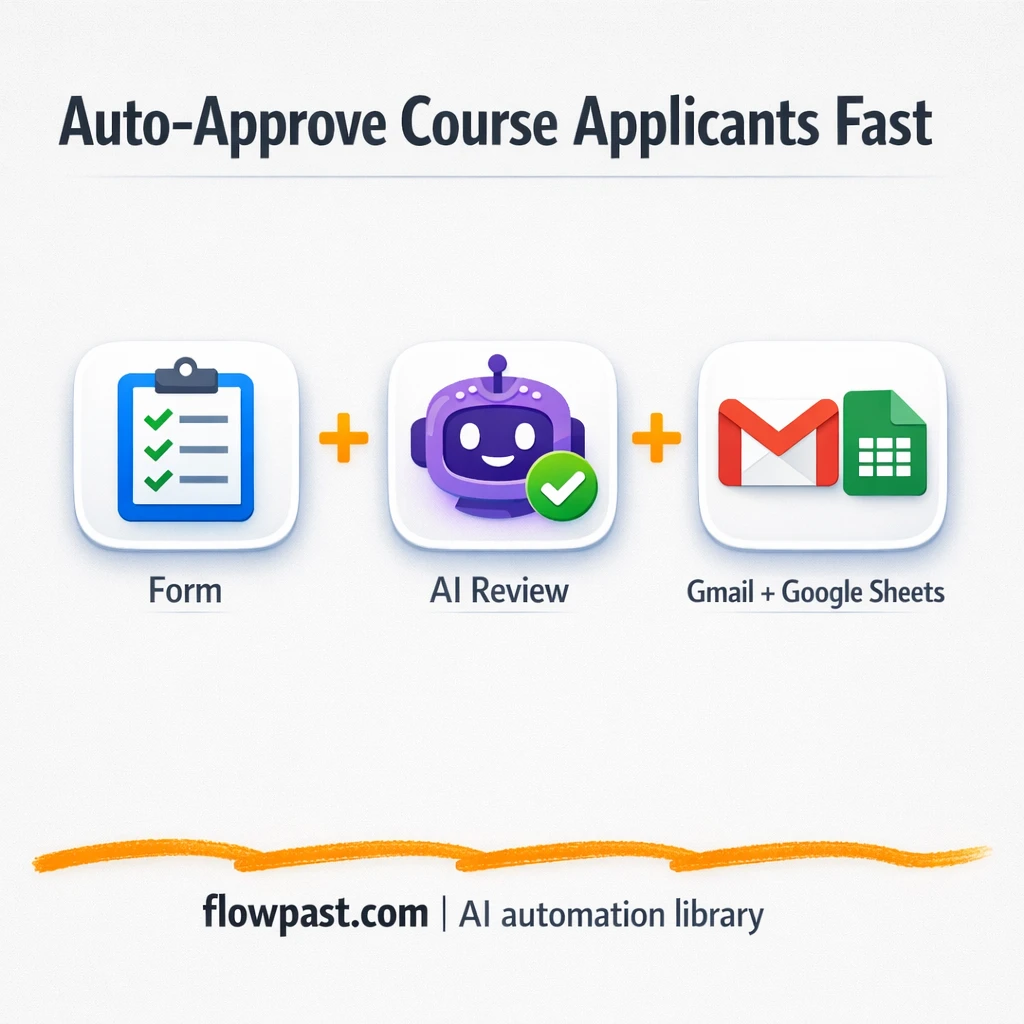

Enrollment forms come in fast. Your decisions don’t. By the time you’ve read each submission, checked eligibility, drafted an email, and logged the outcome, the “quick review” has turned into an admin sinkhole.
This Gmail Sheets automation hits solo instructors first, but program managers and small teams running cohort-based training feel it too. You get consistent acceptance or rejection emails, plus a clean decision log, without living in your inbox.
Below you’ll see the workflow, what it automates, and what kind of time you can realistically get back once it’s running.
How This Automation Works
The full n8n workflow, from trigger to final output:
n8n Workflow Template: Gmail + Google Sheets for faster enrollment decisions
flowchart LR

    subgraph sg0["On form submission Flow"]
        direction LR
        n0["<div style='background:#f5f5f5;padding:10px;border-radius:8px;display:inline-block;border:1px solid #e0e0e0'><img src='https://flowpast.com/wp-content/uploads/n8n-workflow-icons/form.svg' width='40' height='40' /></div><br/>On form submission"]
        n1@{ icon: "mdi:swap-vertical", form: "rounded", label: "Combine User Data", pos: "b", h: 48 }
        n2@{ icon: "mdi:robot", form: "rounded", label: "AI Agent", pos: "b", h: 48 }
        n3@{ icon: "mdi:brain", form: "rounded", label: "OpenAI Chat Model", pos: "b", h: 48 }
        n4@{ icon: "mdi:robot", form: "rounded", label: "Structured Output Parser", pos: "b", h: 48 }
        n5@{ icon: "mdi:cog", form: "rounded", label: "Download file", pos: "b", h: 48 }
        n6@{ icon: "mdi:cube-outline", form: "rounded", label: "Pinecone Vector Store", pos: "b", h: 48 }
        n7@{ icon: "mdi:vector-polygon", form: "rounded", label: "Embeddings Google Gemini", pos: "b", h: 48 }
        n8@{ icon: "mdi:robot", form: "rounded", label: "Default Data Loader", pos: "b", h: 48 }
        n9@{ icon: "mdi:robot", form: "rounded", label: "AI Agent1", pos: "b", h: 48 }
        n10@{ icon: "mdi:brain", form: "rounded", label: "OpenAI Chat Model1", pos: "b", h: 48 }
        n11@{ icon: "mdi:message-outline", form: "rounded", label: "Send a message in Gmail", pos: "b", h: 48 }
        n12@{ icon: "mdi:database", form: "rounded", label: "Append row in sheet", pos: "b", h: 48 }
        n13@{ icon: "mdi:cube-outline", form: "rounded", label: "Pinecone Vector Store1", pos: "b", h: 48 }
        n14@{ icon: "mdi:vector-polygon", form: "rounded", label: "Embeddings Google Gemini1", pos: "b", h: 48 }
        n2 --> n9
        n9 --> n12
        n5 --> n6
        n1 --> n5
        n3 -.-> n2
        n0 --> n1
        n10 -.-> n9
        n8 -.-> n6
        n6 --> n2
        n13 -.-> n9
        n11 -.-> n9
        n7 -.-> n6
        n4 -.-> n2
        n14 -.-> n13
    end

    %% Styling
    classDef trigger fill:#e8f5e9,stroke:#388e3c,stroke-width:2px
    classDef ai fill:#e3f2fd,stroke:#1976d2,stroke-width:2px
    classDef aiModel fill:#e8eaf6,stroke:#3f51b5,stroke-width:2px
    classDef decision fill:#fff8e1,stroke:#f9a825,stroke-width:2px
    classDef database fill:#fce4ec,stroke:#c2185b,stroke-width:2px
    classDef api fill:#fff3e0,stroke:#e65100,stroke-width:2px
    classDef code fill:#f3e5f5,stroke:#7b1fa2,stroke-width:2px
    classDef disabled stroke-dasharray: 5 5,opacity: 0.5
    class n0 trigger
    class n2,n4,n8,n9 ai
    class n3,n10 aiModel
    class n6,n13 ai
    class n7,n14 ai
    class n12 database
    classDef customIcon fill:none,stroke:none
    class n0 customIcon
The Problem: Enrollment reviews turn into inbox triage
When you’re running a course, the hardest part shouldn’t be deciding who’s a fit. But manual enrollment review forces you into a messy routine. You read the form, cross-check requirements (experience, availability, expectations), then write a “nice” acceptance or rejection email that doesn’t sound copied. After that, you still need to log the decision somewhere so you can answer simple questions later like “Who’s confirmed?” or “Why did we reject this person?” The real cost is the context switching. It fries your focus and delays replies.
It adds up fast. Here’s where it usually breaks down.
- You spend about 10 minutes per applicant just reading, deciding, and replying.
- Rejection emails get postponed because they feel awkward, which means applicants follow up and create more work.
- Decisions live in scattered places (email threads, notes, spreadsheets), so you can’t see the pipeline at a glance.
- Even small mistakes hurt, like accepting someone who can’t attend or rejecting someone who meets every requirement.
The Solution: AI-reviewed forms with automatic Gmail replies and a Sheets log
This workflow starts the moment a student submits your enrollment form in n8n. It collects the key fields into a clean “participant profile,” then hands that profile to an AI agent that evaluates eligibility using the criteria you define (things like programming background and weekly availability). The workflow doesn’t just guess, either. It can pull supporting context from a Google Drive document (like your syllabus, requirements, or FAQ), index it, and use retrieval to keep decisions consistent with your actual course rules. Once a decision is made, a second AI agent drafts a clear acceptance or rejection email, and Gmail sends it automatically. Finally, every submission and outcome is appended to Google Sheets so you have a simple audit trail.
The workflow begins with a form submission. Then it reviews eligibility with AI (optionally grounded in your course docs). After that, it sends the right email via Gmail and logs the decision in Google Sheets for tracking and follow-up.
What You Get: Automation vs. Results
| What This Workflow Automates | Results You’ll Get |
|---|---|
|
|
Example: What This Looks Like
Say your course gets 25 applications in a week. Manually, if you spend about 10 minutes to read, decide, write an email, and log the result, that’s roughly 4 hours. With this workflow, you submit nothing yourself: the form triggers the review, the email is sent, and the Google Sheets row is appended automatically. Your “work” becomes a quick spot-check of the sheet, maybe 10 minutes total, plus the occasional edge case.
What You’ll Need
- n8n instance (try n8n Cloud free)
- Self-hosting option if you prefer (Hostinger works well)
- Gmail for sending acceptance or rejection emails
- Google Sheets to log outcomes and track applicants
- Google Drive to pull course rules or reference docs
- OpenAI API key (get it from your OpenAI dashboard)
Skill level: Intermediate. You’ll connect accounts, tweak eligibility rules, and test with a few sample submissions.
Don’t want to set this up yourself? Talk to an automation expert (free 15-minute consultation).
How It Works
A student submits your enrollment form. The n8n form trigger captures the submission the moment it’s sent, so nobody needs to forward emails or copy fields manually.
The workflow assembles a “participant profile.” It cleans up the response into consistent fields (name, email, background, availability, notes), which makes downstream decisions more reliable.
AI reviews eligibility using your rules and your course docs. The workflow can retrieve a reference document from Google Drive, index it, and use retrieval so the eligibility agent is aligned with your published requirements instead of improvising.
An email is written and sent, and the decision is logged. The enrollment email agent drafts the message, Gmail sends it, and Google Sheets gets a new row with the result for tracking.
You can easily modify the eligibility criteria to match a different course, cohort size, or minimum experience. See the full implementation guide below for customization options.
Step-by-Step Implementation Guide
Step 1: Configure the Form Trigger
Set up the intake form so new enrollment submissions start the workflow.
- Add the Form Intake Trigger node as your workflow trigger.
- Set Form Title to
API testing and Automation Mastery Program - Enrollment Form. - Confirm the form fields include Full Name, Email Address, WhatsApp Number, Do you have basics of any programming language?, and Terms and Conditions (as defined in the form configuration).
- Publish the form and copy the public URL for testing.
Full Name and Email Address.
Step 2: Connect Google Drive and Prepare Participant Context
Transform the form submission into a user context string and download the enrollment sheet for downstream indexing.
- Open Assemble Participant Info and add a single field named user_context.
- Set the user_context value to
={{ $json['Full Name'] }}, {{ $json['Email Address'] }}, {{ $json['WhatsApp Number'] }}, {{ $json['Do you have basics of any programming language?'] }}, {{ $json['Terms and Conditions'] }}. - In Retrieve Sheet File, set Operation to
downloadand select the file ID1HxM_NWizFnOhf4jk-7BQRpTvfd9xQuFNfGrH5hiqTxA. - Credential Required: Connect your googleDriveOAuth2Api credentials in Retrieve Sheet File.
Step 3: Configure Vector Indexing and Embeddings
Index the downloaded data into Pinecone using the configured document loader and embedding generator.
- Open Pinecone Index Insert and set Mode to
insert. - Set Pinecone Index to
course-enrollmentand Pinecone Namespace tocourse_enrollment. - Credential Required: Connect your pineconeApi credentials in Pinecone Index Insert.
- Confirm Default Document Loader is connected as the document source for Pinecone Index Insert.
- Gemini Embedding Generator is connected as the embedding model for Pinecone Index Insert—ensure credentials are managed on the parent connection used by Pinecone Index Insert.
- Credential Required: Connect your googlePalmApi credentials for Gemini Embedding Generator.
Step 4: Set Up the Eligibility Review Agent
Use an LLM to evaluate answers and produce a structured acceptance decision.
- In Eligibility Review Agent, keep Prompt Type as
defineand enable Has Output Parser. - Set the Text prompt to the provided role instructions and include
{{ $('Assemble Participant Info').item.json.user_context }}within the prompt. - Connect OpenAI Chat Engine as the language model for Eligibility Review Agent.
- Credential Required: Connect your openAiApi credentials in OpenAI Chat Engine.
- Attach Structured Result Parser with JSON Schema Example set to
{ "accepted": true }. - Structured Result Parser is a parser sub-node—configure it through Eligibility Review Agent (no separate credentials needed).
Step 5: Configure Enrollment Email and Logging
Generate the acceptance/rejection email, send it via Gmail, and append a row to Google Sheets.
- In Enrollment Email Agent, keep Prompt Type as
defineand use the provided HTML System Message template. - Connect OpenAI Chat Engine 2 as the language model for Enrollment Email Agent.
- Credential Required: Connect your openAiApi credentials in OpenAI Chat Engine 2.
- Attach Pinecone Retrieval Tool as a tool for Enrollment Email Agent, set Mode to
retrieve-as-tool, Top K to5, and Tool Description to=retreive data based on this email: {{ $('Form Intake Trigger').item.json['Email Address'] }}. - Credential Required: Connect your pineconeApi credentials for Pinecone Retrieval Tool (as a tool connection managed from Enrollment Email Agent).
- Gemini Embedding Generator 2 is attached to Pinecone Retrieval Tool—ensure credentials are managed in the parent tool connection.
- Credential Required: Connect your googlePalmApi credentials for Gemini Embedding Generator 2.
- Attach Dispatch Gmail Notice as a tool for Enrollment Email Agent with Send To set to
={{ $('Form Intake Trigger').item.json['Email Address'] }}, Subject set to={{ /*n8n-auto-generated-fromAI-override*/ $fromAI('Subject', ``, 'string') }}, and Message set to={{ /*n8n-auto-generated-fromAI-override*/ $fromAI('Message', ``, 'string') }}. - Credential Required: Connect your gmailOAuth2 credentials in Dispatch Gmail Notice (as a tool connected to Enrollment Email Agent).
- In Append Enrollment Row, set Operation to
append, Document ID to1HxM_NWizFnOhf4jk-7BQRpTvfd9xQuFNfGrH5hiqTxA, and Sheet Name togid=0. - Map columns in Append Enrollment Row using expressions like Name →
={{ $('Form Intake Trigger').item.json['Full Name'] }}and Accepted →={{ $('Eligibility Review Agent').item.json.output.accepted }}. - Credential Required: Connect your googleSheetsOAuth2Api credentials in Append Enrollment Row.
Subject and Message fields expected by Dispatch Gmail Notice.
Step 6: Test and Activate Your Workflow
Run a full test submission to validate AI output, email delivery, and spreadsheet logging.
- Click Execute Workflow, open the Form Intake Trigger test URL, and submit a sample enrollment.
- Confirm that Pinecone Index Insert runs before Eligibility Review Agent, and that Enrollment Email Agent generates a result.
- Verify a Gmail message is sent by Dispatch Gmail Notice and a new row is added by Append Enrollment Row.
- When the test is successful, toggle the workflow to Active to enable production enrollment handling.
Common Gotchas
- Gmail credentials can expire or need specific permissions. If things break, check the connected Google account access and the n8n Credentials screen first.
- If you’re using retrieval (Drive doc indexing to Pinecone) and the document changes often, stale context can sneak in. Re-run the indexing portion after you update your requirements doc.
- AI outputs depend on your prompts. If you don’t add your tone and “decision philosophy” early, you’ll end up rewriting emails by hand, which defeats the whole point.
Frequently Asked Questions
About 15 minutes if your accounts are already connected.
No. You’ll mainly connect credentials and edit the eligibility rules and email templates.
Yes. n8n has a free self-hosted option and a free trial on n8n Cloud. Cloud plans start at $20/month for higher volume. You’ll also need to factor in OpenAI API usage, which is usually a few cents per batch of applications.
Two options: n8n Cloud (managed, easiest setup) or self-hosting on a VPS. For self-hosting, Hostinger VPS is affordable and handles n8n well. Self-hosting gives you unlimited executions but requires basic server management.
Yes, but you’ll want to be intentional about it. Most people duplicate the workflow per course and change the Eligibility Review Agent instructions, the Google Drive reference document, and the Gmail template in the Enrollment Email Agent. If you need one workflow for many courses, you can add a “course selection” field to the form and route decisions through an If node before the AI runs. That keeps your rules clean and avoids confusing the model with mixed requirements.
Usually it’s expired Google authorization or the wrong Google account selected in n8n credentials. Reconnect Gmail in n8n and confirm it has permission to send mail. If it fails only during busy periods, you might also be hitting Google send limits on that inbox.
Hundreds per week is realistic for most setups.
For AI-based eligibility review plus structured logging, n8n is often the smoother fit because you can control the logic, parsing, and branching without getting boxed into a simple two-step automation. You also have the self-hosting option, which matters when submission volume spikes. Zapier or Make can still work if your rules are extremely simple and you don’t need retrieval from course docs. Frankly, the “best” tool depends on how strict your eligibility criteria are and how much you care about consistent wording in emails. Talk to an automation expert if you want help choosing.
Once this is live, enrollment stops being a daily interruption. The workflow handles the repetitive decisions and logging, so you can focus on teaching and actually improving the course.
Need Help Setting This Up?
Our automation experts can build and customize this workflow for your specific needs. Free 15-minute consultation—no commitment required.
