


OpenAI + Telegram: smarter VPS security alerts
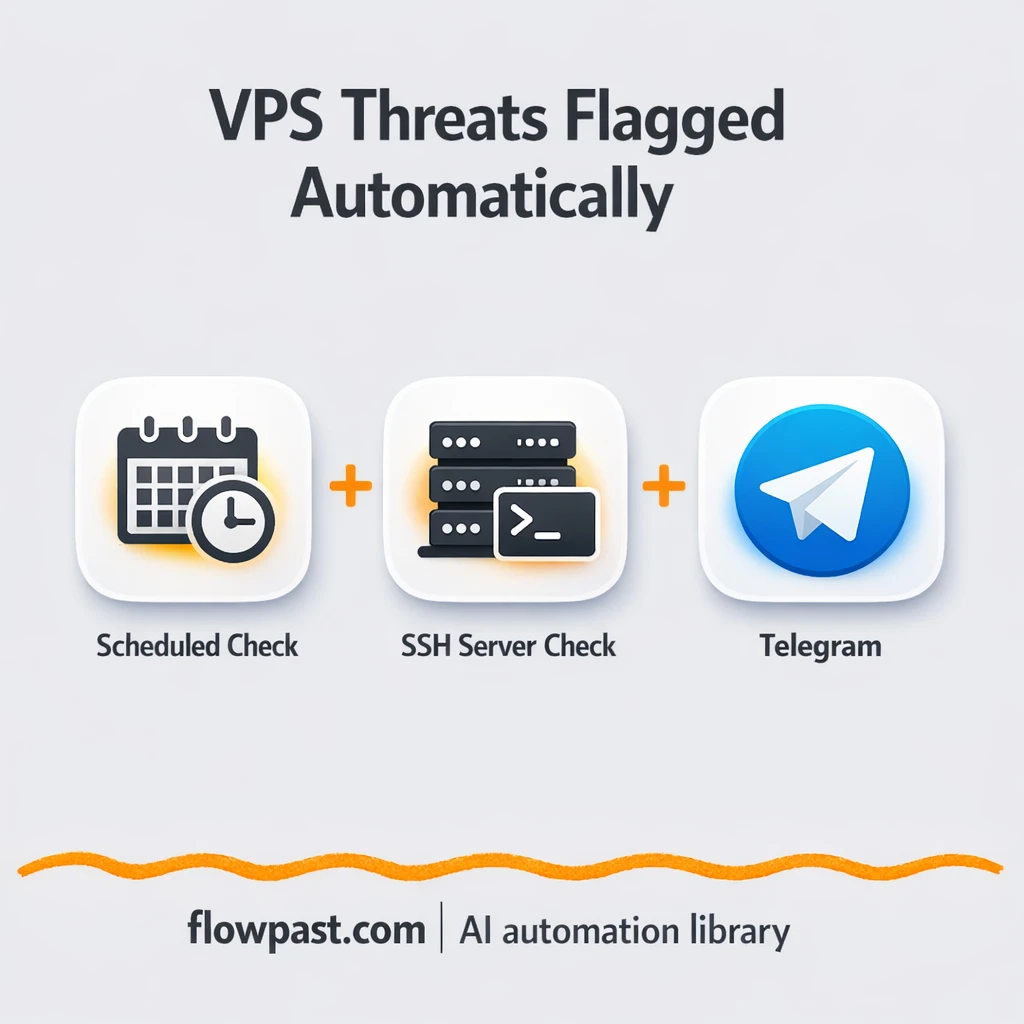

Your VPS is “fine” until it isn’t. The problem is the in-between: noisy monitoring alerts you stop trusting, plus the slow, manual routine of SSH-ing in to run checks when something feels off.
Sysadmins feel it during on-call weeks. A DevOps lead gets it when production is busy and attention is fragmented. And a small-business owner running a Linux server on the side gets burned by it, too. This OpenAI Telegram alerts automation turns raw SSH output into clear, actionable security messages.
You’ll see what the workflow does, what you’ll need, and how it cuts down false alarms without missing the real problems.
How This Automation Works
The full n8n workflow, from trigger to final output:
n8n Workflow Template: OpenAI + Telegram: smarter VPS security alerts
flowchart LR

    subgraph sg0["Schedule Trigger - Every 6 Hours Flow"]
        direction LR
        n0@{ icon: "mdi:play-circle", form: "rounded", label: "Schedule Trigger - Every 6 H..", pos: "b", h: 48 }
        n1@{ icon: "mdi:cog", form: "rounded", label: "SSH - Gather Process and Net..", pos: "b", h: 48 }
        n2@{ icon: "mdi:robot", form: "rounded", label: "AI Security Analysis", pos: "b", h: 48 }
        n3@{ icon: "mdi:robot", form: "rounded", label: "Parse Security Analysis Resu..", pos: "b", h: 48 }
        n4@{ icon: "mdi:brain", form: "rounded", label: "OpenAI GPT-4 Mini Model", pos: "b", h: 48 }
        n5@{ icon: "mdi:swap-horizontal", form: "rounded", label: "Check for Malicious Activity", pos: "b", h: 48 }
        n6@{ icon: "mdi:swap-horizontal", form: "rounded", label: "Check for Suspicious Activity", pos: "b", h: 48 }
        n7["<div style='background:#f5f5f5;padding:10px;border-radius:8px;display:inline-block;border:1px solid #e0e0e0'><img src='https://flowpast.com/wp-content/uploads/n8n-workflow-icons/telegram.svg' width='40' height='40' /></div><br/>Send Malicious Activity Alert"]
        n8["<div style='background:#f5f5f5;padding:10px;border-radius:8px;display:inline-block;border:1px solid #e0e0e0'><img src='https://flowpast.com/wp-content/uploads/n8n-workflow-icons/telegram.svg' width='40' height='40' /></div><br/>Send Suspicious Activity Not.."]
        n9@{ icon: "mdi:swap-vertical", form: "rounded", label: "Configuration - User Settings", pos: "b", h: 48 }
        n2 --> n5
        n2 --> n6
        n4 -.-> n2
        n5 --> n7
        n6 --> n8
        n9 --> n1
        n3 -.-> n2
        n0 --> n9
        n1 --> n2
    end

    %% Styling
    classDef trigger fill:#e8f5e9,stroke:#388e3c,stroke-width:2px
    classDef ai fill:#e3f2fd,stroke:#1976d2,stroke-width:2px
    classDef aiModel fill:#e8eaf6,stroke:#3f51b5,stroke-width:2px
    classDef decision fill:#fff8e1,stroke:#f9a825,stroke-width:2px
    classDef database fill:#fce4ec,stroke:#c2185b,stroke-width:2px
    classDef api fill:#fff3e0,stroke:#e65100,stroke-width:2px
    classDef code fill:#f3e5f5,stroke:#7b1fa2,stroke-width:2px
    classDef disabled stroke-dasharray: 5 5,opacity: 0.5
    class n0 trigger
    class n2,n3 ai
    class n4 aiModel
    class n5,n6 decision
    classDef customIcon fill:none,stroke:none
    class n7,n8 customIcon
The Problem: VPS SSH checks create noise, not clarity
Most VPS monitoring is either too shallow (CPU high, disk low, memory spiking) or too spammy (every blip becomes a ping). So you end up doing the same “security sanity check” by hand: SSH in, run ps, scan a long process list, then run ss and squint at open ports. On a calm day it’s annoying. On a busy day, it’s how suspicious activity slips through. And frankly, the worst part is cognitive load. You’re not just reading data. You’re deciding what matters, fast, with incomplete context.
The friction compounds. Here’s where it breaks down.
- You end up checking “just to be safe,” which quietly eats about 20 minutes each time.
- Raw process and socket output is high-volume, so important anomalies blend in with normal system churn.
- Traditional alerts often trigger on symptoms (CPU, memory) rather than likely causes (a suspicious process or odd outbound connection).
- When you do spot something, writing a clear incident note for your team still takes extra time you don’t have.
The Solution: AI-reviewed SSH security alerts to Telegram
This n8n workflow runs on a schedule and connects to your Linux VPS over SSH to collect two things: your top running processes and your active network connections. It captures that output using a single command (ps aux --sort=-%cpu,-%mem && ss -tulpn), then passes the results into an OpenAI-based assessment step. Instead of dumping logs into your chat, the AI looks for suspicious patterns, malware-like behavior, unusual ports, strange outbound connections, and resource spikes that don’t match normal activity. The workflow then parses the AI’s response into structured fields and uses simple decision checks to classify what it found. Finally, it only messages you on Telegram when something looks malicious or suspicious, with an explanation you can act on.
The workflow starts with a scheduled checkpoint trigger. Then it collects metrics over SSH and sends them through an AI threat assessment. Based on the report, it routes to either a “malicious” alert or a “suspicious” notice, which keeps your chat quiet until it needs to speak up.
What You Get: Automation vs. Results
| What This Workflow Automates | Results You’ll Get |
|---|---|
|
|
Example: What This Looks Like
Say you manage 3 small VPS boxes for client sites. Without automation, a “quick check” is usually SSH in (2 minutes), run commands, scan output, and sanity-check ports (maybe 15 minutes per server). That’s roughly 50 minutes per round, and most teams do it a few times a week. With this workflow, the scheduled trigger runs the checks automatically and you only spend time when Telegram flags something. Many weeks, your time cost is basically zero beyond a quick read.
What You’ll Need
- n8n instance (try n8n Cloud free)
- Self-hosting option if you prefer (Hostinger works well)
- OpenAI for analyzing SSH output for threats
- Telegram to receive security alerts in chat
- OpenAI API key (get it from the OpenAI dashboard)
Skill level: Intermediate. You’ll paste credentials, adjust a schedule, and be comfortable testing a workflow run end-to-end.
Don’t want to set this up yourself? Talk to an automation expert (free 15-minute consultation).
How It Works
A scheduled check runs automatically. The workflow uses a schedule trigger so your VPS gets checked hourly, daily, or on whatever cadence matches your risk tolerance.
Your server is queried over SSH. n8n connects to the VPS and executes a command that returns a prioritized process list plus active listening ports and connections, so you’re not blind to what the machine is doing right now.
OpenAI reviews the output for suspicious behavior. The AI threat assessment looks for patterns humans typically hunt for manually: unexpected services, weird port usage, high-resource processes with odd names, and network activity that doesn’t fit.
Telegram gets a message only when it matters. Two simple checks route the report: malicious goes to an urgent alert, suspicious goes to a softer notice, and “looks normal” stays quiet.
You can easily modify the monitoring frequency to fit your environment based on your needs. See the full implementation guide below for customization options.
Step-by-Step Implementation Guide
Step 1: Configure the Scheduled Trigger
Set up the schedule that kicks off the server security check cycle.
- Add the Scheduled Checkpoint Trigger node.
- Set the schedule rule to run every 6 hours by configuring Interval to
hoursand Hours Interval to6. - Optionally keep Flowpast Branding as a visual reference note (no configuration required).
Step 2: Connect Runtime Configuration Setup
Define the server name and alert destination used across downstream nodes.
- Add the Runtime Configuration Setup node after Scheduled Checkpoint Trigger.
- Set admin_telegram_id to
YOUR_TELEGRAM_CHAT_ID. - Set server_name to
Production VPS. - Set alert_level to
high.
⚠️ Common Pitfall: If admin_telegram_id is left as YOUR_TELEGRAM_CHAT_ID, Telegram alerts will fail to deliver.
Step 3: Connect SSH Collect System Metrics
Gather process and network data from your server via SSH.
- Add the SSH Collect System Metrics node after Runtime Configuration Setup.
- Credential Required: Connect your
sshPasswordcredentials. - Set Working Directory (cwd) to
/root. - Set Command to
ps aux --sort=-%cpu,-%mem && ss -tulpn > /vps_process_report.txt.
Step 4: Set Up AI Threat Assessment
Analyze the SSH output with an LLM and parse the structured results.
- Add the AI Threat Assessment node after SSH Collect System Metrics.
- Set Prompt Type to
defineand paste the full prompt into Text, including{{ $json.stdout }}. - Connect OpenAI Mini Model as the language model for AI Threat Assessment.
- Credential Required: Connect your
openAiApicredentials in OpenAI Mini Model. - Enable the output parser by connecting Parse Threat Report to AI Threat Assessment as the structured output parser.
- Keep the Parse Threat Report schema as provided to parse
malicious,malicious_explain,suspicious,suspicious_explain, andstatus.
Tip: Parse Threat Report is an AI sub-node. Credentials should be added to OpenAI Mini Model, not to the parser itself.
Step 5: Configure Parallel Routing Logic
Split the AI output into malicious and suspicious alert paths.
- Add Detect Malicious Indicators and Flag Suspicious Indicators after AI Threat Assessment.
- In Detect Malicious Indicators, set the condition to check
{{ $json.output.malicious }}with operatornotEmpty. - In Flag Suspicious Indicators, set the condition to check
{{ $json.output.suspicious }}with operatornotEmpty. - AI Threat Assessment outputs to both Detect Malicious Indicators and Flag Suspicious Indicators in parallel.
Step 6: Configure Output Alerts
Send Telegram notifications based on the identified severity.
- Add Dispatch Malicious Alert after Detect Malicious Indicators.
- Credential Required: Connect your
telegramApicredentials in Dispatch Malicious Alert. - Set Chat ID to
{{ $('Runtime Configuration Setup').first().json.admin_telegram_id }}. - Set Text to the full template including
{{ $json.output.malicious }},{{ $json.output.malicious_explain }}, and{{ $json.output.status }}. - Add Send Suspicious Notice after Flag Suspicious Indicators.
- Credential Required: Connect your
telegramApicredentials in Send Suspicious Notice. - Set Chat ID to
{{ $('Runtime Configuration Setup').first().json.admin_telegram_id }}and Text to the provided suspicious alert template.
Step 7: Test and Activate Your Workflow
Run a manual test to verify SSH collection, AI analysis, and alert routing.
- Click Execute Workflow to run a manual test from Scheduled Checkpoint Trigger.
- Confirm SSH Collect System Metrics returns
stdoutoutput with process and port details. - Verify AI Threat Assessment outputs structured fields parsed by Parse Threat Report.
- Ensure alerts are routed correctly: malicious findings trigger Dispatch Malicious Alert and suspicious findings trigger Send Suspicious Notice.
- Toggle the workflow to Active once the test succeeds.
Common Gotchas
- SSH credentials can expire or require specific permissions. If things break, check your VPS user access and key settings in the n8n SSH node first.
- If you add Wait nodes later (or your VPS is under load), processing times vary. Bump up the wait duration if downstream nodes fail on empty responses.
- Default prompts in AI nodes are generic. Add your “normal baseline” and brand of risk tolerance early or you will be second-guessing outputs forever.
Frequently Asked Questions
About 30 minutes if you already have SSH and Telegram details ready.
No. You’ll mostly paste credentials and tweak the schedule. The “logic” is already built into the workflow’s checks.
Yes. n8n has a free self-hosted option and a free trial on n8n Cloud. Cloud plans start at $20/month for higher volume. You’ll also need to factor in OpenAI API costs around $0.001-0.01 per analysis, depending on how busy your server is.
Two options: n8n Cloud (managed, easiest setup) or self-hosting on a VPS. For self-hosting, Hostinger VPS is affordable and handles n8n well. Self-hosting gives you unlimited executions but requires basic server management.
Yes, and it’s a common upgrade. Duplicate the SSH collection step per VPS (or loop through a server list) and keep the same AI assessment and routing checks. Many teams also customize the AI prompt to treat certain processes as “known safe” so they never trigger a suspicious notice.
Usually it’s a wrong chat ID or a bot token that doesn’t match the bot you’re messaging from. Double-check the admin_telegram_id field in the configuration step and confirm the bot can message that chat. If it still fails, re-authorize the Telegram credentials in n8n and run a manual test message from the Telegram node. Private groups can be tricky too because the bot often needs to be added and allowed to post.
On n8n Cloud Starter, you can run enough executions for a small fleet, and you can scale up by increasing your plan. If you self-host, there’s no execution cap, so limits are mostly your VPS size and how frequently you run checks. Practically, many teams start with a handful of servers and an hourly schedule, then adjust based on load and alert volume.
Often, yes, because this kind of workflow needs branching logic, structured parsing, and SSH access, and n8n handles that without turning every decision into a paid “task.” Self-hosting is also a big deal if you want unlimited runs and tighter control over security. Zapier or Make can still work if your setup is simple and you’re not touching SSH at all, but then you lose the core advantage of pulling real system state. Another point people miss is noise control: the “only notify when suspicious” logic is easier to tune in n8n. If you want a second opinion on tooling, Talk to an automation expert.
Once this is running, your VPS still gets watched, but your attention stops getting hijacked. You get cleaner signals, faster decisions, and fewer “just in case” logins.
Need Help Setting This Up?
Our automation experts can build and customize this workflow for your specific needs. Free 15-minute consultation—no commitment required.
